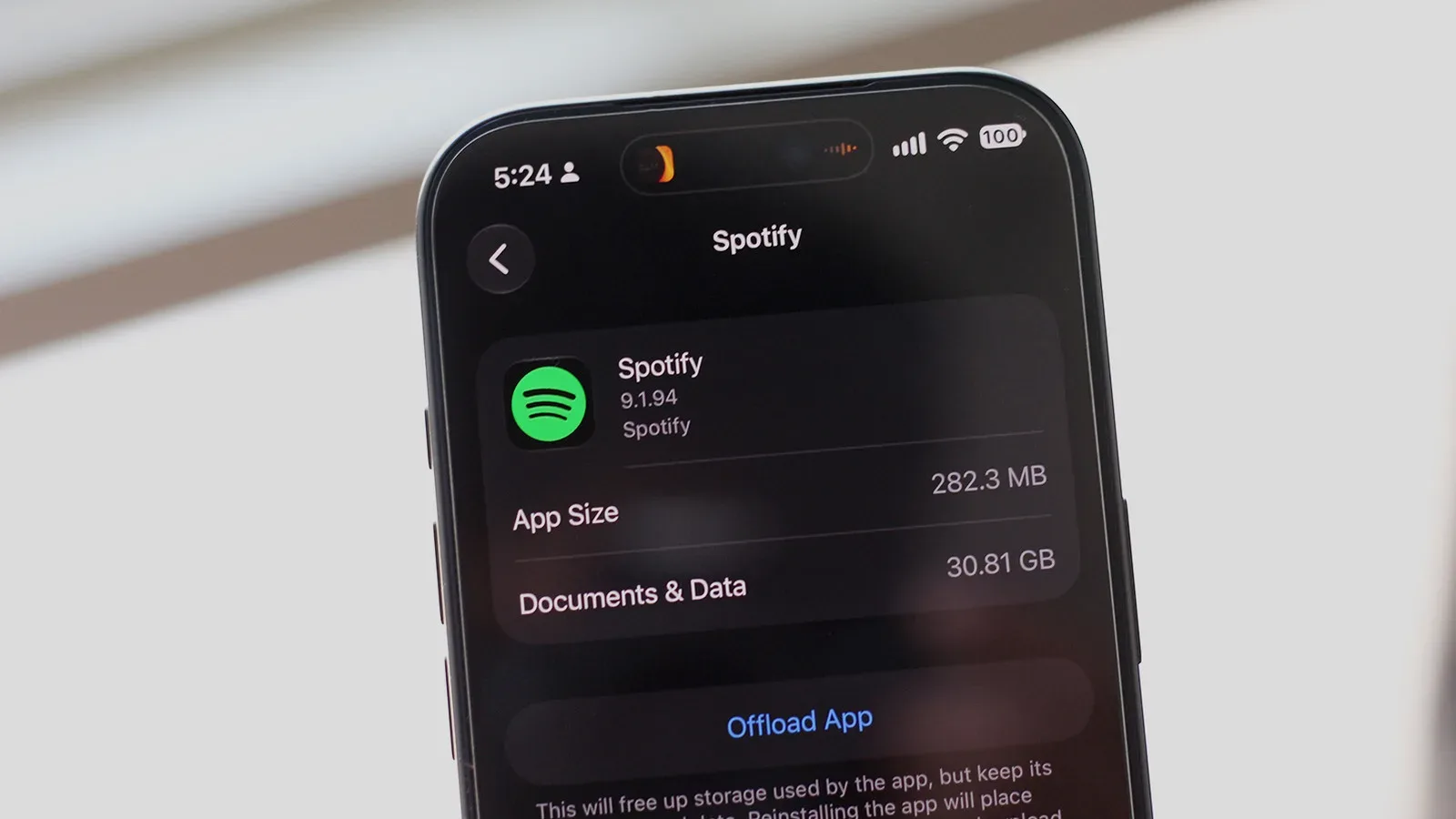
When a phone runs short on storage, the usual suspects get all the blame: photos, videos, enormous group chats, and that one game you swore you would return to. Music streaming apps can be a much quieter culprit. Spotify may look like a simple streaming service, but its offline downloads and temporary cached data can grow into a substantial local footprint.
That does not mean something has gone wrong. Downloading albums and playlists is the point for anyone who wants music during a flight, commute, patchy-signal journey, or data-free stretch. The trouble starts when an offline library quietly expands, old playlists remain downloaded long after their moment has passed, or download quality is set far higher than the listening setup really needs.
The useful news is that Spotify provides more than one way to take that space back. The best route depends on whether the goal is to keep a curated offline library, wipe every download in one go, or remove only temporary data. Before changing anything, though, it is worth confirming that Spotify is actually responsible.
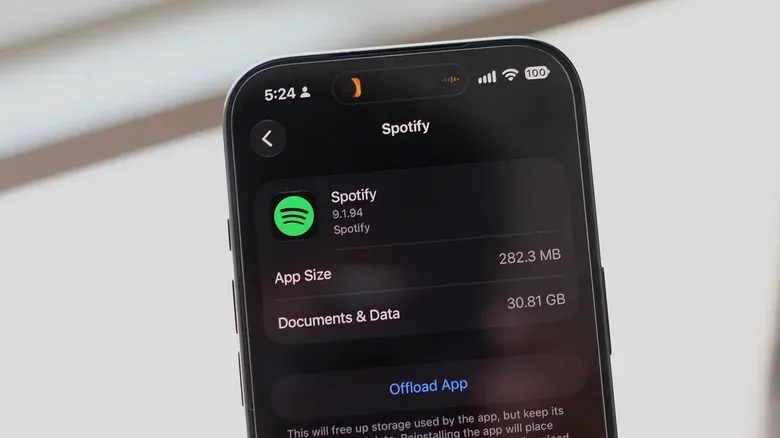
First, check whether Spotify is the storage problem
On an iPhone, open Settings > General > iPhone Storage. The phone can show which apps occupy the most room, making it easier to tell whether Spotify deserves attention before deleting anything.
Android menu names vary by manufacturer. Searching Settings for Storage is often the most direct approach. Samsung users can look under Settings > Device care > Storage; other Android devices may place the overview in Settings > Storage or Settings > About Phone > Storage. If Spotify appears near the top of the list, its downloads or cached data are plausible explanations.
This is a useful distinction. Downloads are music files intentionally retained for offline listening. Cache is temporary stored data an app can use to work more efficiently. Both consume device storage, but they call for different clean-up choices. Deleting a playlist download removes that playlist from offline availability, while clearing cache is about removing temporary app data rather than deciding which music stays in the library.
Storage pressure can also make ordinary phone maintenance more urgent. If the device is behaving oddly as well as reporting little free space, broader troubleshooting may help; Joking Joystick has a guide on what to check when a phone touchscreen stops responding.
Remove downloads selectively if offline listening still matters
For most people, selective deletion is the sensible first move. It avoids turning a useful offline library into an all-or-nothing choice.
In Spotify on Android and iOS, open Your Library and tap Downloaded at the top. This filters the view to music currently saved on the device. From there, choose an album or playlist that no longer earns its storage cost and use its green download button to remove the local copy.
The important practical point is that this is not a deletion of the music from Spotify itself. It removes the device download. The album or playlist can still be found and streamed when an internet connection is available, and it can be downloaded again later if needed.
A quick trim can be more effective than it sounds. Look for large, low-priority playlists: a seasonal mix from months ago, a long podcast-style playlist, duplicates created for different occasions, or an album kept offline after a trip. Keeping a smaller set of frequently played material downloaded preserves the main benefit of offline mode while reducing the amount of phone storage committed to it.
Remove every Spotify download at once
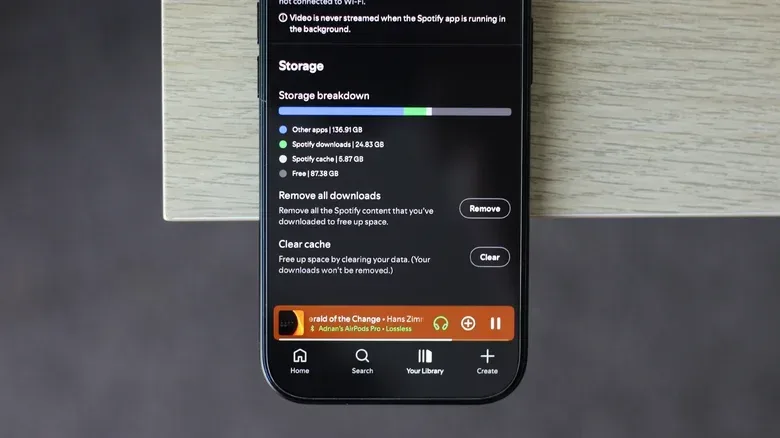
If the phone needs space immediately, Spotify also offers a bulk removal option. Tap the profile picture in the top-left of the app, then go to Settings and privacy > Data-saving and offline. Scroll to the bottom and use Remove beside Remove all downloads.
This is the most decisive option, but it has a straightforward trade-off: offline listening will no longer work until specific music is downloaded again. It is best suited to listeners who normally have a reliable connection or who want to rebuild a smaller offline selection from scratch.
Spotify’s settings in this area also include a cache-clearing option. If the device’s storage screen does not immediately show the expected amount of newly available space after an extensive clean-up, restarting the phone may be necessary before the figure updates.
Clear Spotify cache without wiping the offline library
Cache clearing is the less dramatic housekeeping tool. On Android, the system-level route is typically Settings > Apps > See all apps > Spotify > Storage & cache > Clear cache. The wording can differ between phones, but the key action is specifically Clear cache.
Do not confuse that with Android’s Clear storage option. Clearing app storage can erase the offline music library and sign the user out of Spotify. It is a reset-style action rather than a modest clean-up, so it is not the first choice for someone who simply wants to free space while retaining downloads.
Within Spotify itself, cache can also be cleared from Settings and privacy > Data-saving and offline. This offers an app-based alternative when the goal is to remove temporary data without navigating through Android’s application settings.
Cache size is not fixed, and there is no promise that clearing it will recover a particular number of gigabytes. Still, periodic cache clearing can make a noticeable dent in occupied space. It is especially worthwhile after a listener has already reviewed downloads and wants to avoid the much more disruptive option of erasing app storage.
Download quality is the big storage multiplier
The largest long-term saving may come from the download quality setting. Offline audio must be stored locally, and higher-quality files require more storage. Spotify’s app settings on Android and iOS place this control under Settings and privacy > Media quality, followed by the Download quality section.
Choosing Low reduces the storage required by downloaded tracks. Spotify describes Low-quality streamed or downloaded music as roughly 24 kbps. “kbps” means kilobits per second: it is a bitrate, a measurement associated with how much audio data is used each second. In broad terms, a lower bitrate means a smaller download; higher-quality settings preserve more audio data and therefore use more storage.
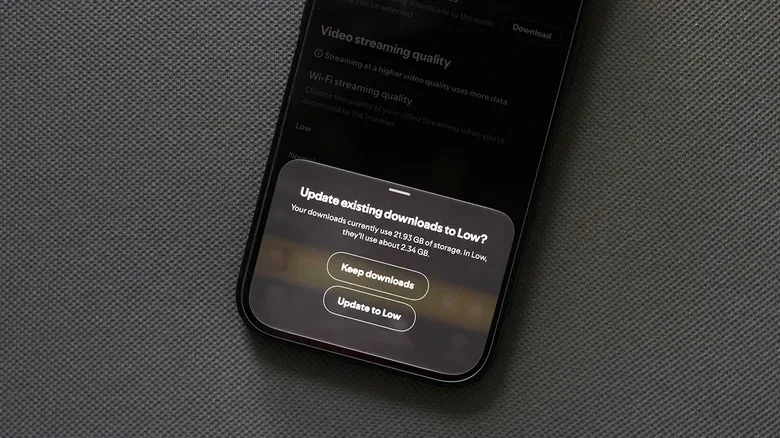
After choosing Low, use the Download button next to Update existing downloads to apply the choice to material already stored on the phone. Merely changing the preset without updating existing downloads would not necessarily shrink files that are already there.
The other end of the scale is Lossless. Lossless audio is much larger than compressed audio because it retains more of the original audio information. That can be attractive to listeners using wired headphones and a DAC, or digital-to-analogue converter. A DAC is the component that turns digital music data into the analogue signal used by headphones or speakers.
But a higher-quality setting is not automatically a better storage decision. With wireless earbuds, the audible benefit may be less apparent, while the storage cost remains real. The choice is therefore less about picking a universally “best” preset and more about matching downloads to listening habits, equipment and available capacity.
One comparison of the same downloaded music library found that Lossless used roughly 22GB, while the Low preset brought the library down to a little over 2GB.
That example should not be treated as a guaranteed result for every collection: library length and contents will differ. It does clearly illustrate the scale of the trade-off, though. A quality adjustment can potentially preserve offline music while releasing far more space than a few individual playlist deletions.
A practical order for reclaiming space
- Inspect phone storage first. Verify Spotify is among the largest apps before changing settings.
- Review the Downloaded tab. Remove albums and playlists that are no longer worth keeping offline.
- Clear cache. Use Spotify’s settings or Android’s Clear cache action, not Clear storage, if you want to retain the offline library.
- Lower download quality if appropriate. The Low setting and Update existing downloads option can substantially reduce the footprint of a large library.
- Use Remove all downloads only when needed. It is the fastest reset, but it removes offline access until music is downloaded again.
- Restart if the space total seems unchanged. The operating system may need a restart to reflect reclaimed storage.
Desktop and web listening work differently
Spotify’s desktop app has its own download removal control. On Windows or macOS, click the profile picture, open Settings, scroll to Storage, and choose Remove all downloads.
The web player is a different case. It does not support offline listening, so it should not be accumulating offline-download storage on the computer in the first place. That makes browser playback a simpler option from a storage perspective, though it naturally depends on having a connection when music is wanted.
The broader lesson is that streaming does not always mean storage-free. It can be close to storage-light when music is played online, but offline convenience turns Spotify into a local media library too. By checking downloads, treating cache clearing as routine maintenance, and choosing a realistic quality level, listeners can keep that convenience without letting it consume the phone’s remaining breathing room.