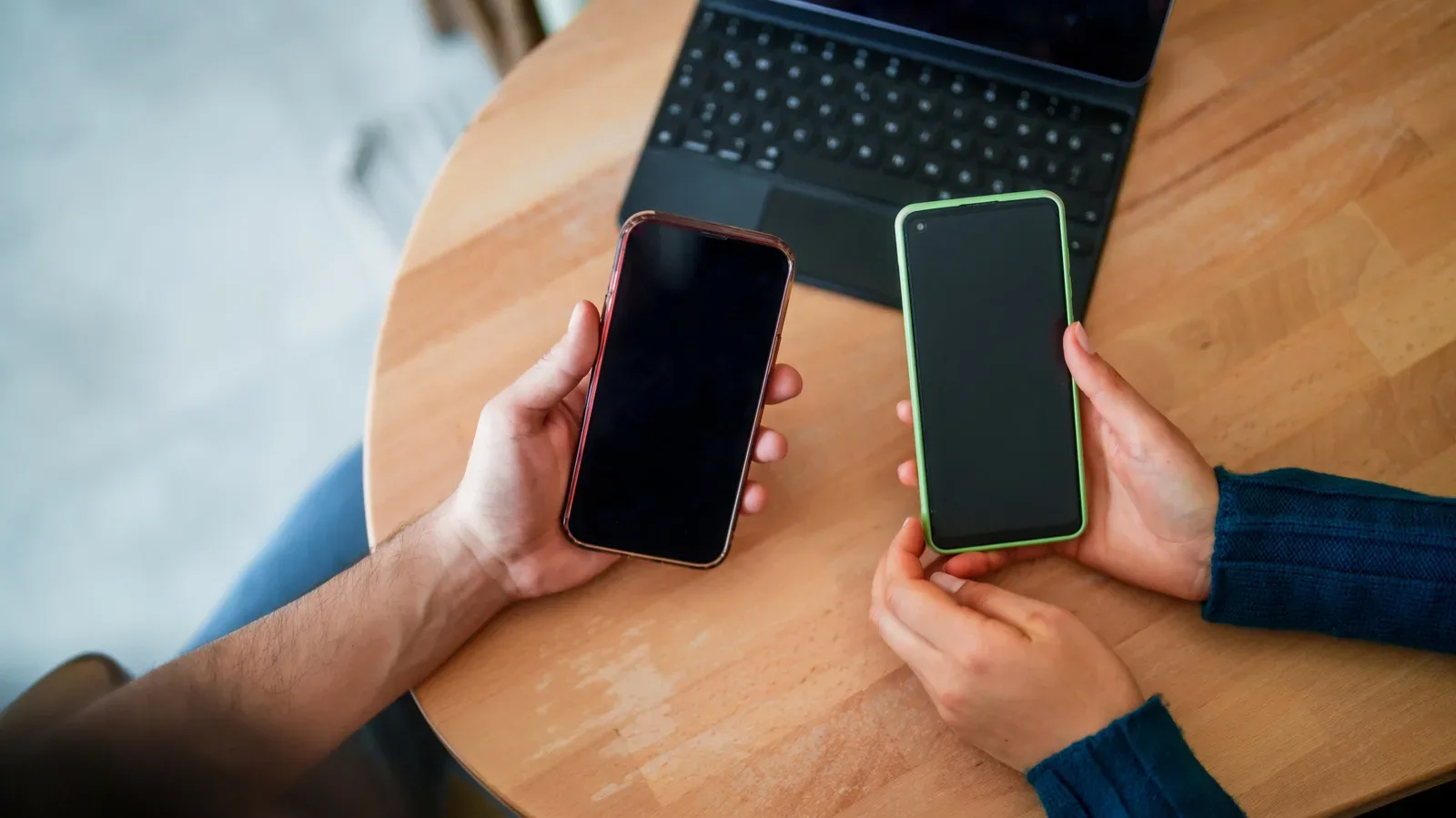
A touchscreen that suddenly ignores every tap has a special talent for making a modern phone feel like a very expensive paperweight. The good news is that the cause is not automatically a broken display. A frozen app or wider software hiccup can interrupt the path between touch input and the app that is meant to receive it. In other cases, the answer is far more ordinary: a screen protector, gloves, moisture, debris or an accessory may be getting in the way.
The important part is not to jump straight to the most destructive option. A factory reset erases the phone’s data, and it is a poor opening move when the problem may be a dirty screen or a hardware fault that a reset cannot fix. Start with checks that are reversible, then escalate only when the evidence points toward a software issue.
First, separate possible hardware trouble from simple interference
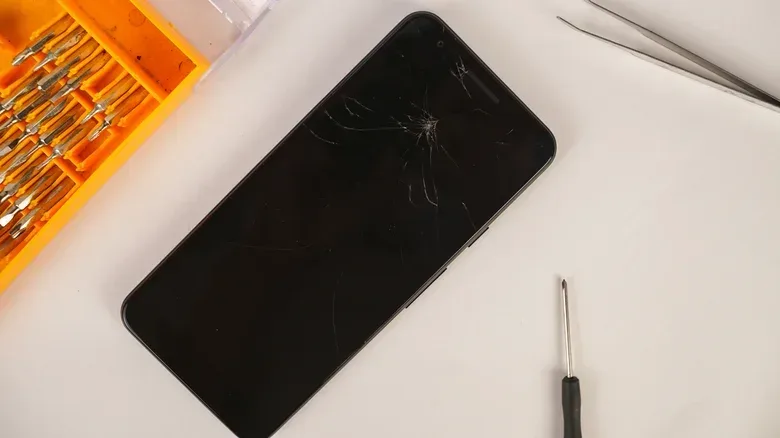
Look carefully at the screen and phone body before changing any settings. Cracks or visible damage make a hardware issue more likely, particularly after a drop. That does not prove software is uninvolved, but it is a strong reason to avoid spending hours on resets when a qualified repairer may need to inspect the display.
Then remove anything that could affect the touch surface or its surrounding sensors:
- Take off the screen protector. It may be masking damage, or it may itself be contributing to missed touches.
- Remove gloves, which can prevent touch input from registering properly.
- Remove the phone case for the test.
- Disconnect USB-C or Lightning accessories.
- Remove stickers that cover the screen or sensors.
Clean the display with a slightly damp microfiber cloth, taking care not to allow moisture into any opening on the device. The goal is not a deep clean; it is simply to remove dirt or liquid that could be interfering with normal use. Once the screen is clear and the accessories are gone, try a few basic interactions again.
This process matters because it narrows the diagnosis without changing the phone. If touch functionality returns after removing a protector or accessory, there is no reason to reset the device. If the phone has obvious damage and none of these checks help, the sensible next stage is professional assessment rather than increasingly drastic software workarounds.
Why an app crash can make the screen seem dead
Not all failures are physical. Touch input has to travel through the phone’s processor and into the app or system interface. When an app freezes or crashes, that flow can become jammed, leaving the screen apparently unresponsive. The display may still be intact, yet the phone cannot properly act on input.
A restart can clear this kind of software snag. Because the display itself is not cooperating, use a force restart: a hardware-button sequence that restarts the phone without requiring on-screen confirmation. It is different from choosing the usual restart option in a menu.
Related coverage includes How to Troubleshoot a Phone Screen That Won’t Respond to Touch.
Force restarting an iPhone
For an iPhone with Face ID, press and quickly release Volume Up, then press and quickly release Volume Down. Next, press and hold the Side button until the Apple logo appears. It can take more than 10 seconds, so do not assume the attempt failed too quickly.
Older iPhones use different combinations:
- iPhone 7 and iPhone 7 Plus: hold the Side button and Volume Down together.
- iPhone 6s and earlier: hold the Home button with the Side or Top button.
Force restarting an Android phone
Android button procedures can vary by manufacturer and model. A common approach is holding the Power button for 30 seconds until the phone restarts, but owners should check the steps for their specific device if that does not work.
A successful reboot is useful information as well as a potential fix. If the display works normally afterward, a temporary software issue was likely involved. If it does not, continue carefully rather than treating one restart as a final diagnosis.
Android Safe Mode: a practical app check
Android’s Safe Mode is a diagnostic startup mode that loads only the software supplied with the device. In practical terms, it temporarily excludes third-party apps from the test. That makes it useful when touch problems began after installing or updating an app, or when the device behaves normally at some times but not others.
To attempt Safe Mode, force restart the Android device. When the manufacturer logo appears, press and hold Volume Down until the phone finishes starting. When the process succeeds, “Safe mode” should appear in the lower-left corner.
The result can guide the next decision:
- If touch works in Safe Mode, a third-party app is the likely cause.
- If it still does not work, a hardware problem becomes more likely, although a system-software fault can also be possible.
Safe Mode does not repair a display. Its value is that it helps distinguish between a potential app conflict and a problem that persists even with third-party software removed from the equation. That is considerably more useful than deleting apps at random.
Reset settings before considering a factory reset
If the basic checks and reboot do not restore normal use, resetting settings may be worth trying where the touchscreen responds enough to navigate menus. This is not the same as a factory reset. A settings reset is a less extreme troubleshooting step; a factory reset wipes the phone’s data.
On iPhone, the route is Settings > General > Transfer or Reset iPhone > Reset > Reset All Settings. Android steps differ by device. On Samsung phones, the supplied route is Settings > General management > Reset > Reset all settings > Reset settings. Android users can also turn off Developer options if they are enabled before deciding that a hardware fault is the only explanation.
Use a factory reset only as a last resort. It removes all data from the phone, so it should not be attempted casually or before considering whether important material is backed up. If the phone cannot be operated reliably enough to protect or retrieve what is on it, a manufacturer service center or reputable independent repairer is the more cautious option. They can check for a physical screen fault without asking the owner to gamble their data first.
When a computer can help you regain access
Mirroring can provide an alternate way to use a phone when its screen is damaged or touch input will not work. But it comes with an important limitation: the required connection or authorization generally needs to have been configured while the phone was still usable. It is a recovery tool, not a guaranteed escape hatch for an entirely inaccessible device.
iPhone with a Mac
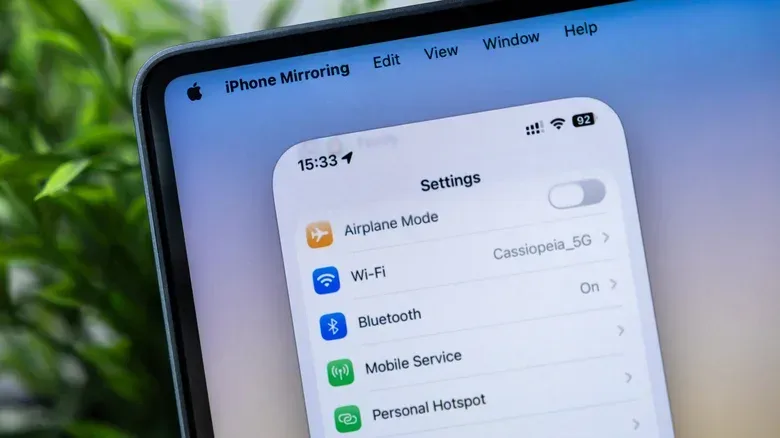
iPhone Mirroring can let a Mac user operate an iPhone while the phone’s touch display is unresponsive. The iPhone must be locked and nearby. The Mac needs macOS Sequoia or later and either Apple silicon or an Apple T2 security chip. Bluetooth and Wi-Fi must be enabled on both devices. If those requirements are already met, select iPhone Mirroring from the Mac’s Dock.
For readers keeping track of Apple’s wider device lineup, our coverage of recent Mac and iPad mini developments provides related platform context. On Windows, there is no official method to both mirror and control an iPhone; third-party options are commonly limited to viewing the phone rather than operating it.
Android with Windows
For Android and Windows, Phone Link offers a route to the phone screen. Open Phone Link on the PC and choose Open Phone screen. The phone may need to be unlocked, and both devices need to be on the same Wi-Fi network. Those requirements are crucial: if the phone cannot be unlocked due to the touch issue, this route may not be available at the moment it is needed.
Android with macOS, Windows or Linux
Scrcpy is a free, open-source option for Android users across macOS, Windows and Linux. It can mirror an Android phone over USB or Wi-Fi and enables control through a computer keyboard and mouse. Its normal operation requires USB debugging to have been enabled in advance.
USB debugging is an Android developer setting that permits the kind of computer connection Scrcpy uses. Since it must be enabled beforehand for that standard method, it is not a universal emergency fix. Scrcpy also has an OTG mode that allows control via a computer keyboard and mouse without USB debugging. For someone without a computer, a USB OTG adapter can connect a wired mouse directly to the Android phone for control.
A sensible escalation order
- Inspect the phone for cracks and other damage.
- Remove protectors, cases, gloves, stickers and connected accessories.
- Clean the screen gently with a slightly damp microfiber cloth, keeping moisture away from openings.
- Force restart the device with the appropriate hardware-button sequence.
- On Android, use Safe Mode to test whether a third-party app is implicated.
- Try a settings reset if the device remains navigable.
- Use preconfigured mirroring or an OTG mouse route to access the phone where possible.
- Seek manufacturer or credible independent repair if the evidence points to a screen hardware fault.
That order protects both time and data. Small external causes are quick to rule out, a reboot can resolve a stuck process, and Safe Mode can identify whether third-party software is involved. A factory reset belongs near the end because it is irreversible from the user’s perspective: once the data is erased, it cannot serve as a backup for itself. When damage is visible or touch remains unavailable through every software test, repair is not an admission of defeat. It is the appropriate diagnosis path.