Spam calls remain one of the least welcome interruptions a phone can deliver, whether the caller is a robocaller, an aggressive sales pitch or someone trying to pressure a target into acting before they have time to think. The useful news is that modern iPhones and many Android phones now include tools to identify suspected junk calls, move them out of the way and, in some cases, screen a caller before the phone owner chooses whether to answer.
That means a third-party caller-identification service is not necessarily required just to establish a basic defence. Carrier-level spam protection may also be available, sometimes already enabled. It is worth checking both a carrier account and its companion app for a spam-protection setting, particularly if a phone’s own call controls are not catching as much as expected.
The best setting is not identical for everybody. A person whose contacts list includes nearly everyone who may reasonably call can use aggressive silencing with relatively little risk. Someone awaiting calls from a doctor’s office, a delivery service, a prospective employer or clients should consider a more cautious approach. The goal is not merely to make the phone quieter; it is to ensure that a genuine caller still has a sensible path to reach you.
Start with the difference between identification, filtering and screening
The terminology in phone settings can sound similar, but the functions are meaningfully different.
- Caller ID and spam detection attempts to warn that an incoming number may be associated with spam before you answer.
- Filtering or silencing prevents calls judged suspicious, or calls from unsaved numbers, from ringing as normal. They are generally sent to voicemail or retained in the call history instead.
- Call screening puts an extra step between an unknown caller and the phone owner. The caller is asked to explain why they are calling, while the recipient can decide whether the interaction deserves an answer.
Each is a trade-off between convenience and caution. Detection leaves the final decision to you in real time. Filtering minimizes interruptions, but can also move a legitimate call out of sight. Screening is intended as a middle route when available: rather than treating every unknown number as equally trustworthy or equally unwanted, it seeks more context first.
iPhone: use Call Filtering before considering the strongest option
On iPhone, open Settings > Apps > Phone. The relevant controls are grouped around call filtering and unknown callers.
The most direct option is Spam, found under Call Filtering. With it enabled, calls a carrier identifies as junk will not ring normally. They are sent to voicemail. They can still be reviewed in the Phone app: open the Calls tab, then use the button in the top-right area to access the Spam section.
This is a good first setting because it focuses on calls already identified as suspect rather than treating every unfamiliar number as unwanted. It also keeps a review trail. That matters because no classification system should be treated as infallible; a missed call placed in a dedicated section can be checked later without allowing every suspected spam call to seize your attention in the moment.
Keep unfamiliar numbers organized separately
The same iPhone settings area also includes Unknown Callers. Enabling it places recent calls from numbers outside your contacts into an Unknown Callers section within the Phone app’s Calls tab, accessed through the same top-right control.
This setting is more about organization than outright blocking. It separates known contacts from numbers the phone cannot associate with a saved contact, which can make it easier to look back through a busy call log. If an unfamiliar number proves legitimate, choose Mark as Known to remove it from that section.
There is a practical habit hiding inside that option: keep contacts current. Friends and relatives are usually already saved, but recurring legitimate callers may not be. Add relevant numbers for workplaces, medical offices, schools, clients or any other organization that needs to reach you directly. Good contact hygiene reduces the odds that a useful call gets lumped in with a suspicious one.
Choose how unknown callers are treated
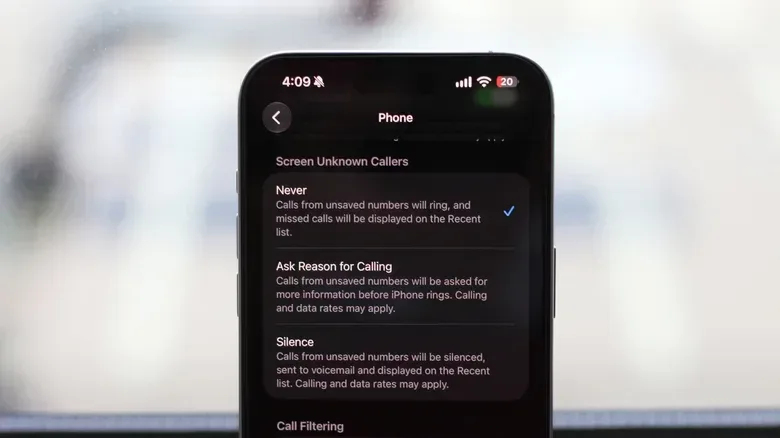
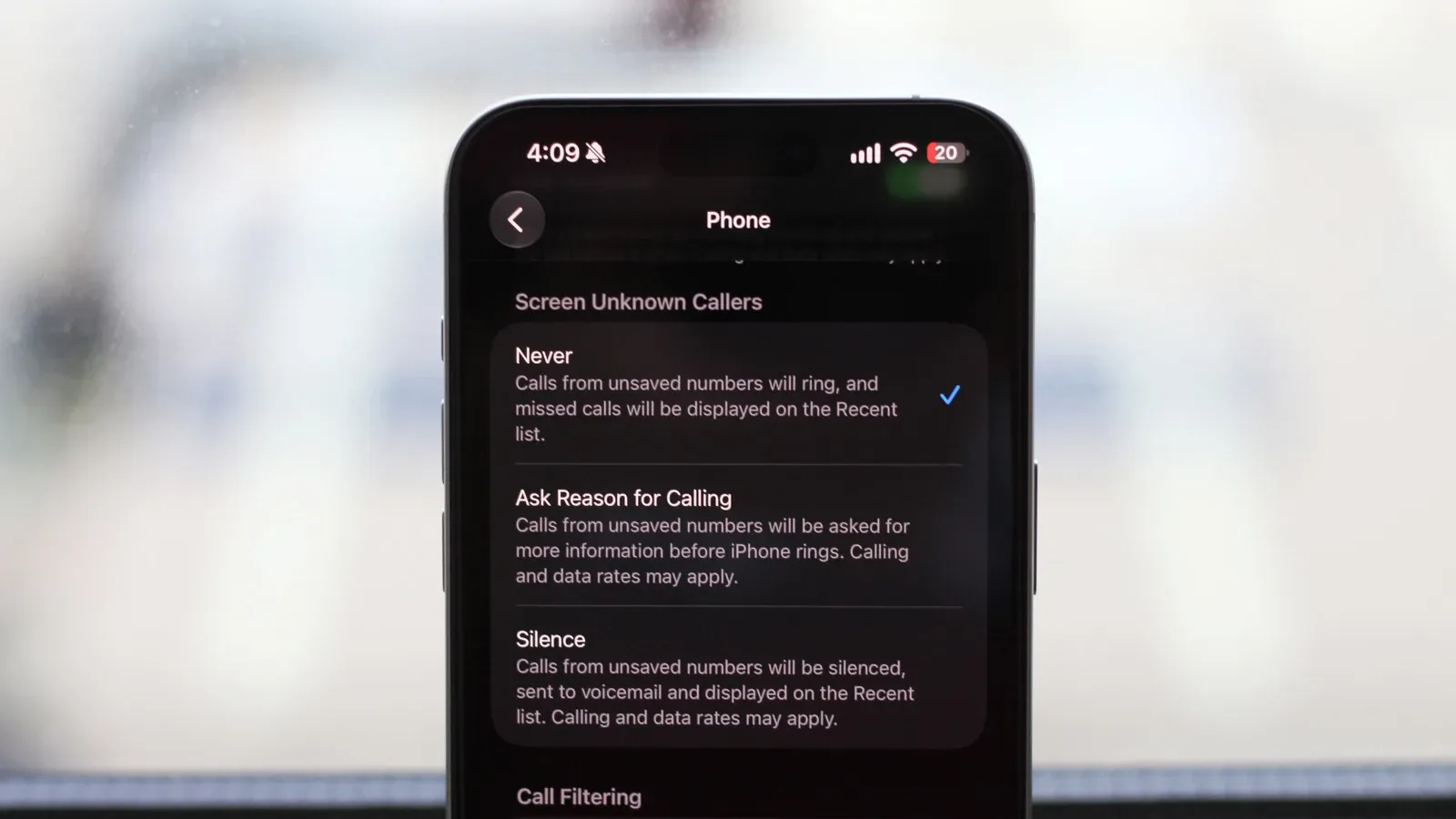
Under Screen Unknown Callers, iPhone offers three approaches. Never is the standard behavior: incoming calls ring normally. This makes sense for anyone who routinely receives legitimate calls from new numbers and does not want a filter deciding which interactions deserve notice.
Silence is the strictest choice. Calls from any numbers that are not saved in contacts are muted and sent to voicemail. Their records remain viewable in the Calls tab of the Phone app, so this is not the same as erasing evidence that somebody called. Still, it is a broad rule. A valid business call from a number that has never been saved will be silenced just as readily as an obvious nuisance call.
Ask Reason for Calling is the more nuanced setting. An unknown caller is screened and asked why they are calling. The recipient can read a live transcript of the response and determine whether to pick up. This can help distinguish a caller with a clear, relevant reason from a vague or unwanted interruption without requiring the phone owner to answer blind.
There is an important availability limitation: iPhone Call Screening is available only in select countries, and requires iOS 26 or later. If the option is missing, that does not necessarily mean a phone is malfunctioning; its availability depends on both software and region.
Android: confirm which Phone app your device uses
Android spam protection is less uniform because Android phones can differ by manufacturer, Android version and dialer app. Many devices ship with the Phone app by Google, which includes caller ID and spam detection. If a phone uses another dialer, its settings may use different wording and may not offer exactly the same features.
The first practical step is therefore to identify the app handling calls. Look through that app’s settings for caller ID, spam, filter or screening controls. If the handset does not use Google’s Phone app, it may be possible to install it and make it the default dialer, provided the device supports that arrangement. A default dialer is simply the app the phone uses as its primary interface for making and receiving calls.
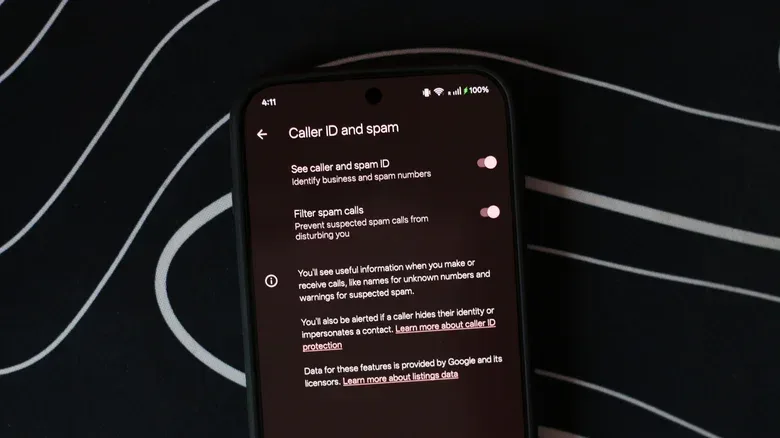
For the Phone app by Google, open the app, select the three-line menu at the top-left, then go to Settings. Under Call Assist, select Caller ID and spam.
Enable warnings first, then decide whether to filter
Turn on See caller and spam ID to receive a warning about a potential spam caller before answering. Like caller ID generally, this is an information tool: it gives the recipient a better basis for deciding whether the call merits attention.
For more aggressive protection, enable Filter spam calls. Suspected spam calls are then automatically silenced. Missed calls and voicemails from unknown callers remain available in the Phone app, giving users a way to review what was filtered rather than treating the system as a black box.
These Google Phone app features require a device running Android 6.0 or newer, the latest version of the Phone app by Google and that app set as the default dialer. If an expected control does not appear, check those three conditions before assuming the feature is unavailable.
Pixel and Samsung call screening options
Some Android phones go beyond warning labels and automatic filtering with enhanced call screening. The idea resembles iPhone’s request for a reason to call: an unknown caller can be assessed with more context before the recipient has to engage.
On a Pixel 6 or newer, open the Phone app and follow Settings > Spam and Call Screen > Call Screen to configure the feature.
On supported Samsung phones, open the Phone app, select the three-dot icon in the top-right corner, then follow Settings > Call screening. Because Android capabilities vary by model and dialer, a Samsung owner who cannot see that menu should not assume every Android instruction will map directly to their device.
Build a setup that fits the calls you actually need
A sensible progression is to begin with spam identification and carrier junk filtering, observe the results and then escalate only if unwanted calls continue to be disruptive. This preserves the normal experience for unfamiliar but legitimate numbers while reducing interruptions that have already been flagged.
If spam remains frequent, add organization for unknown callers or enable automatic spam filtering. The final escalation is silencing every unsaved number. It can bring real peace, but it also turns the contacts list into a gatekeeper. Before enabling it, save the numbers that are likely to matter and make a habit of checking voicemail and the filtered-call sections.
Call screening can be especially useful for people who want more control without adopting an all-or-nothing rule. A caller who has a real purpose can state it; the phone owner can make an informed choice without interrupting whatever they are doing. It is a small but meaningful shift in the balance of a call: the recipient, not the unknown caller, controls access to their attention.
For iPhone owners who want to keep up with Apple-related coverage beyond phone settings, Joking Joystick has also covered Apple’s scheduled Q4 2026 earnings call.
Whichever platform you use, periodically review the Spam, Unknown Callers, missed-call and voicemail areas after changing settings. That review is the safety net. It lets you enjoy fewer disruptions while catching a number that was unfamiliar, but important, before it becomes a missed opportunity.