Windows 11’s Task Scheduler is not going to add frames to a game by itself, make a CPU faster, or turn a cluttered PC into a freshly built machine. What it can do is remove a few repetitive jobs from the time between pressing the power button and getting back to the game.
That distinction matters. “Automation” can sound like a miracle-performance button, but Task Scheduler is more grounded than that: it waits for a condition called a trigger, then carries out the action associated with it. A trigger can be a particular time, Windows starting, a user signing in, or a system event. The action can be starting an application, running a command-line tool, or launching PowerShell.
For a PC used for games, that makes Task Scheduler potentially useful in ways that are easy to overlook. It can postpone an app that normally leaps into the startup queue, run a tested file-copying script when a machine is idle, or attempt updates for supported software at a sensible interval. The goal is not to schedule everything. It is to use the built-in tool where a routine is genuinely repetitive, understood, and safe to run without supervision.
What Task Scheduler actually does
Task Scheduler is a Windows component built around a simple chain: trigger, action, conditions and settings. The trigger says when something should happen. The action says what Windows should do. Conditions and settings add limits, such as whether the PC must be idle, whether a laptop needs AC power, and what happens when a scheduled run was missed.
This is useful because a PC’s most inconvenient moments are often predictable. Logging in may cause multiple services and apps to fight for attention at once. A background housekeeping job may be fine late in the evening but irritating when somebody is in the middle of a match. A laptop may be on battery when a disk or script task was intended to run. Scheduling is less about maximizing raw speed than choosing a better moment for work that would otherwise happen manually or at an inconvenient time.
There is also a practical limit: Task Scheduler is best when the thing to be launched can already run reliably on its own. It is well suited to programs, commands and tested scripts. It is less suitable for a process that depends on clicking unpredictable buttons across app windows. For that kind of interface-driven workflow, Power Automate for desktop is the more appropriate Windows option, though wider cloud and unattended automation can involve paid licenses.
Starting with a task instead of a mystery checkbox
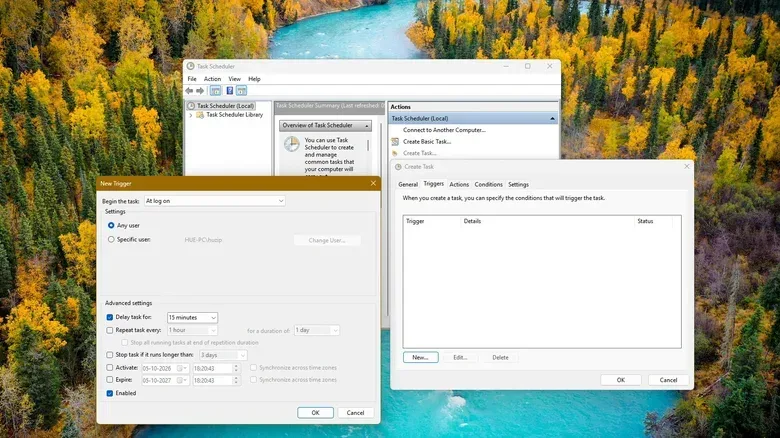
Open the Start menu, search for Task Scheduler, and launch it. The interface looks dense, but the important option is in the Actions pane: select Create Task. The simpler “Create Basic Task” path can get a basic job working, but the full task screen exposes the controls that determine whether an automation is considerate or intrusive.
- On the General tab, give the task a clear name. A name such as “Delayed cloud client at logon” is more useful months later than “Test 2.”
- Open Triggers, choose New, and select the event that should begin the task. Available choices include a schedule, startup and logon.
- Open Actions, choose New, then select Start a program. Point it to the desired program, command-line tool or PowerShell process.
- Review Conditions and Settings. These can decide whether the task is allowed on battery power, whether it waits for idle time, or whether it should run after a missed scheduled time.
- Save the task. In Task Scheduler Library, right-click it and choose Run to test it once before trusting it to run unattended.
That final test is not optional window dressing. A mistyped command, wrong program path, unexpected prompt or permissions issue is much easier to catch while watching the result. The most useful automation starts as a manual process that has already been proven to do exactly what was intended.
Related coverage includes How to Automate Windows 11 Tasks With Task Scheduler.
Use conditions to avoid turning convenience into background clutter
Conditions are especially important on laptops. A task that wakes up every five minutes can keep a PC from entering a low-power idle state. In plain language, frequent polling—repeatedly checking whether something needs doing—can interfere with the machine settling into its power-saving mode.
Where a task does not need constant checking, choose a more targeted trigger instead. An event trigger runs when the relevant system event occurs. An idle trigger waits for inactivity. A maintenance trigger is appropriate for work that does not need to interrupt active use. These approaches better match the task to the need, rather than making Windows ask the same question again and again.
For gamers, that can be the difference between a housekeeping routine that stays out of the way and one that shows up at exactly the wrong time. If a script copies files or performs PC cleanup, waiting for idle time or AC power can make more sense than firing it during every sign-in. If the job is genuinely important, the settings that handle missed runs may be useful. If it is merely nice to have, automatically catching up may be unnecessary.
One setting deserves particular restraint: Run with highest privileges. That means the task runs with administrator-level permissions. Administrator access may be required by some software installers or specific maintenance commands, but it should not be enabled by reflex. An unattended task with broader permissions has a broader ability to make changes. The safer default is to grant only the permissions the task demonstrably needs.
Three sensible Windows 11 automations
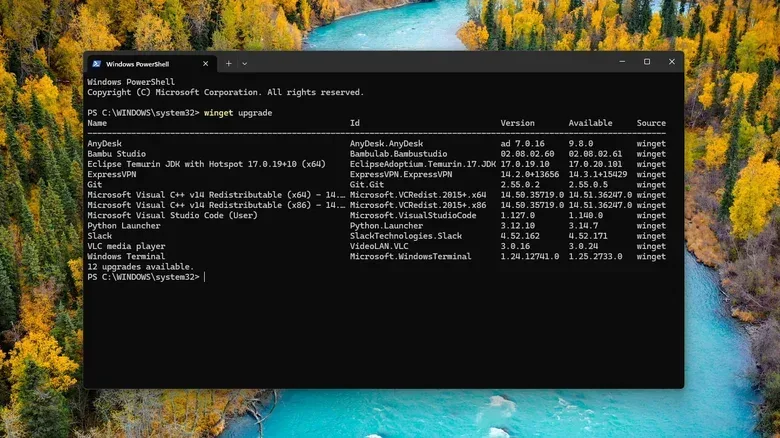
1. Attempt weekly updates through WinGet
WinGet is Microsoft’s package manager: a command-line tool that can recognize supported installed software and look for newer versions. A weekly scheduled update attempt can reduce the number of individual updater windows that demand attention.
The command is:
winget upgrade --all --silent --accept-package-agreements --accept-source-agreements --disable-interactivity
The flags make the command more suited to an unattended run. --all targets eligible recognized packages, while --silent and --disable-interactivity aim to prevent the process from needing input. The agreement flags accept package and source agreements for that run.
It is still important to run this command manually before scheduling it. Not every installed application is managed by WinGet. Pinned packages are skipped by default, and some installers may require elevation. In other words, it is an update helper rather than a promise that every launcher, utility or game-related application on a PC will always update perfectly in the background.
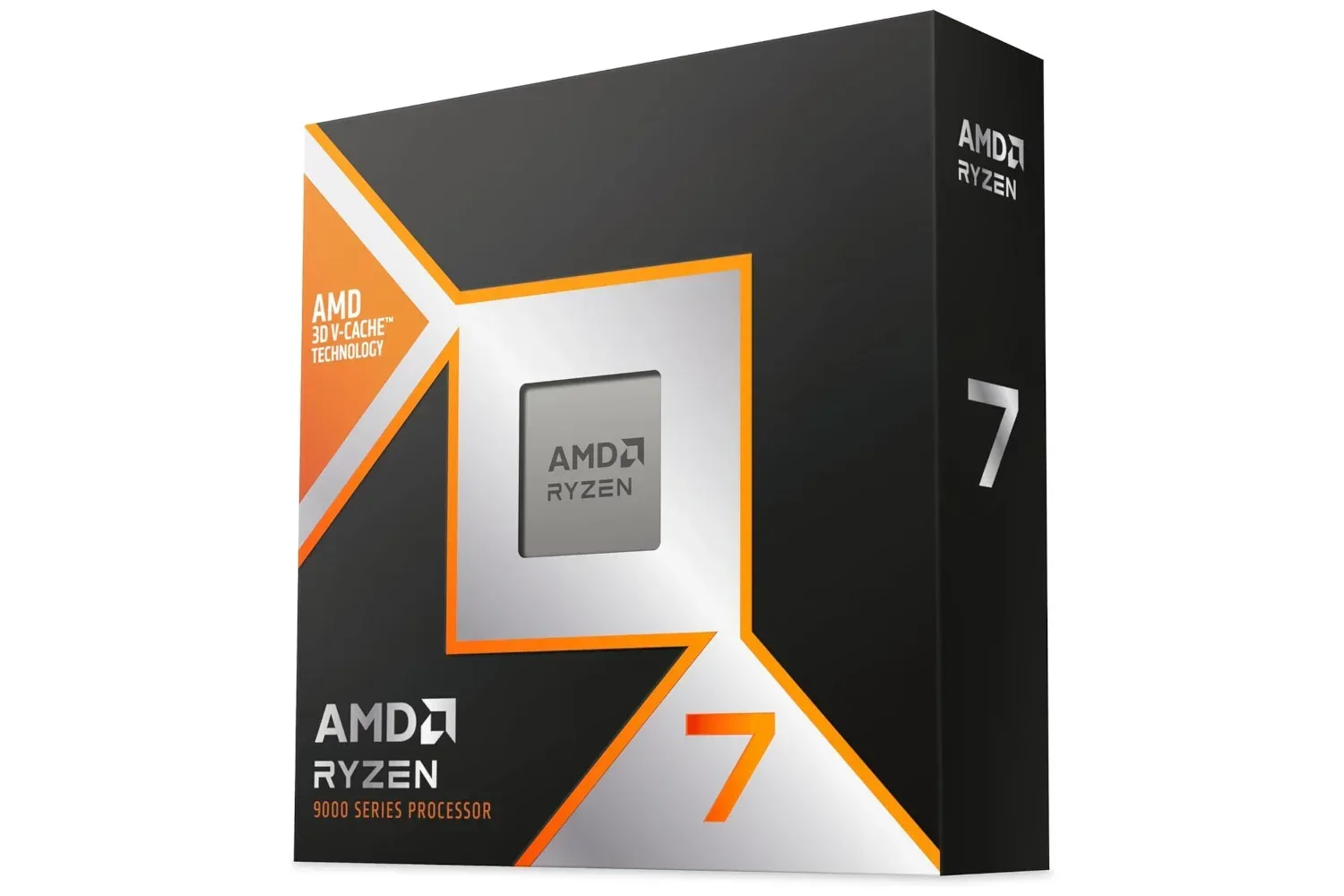
For players maintaining a powerful system, routine software upkeep can matter as much as the hardware choice. A capable CPU such as the AMD Ryzen 7 9800X3D does not remove the need to keep the surrounding software environment orderly. Task Scheduler offers one restrained method of handling a portion of that work.
2. Delay one nonessential startup app
Startup applications create a familiar kind of logon congestion. Disabling unnecessary startup entries can improve the process, but sometimes an app is useful enough that it should launch automatically—just not at the exact moment Windows is trying to present a usable desktop.
Task Scheduler provides a middle option. Disable the application’s regular startup entry, then create a task that launches it at logon after a delay. A cloud-storage client is one example: it can start a few minutes later instead of competing with everything else immediately.
This approach is not a reason to schedule every app. The intended benefit comes from choosing a small number of programs that are wanted eventually but not needed instantly. That is a more realistic approach than treating login as a race in which every utility must open first.
3. Run a tested PowerShell housekeeping script at a better time
PowerShell is a Windows command-line and scripting environment. For someone who has already written and tested a script, Task Scheduler can launch that script when the PC is idle or connected to AC power. The supplied example use cases include copying files to another location or performing personal PC housekeeping.
The key word is tested. Scripts can be powerful precisely because they automate multiple steps. That also means they should be understood before they are scheduled. Confirm what files they target, what they change, and whether they need elevated permissions. Then let conditions decide when they are allowed to run.
What not to automate
Windows already handles some maintenance tasks, so duplicating them adds complexity without a clear benefit. Storage Sense can automatically remove temporary files and items from the Recycle Bin. Windows also automatically optimizes HDDs and SSDs. Creating extra scheduled jobs for those existing functions is generally less useful than checking the built-in settings and letting Windows do the maintenance it already provides.
Task Scheduler is at its best when it solves a specific annoyance: a startup program that arrives too early, a supported software-update command that has been checked manually, or a trusted script that should run only when the machine is not in active use. Treat every task as a small agreement with your future self. Give it a descriptive name, use narrow conditions, test it first, and avoid administrator privileges unless there is a real requirement.
That will not produce a magical performance boost. It can, however, make a Windows 11 gaming PC feel less demanding of its owner’s time—which is a much more believable kind of upgrade.