A laptop that begins a train ride at 100% and reaches the low-battery warning before the destination is a familiar kind of portable-PC betrayal. Gaming hardware makes the problem especially visible: the same machine that performs admirably beside a wall outlet can burn through a charge quickly when it is asked to run a game, browser tabs, launchers, chat clients and Windows 11’s usual background activity all at once.
There is no universal setting that turns every Windows laptop into an all-day machine. Battery endurance depends on the battery’s condition and capacity, display size and refresh rate, installed hardware, workload, wireless use and the manufacturer’s own tuning. ARM-based Windows systems have helped push efficiency forward in some models, while many laptops still use more power-hungry x86 processors. The useful approach is not chasing one magic switch; it is deciding which compromises fit the moment.
When a charger is nearby, maximum performance may be exactly what a desktop replacement or gaming laptop should deliver. When an outlet is uncertain, a lower-power profile, a dimmer screen and fewer background tasks can buy meaningful extra time. These Windows 11 adjustments are a sensible starting checklist for anyone trying to stretch a charge without turning their PC into a glorified typewriter.
Start with the display, the most visible battery drain
The display is often one of the biggest everyday demands on a laptop battery, which makes brightness the fastest setting to address. Press Win + A to open Quick Settings, then lower the brightness slider to the lowest comfortable level. This is not glamorous advice, but it is immediate, reversible and usually more effective than hunting for obscure system tweaks.
For gaming, creative work or video, the right brightness will depend on the room and the task. The goal is not to make the panel unusably dim; it is to avoid leaving it at a high setting out of habit. If a laptop offers a high refresh-rate screen, users may also want to check their display configuration when they are away from power. A smoother refresh rate can be worthwhile for play, but an energy-conscious setup for writing, web browsing or travel may call for less visual excess.
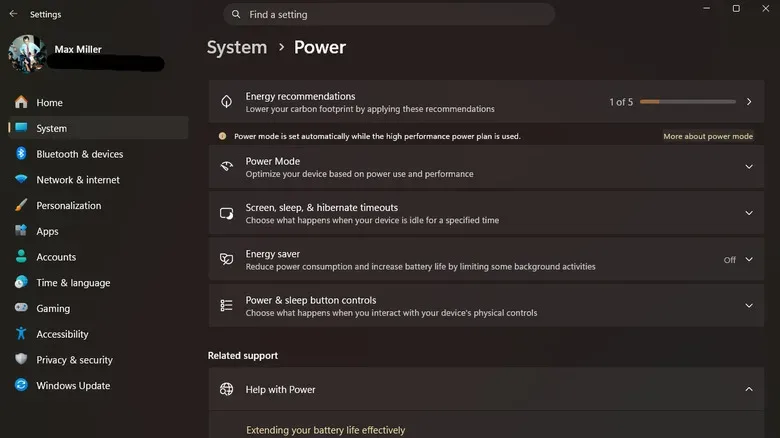
Screen inactivity settings matter too. Open Settings with Win + I, then go to System > Power & battery. In the screen, sleep and hibernation controls, set shorter timeouts for battery use if the PC often sits unattended. A laptop cannot preserve much charge if it remains fully awake with its display lit while its owner is making coffee or has wandered into another room.
Use Windows 11’s Power & battery controls
The same System > Power & battery area is the central stop for basic efficiency settings in Windows 11. Power Mode lets users choose behavior that favors either performance or energy use. Laptop makers can configure their own defaults, so a gaming system may be more aggressive than a machine intended primarily for office tasks. A mode that places efficiency first can be the right move for browsing, documents, streaming and other lighter work on battery.
Energy Saver is the feature to know when every remaining percentage point matters. It reduces certain background activity, lowers screen brightness and limits some decorative Windows effects. It can be enabled manually before leaving home, or configured to activate automatically once the battery falls to a chosen level. That makes it useful as a safety net: normal behavior while a charge is healthy, then tighter conservation before the system reaches emergency territory.
The trade-off should be expected. Energy-saving choices can reduce responsiveness in demanding applications, and they are not ideal if the immediate priority is frame rate, compiling, rendering or other heavy work. Treat them as a portable mode rather than a permanent commandment. Switching profiles based on whether the laptop is plugged in is often more practical than accepting either maximum power draw or maximum restraint all day.
Go deeper in the classic power options
Windows still exposes more detailed controls through the older Control Panel. Search for Control Panel from Start, open Power Options, and select Power saver if it is available and appropriate. From there, Change plan settings followed by Change advanced power settings opens a longer list of options.
One advanced area is Processor power management. Its minimum and maximum processor-state settings can limit CPU behavior, potentially reducing power draw by preventing the processor from operating at its full ceiling. This can also slow down the computer, sometimes considerably. It is best used by people who understand the performance cost and only for battery-focused scenarios. If a game, work application or Windows itself becomes unpleasantly sluggish, undo the change rather than assuming the laptop is failing.
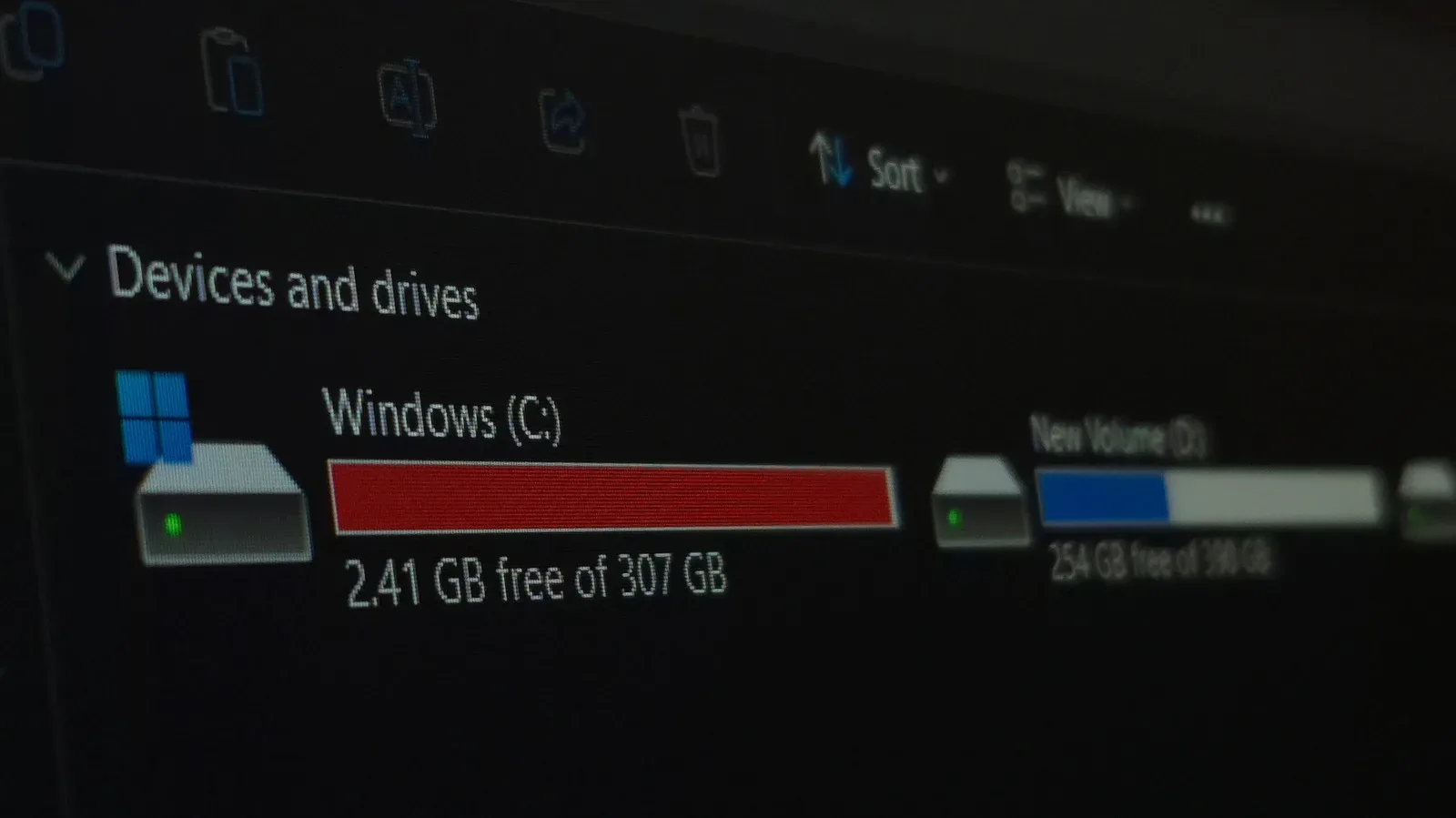
Storage is another practical part of laptop planning. A responsive system can make short, battery-limited sessions feel more productive, while sufficient capacity prevents a constant shuffle of large installs. For a broader look at that balance, see our guide to 256GB SSDs versus 1TB HDDs for gaming PCs.
Make Windows look a little less expensive to run
Windows 11’s visual design includes transparency and animations. They are not necessarily the main culprit behind dramatic battery loss, but turning them off is a reasonable efficiency measure, particularly on budget laptops where every bit of graphics and CPU overhead can be felt.
Go to Settings > Accessibility > Visual Effects and switch off Transparency effects and Animation effects. The desktop will look plainer, but it may also feel more direct on modest hardware. For a larger visual reduction, search Start for performance, open Adjust the appearance and performance of Windows, then select Adjust for best performance. That disables additional interface flourishes.
This is another setting that need not be permanent. If a clean, animated desktop is part of what makes a computer enjoyable at home, keep it. If the mission is surviving a full day of classes, travel or light work with limited access to power, the effects are an easy sacrifice.
Close the programs that are quietly spending your charge
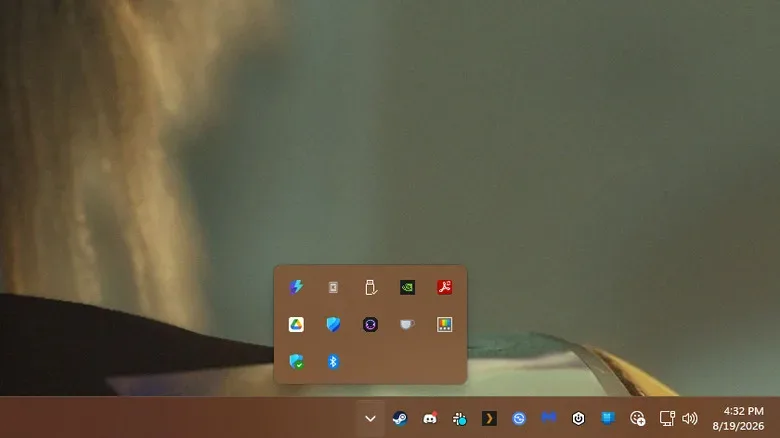
Battery drain is not always caused by the app in the foreground. Game launchers, sync tools, RGB utilities, messaging services, updaters and assorted vendor software can remain active after the main window has disappeared. First close programs shown as open on the taskbar. Then inspect the smaller notification-area icons at the lower right. Use the upward arrow to reveal hidden icons, and close software that is not needed for the current session.
Be selective rather than reckless. Security software, audio drivers, touchpad services and unfamiliar Windows processes should not be closed simply because they exist. The point is to stop applications that you recognize and genuinely do not need, not to conduct a blind purge of the operating system.
Browser tabs deserve the same scrutiny. Chrome, Edge and other browsers can consume substantial resources when many sites are open, especially pages that play media, run live feeds or host demanding web apps. Close tabs that are no longer useful. For pages that must be kept, bookmark them or organize them into tab groups before closing the group.
Enable the browser’s sleeping-tab feature as well. Chrome calls its option Memory Saver, while Microsoft Edge uses Sleeping Tabs. Names and exact menus can change over time, but the purpose is consistent: inactive pages receive fewer system resources. It is not a substitute for closing truly unnecessary tabs, yet it is a useful guardrail for the person who always has a crowded browser window.
Use Task Manager carefully, then trim startup clutter
For a clearer picture of what is active, press Ctrl + Shift + Esc to open Task Manager and select Processes. Sorting by Name is a simple way to review the list. Sorting by a resource heading such as CPU can reveal which processes are demanding the most at that moment.
Task Manager is powerful precisely because it can end tasks, so caution matters. Do not terminate a process just because its name is unfamiliar. If something raises questions, right-click it and choose Search online to investigate before taking action. Closing an important system component or driver service can cause instability or remove functionality until a restart.
Startup programs are often a safer long-term place to tidy. Disable nonessential items so they do not automatically launch every time Windows starts. Reducing this background crowd can help a laptop boot into a calmer state and avoid spending battery on software that is only occasionally used.
Build a battery routine instead of relying on a rescue mission
The best results come from a small routine before leaving the charger: lower brightness, select an efficiency-oriented power mode, confirm Energy Saver behavior, close spare launchers and tabs, and make sure the laptop will sleep quickly when idle. On a gaming notebook, it can also make sense to reserve demanding games for plugged-in time and use battery sessions for indie games, retro titles, writing, media and lighter tasks.
Finally, remember that settings cannot fully overcome aging hardware or a workload that simply requires lots of power. If battery life suddenly becomes much worse than its usual pattern, inspect what is running, consider the battery’s age, and check for any obvious changes in use. Windows 11 offers enough controls to make deliberate trade-offs. Used thoughtfully, they can turn a stressful countdown into a much more manageable portable session.