A 256GB SSD and a 1TB hard drive are not really interchangeable versions of the same component. One prioritizes rapid access to data; the other prioritizes the amount of data that can stay installed. For a gaming PC, that distinction is important because storage affects both the machine’s day-to-day feel and the size of the library it can hold without constant housekeeping.
If the drive will run Windows and the games played most often, the 256GB SSD is generally the stronger pick provided that its capacity is genuinely enough. Solid-state storage is much quicker than a traditional hard disk drive, improving boot behavior, application launches, game loading, and the small background reads and writes that make a computer feel responsive. But 1TB is about 3.9 times the advertised capacity of 256GB. That is a major sacrifice in room, especially when modern games, captures, mods, and backups start accumulating.
The best answer is therefore based on the drive’s job. A smaller SSD is excellent at making the important things feel fast. A 1TB HDD remains useful when the main demand is keeping a large amount of data available at a lower cost per gigabyte. And, for desktops that can accommodate more than one drive, using both can be the most practical arrangement.
Why an SSD changes the feel of a system
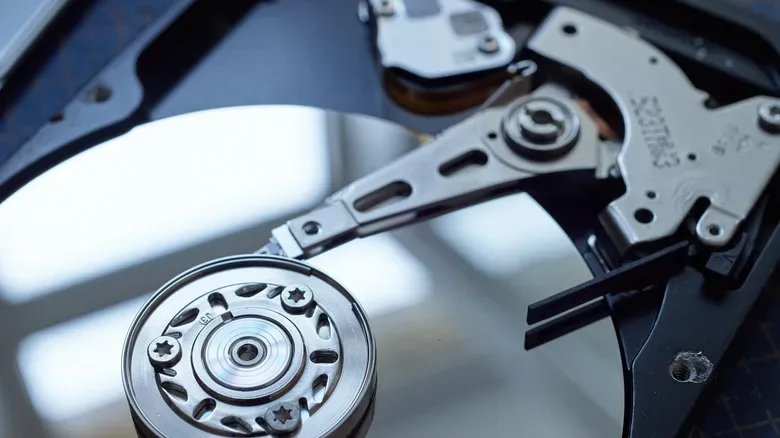
Hard disk drives store data on magnetic platters that spin mechanically. To retrieve a file, a read/write head must move to the appropriate area of the disk. An SSD stores data in flash memory and accesses it electronically, with no platter to spin and no head that needs to travel. That underlying difference is why an SSD has such a clear advantage in workloads involving lots of small, frequent file requests.
Operating systems are full of those requests. Starting Windows, signing in, opening a browser, loading launchers, and beginning a game all involve many storage operations. With an SSD handling them, the system spends less time waiting on the drive. For an older PC in particular, moving the operating system from an HDD to an SSD can make the computer seem substantially more lively even when the processor, graphics card, and memory remain unchanged.
Gaming benefits too, although storage does not replace CPU or GPU performance. An SSD will not turn a low frame rate into a high one merely by existing. Its contribution is quicker data access: shorter waits while games launch, more responsive loading screens, and better conditions for games that frequently pull assets from storage. It also makes the surrounding PC routine more pleasant, from applying game updates to moving files around.
Solid-state drives bring practical physical benefits as well. They have no moving mechanical components, so they operate silently. They are also less exposed to the risks associated with shocks and vibration, which makes them especially appealing in laptops and portable storage. A desktop HDD parked safely under a desk has a calmer life than a drive carried in a backpack, but the absence of moving parts remains a meaningful advantage for SSDs.
256GB is viable, but it is a tight gaming budget
Windows 11 lists 64GB as its minimum storage requirement. A 256GB SSD comfortably exceeds that baseline, but a minimum operating-system figure should not be mistaken for a comfortable long-term allocation. Windows updates, installed applications, downloads, save data, screenshots, clips, and personal files all take their turn consuming available space.
For someone who mostly uses a PC to browse, stream, handle documents, and keep files in cloud storage, 256GB can be workable. It is also a reasonable starting point for a machine intended for a focused handful of games rather than a vast always-installed collection. The trouble begins when a player expects one drive to hold Windows, several large current games, a back catalog, and perhaps video or creative work at the same time.
Game installations can range from modest to enormous, with some taking dozens or even hundreds of gigabytes. A 256GB drive may still accommodate a main game and a rotating selection, but it encourages deliberate library management. That can be perfectly fine for a player who finishes a title, uninstalls it, and moves on. It is much less comfortable for someone who regularly jumps among several oversized games or maintains a heavily modded installation alongside local recordings.
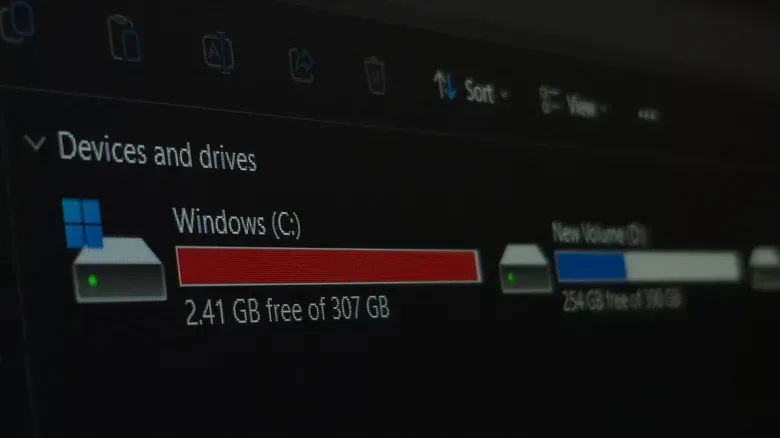
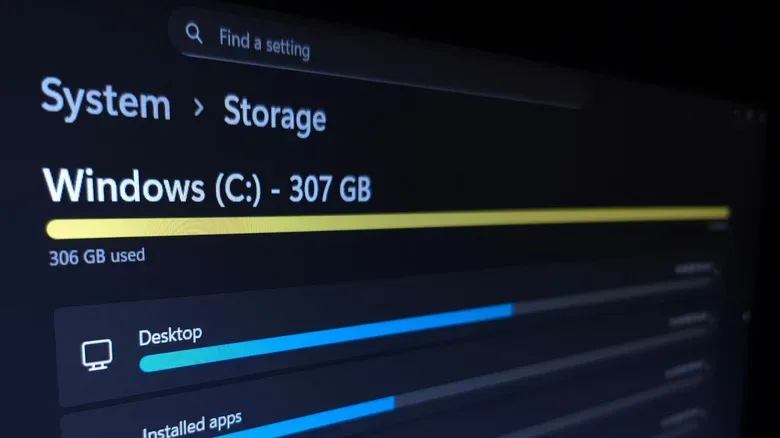
The useful question is not whether 256GB can boot Windows. It is whether it leaves enough free space after Windows, essential programs, and the games you actively want ready to play.
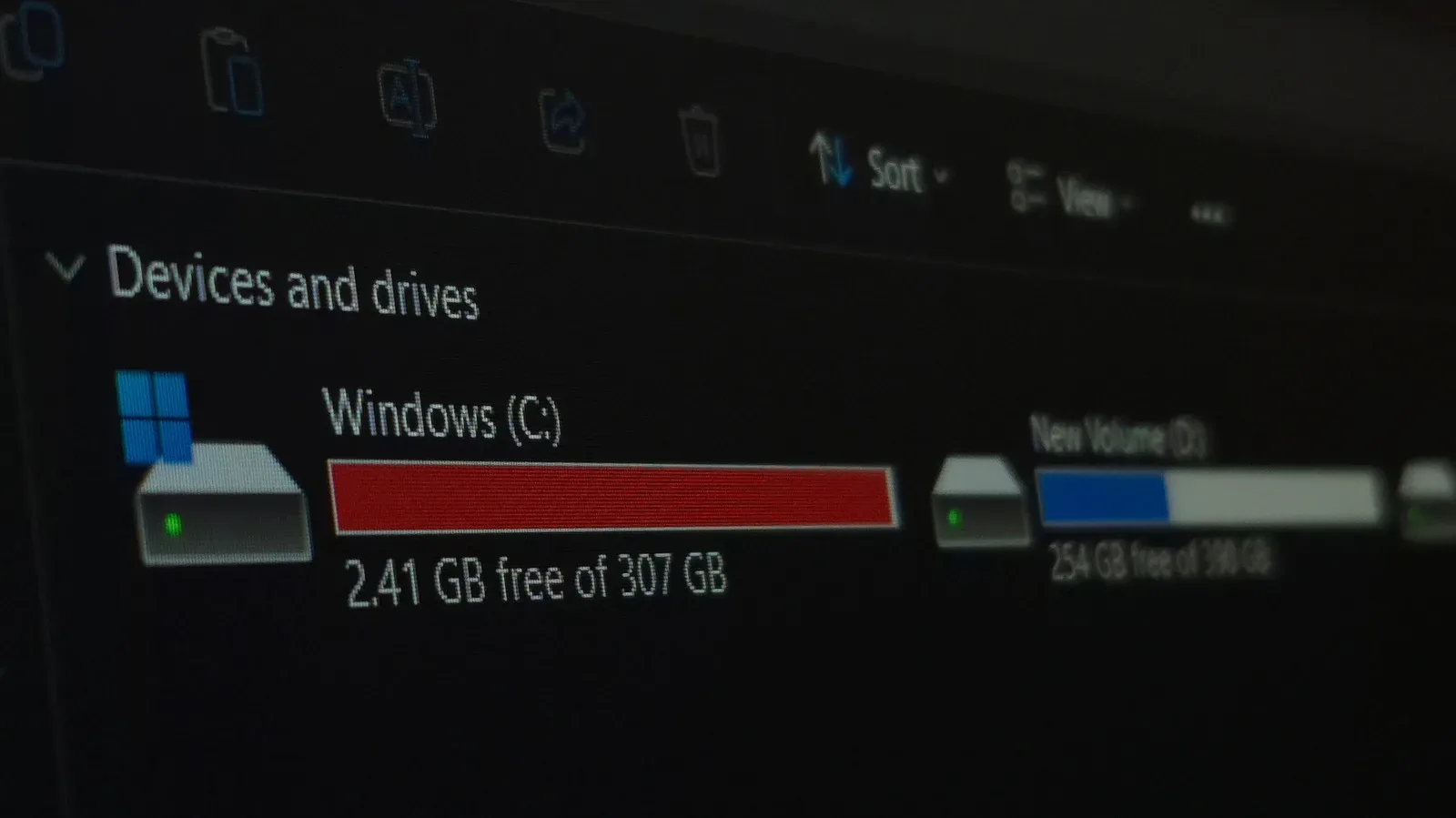
That distinction also matters because a drive that is continually pressed against its capacity becomes annoying to live with. The issue is not merely the occasional uninstall. Updates and new downloads need room, and users can find themselves constantly relocating files simply to make routine tasks possible. If that is likely from the beginning, the extra responsiveness of a 256GB SSD may not fully offset the friction of a cramped library.
Check the SSD connection before planning an upgrade
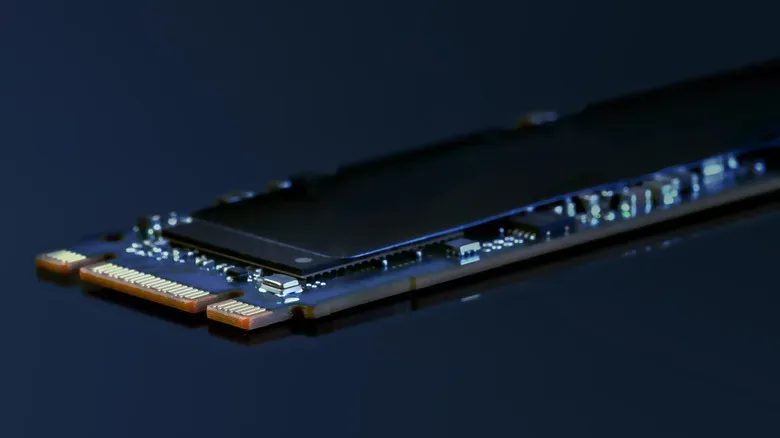
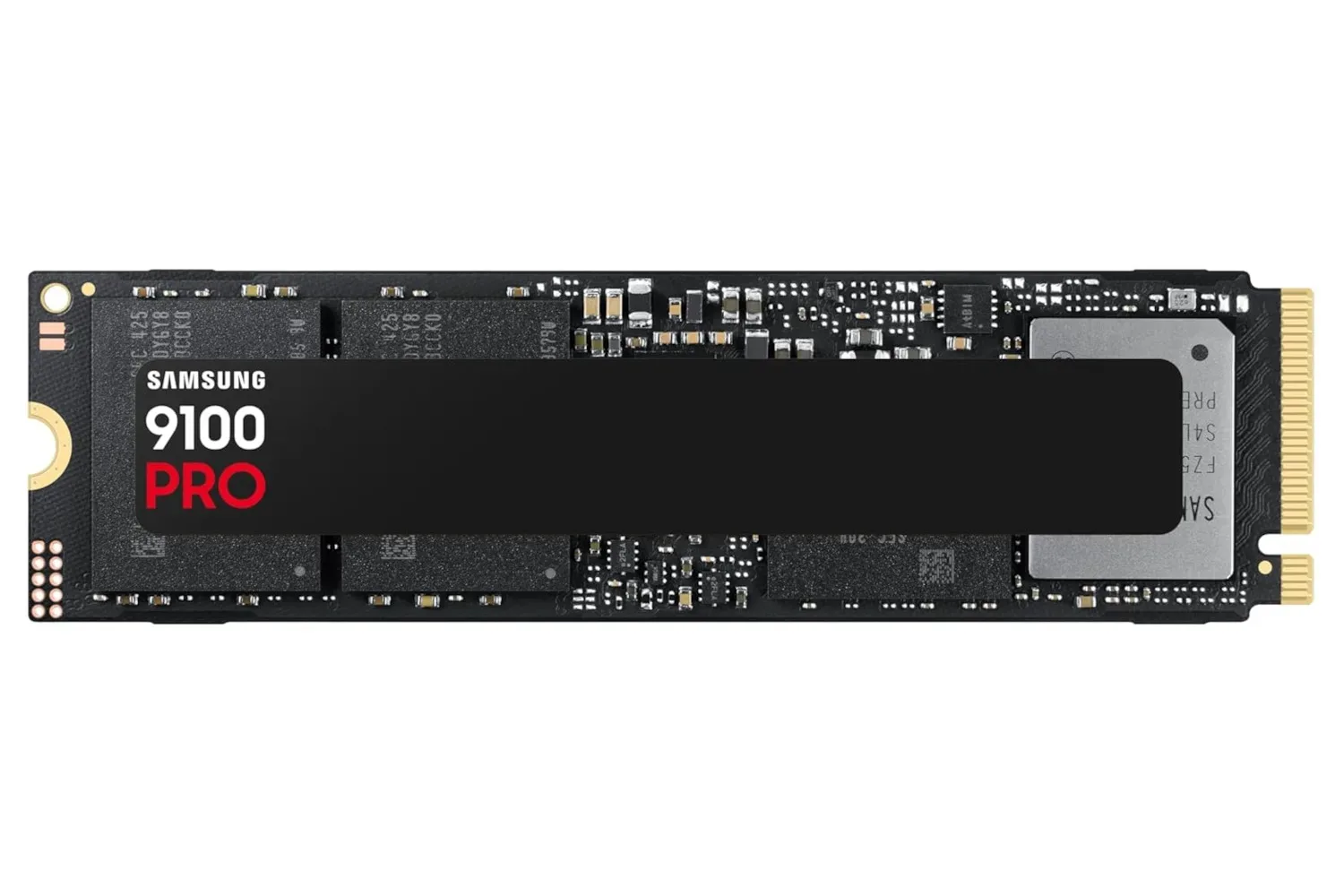
“SSD” identifies the storage technology, but not every SSD connects the same way. Older systems may take a 2.5-inch SATA SSD, a common upgrade route for replacing a traditional drive. Many newer PCs support NVMe SSDs, which are typically faster. A prospective upgrade should start with checking what the computer or motherboard actually supports; compatibility can settle part of the decision before capacity is even considered.
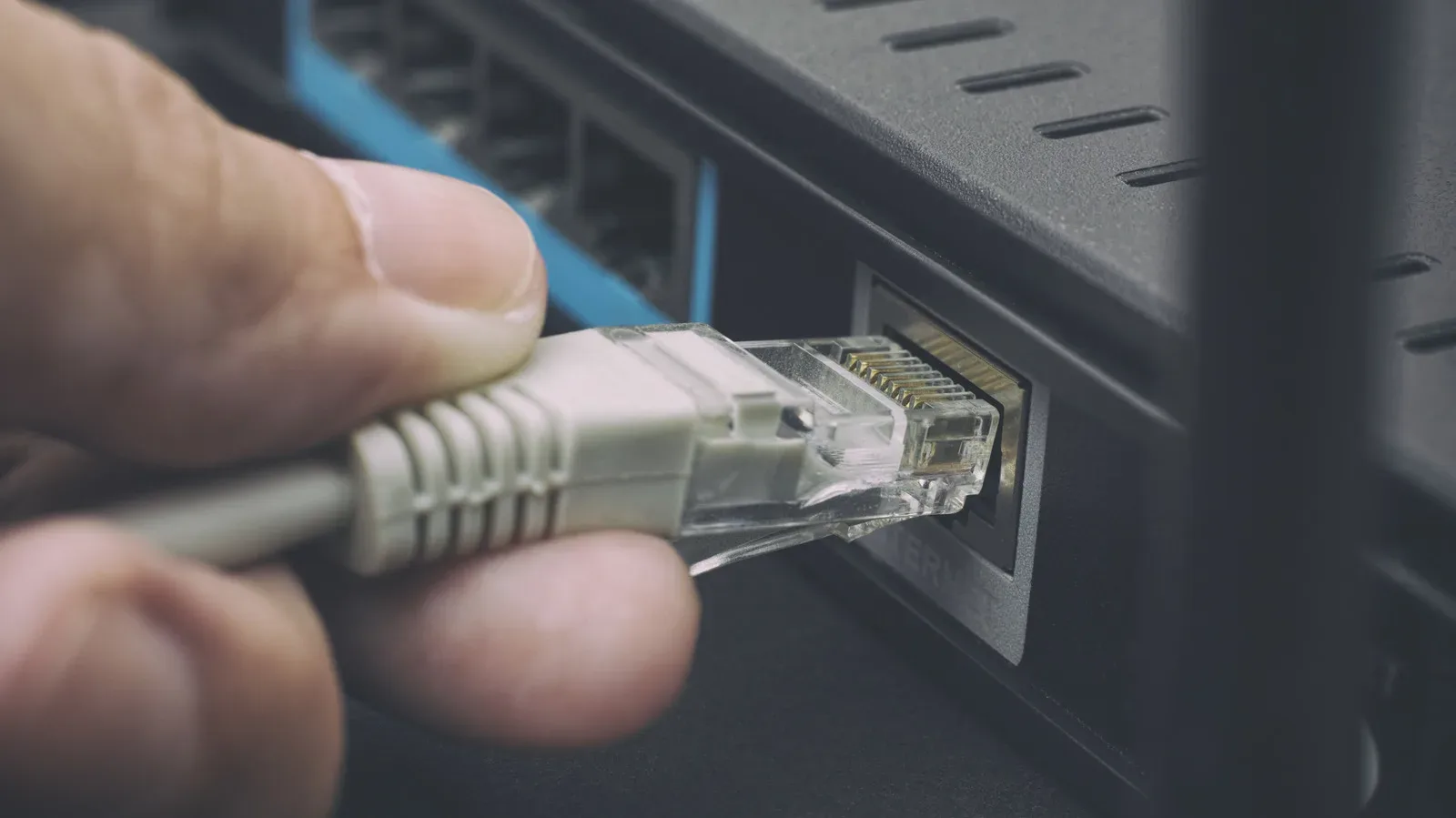
Storage is only one part of a gaming PC’s wider data path. A fast internal SSD helps local installs and system responsiveness, while network performance affects downloading and online play in different ways. For a related setup check, see which Ethernet port a gaming PC or console should use. There is no need to treat an SSD upgrade as a cure-all for every delay, but it is often among the most noticeable improvements for a system still running its primary drive from an HDD.
Where the 1TB hard drive earns its place
The 1TB HDD wins decisively on raw advertised capacity in this exact comparison. It provides far more room for a growing game collection, RAW photos, video projects, local media, and archives. It also generally offers a lower cost per gigabyte than solid-state storage, which is why hard drives remain relevant despite their slower operation.
Backups are an especially clear HDD use case. A backup drive is primarily there to retain data, not to make every file open as rapidly as possible. Media collections and less frequently played games fit the same pattern. A stored video can be watched without demanding the same rapid, repeated access required when Windows starts or software loads. For files that mostly need a dependable place to live, capacity may be much more valuable than peak speed.
For a gamer, a 1TB HDD can mean fewer painful choices about what stays installed. It can hold older titles, games played occasionally, installers, recordings, and downloads that would otherwise crowd a small primary SSD. The trade-off is that anything run directly from it will be slower to access than it would be from an SSD. HDDs can also generate audible mechanical noise and are more vulnerable to physical shock because of their spinning platters and moving heads.
Those drawbacks are strongest for a portable drive or laptop. In a desktop that stays put, size and mechanical sensitivity may be less decisive. Still, a hard drive is not the ideal home for the operating system when a reasonably sized SSD is available. The question is less “is an HDD obsolete?” and more “does this data need fast access, or does it need lots of room?”
The two-drive setup avoids the forced choice
A desktop with space and connections for both drives does not have to choose one technology for every task. Put Windows, core programs, and frequently played games on the SSD. Use the HDD for backups, media, archives, and games that do not need to be instantly available at the fastest possible storage speed. This split lets each device do the job it suits.
- 256GB SSD: Windows, launchers, everyday apps, and a select group of current games or active projects.
- 1TB HDD: backups, videos, screenshots, old installs, large media folders, and a broader game archive.
- External storage: a way to expand a laptop or small system without replacing its internal drive. External SSDs preserve much of solid-state storage’s speed advantage, while external HDDs usually favor capacity per dollar.
If there is room for only one internal drive, the decision becomes more direct. Choose the 256GB SSD when that capacity covers your real local needs and a snappier system is the priority. Choose the 1TB HDD when 256GB would force relentless deletion, shuffling, or offloading of files and when bulk space is more important than access speed. When capacity needs are uncertain but likely manageable, the SSD is often the more flexible starting point, since external storage can add room later without replacing the system drive.