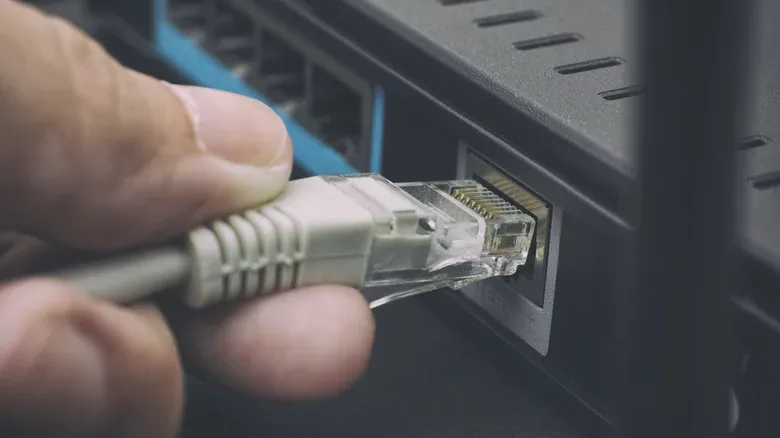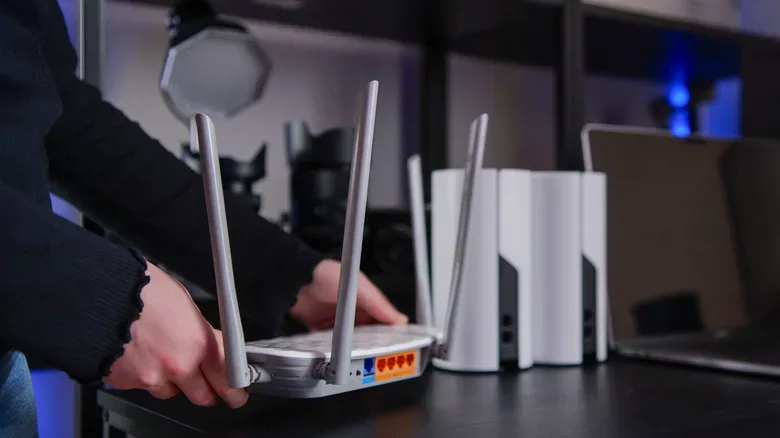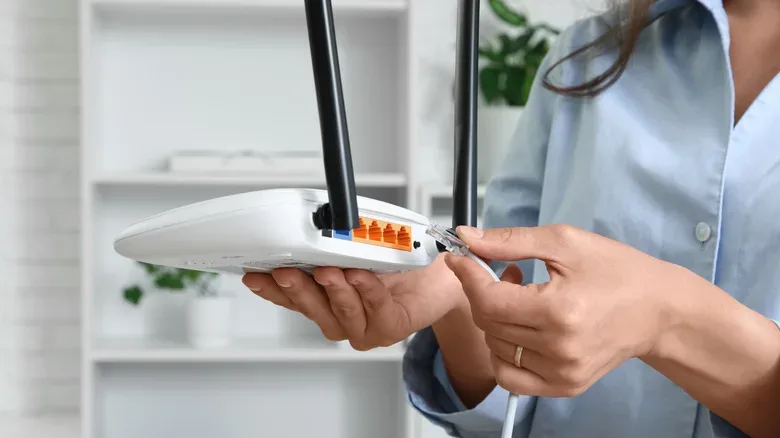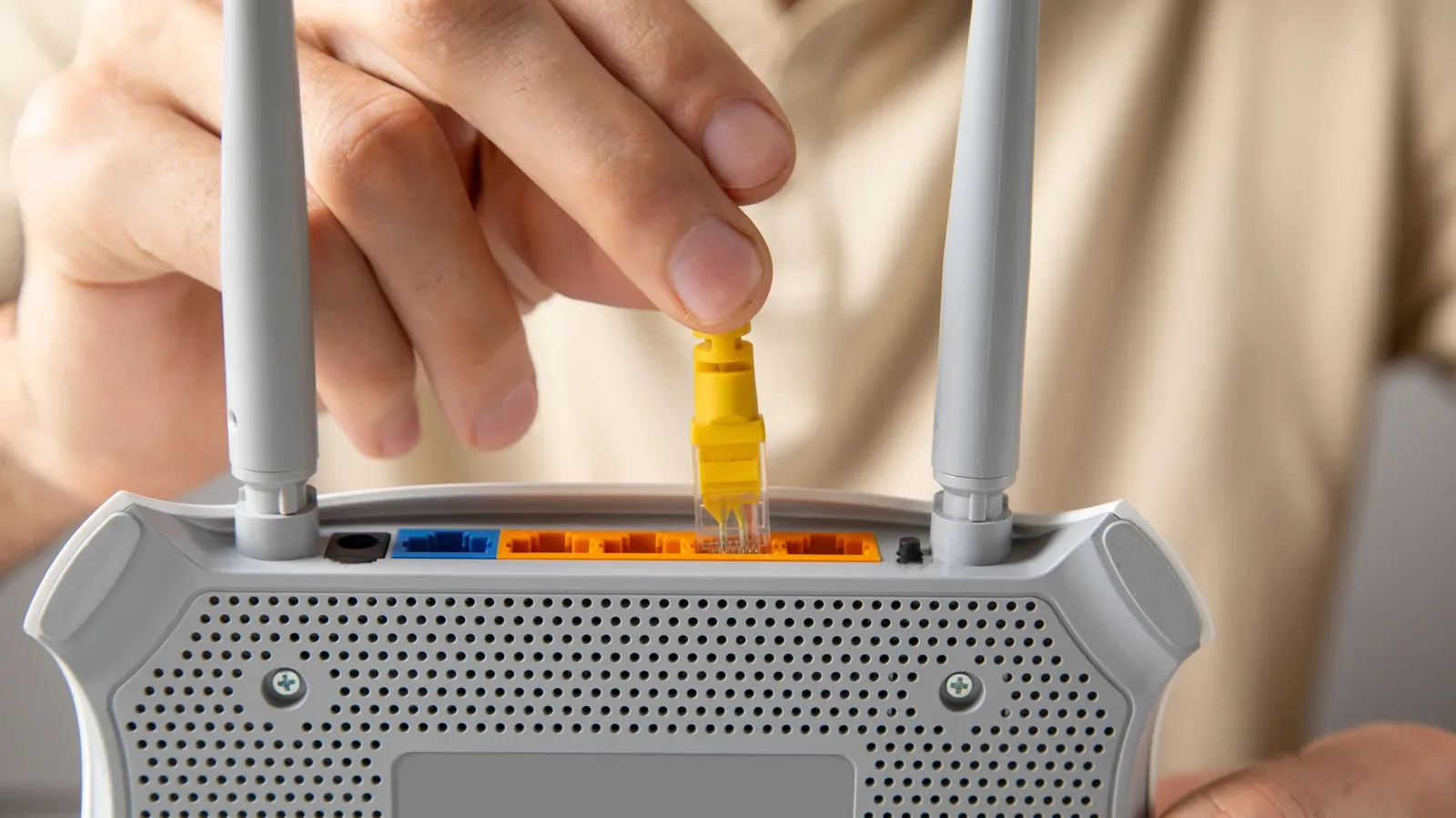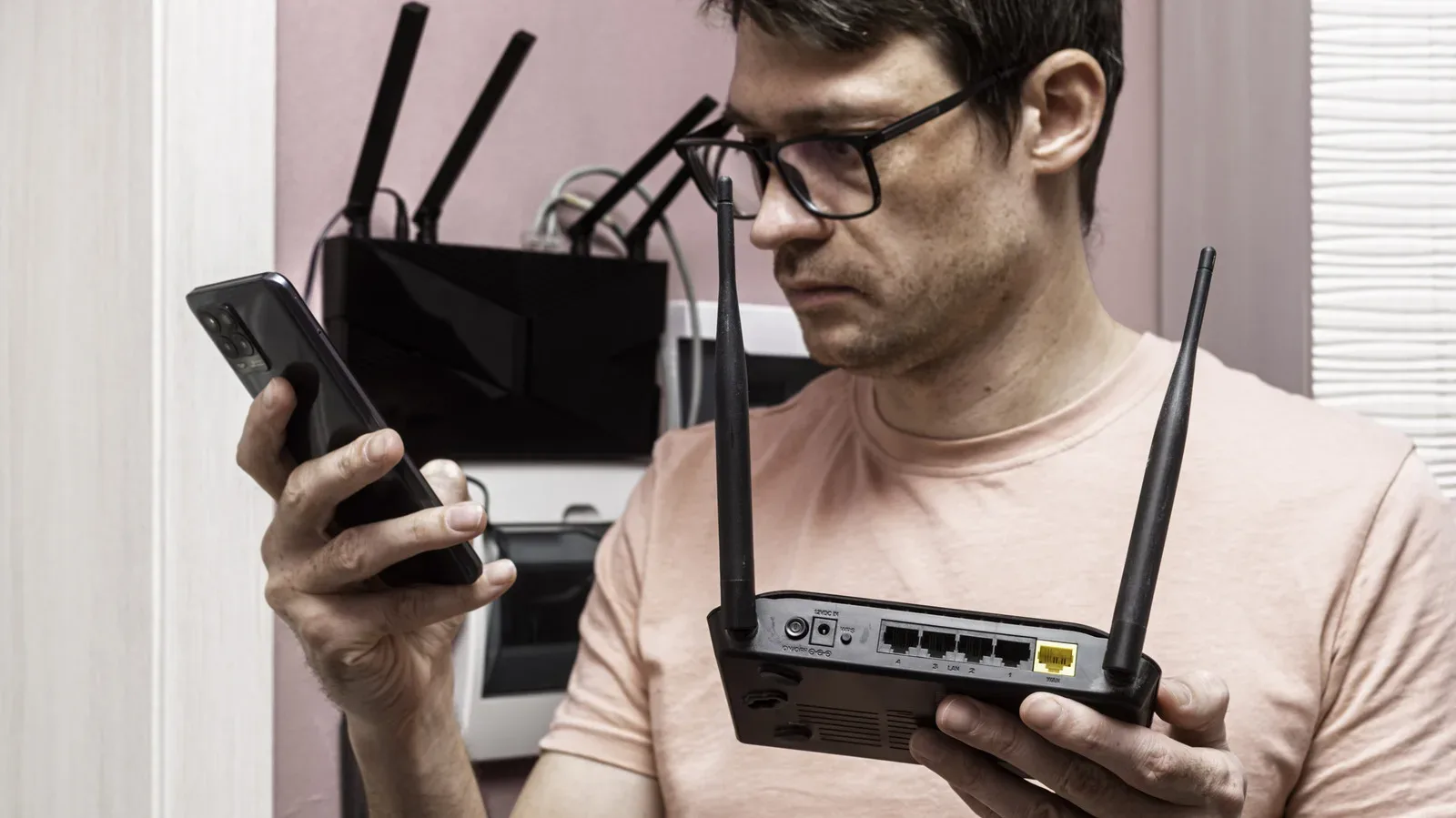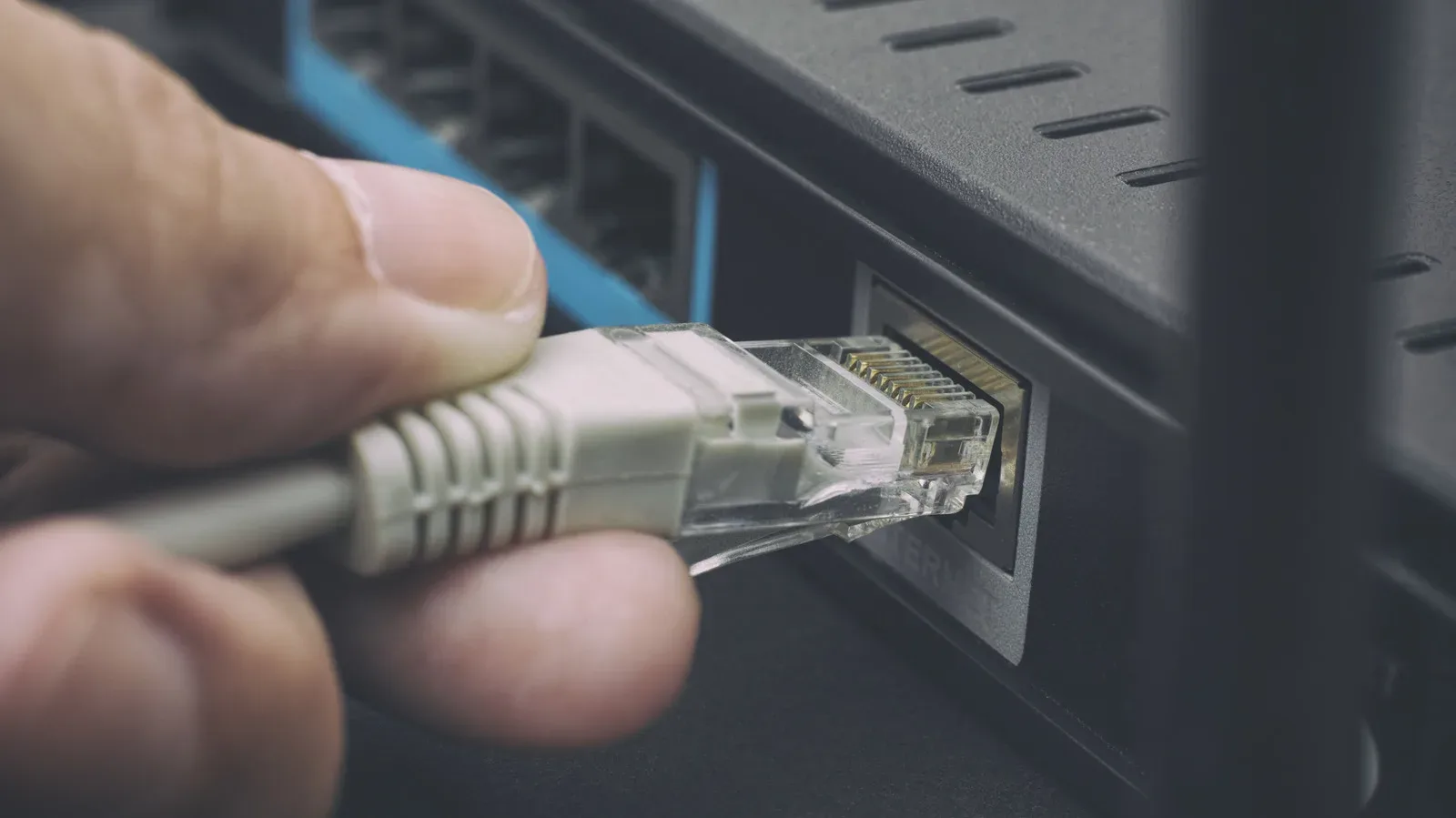
A wired connection remains one of the simplest ways to make a gaming PC, console, smart TV, or network-attached storage box behave more predictably at home. Yet the row of Ethernet jacks on a router can look far more self-explanatory than it really is. A cable fits, a light flashes, and it is tempting to assume every port is identical. Sometimes that is true. On other routers, choosing the wrong port means the router cannot reach the internet at all, while choosing a merely slower port may leave local network performance on the table.
The useful order of operations is straightforward: identify the job of the port first, then examine its speed rating. The Internet connection coming from a modem or fiber terminal has a different destination than a PlayStation, Xbox, desktop PC, or NAS. Once the device is connected to the correct side of the router, it is worth checking whether its Ethernet hardware, the router port, and the cable can all support the speed you expect.
WAN is the router’s path to the internet
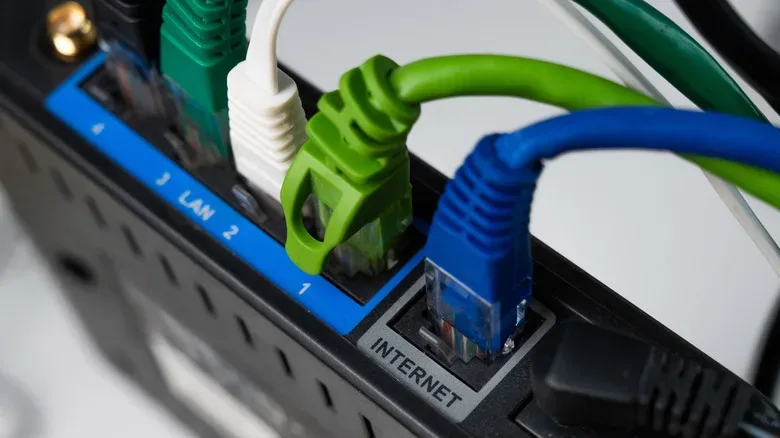
For homes using a separate modem or an optical network terminal (ONT), the cable from that box ordinarily goes into the router port marked WAN or Internet. WAN means wide area network. In practical home-network terms, it is the router’s upstream connection to the internet provider.
That makes this port fundamentally different from the ports intended for devices around the house. A gaming PC connected to the WAN jack is not simply getting a premium fast lane. On a conventional setup, that connection belongs to the modem or ONT. Put the incoming internet cable into a regular LAN port instead, and the router may not establish internet service correctly.
There is one major exception: a combination modem/router does not need an external modem-to-router Ethernet connection because both roles live inside the same hardware. Router designs also vary. Certain models use a jack labeled WAN/LAN, which can be assigned to either role, and some use auto-sensing ports rather than a permanently dedicated Internet port. When labels are ambiguous, the model’s documentation and specifications—not the numerical order of the jacks—are the reliable way to identify the correct connection.
LAN ports are for the gear in your home
The remaining Ethernet jacks are usually LAN, or local area network, ports. This is where wired household equipment belongs: a PC, game console, smart television, streaming box, access point, or NAS. Plugging in four devices does not create four distinct internet subscriptions. It simply gives four local devices direct wired paths into the same router and home network.
For players, that can mean dedicating a LAN connection to the console or PC instead of relying on Wi-Fi. It can also matter for setups involving game downloads, media servers, local backups, or transfers between a computer and NAS. Local traffic stays local; a file copied from a PC to storage on the same home network does not need to travel out through the broadband service and back again.
If the router does not have enough LAN jacks, the normal expansion tool is an Ethernet switch. Connect the switch to one LAN port on the router, then connect additional wired devices to the switch. It adds local ports; it is not a replacement for the router itself. This can be useful in an entertainment center where a console, TV, and other hardware all benefit from a wired link, or at a desk where a PC and NAS compete for the same small collection of ports.
There are also alternatives when a long visible Ethernet run is impractical. The right approach depends on the layout and equipment, but the important point is that a shortage of jacks on the router does not automatically force every extra device onto Wi-Fi.
Port numbers do not tell you which jack is quickest
After determining that a device belongs on the LAN side, look closely at the markings. Some routers give every LAN port the same capability, commonly 1Gbps. In that case, swapping a console from LAN 1 to LAN 4 will generally not improve its link speed, provided neither port has a special documented function.
Other routers mix standard gigabit and multi-gigabit jacks. Labels such as 1G, 2.5G, 5G, and 10G identify maximum link rates of 1Gbps, 2.5Gbps, 5Gbps, and 10Gbps. A manual may use the formal Ethernet names instead: 1000BASE-T, 2.5GBASE-T, and 10GBASE-T.
Do not assume the first port in the line is the fastest. The TP-Link Archer BE900, for example, includes four 2.5Gbps LAN ports plus 10Gbps connections that can be configured for WAN or LAN use. The Netgear Orbi 870 is another example of hardware that mixes gigabit and multi-gig Ethernet on the same unit. Those layouts make labels and documentation far more meaningful than physical position.
A sensible allocation strategy is to reserve the fastest compatible LAN port for the equipment that can actually use it. A desktop that moves large files to a NAS may have a stronger case for 2.5Gbps or faster Ethernet than a device whose network interface is limited to 1Gbps. A faster port is a resource, not a magical buff that every connected device can equip.
Every link in the chain sets the ceiling
Ethernet speed is negotiated between the hardware at both ends of the cable. A computer with a 1Gbps Ethernet adapter plugged into a 10Gbps router port normally establishes a 1Gbps link, because 1Gbps is what the computer supports. The 10Gbps port cannot upgrade the PC’s network adapter by itself.
The limitation works in the other direction, too. A computer with 2.5Gbps networking connected to a 1Gbps LAN port is constrained by that slower router port. To obtain a higher-speed connection, the router port, connected device, and cable path must each reliably support the appropriate Ethernet standard. Auto-negotiation handles the matching process in typical copper Ethernet setups, but it cannot overcome a component that lacks the needed capability.
- 1Gbps device + 10Gbps router port: typically a 1Gbps link.
- 2.5Gbps device + 1Gbps router port: typically a 1Gbps link.
- 2.5Gbps device + 2.5Gbps router port: potentially a 2.5Gbps link, assuming the cable and the rest of the connection cooperate.
- PC and NAS on matching multi-gig links: local transfers can exceed the speed of the home’s internet plan because the transfer remains on the LAN.
That last situation is especially relevant for a game library, captured footage, mods, or backups stored on a NAS. Broadband speed affects downloads from online services and multiplayer traffic to remote servers. It is not automatically the cap on communication between two devices in the same house.
For more home-network context around large game installations and always-expanding storage needs, it is easy to see why players are thinking bigger after No Man’s Sky Cosmos puts massive space-station builds in focus. The networking principle remains modest, though: fast local transfers require compatible local hardware.
Cable categories are not port types
Ethernet cable labeling creates a separate but common source of confusion. Cat5e, Cat6, and Cat6A describe cable categories. They do not describe a kind of router jack. There is no Cat6-only port to select on the back of a router.
Instead, the cable is one piece of the overall link. Its category, build quality, length, condition, and installation can affect whether higher Ethernet speeds work consistently. A cable that is fine for gigabit Ethernet is not automatically a guarantee for every faster configuration in every environment. Likewise, buying a cable with a newer category label does not bypass a 1Gbps network adapter or turn a 1Gbps router port into 2.5Gbps.
When a newly connected device does not reach the expected rate, avoid focusing on one component alone. Check the port label on the router, the Ethernet specification of the PC, console, or NAS, and the cable used between them. The router’s interface or device documentation may also show the negotiated link speed, which is more useful than guessing based on cable color or port placement.
A quick port-selection routine
- Find the cable that comes from the separate modem or ONT. Connect it to the WAN or Internet port unless the router’s instructions specify a configurable WAN/LAN port.
- Connect PCs, consoles, TVs, NAS devices, and switches to LAN ports.
- Read the labels beside each LAN jack. Look for 1G, 2.5G, 5G, 10G, or documented special functions.
- Check what the connected device actually supports. A multi-gig router jack cannot make a gigabit-only device multi-gig.
- Consider the cable and its run as part of the speed decision.
- Use the quickest compatible port where extra local bandwidth is genuinely useful, while remembering that identical LAN ports are usually interchangeable.
The practical takeaway is reassuringly unglamorous. Use WAN for the connection into the home, LAN for the devices inside it, and treat the printed speed labels as the real map. A correctly chosen multi-gig port can be valuable for suitable PC-to-NAS traffic, but it does not transform every console, computer, or internet plan into a 10Gbps contender.