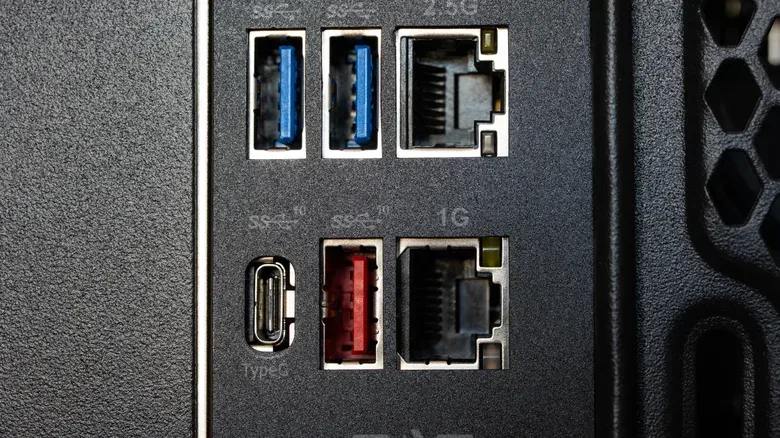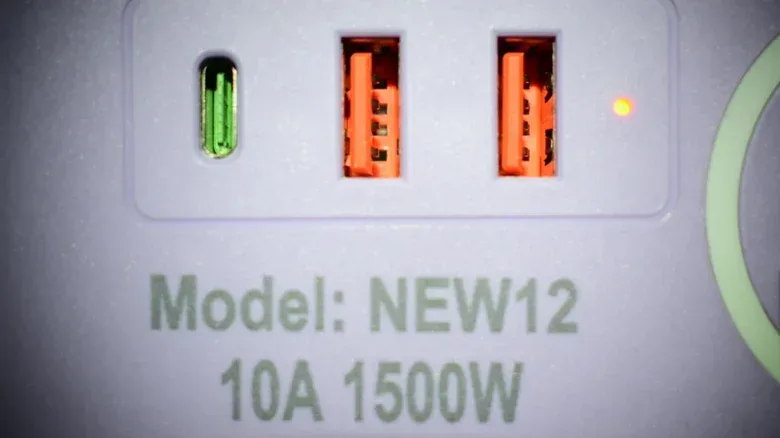
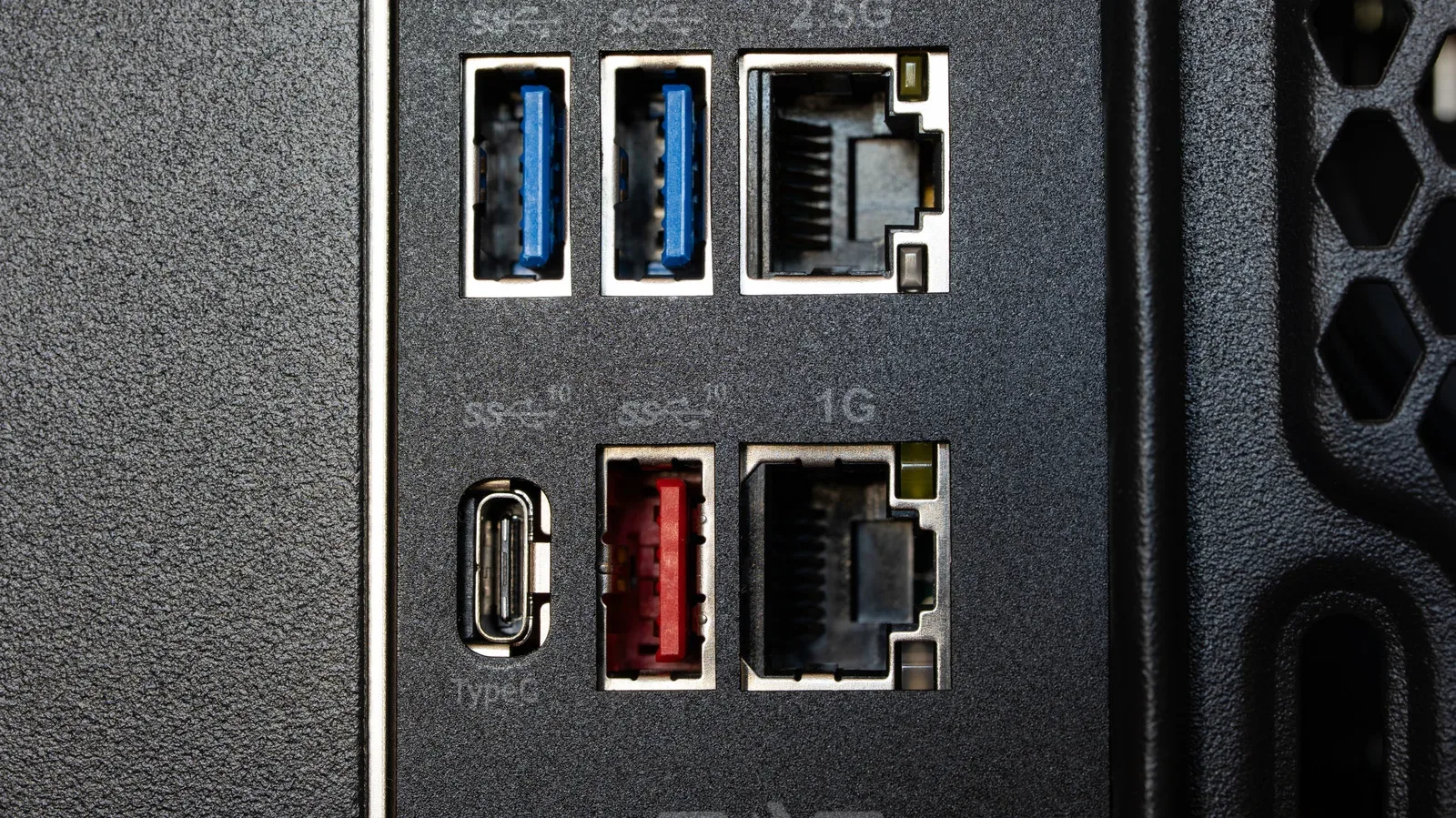
A red USB port can look like a very clear instruction: plug the important thing in here. That instinct is not entirely wrong, especially on a gaming laptop or motherboard packed with otherwise identical-looking connections. But the red plastic inside a USB port is a manufacturer choice, not a universal technical label. It can be a useful hint, not a verdict.
In practice, red is often used to draw attention to one of two capabilities: a fast USB connection, or an always-on charging connection that can supply power even after a computer has been turned off. Those are useful features for a game library on an external SSD, a controller that needs charging overnight, or any setup where ports are hard to see beneath a desk. The catch is simple: the same color does not guarantee the same function across every device, and it may not mean precisely the same thing even between two products from the same company.
The reliable answer is in the manual for the exact model. Before getting there, though, the port’s printed markings can offer much better clues than its color.
Red is a convention, not a USB rule
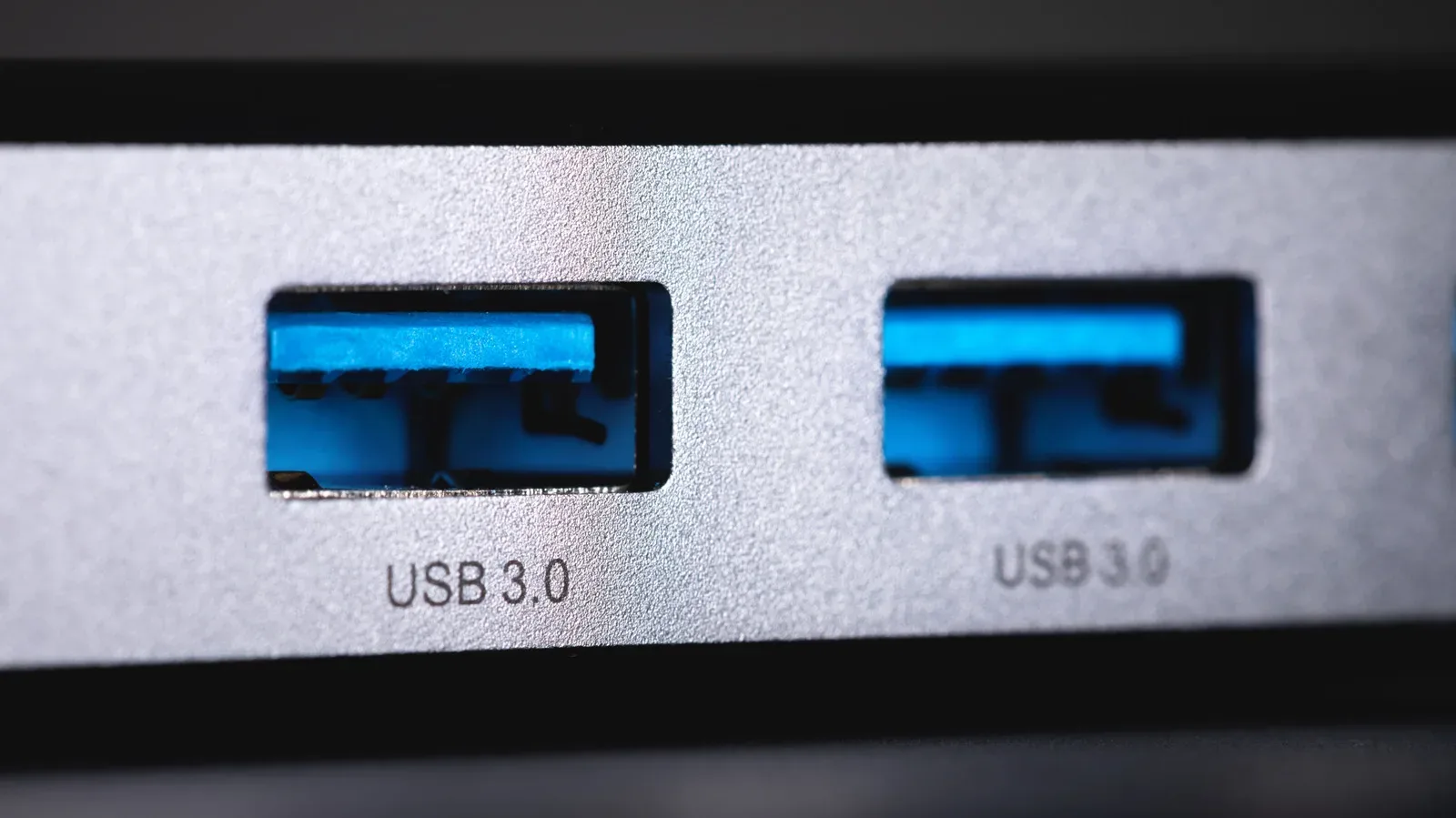
USB specifications are set by the USB Implementers Forum, but that does not mean the organization dictates the color of every physical port. Device makers can choose their own color treatments. Black, white and blue ports are common sights, while red, yellow and purple variants also appear, yet none of those colors is a complete technical specification by itself.
This matters because a color is easy to notice and easy to overinterpret. A red insert may have been selected as a visual shorthand for a higher-performance port on one laptop. On another device, it may be there to identify the port that keeps charging a connected device while the system is off. A manufacturer may use it for both ideas at once. And it is possible for a red port to offer a function that differs from the expectation entirely.
The color can narrow down the possibilities, but it cannot replace the device documentation or the symbols printed next to the port.
For players and PC owners, that distinction prevents a common setup mistake: assuming that every port is interchangeable when moving a storage drive, charging dock, controller cable or headset receiver. USB’s compatibility makes most connections forgiving, but choosing the right connection can determine whether a drive gets the best available transfer performance or whether a peripheral continues to receive power after shutdown.
What red most commonly suggests: higher-speed USB
Red ports are commonly associated with USB 3.2 or USB 3.1 Gen 2. As described by those labels, these connections can deliver data transfer speeds of up to 20 Gbps, placing them among the quickest USB ports widely encountered. For a device with both ordinary and red USB ports, the red one may therefore be the best candidate for an external SSD or another storage device that benefits from higher throughput.
Gbps means gigabits per second, a measure of how much data a connection can transfer in a second. It describes the connection’s potential bandwidth, not a promise that every file copy will hit that number. The connected drive, cable and computer all affect real-world results. Still, when a system marks one port as its speed-focused connection, using it for the external drive that holds large games or recordings is the sensible starting point.
USB4 succeeded these USB standards and can reach 40 to 80 Gbps. It is available only in USB-C form and is not color-coded. That is a useful reminder that red is not a hierarchy that extends to every newer USB connection. A USB-C port may be faster than the red USB port beside it without announcing that fact through a colored insert.
It also explains why connector shape and color should not be treated as the whole story. USB-C describes the physical connector format; it does not, by itself, identify every capability of the port. Likewise, a red port can suggest performance but does not independently prove a specific standard or speed.
The other likely meaning: charging while the computer is off
The second common interpretation is always-on charging. A port with this ability continues to provide power to an attached device while the computer is turned off. That can be convenient for charging a phone, wireless headset case or controller overnight without leaving the whole computer running.
A lightning-bolt mark is commonly used to identify an always-on charging port. It is a more meaningful visual cue than the red color alone, although it is still worth checking the model documentation for the definitive explanation. A lightning-bolt-marked port may also be fast, so its charging designation does not necessarily rule out higher-speed data capability.
The practical choice depends on what is connected. If the priority is powering a device while the PC is shut down, look first for the lightning-bolt symbol and confirm the function in the manual. If the priority is moving games or media to an external SSD, look for speed markings. One red port can be useful for either job, but a user should not assume that it handles both merely because of its color.
How to identify a port without guessing
The manual for the specific computer, motherboard or other hardware model is the strongest reference. It should identify the port’s standard, speed and charging behavior. This is particularly worthwhile on higher-end gaming laptops and motherboards, where USB 3.2 and always-on ports are more likely to appear than on basic everyday electronics.
If the manual is unavailable or the model number cannot be found immediately, inspect the markings around the port. Manufacturers often provide useful labels directly on the device:
- SS commonly means SuperSpeed, indicating a faster USB connection.
- A number may specify the connection’s exact speed.
- A lightning bolt commonly indicates that the port can remain powered for charging when the computer is off.
These indicators are not a substitute for documentation, but they are better evidence than the color alone. They also help separate two questions that often get blended together: how quickly a port transfers data, and whether it continues delivering power when the system is not running. A port can be valuable for one capability, the other, or both.
For anyone mapping out a desktop setup, it can help to reserve the most clearly marked high-speed port for storage and use a confirmed always-on port for overnight charging. That approach does not require treating red as a magic color; it simply assigns the hardware according to the labels and functions actually present.
Using the “wrong” port is usually not a disaster
The reassuring part is USB backward compatibility. A cable can generally be connected to a port from an earlier or later USB generation and still work. The downside of selecting a less capable port is typically lost potential, not immediate harm: a drive may not reach its best transfer rate, or a device may not stay powered once the computer is shut down.
That makes experimenting low stakes, but it does not make every outcome identical. Connecting an SSD to the fastest confirmed port is still the practical move when transfer speed matters. Putting a controller or phone on a confirmed always-on port is the better choice when charging during shutdown matters. For everything else, ordinary compatible USB ports remain valid options.
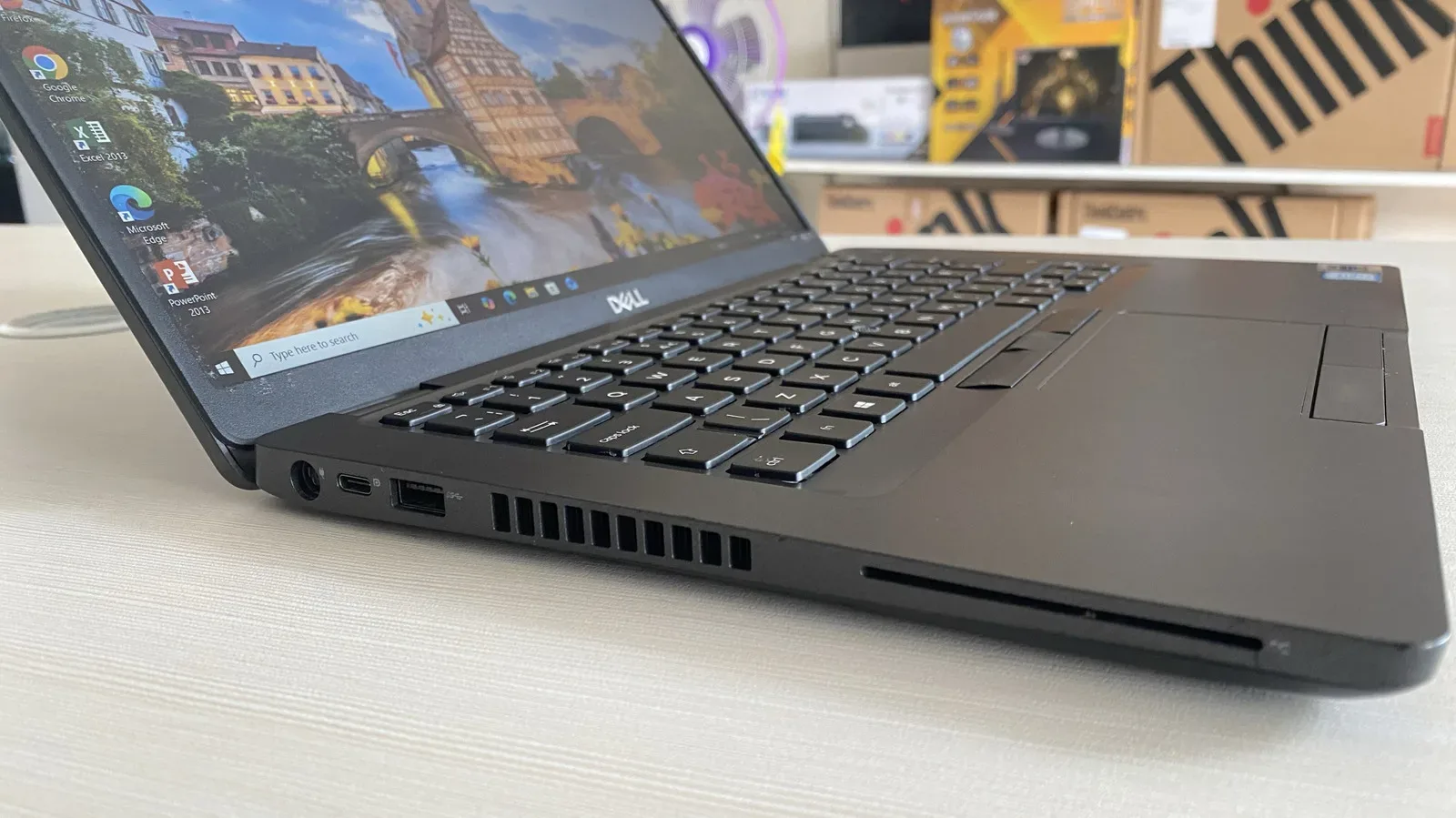
Color coding is best treated as a first clue. Red often points toward performance, persistent charging, or both; it does not establish the feature set on its own. Check the printed symbols, locate the exact model manual, and then give the port its proper job. If other unfamiliar laptop markings are causing confusion, the apparent card slot is not always what it seems either: an SC slot can be a smart card reader rather than a payment-card port.