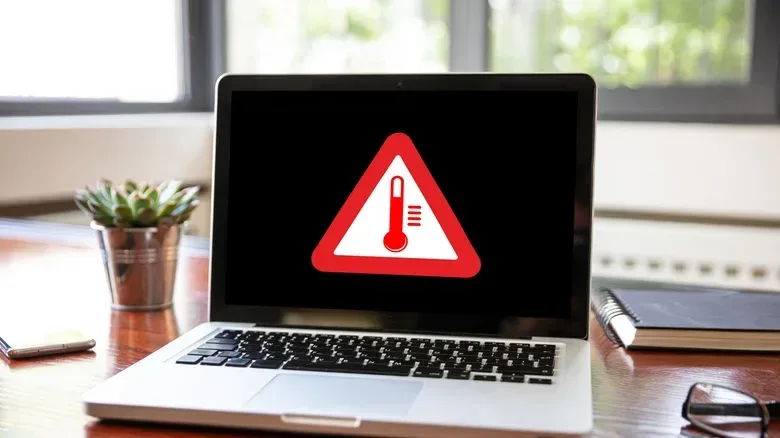

Gaming laptops are built for portability, but portability has a remarkably mundane weakness: the soft surface underneath them. A bedspread, pillow, cushion or sofa may make a tempting place for a long session, yet it can interfere with the very airflow a compact laptop needs to shed heat.
That does not mean every loud fan signals a hardware failure, nor does it mean a demanding game is doing anything improper. Games can legitimately push a CPU hard. But if the fans seem unusually loud during light tasks, or a machine gets warm when its workload does not seem especially taxing, its placement is worth checking before assuming the worst.
The basic advice is simple: put the laptop on a hard, flat surface that leaves its vents clear. The reasons matter, particularly for PC players using thin machines whose cooling hardware has little room to spare.
Why a soft surface changes a laptop’s cooling situation
Many laptops place ventilation slots on their underside. On a desk or table, small rubber feet normally lift the chassis slightly off the surface. That tiny gap gives air room to move around the bottom of the machine and lets its fans do their job.
Soft furnishings behave very differently. Bedding, cushions and pillows can bunch up around the underside of the laptop. Thin metal models may sink into the material, pressing fabric close to, or directly against, the bottom vents. Airflow is reduced just when the machine is relying on it to carry heat away.
There is a second problem: soft materials can act as insulation. Rather than leaving heat free to dissipate around the laptop, the fabric can hold it close to the chassis. Blocked vents and trapped heat together can make a CPU’s temperature climb more quickly.
Airflow in this context simply means the route air takes through and around a laptop’s cooling system. Fans draw and move air to remove heat from internal components. If the route is obstructed, the system has less opportunity to exchange hotter air for cooler air.
For a gaming laptop, this is especially relevant because a game may already be asking substantial work of its processor. The source material does not establish a particular temperature, game, laptop brand or performance effect. The practical point is more modest: putting an air-cooled portable PC on a surface that blocks its ventilation removes some of the margin its cooling design expects to have.
Loud fans are a clue, not a complete diagnosis
A fan becoming audible is not inherently alarming. It is supposed to respond when internal heat rises. Heavy software, unnecessary programs running in the background and aging components can all be possible reasons for a laptop to run hot or its fans to accelerate.
Surface choice belongs on that checklist because it is easy to inspect and easy to change. Before treating fan noise as proof that a game, processor or battery is failing, move the laptop to a table and make sure nothing covers the lower chassis. If the machine has bottom ventilation, do not assume the vents are clear merely because the display and keyboard are unobstructed.
This distinction is useful in gaming conversations because “CPU” is often used as a catch-all explanation for performance and heat issues. A CPU, or central processing unit, handles general computing work. It can be a limiting factor in games, but workload and cooling are separate parts of the picture: a processor may be busy because of software, while the laptop’s ability to cool it depends in part on whether the fan intake is open.
That broader distinction also applies when reading claims about hardware limits in games. For example, discussion of a reported console frame-rate cap has centered on whether a CPU constraint could be behind the reported GTA 6 30fps cap. That is a different hardware scenario from a laptop sitting on a blanket, but it illustrates why it is useful not to reduce every performance question to one vague idea of “heat” or “power.” Hardware workload, thermal management and platform design each need to be considered on their own terms.
Dust can make an airflow problem stick around
Soft surfaces may do more than briefly cover an intake. When a laptop sinks into fabric, dust and debris in that fabric can be pushed toward its fans and vents. Over time, that buildup can further degrade airflow.
That makes the issue potentially cumulative. A session on a bed may mean temporarily reduced ventilation. Dust accumulating in or around the fan path can leave the laptop with poorer airflow even after it returns to a desk. The supplied information does not quantify how rapidly this happens, and it will vary with the environment and the device. It does, however, give a sensible maintenance reason to keep the underside clear.
For users who suspect clogged vents, a simple first step is to shut down the laptop and use electronics-safe compressed air on the vents. The key safety point is the shutdown: do not undertake this basic cleaning while the machine is powered on. This is framed as a simple vent clean, not a cure-all for every temperature or battery issue.
Heat is also a battery concern
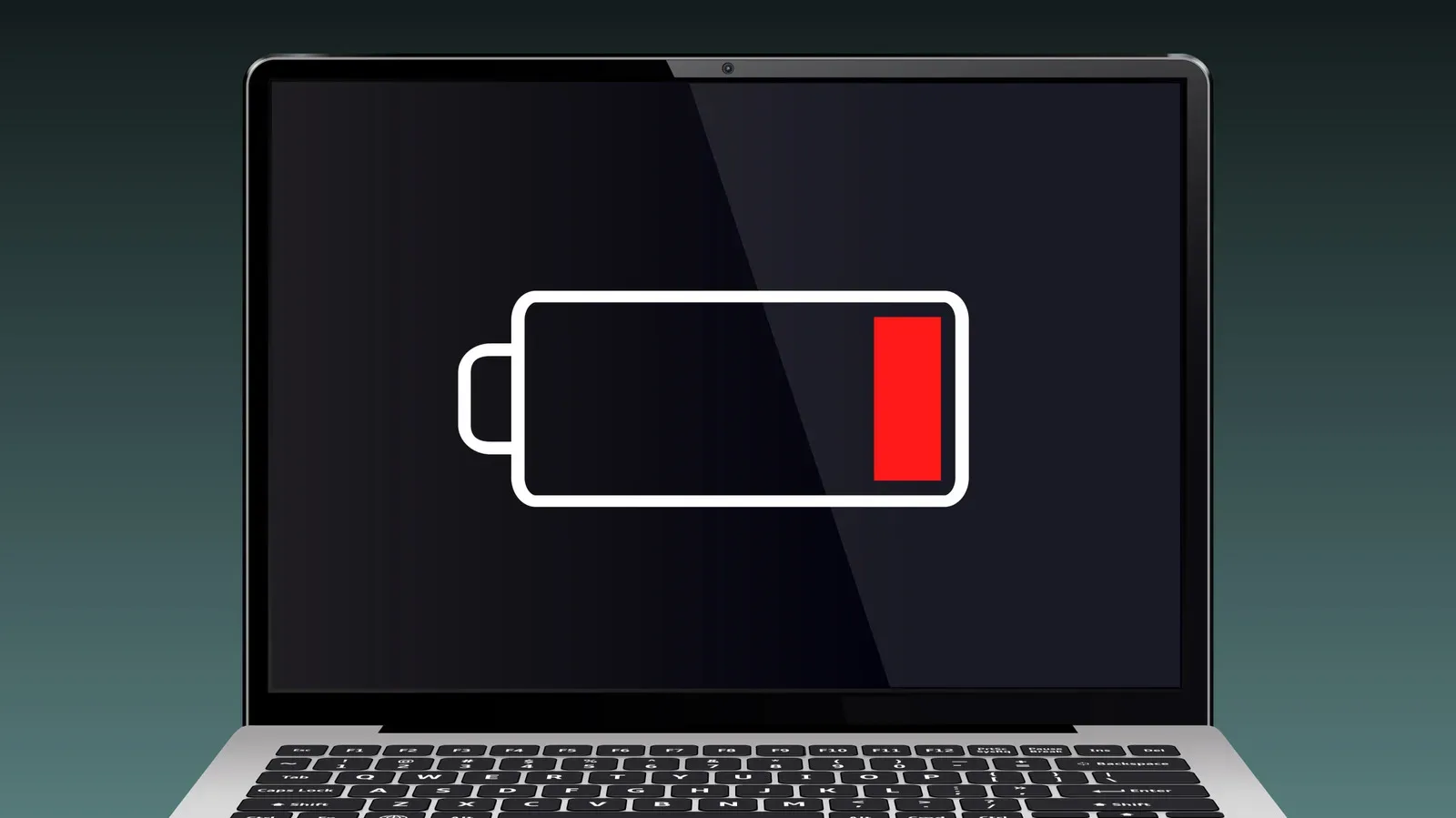
Performance is the immediate concern most players will notice: heat builds, the fan spins faster and the laptop becomes less pleasant to use. The longer-term concern is the battery. Trapped heat places more strain on a lithium-ion battery and can lead to permanent battery damage.
A lithium-ion battery is the rechargeable battery type used in modern portable electronics. The practical takeaway is not that a single warm gaming session guarantees a ruined battery. Rather, heat should not be treated as harmless background noise when it is being caused by avoidable obstruction of the device’s ventilation.
The risk described here can range from reduced performance and added battery strain to serious battery damage over a sufficiently long period. That is why changing the resting surface is more than an aesthetic preference. It is a straightforward preventative measure that does not require a software tweak, an advanced teardown or a new computer.
A practical setup checklist for couch and bed players
- Prefer a hard, smooth surface. A table or desk is the clearest option because it lets the laptop’s rubber feet create the intended gap underneath.
- Keep the underside visible. If blankets, cushions or a lap are pressed against the bottom chassis, assume they may be restricting ventilation.
- Take unexplained fan noise seriously enough to investigate. Background programs and aging hardware remain possible causes, but first rule out blocked airflow.
- Use a cooling pad for a comfier arrangement. A cooling pad is intended to improve airflow beneath the machine, offering an alternative for people who still want flexibility away from a desk.
- Check for dust if airflow seems compromised. With the laptop turned off, electronics-safe compressed air can be used to clean the vents.
The small habit that protects a portable PC
The appeal of a laptop is that it can follow its owner nearly anywhere. A competitive match at a desk, a relaxed single-player game on the sofa, schoolwork in bed: the same machine can accommodate all of it. Its cooling layout, however, does not stop caring about its surroundings.
The useful habit is to think about the laptop’s underside before starting a session. If bottom vents are being smothered by soft material, move the machine to a stable hard surface or use a cooling pad that maintains airflow below it. That simple adjustment can help avoid louder fans, excess heat, dust-related airflow loss and unnecessary strain on the battery.