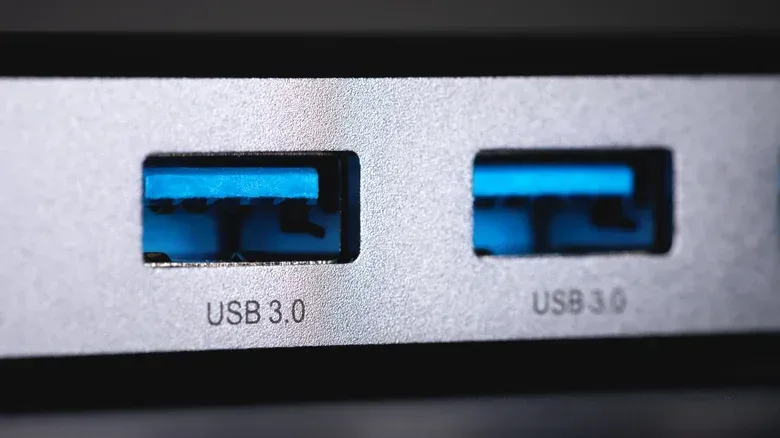
Not every port on a PC is created equal, and the teal insert inside one USB port is more than a decorative attempt to make the rear I/O panel look like it has joined a synthwave band. It is commonly used as a visual signpost for a faster connection: USB 3.1 Gen 2 or above.
That distinction can matter a great deal for a gaming desk. Large game installs, footage captures, mod archives, music-production sample libraries and general backups all make external storage more useful—and all can expose the gap between a basic USB connection and a faster one. A teal port will not magically make every drive fast, but it is often the port worth trying first when speed or charging capability matters.
The key word, however, is usually. Port colours are conventions rather than an ironclad universal rule. Teal is a useful hint, not a specification label that overrides a computer’s documentation. If you need certainty, confirm the hardware details in your operating system or device information.
What a teal USB port generally indicates
Teal USB ports are generally associated with USB 3.1 Gen 2, a standard introduced in 2013 and standardized by the USB Implementers Forum. Its headline strengths are faster data transfers and increased power output for connected devices.
USB 3.1 Gen 2 can reach speeds of up to 10 Gbps. Gbps means gigabits per second, a measure of the potential data rate of the connection. It describes the connection’s ceiling, rather than promising that every file will copy at that number. In plain terms, it tells you that the port has a substantially higher potential throughput than older USB connections when the connected hardware can keep up.
For a PC owner staring at a row of identical-looking rectangular USB-A ports, teal can therefore provide a quick practical cue: this may be the higher-speed option for an external SSD or a large transfer.
It is not a mandatory colour assignment. Some USB 3.1 Gen 2 ports use other colours, so a non-teal port is not automatically slower. Conversely, the colour alone should not be treated as definitive proof of the exact specification. Manufacturers do not apply every visual convention in precisely the same way.
Compatibility is a major part of the appeal
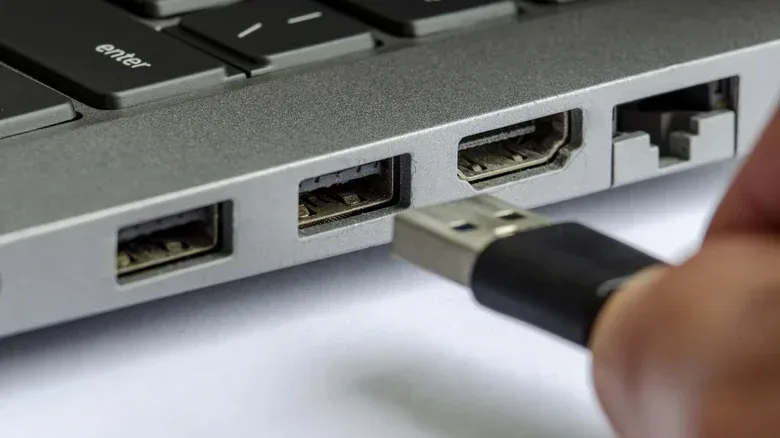
Fast ports are useful only if they leave older gear behind as little as possible. USB 3.1 Gen 2 ports are generally backwards compatible with USB 3.0 and earlier USB-A devices. That means an older accessory can still be connected and used through the newer port.
Related coverage includes What a Teal USB Port Usually Means on Your PC or Laptop.
The trade-off is speed. An older device does not gain the full advantage of a newer connection merely by being plugged into one. The connection can only work as quickly as the components involved allow. Think of the teal port as a wider stretch of road: it helps when the vehicle, route and cargo can use that extra capacity, but it does not turn an older device into a newer one.
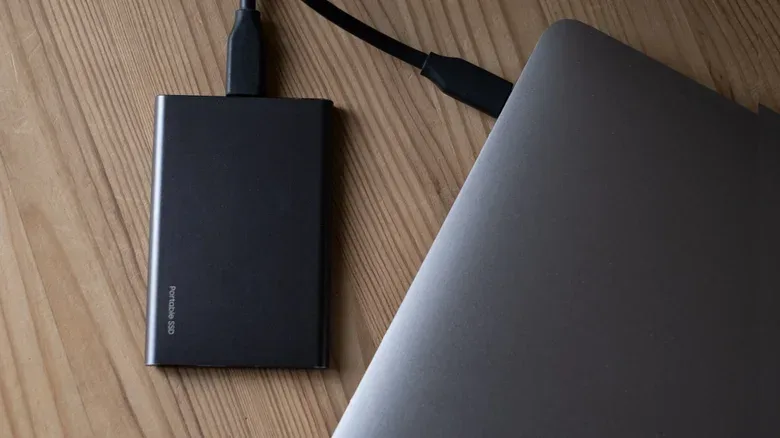
This is particularly relevant to external drives. A fast external SSD and a fast port are a natural pairing for large transfers; an older device may still function perfectly well but may not see the same benefit. For everyday peripherals such as a keyboard, mouse or controller, the higher transfer ceiling may be far less meaningful than it is for storage.
Why it matters for game storage and big media files
Modern PC libraries have made moving data an ordinary task rather than an occasional maintenance chore. A player may shift a game library between SSDs, move recordings for editing, or make room on an internal drive. Creators can also deal with large video projects or extensive audio sample collections.
In those situations, transfer speed is not an abstract benchmark figure. It affects how long equipment is tied up while files move. A port capable of up to 10 Gbps gives compatible high-speed external SSDs more room to operate than a slower connection, potentially cutting the wait involved in moving large collections of data.
That does not mean every transfer will be identical or that every job will take only a few minutes. The source material supports the broader advantage: USB 3.1 Gen 2 works well with high-speed external SSDs and can substantially reduce transfer time for large files. The exact result depends on the equipment being used and the task itself.
For someone organizing a portable library, that distinction is valuable. A teal port is a sensible first choice for connecting an external SSD containing games, video files or project assets. It is also a reminder to avoid judging a drive’s usefulness solely by how much storage it offers. The connection between the drive and the PC can shape the experience of filling it, emptying it and moving material back again.
A practical port-selection routine
- Identify the device that benefits most from high transfer capacity, such as a high-speed external SSD.
- Check the PC or laptop for a teal USB port, while remembering that the colour is only a general indicator.
- Use that port for large transfers or external storage work when possible.
- Keep ordinary low-bandwidth accessories on other available ports if that makes the desk easier to manage.
- Verify the port specification in software if the transfer capability is important to the purchase, workflow or setup.
This is not about treating every other USB socket as inferior. It is about assigning the port most likely to offer the higher-speed connection to the accessory that can actually benefit from it.
Teal is not necessarily the fastest colour in the room
USB naming and visual cues do not produce a simple hierarchy where teal always wins. Some red USB ports support USB 3.2, which can reach up to 20 Gbps. Teal versions of USB 3.2 do exist too, though they are less common.
That overlap is precisely why port colour should be approached as a convenience feature, not a final diagnosis. A red port may offer a higher theoretical top speed than a teal USB 3.1 Gen 2 port. Meanwhile, a teal port may point toward a high-speed option, but its particular implementation still needs confirming when the difference matters.
USB 3.2 is the newer designation mentioned here, and its 20 Gbps maximum is double the 10 Gbps ceiling associated with USB 3.1 Gen 2. That is a meaningful distinction for compatible storage and heavy transfer workloads. It does not make teal useless; it simply illustrates why the printed specification, system details and connected device remain more authoritative than the plastic colour.
How to check instead of guessing
On Windows, the supplied guidance is to use Device Manager to investigate the available USB hardware. On macOS, use System Report. These tools are the better route when a purchase decision, a troublesome transfer workflow or a particular device setup depends on knowing the port’s exact capability.
There is a useful difference between identifying a likely fast port and verifying a port. The first is what the teal insert helps with. The second requires checking the system. That small amount of extra effort is worthwhile because a physical colour can be inconsistent while the software information is intended to identify the hardware more precisely.
For laptop owners building a more permanent desk layout, the same principle fits into the wider setup picture. External drives and charging cables should be placed with the ports that suit them, while the laptop’s heat and display arrangement deserve their own consideration. Our guide to gaming with a laptop lid closed looks at those broader desk-setup trade-offs.
Charging is another reason to notice teal
Data transfer is the most obvious reason to seek out a faster USB port, but increased power output is another practical advantage associated with USB 3.1 Gen 2. Older computer USB ports have long been able to charge small devices, though not always in a particularly satisfying way.
A teal port associated with USB 3.1 Gen 2 can be more useful for charging phones, tablets, earbuds and similar small electronics. That makes it a convenient option on a desk where the computer is already acting as the hub for peripherals, storage and accessories.
It is worth separating two related ideas. A port can be better suited to charging than an older USB option, while charging performance is still a separate question from data-transfer speed. The teal indicator provides a reason to consider the port for either job, but it does not eliminate the need to check the particular hardware when charging behaviour is important.
The simple takeaway
A teal USB port is usually a welcome clue that a PC or laptop offers USB 3.1 Gen 2 or above. Its potential 10 Gbps transfer rate, compatibility with older USB-A devices and increased power capability can make it the sensible place to connect a high-speed external SSD or charge smaller electronics.
Just do not let the colour do all the thinking. USB 3.2 can reach up to 20 Gbps and may appear in red ports, while colours are not consistently enforced across every machine. Use teal as a shortcut, then use Device Manager on Windows or System Report on macOS to verify what the port can really do. Your cable-management situation may remain chaotic, but at least the fastest storage device will have a better shot at the right lane.