
A laptop can now be the entire heart of a desk setup: plug in a monitor, keyboard, mouse, network cable and headset, and the portable machine becomes a compact desktop replacement. That raises a deceptively simple question, especially for PC players: should the laptop sit open beside the monitor, or disappear into a vertical stand with its lid closed?
The reassuring answer is that neither approach is universally “correct,” and closing the lid is not automatically harmful. The meaningful difference is not desk aesthetics so much as how a particular laptop moves heat, how demanding the work is, and whether the system is configured to remain awake once the lid shuts.
For a low-power machine doing ordinary desktop work, a closed-lid arrangement can be a clean, practical choice. For a gaming laptop pushing a demanding game, rendering video or otherwise running hot for long stretches, the safer default is generally to leave the lid open unless the manufacturer specifically supports closed-lid operation under load. The laptop’s cooling design—not an internet rule of thumb—gets the final say.
The real issue is airflow, not the hinge
Opening and closing a lid naturally creates some mechanical wear over a long enough period, while a closed lid protects the keyboard and display from casual dust and spills. Those are modest practical points, not the central technical concern. Heat is the variable worth taking seriously.
Gaming laptops are built to handle more demanding workloads than thin, fanless machines, but they also generate more heat when their processors and graphics hardware are working hard. That heat has to leave the chassis. Many designs exhaust warm air through rear or side vents, but some use the area near or above the keyboard as part of their thermal path. With those systems, leaving the screen open can give warm air a more direct route away from the machine.
Some laptops also change their physical stance when opened, lifting part of the body from the desk. That extra gap can improve airflow beneath the chassis, where air intake may be located. Closing the lid can remove that small but useful advantage. A laptop stand can restore clearance, but it cannot necessarily recreate every aspect of the manufacturer’s intended open position.
This is why “I use a dock, so the lid should be closed” is not a thermal argument. A dock simplifies cables. It does not determine where a laptop’s fans draw air or where its exhaust goes.
What “under load” means
Load is simply the demand software places on the laptop’s hardware. A big download, a home-server task or ordinary browser use may be light to moderate work. A modern game, a lengthy render or other sustained processor-and-graphics-heavy activity can be a heavy load. The distinction matters because a notebook that remains comfortable during light work may behave very differently during an extended gaming session.
Related coverage includes Should You Use a Laptop With the Lid Closed? Heat, Power and Desk Setup Explained.
That does not mean every closed gaming laptop is headed for trouble. It means that the configuration needs checking rather than assumption. Clear vents, ample space around the body and an understanding of the model’s exhaust layout are basic requirements. If a machine becomes properly hot in normal use, treating open-lid operation as the conservative choice makes sense.
Closed lid: the appeal of a cleaner battle station
A closed laptop paired with an external display has obvious appeal. The desk feels less crowded, the internal panel is not shining alongside the main monitor, and the keyboard is covered when it is not being used. For people who prefer one focused screen rather than a mixed-size dual-display layout, this can be the least distracting setup.
There is also a power consideration. With the laptop display off, the computer is not illuminating an additional panel. That is particularly welcome late at night, and it reduces the power draw associated with that second screen. When an external monitor is connected, however, the laptop itself may draw more power overall than it does while operating alone, so using the power adapter is sensible rather than letting the battery quietly discharge.
Closed-lid operation is especially plausible for a fanless MacBook Air or another thin, low-power system that is not being asked to run sustained, demanding workloads. Purpose-built vertical stands exist for this style of setup, and their basic job is useful: keep the computer stable while allowing air to reach its underside.
The limitations are equally straightforward. A closed laptop eliminates its built-in display as a second workspace. It may also put the cooling system in a less favourable situation, depending on the model. Most importantly, it should never mean sealing the device into a tight cubby, pressing it against other equipment or blocking intake and exhaust vents.
Open lid: more pixels and a little more thermal margin
Keeping the lid open is the natural choice for players who want a second display. The external monitor can carry the game, while the laptop screen holds a chat window, music controls, a guide, a browser or an always-visible tool. It is not merely decorative screen count; it can keep secondary tasks out of the game’s way.
That arrangement can also be better aligned with the design of a heat-producing notebook. An open lid often leaves the keyboard area unobstructed, and on models that lift when opened it can improve the gap below the chassis. The benefit is particularly relevant to gaming laptops and workstation-class machines, which are more likely to spend meaningful time under heavy load.
There are trade-offs. The laptop consumes desk space, its display adds another light source, and the keyboard and panel remain exposed to dust. A two-screen setup also invites the usual monitor ergonomics questions: height, viewing angle, brightness and how far the laptop screen sits below the main display. Anyone upgrading the external panel can also avoid some common shopping mistakes by checking the gaming-monitor spec-sheet traps worth avoiding before buying on a headline number alone.
How to choose for your particular laptop
Start with the device, then the workload. A helpful decision process is less dramatic than it sounds:
- Identify the vents. Look at the sides, rear, underside and keyboard area. The goal is not to guess at an invisible thermal design; it is to ensure none of the visible routes are obstructed.
- Consider what the laptop actually does at the desk. Light office work and overnight downloads are very different from long gaming sessions or intensive creative tasks.
- Check the manufacturer’s guidance. If the documentation addresses closed-lid operation, particularly under sustained load, that is more useful than applying another model’s experience to yours.
- Give it clearance. Whether the lid is open or shut, avoid soft surfaces and cramped placement. A stand that gives the base room to breathe is a practical improvement.
- Use the power adapter for an external-monitor setup. This avoids relying on the battery while the computer is acting as a docked desktop.
A cooling pad should not be treated as a universal answer. Such pads may lower temperatures somewhat, but they do not solve the fundamental problem if the laptop’s own intakes or exhaust paths are blocked. Nor do they cool the closed gap between the display and the main body. Placement and airflow remain the priority.
Windows setting to check before closing the lid
On Windows, closing the lid commonly tells the laptop to sleep. That is useful when travelling, but it defeats a docked setup. In Control Panel, find Choose what closing the lid does and set the relevant lid-close options to Do nothing if the computer is meant to keep operating with the lid shut.
That setting is a convenience feature, not a guarantee that every closed-lid workload is appropriate. It only prevents sleep. Owners should still make the same airflow assessment, particularly before starting a demanding game or leaving a heavy task running unattended.
For overnight work, the risk profile is usually simpler when the task is light to moderate and the vents are clear. A download, an old laptop serving a modest home role or a render may be reasonable closed-lid uses in the right environment. Sustained heavy work warrants greater caution, because there is less reason to accept a thermal compromise when opening the screen is easy.
A useful compromise: screen off, lid partly open
There is a middle position for users who do not need the laptop panel active but would rather preserve an open thermal posture. The lid can be left open just enough for the screen to switch off, provided warm air is not being directed at the display. This maintains some separation between the upper and lower halves of the laptop while removing the distracting second panel.
It is not a dust-proof solution—the keyboard and surface remain exposed—and it is not a substitute for checking the exhaust design. But it shows that the choice is not always a binary one between fully open and fully closed.
The one upgrade that helps either arrangement
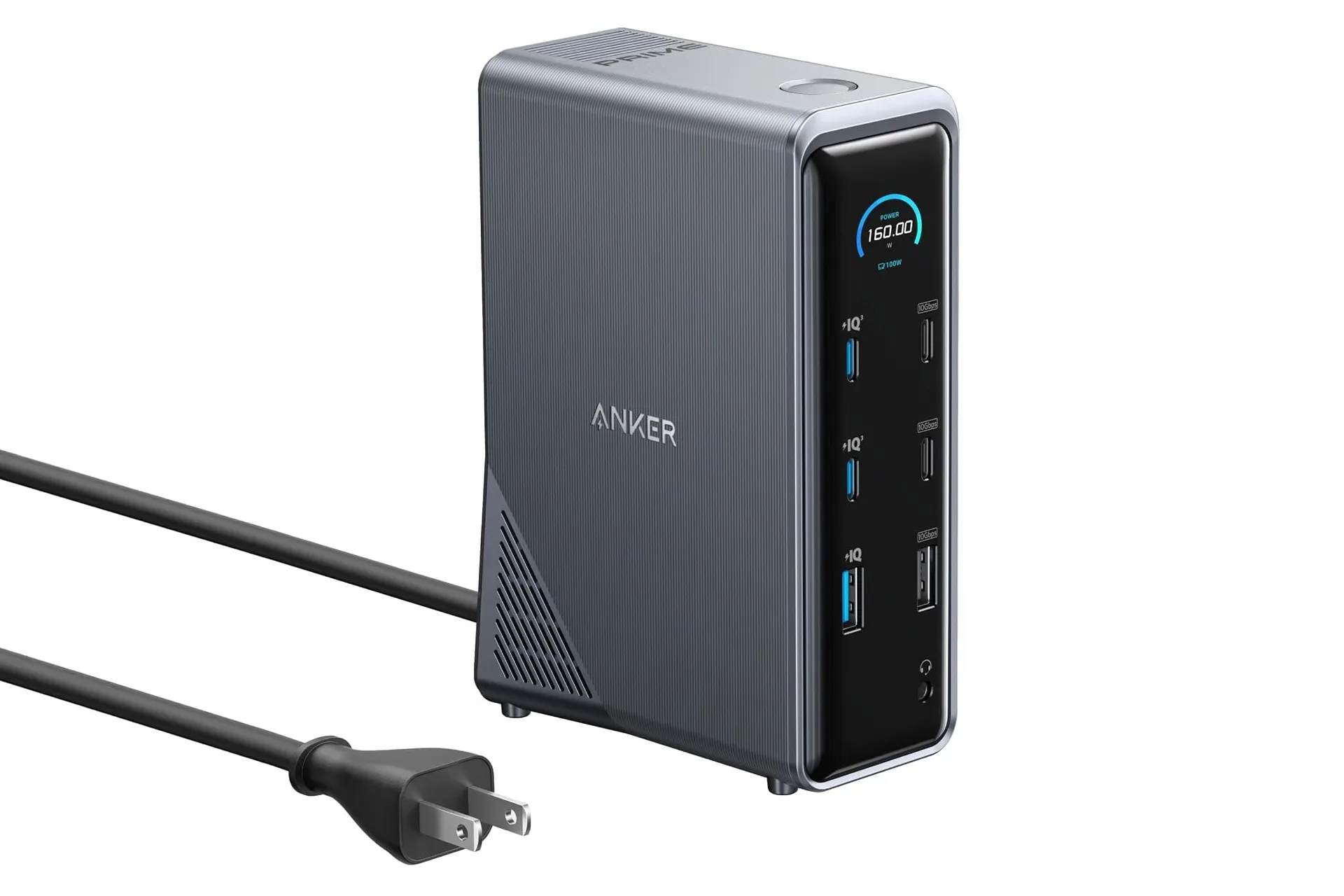
A docking station is the shared practical win. It can consolidate a monitor connection, keyboard, mouse, network cable and audio into a setup that reaches the laptop through a single cable. That makes a desk feel more permanent without making the laptop less portable: disconnect one cable, rather than untangling a small nest of peripherals, and take the machine with you.
Many docks or stands also position the laptop at an angle, which can create more space for air to move around it. That is useful in either configuration, though users should still make sure the mount does not cover a vent.
Ultimately, a lid position is a desk-design decision with thermal consequences, not a ritual that makes a laptop live or die. Keep a low-power laptop closed if that is the cleaner setup you prefer. Keep a hot-running gaming machine open when it is being pushed hard. In both cases, clear vents, sensible clearance, mains power and the manufacturer’s own guidance matter far more than whether the desk looks like a minimalist command centre.