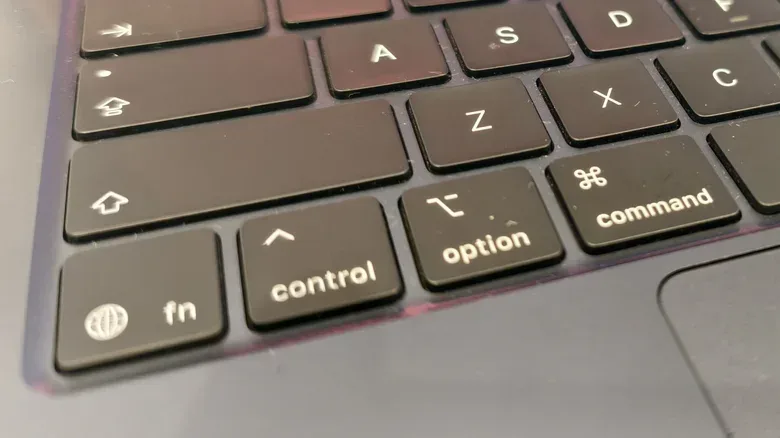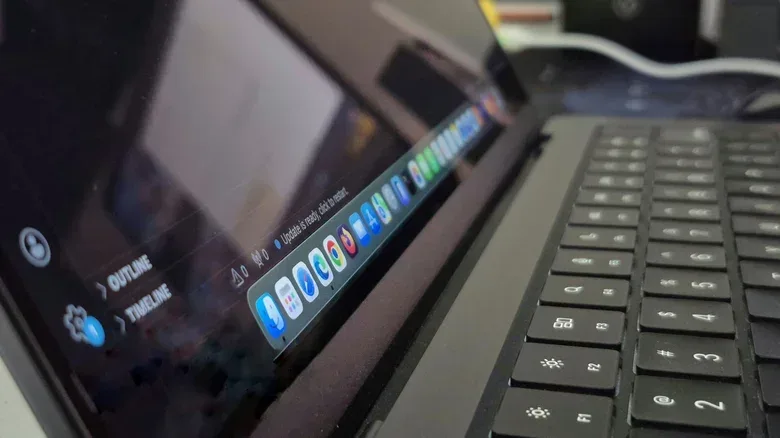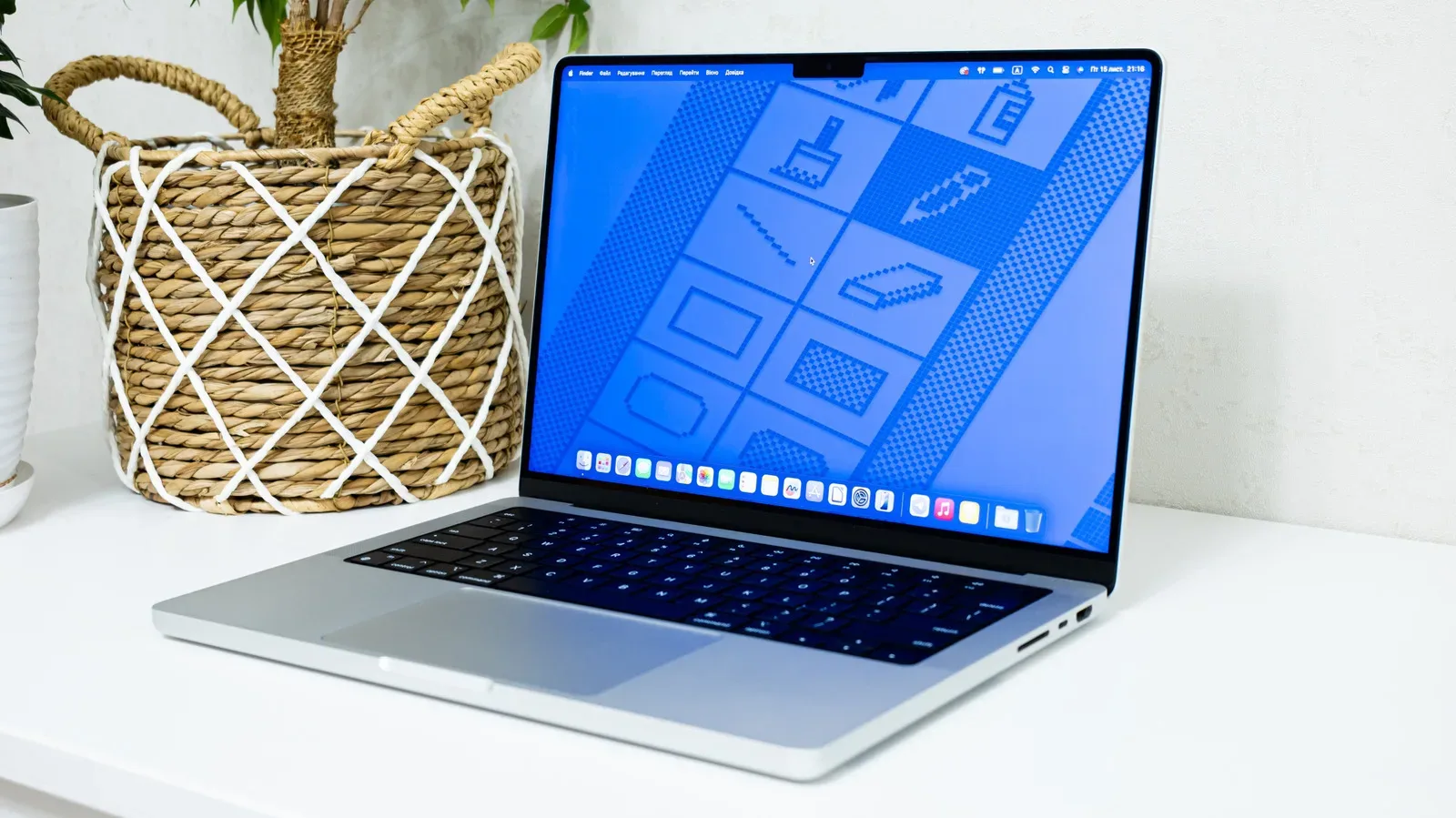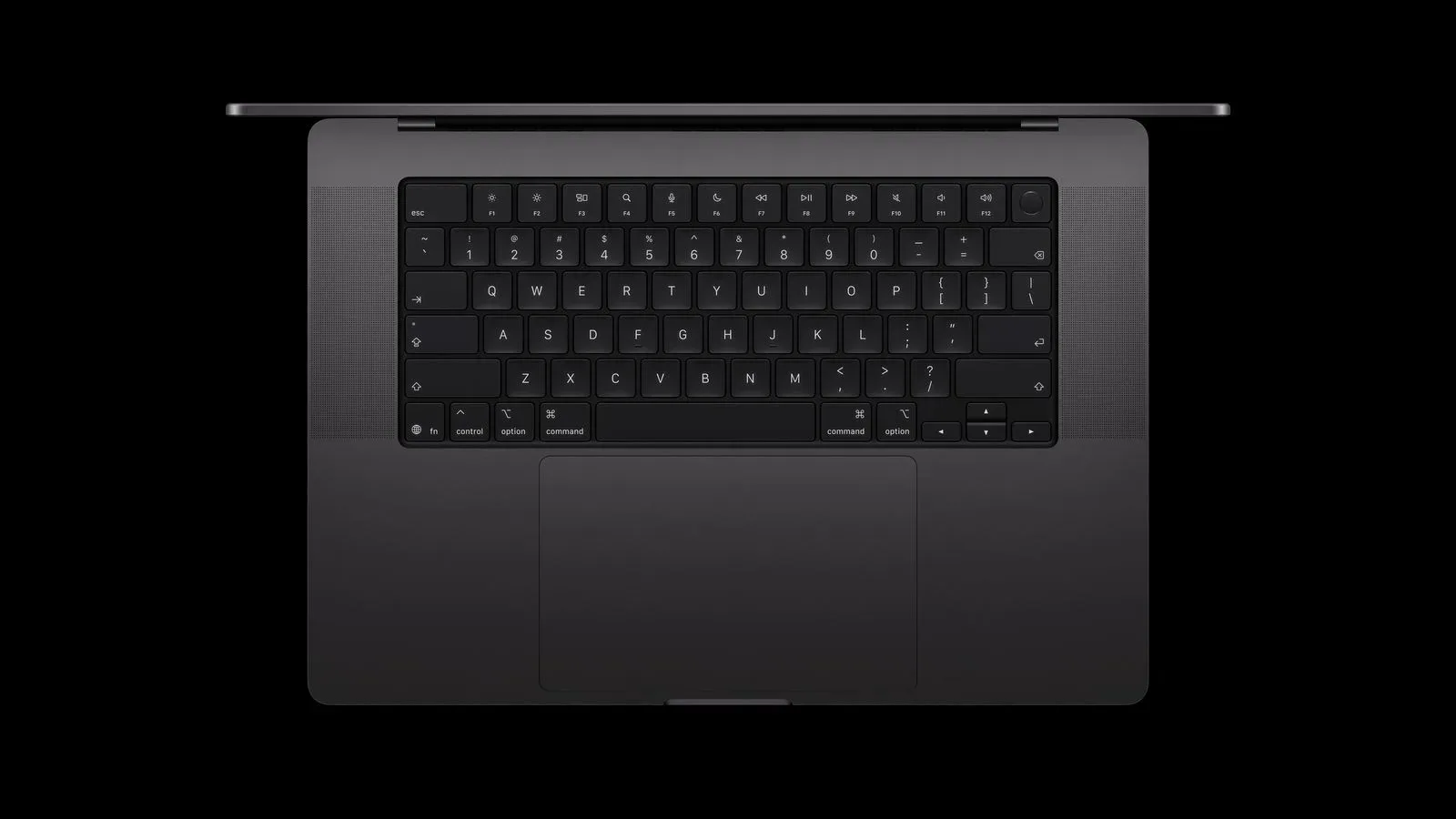
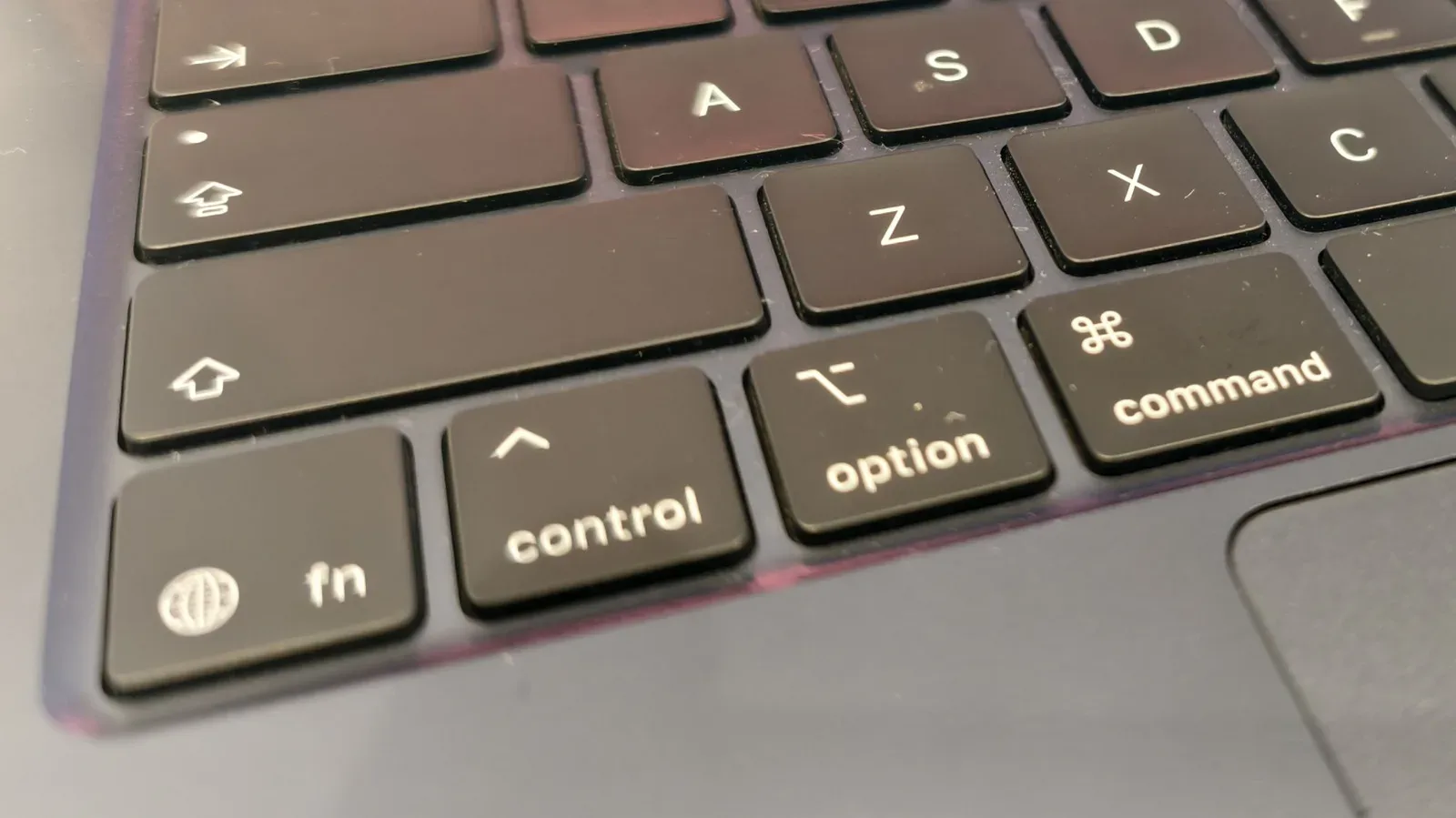
There is a tiny bit of keyboard misdirection happening on many MacBooks. The key marked with a globe looks like it should be reserved for languages, international settings, or perhaps an emergency summoning ritual for punctuation. In reality, it is also the Fn, or Function, key—and it can act as a gateway to a surprisingly broad set of macOS controls.
For people who only ever hit it to bring up emoji, that is a perfectly legitimate use. But the Globe/Fn key also changes F-key behavior, opens several macOS panels, helps move through long documents, switches enabled keyboard input sources, and participates in desktop and window-management shortcuts. It is one of those keys that can remain invisible for years because its most useful functions only appear when combined with something else.
That makes it especially relevant for MacBook users who work, play, write, code, or juggle several applications on a smaller display. The key is not a new app, a separate utility, or a mysterious hardware-only feature. It is a modifier key: a key held alongside another key to alter what that second press does. Command, Control, Option, and Shift are familiar modifiers. Globe/Fn belongs in that same general toolbox.
First: Globe and Fn are the same key
On Apple keyboards that include it, the globe symbol shares a key with the letters Fn. Its Function role matters most on the top row. MacBooks commonly give the F1 through F12 area immediate system jobs such as brightness, volume, or Spotlight-related controls. Holding Globe/Fn while pressing an F-key accesses the F-key action rather than that default system behavior.
This is the key distinction: the labels along the top row are often the default actions, while Fn lets users request the underlying function-key input. The Globe/Fn key is therefore a temporary override.
Users who rely heavily on F-keys—whether for programming workflows, games, or software that assigns commands to those keys—can reverse that arrangement. In Settings > Keyboard, turn on Use F1, F2, etc. keys as standard function keys. The F-keys then behave as conventional F-keys by default. In exchange, brightness and volume controls require Globe/Fn plus the applicable top-row key.
Neither setting is universally better. The practical decision is about frequency. If you adjust brightness and sound all day, the standard Mac arrangement is likely more convenient. If F-keys are central to what you do, changing the default can remove an extra press from repeated commands. It is a small setup choice, but these are exactly the choices that determine whether a keyboard feels like an interface or an obstacle course.
Single-tap behavior: language switching, emoji, dictation, or nothing
A quick press of the Globe key has a separate job from holding it as Fn. It can be configured in Settings > Keyboard > Press Globe key to. The listed choices are:
Related coverage includes What the Globe key on your MacBook actually does.
- Change Input Source
- Show Emoji & Symbols
- Start Dictation
- Do Nothing
Input source means the currently active keyboard layout or language option. For someone with multiple enabled input sources, a quick Globe press can switch between them. That is the obvious use of the globe icon: it is a fast pathway for multilingual typing rather than a decorative piece of cartography.
The Emoji & Symbols setting is useful for anyone writing messages, notes, captions, or posts where a symbol is faster than hunting through menus. Dictation, meanwhile, starts voice dictation from the keyboard. And “Do Nothing” is also a valid answer if accidental presses are more disruptive than helpful. Customization is not about filling every key with an ability; it is about ensuring the key does not get in the way.
Useful Globe/Fn combinations beyond the top row
With Globe/Fn held, several letter shortcuts provide direct access to commonly used Mac features. These are worth learning selectively rather than trying to memorize everything in one heroic evening.
- Globe/Fn + E: opens Emoji and Symbols.
- Globe/Fn + D: starts or stops voice dictation.
- Globe/Fn + C: opens Control Center.
- Globe/Fn + N: opens Notification Center.
- Globe/Fn + A: moves keyboard focus to the Mac icon and activates the Dock.
- Globe/Fn + Q: creates a Quick Note in Notes.
Control Center and Notification Center are particularly clear examples of why this key can be useful even outside specialist work. They are system-level destinations that people may want to reach without moving from keyboard to trackpad. Quick Note is similarly direct: it creates a note without making users first navigate through the Notes interface.
The Dock and menu-focused controls are more about keyboard navigation. “Keyboard focus” means the part of the interface currently receiving keyboard input. Moving focus to the Dock, menu bar, or status icons makes it possible to navigate those areas with the arrow keys rather than selecting them with a pointer. That will not be everybody’s default style, but it is a useful route for people who prefer to keep their hands on the keyboard.
Document movement and deletion without reaching for a mouse
The Globe/Fn key also takes on navigation duties in text and document work. It can serve as a compact substitute for keys that may not have dedicated positions on a MacBook keyboard.
- Globe/Fn + Delete/Backspace: performs forward delete.
- Globe/Fn + Up Arrow: moves up one full page.
- Globe/Fn + Down Arrow: moves down one full page.
- Globe/Fn + Left Arrow: jumps to the beginning of a document.
- Globe/Fn + Right Arrow: jumps to the end of a document.
Forward delete deserves a quick explanation because the name can sound backwards. Backspace/Delete normally removes the character to the left of the insertion point. A forward delete removes the character to the right. It is a modest distinction until you are editing a line quickly and would rather delete what is ahead of the cursor than reposition it.
Page movement and beginning/end navigation can be equally handy in a long note, article, or document. The value is not that a trackpad cannot scroll; it plainly can. The value is that a full-page jump is deliberate and repeatable. If the task is to inspect the next section rather than slowly glide through it, a keyboard shortcut is often cleaner.
Window tiling is where the key becomes a desktop-management tool
The Globe/Fn key’s more ambitious role is in window tiling. Window tiling is the process of placing app windows into defined portions of the desktop—halves, sides, or other arrangements—so multiple apps remain visible without manually dragging and resizing every rectangle.
On a MacBook display, this can make a practical difference when a person is cross-referencing a document, working from notes, keeping a conversation visible, or moving information between applications. The shortcuts listed for this purpose are:
- Globe/Fn + Control + Arrow: snaps the active window to the top, left, bottom, or right side of the display.
- Globe/Fn + Control + Shift + Arrow: tiles the active window to one half of the screen and puts the second most recently used window in the opposite half.
- Globe/Fn + Control + Option + Shift + Arrow: arranges three windows, with one window occupying half of the available space.
- Globe/Fn + Control + F: expands the active window to fill the desktop without entering full-screen mode.
- Globe/Fn + Control + C: centers the active window.
- Globe/Fn + Control + R: returns the window to its previous dimensions.
The distinction between filling the desktop and entering full-screen mode is meaningful. Full-screen mode is its own viewing state, while the desktop-filling command enlarges the active window without using that full-screen state. For someone who wants a window big while retaining their ordinary desktop context, that is a useful separation.
The automatic two-window arrangement also carries a practical assumption: the second most recently used window is likely the one you intended to pair with the active one. It is a shortcut designed around a common workflow—working between two things—rather than treating every window as an isolated task.
There is a gaming-adjacent lesson here, even though these are Mac productivity controls rather than game commands. Good shortcut habits are like a sane control scheme: assign muscle memory to the few actions repeated most often. A player using a MacBook for guides, Discord, capture notes, browsing, or general desktop work may get more out of learning one dependable tiling combo than from attempting to become a keyboard-speedrunner overnight. For other PC care basics in the same spirit, see our guide to why alcohol wipes can be a risky shortcut for laptop screens.
More desktop navigation shortcuts
Several additional Globe/Fn combinations help manage the visible desktop and menu interface:
- Globe/Fn + F: toggles full-screen on or off.
- Globe/Fn + H: moves open windows aside.
- Globe/Fn + M: moves keyboard focus to the top menu bar, where arrow keys can navigate app menu items.
- Globe/Fn + Control + F8: focuses the status icons on the right side of the menu bar.
- Globe/Fn + Shift + A: opens or closes App Browser.
The sheer number of options is not an argument that everyone needs all of them. It is an argument that the globe key is more than its symbol suggests. A user might choose a personal mini-loadout: one single-press behavior, one quick access shortcut, one navigation command, and one tiling command. That is enough to make the key useful without turning routine computer use into a memorization test.
Change the key’s role if the default does not fit
There is one more customization route for users who would prefer the physical key to imitate another modifier. Go to System Settings > Keyboard > Keyboard Shortcuts > Modifier Keys. From there, the Globe key can be assigned to function as Control, Option, Command, Escape, or No Action.
This is best treated as a deliberate remapping decision, not an automatic upgrade. Reassigning Globe means giving up its ordinary Globe/Fn behavior for the selected role. It may make sense for a person whose workflow has a very specific need for an extra Control, Command, Option, or Escape key. For others, the key’s existing mix of input switching, Fn access, document navigation, and window management is the more flexible deal.
The simplest way to approach it is to notice friction. Do you keep opening emoji? Set it to Emoji & Symbols. Switch languages frequently? Choose Change Input Source. Use F-keys as commands? Enable standard function keys. Constantly arrange two apps beside each other? Practice the tiling combination. The Globe key does not need to become your favorite key. It just needs to stop being an unlabeled extra button with a surprisingly useful skill tree.