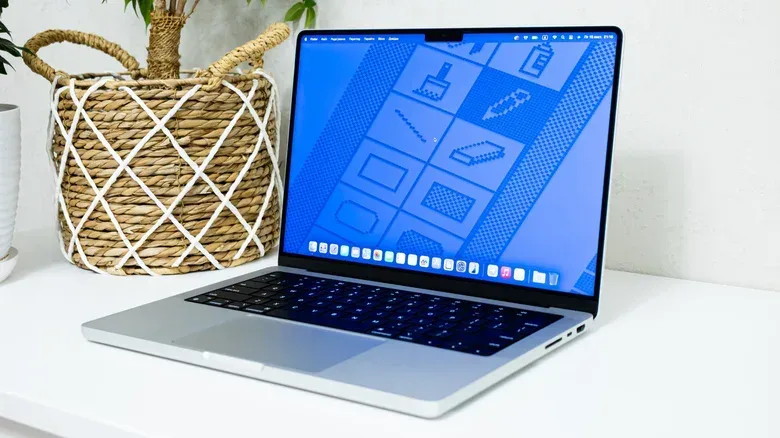
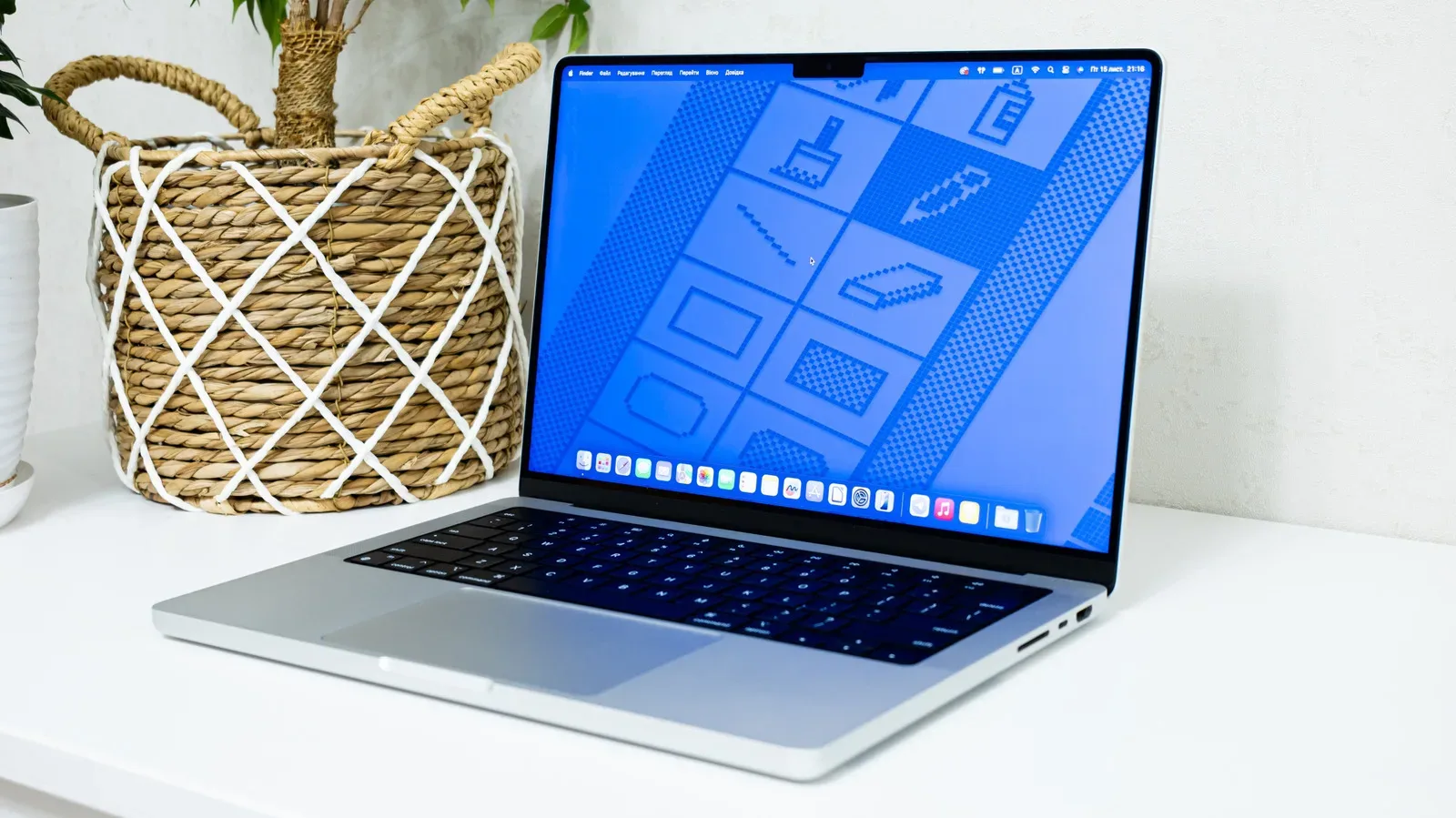
Virtual desktops are meant to make a busy Mac feel less busy. On macOS, they are called Spaces: separate desktop environments that let you divide windows and apps by task rather than pile everything onto one screen. A person might keep messages in one Space, browsing in another, and media in a third. The system supports as many as 16 dedicated numbered Spaces.
But there is an easy-to-miss default behavior that can undermine that neat arrangement. A Space that gets used can move in the Mission Control lineup, changing the order based on recent activity. That may be useful for someone who wants their most recently used work area to come first. For anyone who has built a deliberate left-to-right desktop layout, though, it turns navigation into a small but recurring memory game.
The fix is not a third-party utility, a Terminal command, or a wholesale change to how Mac multitasking works. It is a single Mission Control preference in System Settings. Disable it and the order of your Spaces stays under your control.
What Spaces and Mission Control do
Spaces are macOS virtual desktops. Each one can hold its own collection of open windows, helping separate different kinds of activity. Instead of continually minimizing, restoring, and searching through a crowded desktop, you can move to a different Space for a different context.
Mission Control is the macOS interface that presents active desktops and windows for overview and switching. It is where the order of Spaces becomes especially visible. The distinction matters because fullscreen apps and apps in split view can also behave in a Space-like way, but they are not the same as the numbered dedicated Spaces—particularly when using keyboard navigation.
That difference explains why a well-organized setup can still feel inconsistent. It is possible to have a stable intent for numbered desktops—say, communication first, browsing second, entertainment third—while fullscreen and split-mode app areas participate differently in the overall workspace view. Keeping the numbered Spaces in a predictable sequence at least removes one source of friction.
The setting that causes the reshuffle
The option is named Automatically rearrange Spaces based on most recent use. It is enabled by default. When it is active, macOS can reorder the Spaces shown in Mission Control around the desktops you have accessed most recently.
In practical terms, that means the relationship between a Space and its location is not fixed. A desktop you mentally treat as “the one on the far left” might not remain there after you move between apps and desktops. This is particularly noticeable when switching between work areas through normal app navigation, including Command + Tab.
The feature is not inherently broken; it reflects a different organizational philosophy. Recent-use ordering prioritizes what macOS believes is currently relevant. A fixed order prioritizes spatial memory: the idea that a particular desktop is always in the same position. Neither approach is universally better, but the second is generally more comfortable for people who assign consistent jobs to their Spaces.
How to keep Spaces in a fixed order
- Open System Settings by selecting the Apple icon in the menu bar and choosing it. Spotlight can also be used to search for System Settings.
- Select Desktop & Dock.
- Scroll to the Mission Control section at the bottom of the page.
- Turn off Automatically rearrange Spaces based on most recent use.
With that toggle disabled, macOS should stop changing the order of your Spaces simply because one was used more recently. You can then arrange them around your own routine and expect that arrangement to remain consistent.
It is a modest adjustment, but it addresses a genuine workflow problem. Virtual desktops work best when moving between them is nearly automatic. If you must stop and visually re-check where each desktop has moved, the organizational tool starts demanding attention instead of saving it.
Choose a navigation method that matches the layout
After stabilizing the Space order, navigation becomes more dependable. macOS offers several ways to travel between desktops:
- A three- or four-finger swipe on the trackpad.
- Control + Left Arrow and Control + Right Arrow.
- Opening Mission Control and choosing the desired Space with the pointer.
Trackpad gestures and the Control-arrow shortcut are especially suited to a fixed arrangement because they encourage directional movement. When a communication desktop is always before a browsing desktop, or a media desktop is always after it, the action can become habitual rather than exploratory.
Mission Control remains useful when you want the broad view: it lets you inspect the active Spaces and select one directly. That is also why preventing automatic reshuffling matters even for pointer-driven users. A static arrangement makes the overview easier to parse at a glance.
Use wallpapers as labels when Spaces cannot be renamed
macOS does not officially offer a way to rename Spaces. That limitation can make a multi-desktop setup harder to read, since generic numbered workspaces do not communicate their purpose. A practical alternative is giving each desktop a distinct wallpaper.
To make that work, change the wallpaper while inside the specific desktop Space and disable the Show on all Spaces option. Each Space can then carry its own visual identity. One could use a subdued wallpaper for task-focused work, a more recognizable image for media, and another for communication. The important part is consistency, not decoration.
This does not change how Spaces function, but it gives the eye an immediate clue about where you are. Combined with a fixed order, wallpapers create two kinds of orientation: positional memory from the lineup and visual recognition from the background.
Add direct Mission Control shortcuts
macOS also provides configurable Mission Control shortcuts beyond the usual gesture and left/right movement. They are available through System Settings > Keyboard Shortcuts > Mission Control, then the Mission Control drop-down menu.
The available list reflects the Spaces currently available, and individual shortcuts can be enabled according to need. Direct shortcuts are useful when a desktop has a repeated, distinct purpose and you want to avoid stepping through several workspaces to reach it.
This is where a stable order becomes more than a cosmetic preference. A shortcut scheme, a set of wallpaper cues, and directional navigation all work better when the underlying desktop arrangement is not being changed by a recent-use rule. The goal is not to add shortcuts for every possible action; it is to reduce the number of decisions required to get to the right place.
Turn a screen corner into a Mission Control trigger
Hot Corners are another macOS tool that can complement Spaces. They assign functions to the four corners of the display. One available function is launching Mission Control, which makes it possible to move the pointer into a chosen corner and see the active Spaces.
For users who prefer mouse or trackpad pointer movement over memorizing key combinations, this can provide a quick route to the desktop overview. It also works well as a fallback method: gestures and keyboard shortcuts are fast for routine movement, while Mission Control is useful when you want to confirm the layout before switching.
That flexibility is valuable for a machine used for many types of PC activity, from productivity tasks to keeping up with PC game coverage. Separate spaces can reduce window clutter, but only if getting between them remains simple.
Keep selected apps available everywhere
Some apps do not fit neatly into one desktop. Music controls are a good example: it can be convenient to reach a player from any Space rather than switching away from the task at hand. macOS can keep a selected Dock app present across desktops.
To do this, Control-click the app in the Dock, choose Options, then select Assign to All Desktops. The app will persist across Spaces.
Use this selectively. The value of Spaces is partly their ability to contain and separate windows. Assigning too many apps everywhere can weaken that separation and recreate the clutter that virtual desktops were meant to solve. It makes the most sense for utilities or controls that genuinely need to remain at hand regardless of the current workspace.
A small preference with an outsized effect
The recent-use ordering option is a reminder that default behavior is not always the behavior that suits a particular routine. macOS offers the automatic approach out of the box, but its Spaces feature becomes more predictable when the user decides whether recency or permanence should govern the layout.
For a structured setup, turn off automatic rearrangement, place desktops in a deliberate sequence, give them distinct wallpapers if useful, and adopt one or two reliable ways of moving between them. Once those pieces are in place, Spaces can return to their central purpose: keeping separate tasks separate without making the desktop itself harder to navigate.