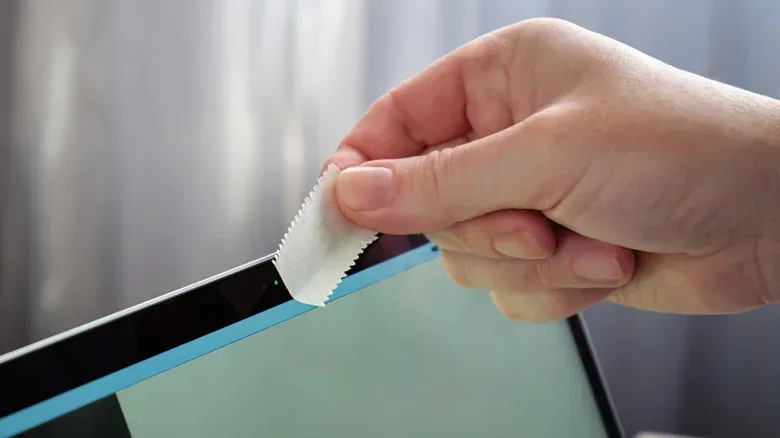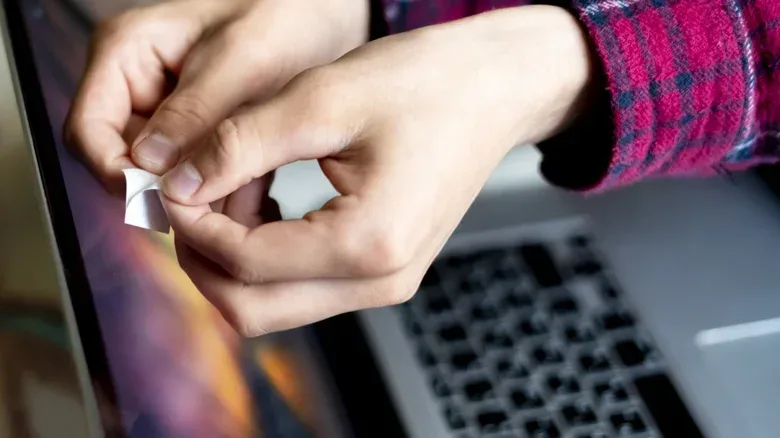
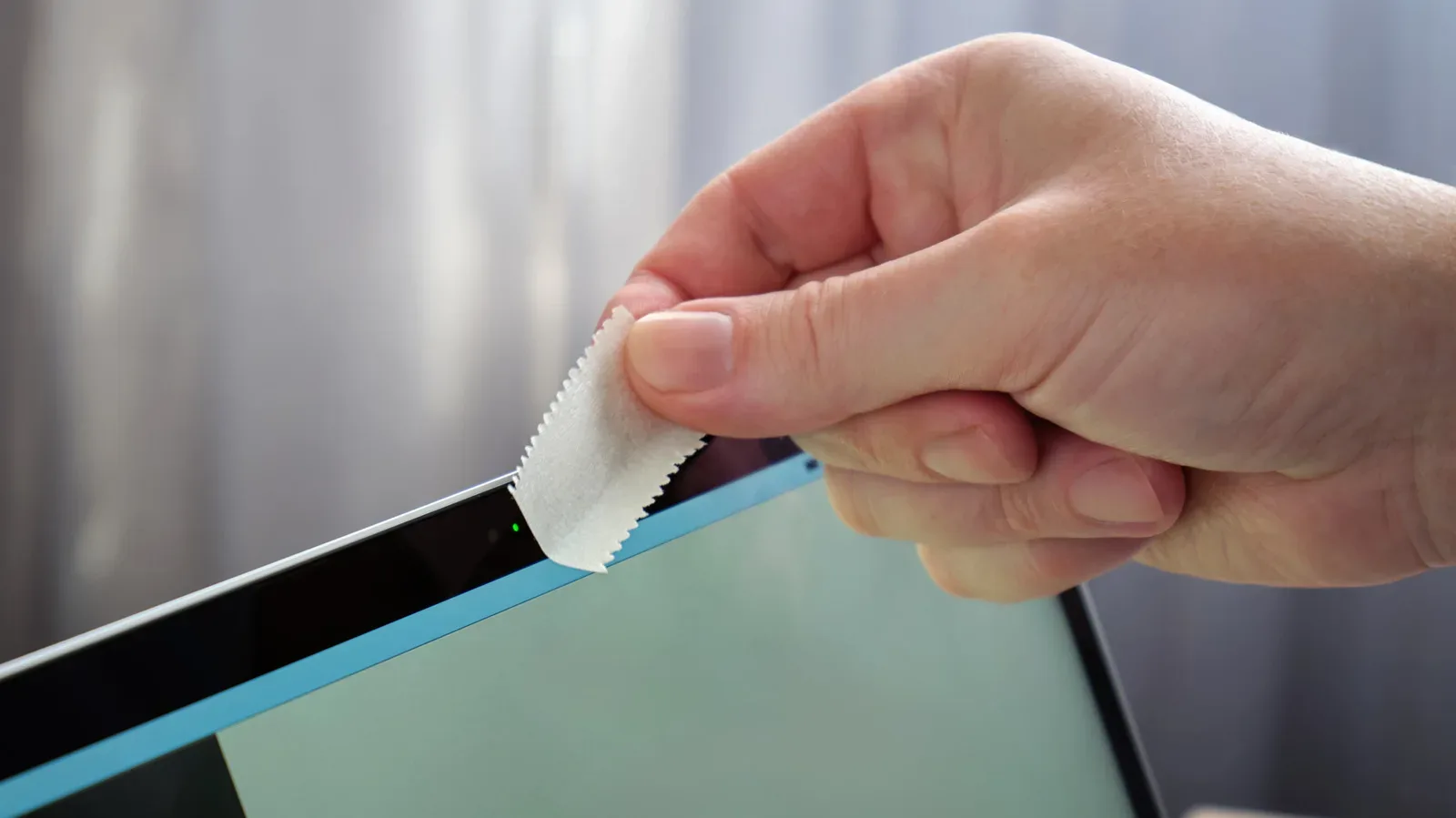
Putting a cover over a laptop webcam is an easy privacy habit to understand: if the lens is blocked, the camera cannot see anything. On a MacBook, though, that little piece of plastic can create a much more mundane problem than the surveillance concern it is meant to solve. Closing the lid with a webcam cover attached may damage the display.
The risk is not that every cover will immediately crack a screen. It is a matter of tolerances: the deliberately tiny gap between a closed MacBook display and its keyboard was designed for the machine itself, not for an extra object stuck near the camera. A cover adds thickness at one concentrated point. When the lid is shut, carried in a bag, or pressed by objects above it, that thickness can turn into focused force against the display.
For players, students and remote workers who use a MacBook as their everyday gaming-adjacent machine, the sensible privacy choice is often not an accessory at all. macOS already requires apps to request camera permission, provides a visible indicator when the camera is active, and lets users revoke access app by app. Those measures are not identical to physically blocking a lens, but they offer a way to control software access without placing material between the lid and keyboard.
Why the small gap matters
MacBook lids close with the display resting over the keyboard and palm-rest area. There is very little spare space in that closed position. Marks left on display glass by contact with the keyboard can already occur if the lid is shut roughly or if the closed laptop is subjected to pressure, such as inside a tightly packed backpack.
A thin rubber strip around the lid helps distribute pressure across a broader area when the computer is closed. That distribution is important. Instead of force landing on one small, raised point, it is spread across the designed contact surfaces.
A webcam cover changes that arrangement. Because it sits over the camera area, it can become the first or strongest point of contact when the lid closes. In engineering terms, concentrated pressure means force applied over a very small area. Even if the force on the closed laptop does not seem dramatic, concentrating it beneath a small accessory can be much harsher on the glass and display assembly than spreading the same force across the intended rubber contact area.
The possible outcomes range from lasting marks to cracked glass or a display that no longer turns on. None of those results is guaranteed merely because a cover is installed. But the fact that the outcome is uncertain is not much comfort when a display repair is the downside, especially as damage caused by a webcam cover is not covered under warranty.
Thin-bezel designs leave less room for workarounds
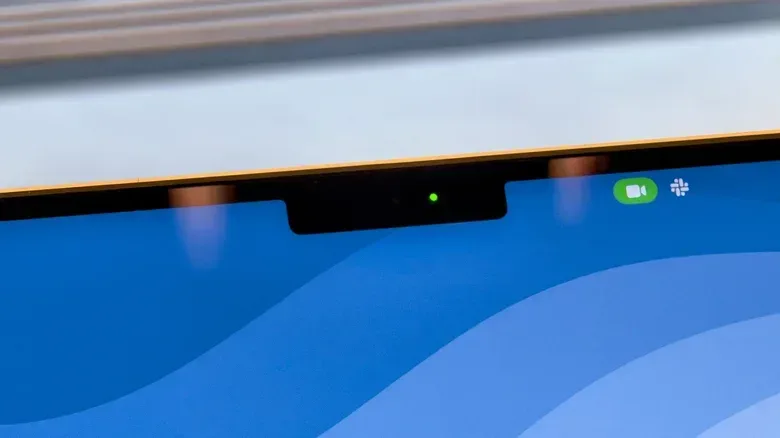
The issue is particularly awkward on newer MacBooks with the camera housed in the notch at the top of the screen. Their display bezels are extremely slim, leaving little surrounding frame on which to attach a cover without overlapping the display area or changing how the lid meets the rest of the laptop.
That does not mean owners of older models should treat the accessory as harmless. The closed-lid clearance is still limited, and the danger comes from adding material where the device was not designed to accommodate it. But a notch and narrow bezels make placement more constrained and can make a conventional sliding cover a poor physical fit.
Apple’s guidance is specific: anyone who must use a cover should choose one no thicker than about 0.1 mm, roughly the thickness of a sheet of paper. This is not a broad endorsement of webcam covers. It is a ceiling intended to reduce the chance that the added item interferes with the lid’s designed clearance.
Even with an exceptionally thin option, removing it before closing the MacBook is the more cautious routine. That eliminates the added contact point entirely during the moment when pressure can matter. It also avoids relying on a cover’s stated dimensions, adhesive behavior, or long-term shape after repeated use.
Residue is a separate camera-area problem
Physical damage is not the only consideration. Adhesive residue from applying and removing webcam covers can interfere with features that rely on the camera sensors, including automatic brightness. The practical lesson is that the camera area is more than a single lens. Material left behind around the assembly may affect how the laptop behaves even if the visible lens itself looks unobstructed.
That makes repeated attachment and removal less elegant than it sounds. A person might remove a cover every time they shut the lid, which is safer for the screen, but still be left managing adhesive residue over time. A privacy routine should reduce risk rather than swap one kind of concern for another.
Use macOS camera controls as the first check
macOS provides a straightforward route for deciding which applications may use the webcam. Open System Settings, select Privacy & Security, then choose Camera. The resulting list shows apps that have been granted camera access. Turning an app off prevents it from using the webcam until permission is enabled again.
This is worth treating as a periodic hygiene check rather than an emergency-only setting. An app can be legitimate while no longer needing camera access. Removing permission from software that does not need it narrows the list of programs capable of activating the camera in the first place.
- Open System Settings.
- Select Privacy & Security.
- Choose Camera.
- Review every listed app and disable access for anything that should not use the webcam.
- Return to this panel when installing communication, recording, browser, or utility apps that request camera permission.
Permission controls are not the same as an opaque barrier. They depend on the operating system enforcing app access rules, while a cover blocks the camera optically. But the controls are built into macOS, do not create additional pressure against the display, and can be reversed instantly if an app later needs access for a call or photo.
Understand the camera-use indicators
Nearly every MacBook has a green indicator light next to its camera. The light is tied to camera activity, so the webcam cannot operate without triggering it. If that light appears when the Mac is not being used for a call, photo, or other expected camera task, it is a useful prompt to investigate which app is active rather than ignore it.
The MacBook Neo uses a different approach because it does not have a built-in LED indicator. macOS shows a green dot at the upper-right of the display instead, overlaying other content. Users can also select the green camera icon in the menu bar to identify the app currently using the camera.
These indicators are signals, not something to obsessively monitor every minute. Their value is clarity: an active camera should not be invisible to the person using the computer. That mirrors the wider trend toward visible privacy status on personal devices; for another example of how a tiny interface marker can be meaningful, see why Android’s small blue location indicator is a privacy signal rather than a glitch.
A practical privacy routine that does not endanger the display
For most MacBook owners, a layered approach is more proportionate than leaving a plastic slider attached permanently. Start with app permissions, recognize the camera-use indicator, and investigate unexpected activity using the menu-bar control. This addresses the software side of privacy while preserving the physical design of the closed laptop.
- Check permissions: Keep webcam access limited to apps that genuinely need it.
- Notice indicators: A green camera light, or the MacBook Neo’s green dot, should correspond with something the user expects.
- Identify the active app: Use the green camera icon in the menu bar when it appears.
- Avoid added lid thickness: Do not close the MacBook over an ordinary webcam cover.
- Reduce travel pressure: Avoid packing a closed MacBook where heavy items can press down on the lid.
There are cases where a physical cover may be required by a workplace policy or preferred for personal peace of mind. In that circumstance, the constraints matter: choose an option around 0.1 mm thick or less, watch for residue, and remove the cover before the lid comes down. That routine is less convenient than a permanently attached slider, but it respects the tight gap Apple designed into the hardware.
The key distinction is between a privacy measure that is reassuring and one that is mechanically safe. A camera cover can provide the former, but on a MacBook it may compromise the latter. The built-in privacy controls and visible indicators are therefore the better default, with an ultra-thin removable cover reserved for situations where a physical block is genuinely necessary.