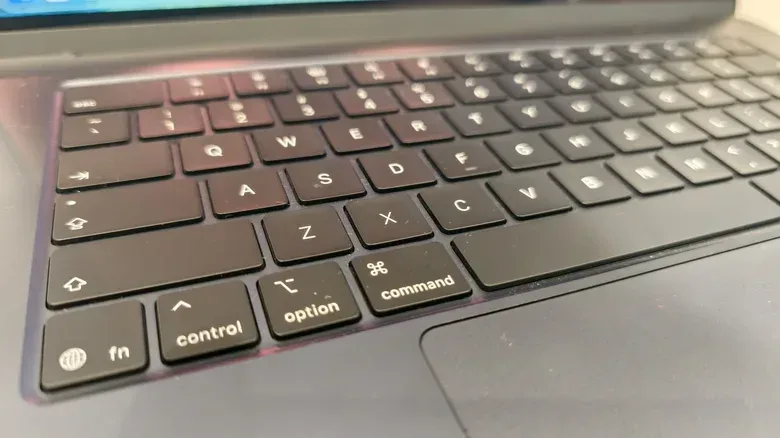

A MacBook keyboard that suddenly refuses to cooperate has a special talent for making a normal task feel like a boss fight with no pause menu. One key may stop registering, several keys may behave strangely, or the entire built-in keyboard may appear to have clocked out. That does not, however, prove the keyboard needs replacing.
The useful first step is to separate a temporary software or connection issue from a physical fault. macOS settings can alter the way keystrokes are recognized, wireless keyboards can lose their pairing or charge, third-party software can interfere, and debris can obstruct an individual key mechanism. Work from the least invasive checks toward service rather than attempting a risky disassembly.
Start with the simple reset
Restart the Mac from the Apple menu before changing settings or reaching for compressed air. A restart clears a temporary operating-system problem that may be affecting input and is the lowest-risk test available.
If the trouble is with a wired external keyboard, disconnect it and plug it back in, ensuring the connection is seated properly. For a wireless keyboard, switch it off and on again. If that does not restore it, open System Settings > Bluetooth, unpair the keyboard, then pair it again.
Battery status matters for wireless hardware. Recharge a keyboard with an internal rechargeable battery, or fit fresh batteries in a model that uses replaceable ones. A drained battery can present itself as missed or completely absent keystrokes, so it is worth eliminating before treating the issue as a Mac problem.
Check Accessibility keyboard settings
If keys are registering in an unexpected way rather than failing altogether, inspect System Settings > Accessibility > Keyboard. Two settings in particular can change normal typing behavior: Sticky Keys and Slow Keys.
Sticky Keys changes how modifier keys such as Shift are handled, while Slow Keys changes the way the Mac recognizes a key press. These options are valuable accessibility tools when deliberately enabled, but an accidental toggle can make ordinary typing feel broken. Turn either setting off if it is enabled and the behavior began unexpectedly.
The same area offers an important contingency tool: the Accessibility Keyboard. This is macOS’s on-screen keyboard, operated by clicking its keys with a mouse cursor. It is not a pleasant substitute for touch typing, but it can be enough to enter a password, send an urgent message, search settings, or keep a task moving while diagnosis continues.
Related coverage includes How to Troubleshoot an Unresponsive MacBook Keyboard.
Why the on-screen keyboard is useful evidence
It also gives a practical clue about scope. If the on-screen keyboard lets you enter text normally, macOS is still capable of receiving and producing typed input. That does not identify the precise cause of a built-in keyboard failure, but it gives you a way to navigate the system without repeatedly fighting the affected keys.
Use another keyboard to narrow down the fault
Connect an external keyboard to the MacBook if possible. This is one of the clearest ways to distinguish the built-in keyboard from a broader macOS input issue. If an external keyboard works while the MacBook’s own keys do not, attention can shift toward the built-in keyboard itself, its settings, or something physically affecting it.
For people who use a MacBook for PC-adjacent hobbies such as managing an emulator library, an external keyboard can also serve as a temporary bridge rather than an interruption. It is far easier to continue navigating files or configuration menus while investigating the laptop’s hardware. For example, articles such as Vita3K Build 4278’s experimental Vita emulator changes underline the sort of desktop setup work where reliable keyboard input remains particularly helpful.
Test whether software is getting in the way
Safe Mode is useful when the keyboard issue may be tied to third-party software. The purpose of this test is not to repair a key by itself; it is to see whether the problem persists in a more limited startup environment. If the keyboard works there but not in ordinary use, that suggests an app or other nonstandard software component could be involved.
To start this Safe Mode process, shut down the Mac normally through the Apple menu. Do not merely put it to sleep. Then press and hold the power button until Loading startup options appears. Select the startup disk, hold the Shift key, and choose Continue in Safe Mode.
Pay attention to the result, not just whether you successfully enter Safe Mode. If the same keys remain unresponsive, the test does not prove hardware failure, but it makes an interfering third-party app less compelling as an explanation. If the problem disappears, software is a meaningful lead to investigate.
Apple Diagnostics is another available route for checking whether the Mac identifies an issue. It is sensible to treat any result as diagnostic information rather than an invitation to perform improvised repair work.
When one or two keys are the problem
A keyboard where only a small number of keys stick or fail points to a different possibility than a complete keyboard outage: debris beneath the key mechanism. Small particles can interfere with a key’s movement or response. This is particularly plausible when the failure is isolated rather than affecting the entire layout.
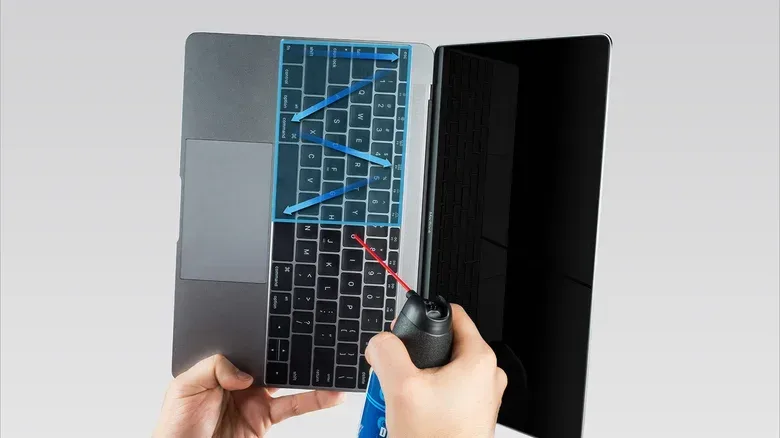
A careful cleaning approach can be tried without pulling the machine apart:
- Hold the MacBook at roughly a 75-degree angle.
- Use compressed air around the affected area.
- Rotate the laptop and repeat the compressed-air pass.
- Alternatively, turn the MacBook upside down and gently tap the back cover to encourage loose debris to fall away.
Restraint matters here. Do not remove the keycaps yourself. The mechanisms are small and delicate, and forcing them off can turn a potentially minor contamination problem into permanent damage. The objective is to dislodge loose material, not to reconstruct the keyboard at home.
What the symptom pattern can tell you
- Every key appears dead: Begin with a restart, settings checks, an external keyboard, and Safe Mode. A system-level issue is more plausible than a speck under every key.
- Typing is delayed or behaves oddly: Check Slow Keys and Sticky Keys in Accessibility settings before assuming a mechanical defect.
- An external wireless keyboard is unresponsive: Check its power, charge or batteries, Bluetooth state, and pairing.
- One or two keys are stuck or inconsistent: Consider debris and use the cautious compressed-air method.
These are troubleshooting priorities, not guarantees. Several causes can produce similar symptoms, which is why each test should narrow the situation instead of being treated as a final verdict.
Why older MacBooks deserve extra caution
MacBooks released from 2015 through 2019 are associated with the butterfly keyboard design, which became known for keys that could stick when small particles got into the mechanism. That history makes it especially important not to assume an affected older laptop merely needs a software refresh.
At the same time, newer MacBooks are not immune to keyboard wear or faults over time. Model age can inform the troubleshooting process, but it cannot settle it. A restart or setting change may still solve an apparently alarming problem; conversely, a current machine can still need physical service.
When to stop troubleshooting and seek service
Book an appointment with Apple Support when the basic connection, power, settings, Safe Mode, external-keyboard, and careful-cleaning checks do not resolve the issue. A specialist can examine the MacBook and determine whether keyboard replacement is necessary.
That is a better outcome than escalating DIY efforts into keycap removal or other invasive handling. Keep note of the exact behavior before the appointment: whether the failure affects every key or only certain keys, whether an external keyboard works, whether the issue changes in Safe Mode, and whether Accessibility settings were enabled. Those details turn “my keyboard is broken” into useful diagnostic information.
The important takeaway is reassuringly mundane: an unresponsive MacBook keyboard has multiple possible causes. Start with a restart and obvious connection or battery checks, rule out altered typing settings, use an on-screen or external keyboard to stay productive, then test Safe Mode and clean only with care. If those steps do not restore reliable input, professional inspection is the sensible next move—not a defeat, and definitely not permission to pry off tiny keycaps.