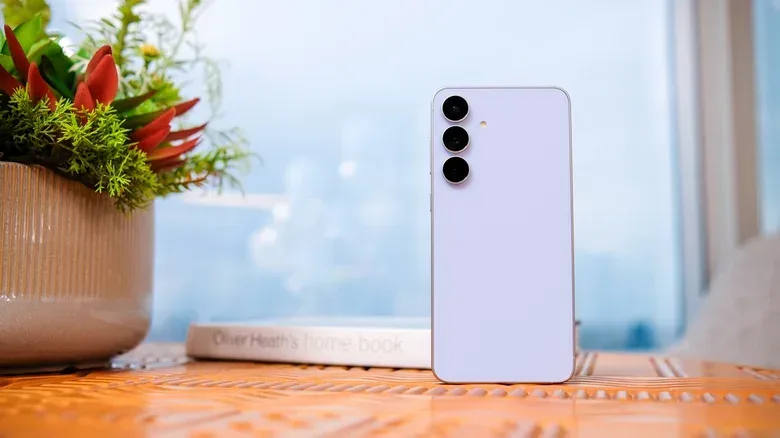
A Samsung Galaxy phone can include a security guard that is admirably alert, occasionally overprotective, and deeply suspicious of anything that did not arrive through the front door. Called Auto Blocker, the feature is available on Galaxy devices using One UI 6 or newer. It is enabled by default on devices that ship with One UI 6.1.1 or later.
For most people, that default makes sense. Auto Blocker is intended to reduce several routes through which harmful software or unwanted actions can reach a phone: app installation outside Samsung’s Galaxy Store and Google Play, potentially malicious commands sent over USB, and images suspected of containing malicious code in a number of messaging apps.
For players, hobbyists, and people who use Android beyond its two major app stores, the setting can be more complicated. It can prevent installation of APK files, the Android app packages commonly used for sideloading. That can affect third-party game stores, open-source utilities, developer tools, and other software obtained outside the official storefronts. The question is not simply whether Auto Blocker is “good” or “bad.” It is whether its security trade-off fits what a particular person actually does with their Galaxy device.
What Samsung Auto Blocker protects against
Auto Blocker’s core job is to prevent app installs from outside Google Play and Galaxy Store. This addresses a significant practical risk: software installed from an unverified location may be malicious or tampered with. An APK is the file package used to install an Android application. Sideloading means installing that package directly rather than obtaining the app through a store. Neither term automatically means malware, but both describe a route that moves outside the stores Auto Blocker permits.
The feature also blocks malicious commands delivered through a USB cable. That is relevant whenever a phone is attached to a cable that is not fully under the owner’s control, including a public charging cable. Auto Blocker additionally filters images suspected of carrying malicious code in Samsung Messages, Google Messages, Messenger, WhatsApp, and Telegram.
In other words, it is not just an “APK switch.” It is a group of protections aimed at applications, USB-based access attempts, and dangerous content sent in messages. That broader scope is important when deciding whether to switch it off: disabling the setting for one desired install also removes its additional protection in those other areas while it remains off.
Maximum restrictions goes further
Samsung also offers a more aggressive option called Maximum restrictions. Its added safeguards include blocking device administrator apps and work profiles, turning off 2G connections, preventing automatic reconnection to unsecured Wi-Fi, and removing location data from photos when they are shared.
Those choices show the intended philosophy. Each measure narrows something the phone is allowed to do in exchange for reducing exposure. A work profile can be useful for an employer-managed device; automatic reconnection can be convenient; embedded location information can be useful context for a photo. Maximum restrictions favors limiting those conveniences. It is therefore best understood as an option for someone deliberately seeking tighter controls, rather than a setting every Galaxy owner must turn on.
Related coverage includes Samsung Auto Blocker Explained: What It Protects and When to Turn It Off.
Why the setting matters to mobile gaming
Official app stores are how many Android users install games, updates, and companion apps. But Android’s openness has also supported alternatives, including third-party game stores and direct downloads from developers. Auto Blocker places a firm barrier in front of that route.
The friction attracted high-profile attention in 2024, when Epic Games sued Google and Samsung. Epic argued that Auto Blocker, combined with existing Google Play and Galaxy Store flows, required users to take more than 20 steps to download the Epic Games Store. The case was later dropped after Epic and Samsung reached an agreement, but Auto Blocker remained in place.
That dispute illustrates two legitimate, competing priorities. Samsung’s setting is designed to make an off-store installation harder because an unfamiliar package can be risky. A third-party store, meanwhile, needs a user to be able to install its app before that user can access the games it distributes. The same guardrail that creates a safer default for a casual phone owner can be an obstacle for someone intentionally installing a trusted alternative storefront.
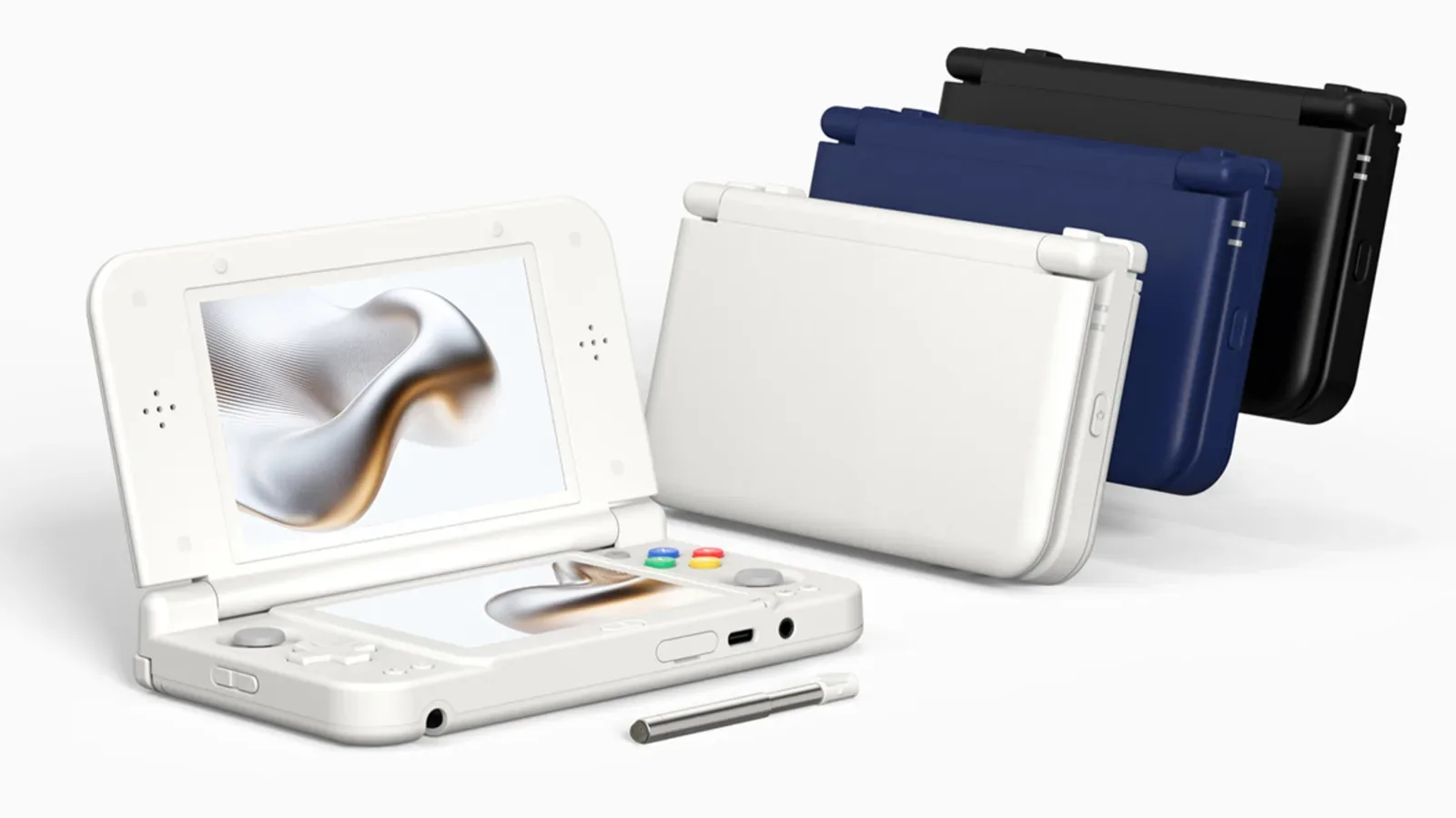
The situation is especially relevant for Android gaming hardware. A handheld built on Android can look and function more like a game system, but it still inherits Android’s app-installation choices and security settings. Anyone considering an Android-based handheld such as the Anbernic RG DDS should keep the distinction in mind: an Android device’s game library may depend on official stores, direct downloads, or both, and each route can have different security implications.
How to turn Auto Blocker on or off
The control is located at:
Settings > Security and privacy > Auto Blocker
Tap the toggle to enable or disable it. Samsung requires authentication before it will switch Auto Blocker off. That requirement is itself a meaningful safeguard: a person with temporary physical access to an unlocked phone should not be able to casually change the setting and begin installing unwanted software.
The same screen is where the protection can be restored after an installation or developer task is complete. It is sensible to confirm the setting state rather than assume it changed successfully, particularly if Auto Blocker was disabled only for a narrow purpose.
The 30-minute safety net in One UI 8.5
Galaxy phones running One UI 8.5 or newer have an additional option within the Auto Blocker menu: the phone can automatically turn the feature back on 30 minutes after it has been disabled.
This is potentially the most balanced setting for somebody who occasionally needs an off-store app. Temporarily disable Auto Blocker, complete the intentional installation, and let the device restore the protection without relying on memory. It does not make an untrusted package safe, nor does it eliminate the need to know where an app came from. What it does do is limit how long the phone stays in its less-protected state.
Frequent sideloaders may find the automatic re-enable behavior inconvenient. That is a fair usability concern, especially for someone repeatedly working with developer tools. But the inconvenience is also the point: Auto Blocker is designed around a default of caution, not around making permanent off-store installation frictionless.
A practical decision guide
Leave Auto Blocker enabled if you normally use Google Play and Galaxy Store, do not need APK files, and want a stronger default defense against off-store apps, USB commands, and suspicious images. This is the simplest choice and the one Samsung recommends for most users.
Temporarily disable it, then restore it if you have a specific, understood reason to install software outside the two official stores. Before doing so, verify the source of the APK. This is particularly important because switching Auto Blocker off removes an additional layer of defense, not merely a speed bump.
Use the 30-minute re-enable option where One UI 8.5 or later is available and an occasional off-store task is necessary. It provides a clear compromise between completing a deliberate installation and avoiding an indefinitely weakened default.
Consider Maximum restrictions if the goal is the strictest available protection and the accompanying feature limitations are acceptable. It is not a gaming-friendly setting by design, since tighter security controls can also rule out tools, profiles, and connection behavior some people expect to use.
Auto Blocker is one layer, not the entire security plan
Turning off Auto Blocker does not mean a Galaxy phone becomes defenseless. Google Play Protect can still help protect against malicious apps. But it is still an additional layer being removed, which makes the origin of any downloaded app more consequential.
The most useful way to approach the feature is to separate intent from trust. Wanting a game, utility, or storefront that is not in Google Play or Galaxy Store is an understandable reason to consider sideloading. It is not, by itself, proof that every download page or APK file is safe. Auto Blocker deliberately forces that pause.
For the overwhelming majority of Galaxy owners, the sensible default remains to keep it enabled. For experienced users with a real need to sideload, a short, authenticated disablement followed by immediate re-enablement—or the 30-minute automatic option on One UI 8.5 and later—offers a practical middle route. It preserves Android’s flexibility for the moments it is genuinely needed without treating reduced protection as the everyday baseline.