Moving a screenshot, video clip or downloaded file from an Android phone to a Windows PC no longer requires much improvisation. A USB cable remains dependable, cloud storage can bridge devices, and Quick Share provides direct wireless transfers. But each route is aimed primarily at the transfer itself. They do not necessarily turn a PC browser into a place to browse a phone’s folders, inspect media, work with contacts or mirror a handset screen.
PlainApp takes a broader approach. The free, open-source Android app makes a phone accessible through a web address on the local network. Once the phone and computer are on the same Wi-Fi network, the computer does not need a companion desktop program: a browser is the client. There is no account creation or login service described as part of the setup, either.
That distinction could be useful for people who want a little more visibility into the contents of an Android device from a Windows machine without adding another always-installed utility to the PC. It is not simply a replacement for the fastest possible photo handoff. Its appeal is that it combines file access with browser-based media viewing, clipboard sending, phone dialing, a basic image editor, music playback and screen mirroring.
What PlainApp needs before it can work
PlainApp is available through the Play Store and supports devices running Android 9 or newer. Setup begins on the phone: install the app, grant its requested notification and file-access permissions, then note the URL shown by PlainApp.
The Windows PC and Android phone must be connected to the same Wi-Fi network. Entering that displayed URL in a web browser opens PlainApp’s web interface. In practical terms, the phone is providing access locally while the browser presents the controls and the contents; it is not described as a cloud-drive workflow where files first have to be uploaded to an online account and then downloaded elsewhere.
The permission step matters. File access is what enables browsing and managing accessible phone storage from the computer, while notification permission is also requested in the app’s setup. Anyone considering the tool should understand that its convenience stems from deliberately allowing a phone app to expose selected device functions to a browser on the shared network. This makes network choice part of the setup, rather than an afterthought.
For readers generally reconsidering what their phone apps can access, Joking Joystick’s guide to safer phone permissions provides wider context on why permissions deserve a close read.
The browser warning is expected, but it should not be ignored
On the first visit, a browser will show a warning because PlainApp uses a self-signed TLS certificate. TLS is the technology browsers use to encrypt a connection, commonly recognized through HTTPS. A certificate normally helps a browser verify the identity associated with a site. A self-signed certificate is created and signed by the service itself rather than being validated in the usual way by a third-party certificate authority, so the browser cannot make its standard trust determination.
PlainApp’s stated connection process is to use the browser’s Advanced option, proceed past that warning, select Log in in the web interface, and approve the resulting prompt on the phone. That makes the warning an expected part of this particular local setup, not an unexplained glitch.
Still, a warning is worth reading. The URL should be the one PlainApp displays on the user’s own phone, and the user should be intentionally connecting from a computer on the same Wi-Fi network. The fact that a warning is anticipated does not turn every certificate warning into something to dismiss automatically. It is specifically relevant here because PlainApp’s local web access relies on a self-signed certificate.
A file manager first, but not only a file manager
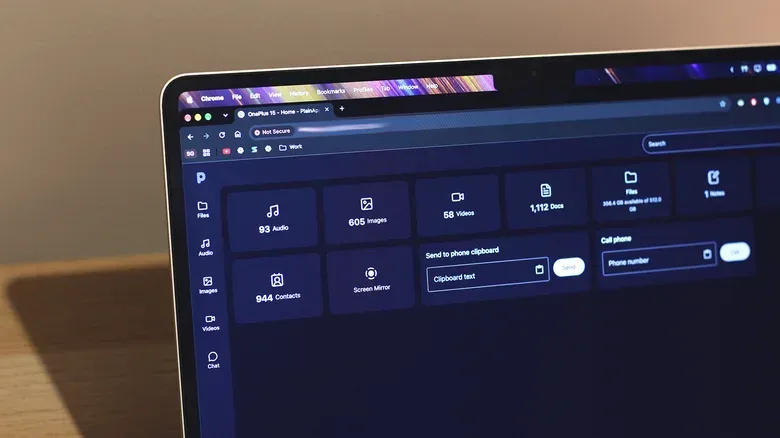
The central part of the web interface is the Files tab. It can browse accessible folders and files on the Android phone and supports transfers in both directions. That means it can send a file from phone to PC or place a file from the PC onto the phone, all through the browser.
This is where PlainApp differs most clearly from a single-purpose wireless sharing feature. A direct sharing system is often ideal when the task is known: select a few images, choose the destination and send them. A browser file manager is more useful when the real job begins with locating something—an image saved in an unfamiliar folder, a download that needs organizing, or a set of files that should be moved in either direction.
The trade-off is straightforward. Quick Share remains the faster option for sending photos or videos. PlainApp is the more versatile choice when browsing, sorting and managing more of the phone’s available contents is the goal. Those are adjacent needs rather than identical ones, so the best tool depends on whether speed of transfer or breadth of access matters more at that moment.
Media viewing and lightweight editing
PlainApp includes a media viewer for images and video, displaying them in their original quality. For video compatibility, it can automatically convert HEVC video to H.264 if the current browser does not support HEVC playback.
Those names refer to video codecs: methods used to encode and decode video. Browser support can vary, so the conversion feature is meant to keep a video viewable in the web interface when the browser cannot natively play the original HEVC version. The supplied information describes that automatic fallback, but it does not make broader claims about conversion speed or every browser’s behavior.
There is also a basic image editor. Its listed tools cover cropping, adding text and drawing directly on photos. That is a modest feature set, but it can cover simple annotation tasks without first transferring the image to another editing program. For example, a user could crop a screenshot, mark an area with a drawing tool or add a short label from the browser interface.
A built-in music player rounds out the media functions. None of these features turns PlainApp into a full desktop media-production suite, and it does not need to. The practical proposition is simpler: while a phone is already available in a browser, common media tasks can be handled in that same place.
Clipboard, calls, contacts and the phone screen
PlainApp’s feature list goes beyond storage. The browser interface can send text to the Android phone’s clipboard, which may be handy when copying a link, code or short note from a Windows PC to the phone. It can also initiate a call to a number through the web GUI and provides access to contacts stored on the phone.
Its screen-mirroring feature displays the Android device’s screen in the computer browser. Mirroring means viewing the phone display on a larger screen; it is distinct from remote control, which means using the computer to operate the phone.
PlainApp says remote control is possible in the mirroring setup, in a role comparable to iPhone Mirroring on macOS. However, remote control did not work on one phone in the reported use. That makes it sensible to treat remote control as a capability that may require verification on a particular device rather than the reason to adopt the app. The evidence supports the existence of screen mirroring, while the control component carries an explicit real-world caveat.
Where it fits among familiar options
Cloud storage remains useful when devices are not on the same local network or when a file needs to be retained in an online workspace. Its drawback for a simple phone-to-PC move is the two-stage process of uploading from one device and downloading to the other. A USB cable avoids that internet detour, but requires a physical connection. Quick Share offers a strong middle path for direct wireless transfers.
PlainApp does not erase those options. Instead, it addresses the situation where file movement is only one piece of the task. A person might want to locate files, inspect original-quality photos and videos, put a note on the phone clipboard, view contacts, or see the phone screen—all from the same browser session. It does so without requiring a separate Windows installation and without describing a subscription or account requirement.
The result is an unusually lightweight arrangement for Android-to-Windows access: the app resides on the Android phone, while the computer uses its browser. Users should be comfortable granting the needed permissions, carefully recognizing the expected self-signed-certificate warning, and keeping both devices on the same Wi-Fi network. For those conditions, PlainApp offers more management tools than a quick transfer feature while retaining the convenience of a wireless, browser-based connection.