“What is my IP address?” sounds like a question with one clean answer. On a typical home network, it has at least two: a public IP address for the connection your home presents to the internet, and a private IP address assigned to each individual device inside the home.
That distinction matters when a game server setup, printer, remote-access tool, or connection troubleshooting screen asks for an IP. Giving a support representative the address a website can see is different from finding the local address of the PC, console, phone, or tablet on your Wi-Fi. The good news is that both are straightforward to locate once you know which one the task actually needs.
Public IP versus private IP: the important difference
Your public IP address is the one exposed to websites and online services. Your internet provider assigns it to the home connection, and it is generally shared by all the devices using that connection. A laptop, phone, smart TV, and game console can all be online at once while appearing to the wider internet under that same public address.
Your private IP address, by contrast, is for traffic within the local network. The router provides these addresses to connected devices. One device might have a private address while another has a different one, allowing the router to tell where local traffic needs to go.
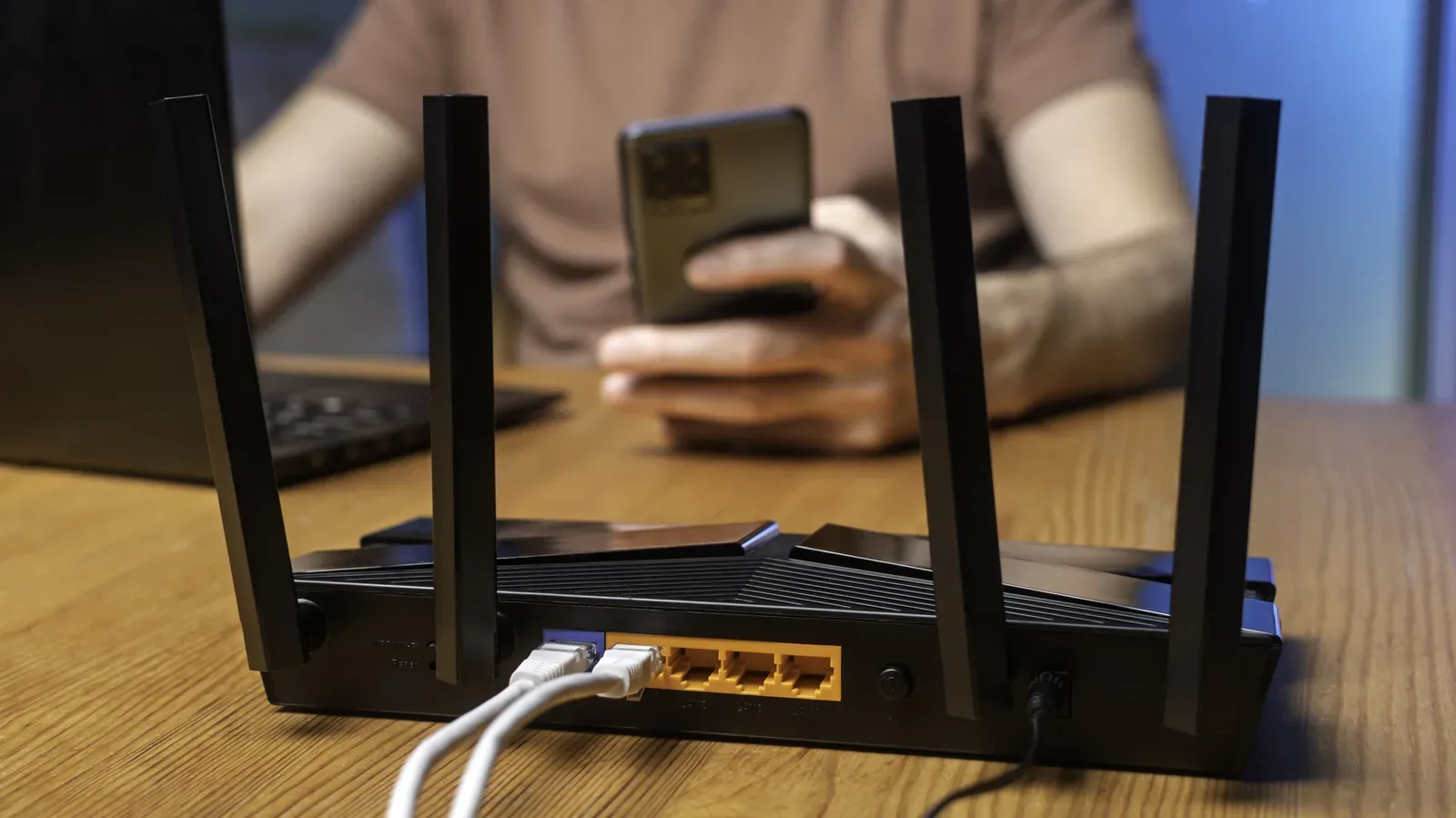
The router effectively translates between those local device addresses and the public-facing address. It also commonly distributes private addresses using DHCP, short for Dynamic Host Configuration Protocol. In practical terms, DHCP is the router function that automatically hands devices the network details they need when they connect, rather than requiring every phone, PC, and console to be manually configured.
This is why an IP lookup site and a device’s network settings can show different numbers without either result being wrong. The lookup site reports the public address it sees. The network settings show the private address assigned to that device.
How to find the public IP address websites see
The simplest route is a browser search. Open DuckDuckGo, search for what is my IP, and the public IP address should appear at the top of the results. IP lookup sites can provide the same answer and may also display an approximate location and the name of the internet provider.
For a quick command-line method on either Windows or macOS, open Command Prompt on Windows or Terminal on a Mac, then enter:
Related coverage includes How to Find Your Public and Private IP Address.
curl ifconfig.me
The command returns the public IP address. It is useful when a browser is inconvenient or when you simply need the number without extra lookup information.
Do not mistake this result for the address of a particular PC or phone in the home. It identifies the public side of the connection, which is why every device using the same home network will generally produce the same public IP lookup result.
Finding a private IP address in Windows
Windows provides two reliable routes: the Settings interface and Command Prompt. The first is useful if you want to confirm the active Wi-Fi or Ethernet connection visually. The second is generally faster if you are comfortable entering one command.
Windows 11 Settings method
- Right-click the network icon in the taskbar.
- Select Network and Internet settings.
- Choose Wi-Fi if you are connected wirelessly, then select the connected network. Choose Ethernet if the device is wired instead.
- Scroll through the connection details until you find IPv4 address.
The value beside IPv4 address is the private IP for that Windows device. An IPv4 address is commonly displayed as four groups of numbers separated by periods.
Windows 10 follows much the same pattern. Wi-Fi users may need to open Hardware properties before reaching the address details.
Windows Command Prompt method
Open Command Prompt and type:
ipconfig
Press Enter, locate the section for the active connection, and find the line marked IPv4 Address. That is the device’s private address. The same output also includes the Default Gateway, which is normally the router’s local address and can be particularly helpful during network troubleshooting.
It is worth checking that you are reading the active Wi-Fi or Ethernet section rather than an unused connection. A PC may list multiple network adapters, but the relevant entry is the one currently carrying its internet connection.
Finding a private IP address on a Mac
For a Mac currently using Wi-Fi, hold Option and click the Wi-Fi icon in the menu bar. The expanded information includes the Mac’s IP address and the router address.
The settings route also works when the Mac is connected through a wired network:
- Open the Apple menu and select System Settings.
- Choose Network.
- Select the connection in use.
- Click Details.
- Open the TCP/IP tab.
The TCP/IP panel contains the network address information for that connection. TCP/IP refers to the family of networking rules that devices use to communicate; in this context, the tab is simply where macOS groups the connection’s IP-related details.
Finding the IP address on iPhone and Android
Phones also receive private IP addresses when they join home Wi-Fi. These addresses are relevant for local-network tasks, such as identifying a device during troubleshooting. They are not the same as a public IP lookup result.
iPhone
- Open Settings.
- Tap Wi-Fi.
- Tap the i button next to the connected network.
- Scroll to the IP address information.
Android
Android menus vary by manufacturer, but the usual route starts in Settings, then Wi-Fi. Tap the information or gear icon next to the connected network and look for IPv4.
On a Pixel, the path is Settings > Network & internet > Internet > gear icon > Network details. The labels can move around on other Android phones, but the connected Wi-Fi network’s details page is the place to look.
How to find your router’s address
The router has a local address of its own. Devices may call it Default Gateway or simply Router. Entering that address in a browser takes you to the router’s settings page, provided you are on the same local network and have the router login details.
Common router addresses include 192.168.1.1, 192.168.0.1, and 10.0.0.1, though the correct address is the one your connected device lists. On Windows, run ipconfig and look for Default Gateway. On a Mac, the Option-click Wi-Fi view displays the router alongside the device address.
Knowing the gateway can be useful when checking router configuration, reviewing connected-device settings, or narrowing down whether a connection issue is between a device and the router rather than farther out on the internet. Stable wireless connections are part of the bigger home-network picture; newer standards are increasingly focused on reliability, as explored in this look at Wi-Fi 8’s emphasis on more dependable connections.
When gamers and home users may need these details
IP information comes up most often in troubleshooting. If a connection is slow or has stopped working and a normal restart has not resolved it, an internet provider may ask for device or connection details to help establish whether the trouble is within the home network or elsewhere.
It can also matter when setting up a printer, creating a game server, or configuring remote access to a computer at home. These jobs do not all use the same kind of address, so it is important to read the setup prompt carefully. A local setup task may need the private IP address of a specific device. A service intended to be reached from outside the home may involve the public address instead.
The public address may not be permanent. Many home internet connections use dynamic IP addresses, meaning the address can change, including after the modem or router is restarted. A static IP address remains fixed, and is more commonly associated with servers, such as systems that host major websites or handle email.
That changing public address is an important practical limitation for anyone expecting a home connection to remain reachable at one identical number indefinitely. Before changing settings or sharing any address for a setup task, confirm whether the instructions require a private local address, a public address, or the router gateway.
What an IP address can—and cannot—reveal
A public IP address does not neatly identify an individual person or a specific device. It usually represents a network connection shared by the devices in a home. Random internet users cannot simply look up another person’s IP address from their own connection.
Websites and advertisers can see the public IP address presented to them, and it can be used as part of a broader picture of online interests. IP lookup services may attach approximate location and provider information, but that is not the same as pinpointing a particular person or machine.
A VPN, or virtual private network, hides the home public IP from websites by presenting the VPN connection’s address instead. A proxy can also conceal the public address from a destination, but not every proxy encrypts traffic. The distinction is meaningful: the two tools can overlap in what a site sees, while differing in how traffic is handled.
The practical rule is simple: use a public lookup when you need the address websites see; use the device network settings or command line when you need an address inside the house; and use the Default Gateway when you need to reach the router. Once those three roles are separated, the notoriously vague “find my IP” task becomes much less mysterious.