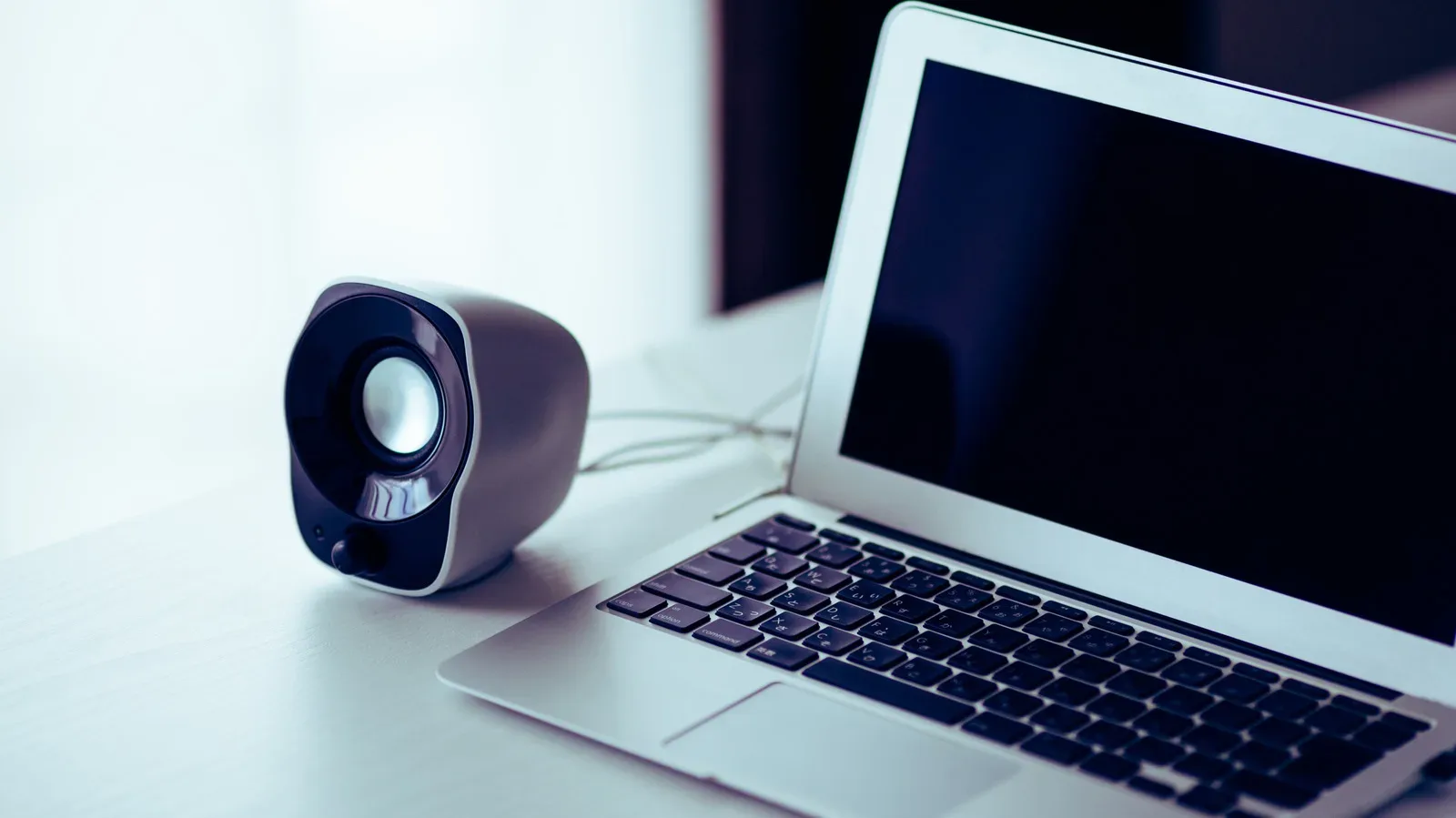
A computer with silent speakers is an excellent way to discover just how much a game menu, video call, or trailer relies on sound. Before shopping for a replacement set, though, an Android phone can serve as a useful short-term speaker. It is not a magic Bluetooth trick, and it will not make a phone sound like a dedicated desktop speaker system. But with the right app on both devices, it can route a computer’s audio to the phone’s built-in speaker.
One option is AudioRelay, which supports Windows, macOS, and Linux on the computer side alongside an Android app. The core idea is straightforward: the computer sends its audio across the local network, while the Android phone receives and plays it. That also makes an old handset a potentially practical piece of emergency desk kit rather than another forgotten rectangle in a drawer.
It is best understood as a workaround for a broken or unavailable speaker setup, particularly for non-critical listening. Audio delay can matter a great deal in games, video, and voice chat, so a little setup care makes a major difference.
Why ordinary Bluetooth pairing usually is not enough
The tempting first move is to pair a phone and computer over Bluetooth and expect the phone to become a wireless speaker. In practice, Android phones are generally designed to be the source in a Bluetooth audio connection: they send music to headphones, car systems, and speakers. They are not commonly configured to receive a computer’s audio as a Bluetooth speaker would.
AudioRelay takes a different route. It streams the computer’s audio to the phone through the local network rather than using Bluetooth audio reception. Both devices therefore need to be on the same Wi-Fi network for the normal wireless setup. That distinction is important when troubleshooting: successful Bluetooth pairing does not establish the audio path this method needs.
What to install before connecting
Install AudioRelay on the Android phone and on the computer. Windows and Linux can be relatively direct: install the respective apps and open them. macOS needs an additional component because it does not permit this type of app to capture system audio directly.
On a Mac, install a virtual audio device such as BlackHole, which is available free of charge. A virtual audio device is software that acts like an audio-output destination inside the operating system. Instead of sound going straight to physical speakers, macOS sends it to that software device, allowing AudioRelay to pick it up and stream it onward to the phone.
This extra Mac requirement is not a sign that the phone connection has failed. It is part of creating the audio route in the first place.
Related coverage includes How to Use an Android Phone as a Computer Speaker.
Set up the phone as a PC speaker
- Confirm that the Android phone and computer are connected to the same Wi-Fi network.
- Open AudioRelay on both devices.
- On the phone, find the Server section and tap the computer’s name.
- On the computer, check that the Android phone appears under Connections.
- Play audio on the computer. It should now be sent to the phone’s speaker.
To end the session, use the Stop button in the Android app. That is the basic process for Windows and many Linux arrangements, with operating-system-specific audio choices sometimes needed.
macOS audio routing
After BlackHole or another virtual audio device is installed, select it in AudioRelay’s Server section. Then set that same virtual device as the Mac’s sound output through Audio MIDI Setup. This tells macOS where to send system sound and gives AudioRelay the stream it needs to relay to the phone.
The terminology can make this feel more complicated than it is. “Audio routing” simply means choosing the path sound follows. In this case, the path is computer audio, then virtual device, then AudioRelay, then Android phone.
Linux device selection
If the default device produces no sound on Linux, look in AudioRelay’s Server section for an entry beginning with Monitor of. Selecting that device can provide the needed audio feed. A monitor device in this context is an audio capture point associated with an output stream, not a physical display.
Lag, latency, and why the buffer matters
Getting sound is only half the job. The other half is getting it at a tolerable time. Latency is the delay between the computer producing audio and the phone playing it. For a podcast or a turn-based game, some delay may be easy to live with. For a timing-heavy game, a trailer, or a video call, it can be distracting.
The relevant control is the buffer. Network audio does not always arrive at a perfectly even pace. A buffer stores a small amount of incoming sound so the phone can keep playback steady when the network briefly slows or stutters.
- Smaller buffer: less delay, but a greater chance of choppy playback.
- Larger buffer: steadier sound, but more delay.
AudioRelay’s Android app provides buffer choices in Player settings. Choose Buffer amount and try Low buffer when reducing delay is the priority. Medium is a reasonable option when a compromise between responsiveness and stability is more useful.
This trade-off is why there is no universal “best” setting. If the sound breaks up on Low, moving upward may solve the interruptions even though it adds delay. If the sound is stable but visibly out of sync with a video or game action, a lower setting may be worth trying.
USB tethering is the stronger option for responsiveness
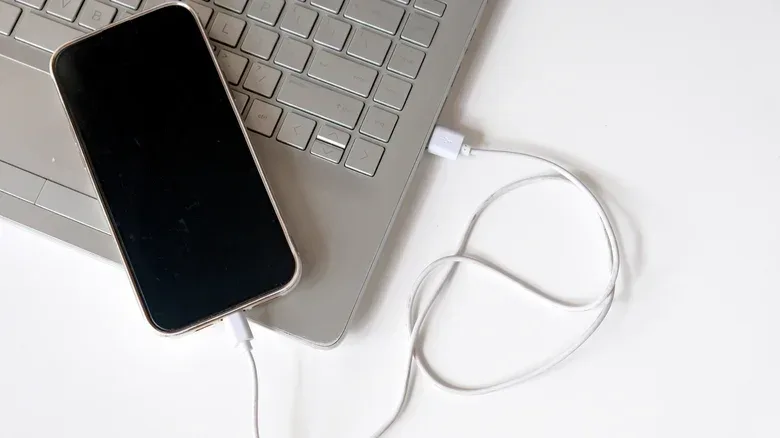
For the most stable connection described here, connect the Android phone to the computer with a USB cable and use USB tethering. This bypasses the variability of the wireless link and can help with lag or choppy audio.
- Connect the Android phone to the computer with a USB cable.
- Open AudioRelay on the phone and scroll to USB tethering.
- Tap Settings and enable USB tethering.
- Return to AudioRelay and tap the computer’s name in the Server section.
For games where sound cues and on-screen action should feel closely connected, the wired approach is the sensible place to start. It also keeps the phone close to the desk and can be preferable to asking a busy Wi-Fi network to carry another live stream. It is still a temporary phone-speaker solution, not a promise of dedicated gaming-audio performance, but it is the better route when responsiveness is the concern.
Reduce wireless interference before blaming the app
If USB tethering is not an option, the Wi-Fi band matters. Audio streaming performs better when both devices are connected through a router’s 5GHz network instead of 2.4GHz. Where supported, put both the computer and the phone on 5GHz rather than splitting them between bands.
Turning off Bluetooth can also help. Bluetooth shares the 2.4GHz band used by 2.4GHz Wi-Fi, so the two can interfere with one another. This does not mean Bluetooth must always be disabled, but it is a straightforward diagnostic step if the stream becomes unreliable.
The practical order of operations is simple: first make sure both devices are on the same network; next try 5GHz; then adjust the buffer; and finally move to USB tethering if stable, lower-latency playback is needed. Changing several settings at once makes it harder to tell which change actually fixed the problem.
Prevent other phone audio from interrupting playback
By default, AudioRelay can pause streamed computer audio when another Android app uses the phone’s speaker. That behavior may be useful when an incoming app sound should take priority, but it can be frustrating if an unrelated notification interrupts a game or video.
While connected, open the Android app’s Player tab, scroll to Player settings, select Exclusive audio, and choose one of the Deactivated options. That changes the default interruption behavior so another app’s use of the speaker does not automatically pause the computer stream.
It is a small setting with an outsized effect on convenience. A phone being repurposed as a speaker is still a phone, after all, and its other apps may otherwise try to reclaim the audio hardware at inconvenient moments.
Free version limits and premium features
AudioRelay’s free version includes advertisements. A Premium tier, listed at roughly $1 per month with annual and lifetime choices also available, removes ads and unlocks unlimited connection time. It also adds custom buffer controls, higher-quality uncompressed audio, and streaming to multiple devices.
The basic question is whether the phone is solving a temporary problem or becoming a regular part of the desktop setup. For an occasional fallback speaker, the no-cost version may be enough. Someone trying to fine-tune delay, use uncompressed audio, or send sound to more than one device will have features to weigh.
Where this makes sense for PC players
This approach is most useful as an improvised audio lifeline: a desktop speaker stops working, headphones are unavailable, or an unused Android phone is close at hand. It can also be a way to revive an old device for a narrow task without pretending that it replaces purpose-built speakers.
Keep expectations tied to the connection method. Wireless playback is convenient but can add delay and instability. A USB-tethered arrangement is the more practical choice if sound timing matters. And for anyone looking for something to play once their audio situation is back in business, this week’s PC and console game key-request lineup offers a separate look at newly listed games.
The useful takeaway is not that a phone suddenly becomes a high-end PC speaker. It is that local audio streaming gives an Android handset a credible second life when the usual sound hardware is unavailable, provided the network, buffer, and operating-system setup receive a little attention.