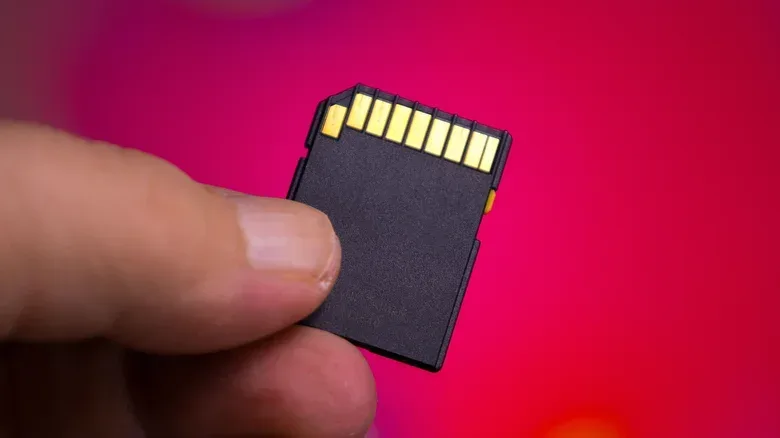
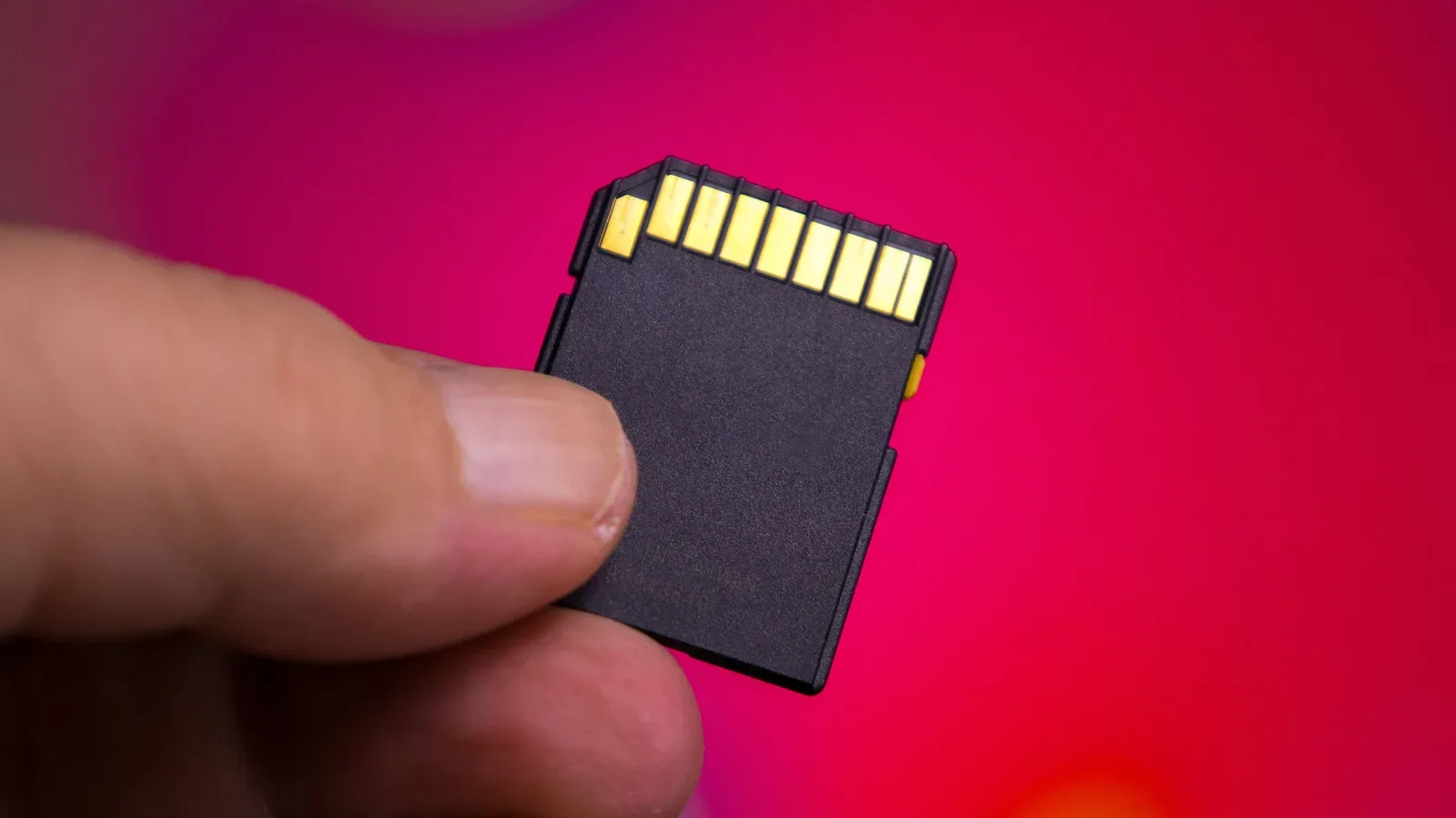
There is a particular kind of storage error that feels like a personal insult from a tiny piece of plastic: an SD or microSD card reports plenty of free capacity, yet refuses to accept one video, archive or disk image because the file is “too large.” The card may have tens or hundreds of gigabytes available. That does not matter if it is formatted with FAT32 and the individual file is larger than its hard limit of nearly 4GB.
The important distinction is between total card capacity and the maximum size of one file. A 128GB, 512GB or 1TB card can store lots of data in FAT32, but it cannot store a single file bigger than 4,294,967,295 bytes. In most ordinary cases, that ceiling is described as 4GB. So an SD card that rejects a large transfer is not automatically damaged, counterfeit or out of space. Its file system may simply be enforcing an old rule.
For PC players, this can surface while moving a large recording, an installation archive, a mod collection packaged into one file or a sizable backup between systems. High-resolution video is another obvious trigger: a single 4K recording can pass the FAT32 limit even when the card has abundant remaining room. The practical solution is generally to reformat the card as exFAT, provided the device that needs to read it supports exFAT.
Why free space does not solve the 4GB problem
A storage card needs a file system: the set of rules that tells devices how files are named, located, measured and managed. FAT32 is one such system. It has been around since the Windows 95 era and remains common partly because it is broadly readable across devices.
That compatibility comes with a major constraint. FAT32 records a file’s size using a 32-bit number. The greatest value that can be represented this way is 4,294,967,295 bytes. The card’s physical storage chips are not what stop a larger file from being written; the FAT32 format cannot describe that file as one valid entry.
This is why a card can store thousands of screenshots, documents or smaller clips without issue, then balk at one large item. Dividing data among many files is different from transferring a single file. A card with 100GB free can accommodate 25 separate files close to 4GB each, but not one file that exceeds FAT32’s per-file ceiling.
FAT32 and exFAT, in plain language
- FAT32: A widely compatible file system with a maximum size of nearly 4GB for any one file. It can be a sensible choice when an older device requires it and the files involved will stay below that threshold.
- exFAT: A newer file system intended to remove FAT32’s large-file limitation. It supports files larger than 4GB, making it the more suitable format for big video files and similarly large transfers.
- Formatting: Preparing a storage device with a selected file system. Formatting the SD card erases the files currently on it, so it is not a fix to attempt before making a backup.
The point is not that FAT32 is defective. It is a format with an old but clear constraint. Its broad compatibility may be more important than large-file support for some hardware. exFAT is usually the practical answer for modern workflows, but only after checking the compatibility of every device expected to use the card.
Before reformatting: make a backup and check the destination device
Reformatting is destructive. Copy every file you want to retain from the SD card to another location before changing the format. Do not treat a quick format as a harmless settings tweak: the files on the card still need to be considered erased for normal use after the process.
Related coverage includes Why an SD Card Rejects Files Over 4GB and How to Fix It.
Next, identify the device that will read the card after it has been reformatted. A card used only between a contemporary Windows PC and Mac is a straightforward exFAT candidate. The calculation changes when a camera, handheld, console, media device or other dedicated hardware is involved. Some older technology may not understand exFAT at all.
Microsoft added exFAT support in Windows Vista SP1, and Apple added it in OS X Snow Leopard. Hardware or software predating those releases may require FAT32 instead. A camera that only recognizes FAT32 will not become compatible merely because exFAT removes the 4GB cap. In that situation, keeping FAT32 may be the safer choice, even though it means planning around the individual-file limit.
This is the compatibility trade-off: FAT32 favors older-device support; exFAT favors larger individual files. If one particular legacy device is the reason for the card, its supported format should take priority over the convenience of a desktop computer.
How to format an SD card as exFAT in Windows
On Windows, formatting can be handled in File Explorer. Ensure the backup is complete first, then verify that you are working with the actual SD card rather than an internal drive or another external disk.
- Insert the SD or microSD card into the computer, using a suitable card reader if needed.
- Open File Explorer and select This PC.
- Find the SD card in the list of drives.
- Right-click the card and select Format.
- Under File System, choose exFAT.
- Optionally rename the volume and select whether to use Quick Format.
- Confirm the format only after checking once more that the selected drive is the SD card and that the backup exists elsewhere.
The same Windows approach applies to a microSD card and, more generally, a USB drive. The key setting is the file system choice. Once exFAT formatting is complete, the card should be able to accept individual files over 4GB.
Windows introduces a wrinkle if you later decide that FAT32 is necessary: on cards larger than 32GB, its standard formatting interface does not offer FAT32 as a selectable option. Switching a large card back to FAT32 can require Terminal commands or third-party software. That is another reason to confirm the target device’s requirements before erasing a card.
How to format an SD card as exFAT on a Mac
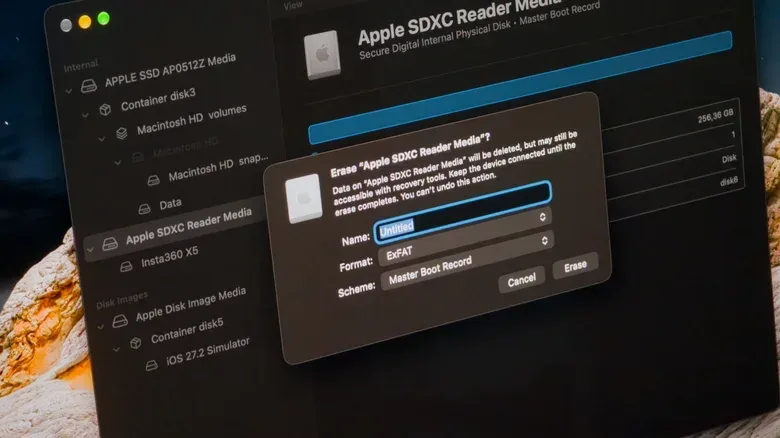
On macOS, the equivalent tool is Disk Utility. As with Windows, take particular care when selecting the device. Disk Utility can show a physical card and volumes nested beneath it, and choosing the physical card is the relevant step for this process.
- Connect the SD or microSD card to the Mac.
- Open Disk Utility. Spotlight can be used to locate it quickly.
- Choose View, then select Show All Devices.
- Select the SD card itself, rather than the volume listed beneath it.
- Click Erase.
- Set the format to exFAT, choose a volume name and confirm.
After the erase finishes, copy a large file to the newly formatted card as needed. If the original rejection came from FAT32’s file-size limit, exFAT removes that specific barrier. It does not, however, resolve unrelated transfer problems such as an incomplete backup, an incompatible device or a card that has actually developed a fault.
What this means for gaming and media storage
Storage troubleshooting is easier when the error is treated as a clue rather than a verdict. A “file too large” message while the card has obvious free space points much more strongly to a file-system restriction than to capacity. The failed transfer is about one file’s size, not the total amount of storage left.
That distinction is useful for anyone managing game clips or large PC files. A player may assume that a newly bought high-capacity microSD card is ready for any large transfer simply because its advertised capacity is generous. But capacity and formatting are separate decisions. The card can physically hold the data, while the file system still vetoes the one item being copied.
It is also worth separating this problem from PC performance or graphics configuration issues. Storage format controls whether a file can be represented and written under the selected rules; it does not determine which GPU a gaming PC uses. If the concern is graphics output rather than a file-transfer error, see our guide to making sure a monitor is connected to the intended graphics hardware.
When keeping FAT32 is still the right move
exFAT is not an automatic upgrade for every SD card. If the card serves an older camera or another aging device that does not support exFAT, formatting it to exFAT can create a new problem: the device may no longer read the card. FAT32 remains the appropriate format when legacy compatibility matters more than storing a single file above nearly 4GB.
In that scenario, the workable approach is to keep files below the limit rather than forcing a format the device cannot use. The original limitation remains, but it is predictable: no individual file can exceed 4,294,967,295 bytes. Knowing that rule turns a baffling “there is space available” failure into a format decision with a clear boundary.
For modern systems that support it, exFAT is the direct remedy. Back up the card, format it as exFAT in File Explorer or Disk Utility, then return the retained files to the card. For old hardware, verify support before changing anything. The best format is not simply the one with fewer limitations; it is the one both accommodates the files you need and can be read by the device that matters.