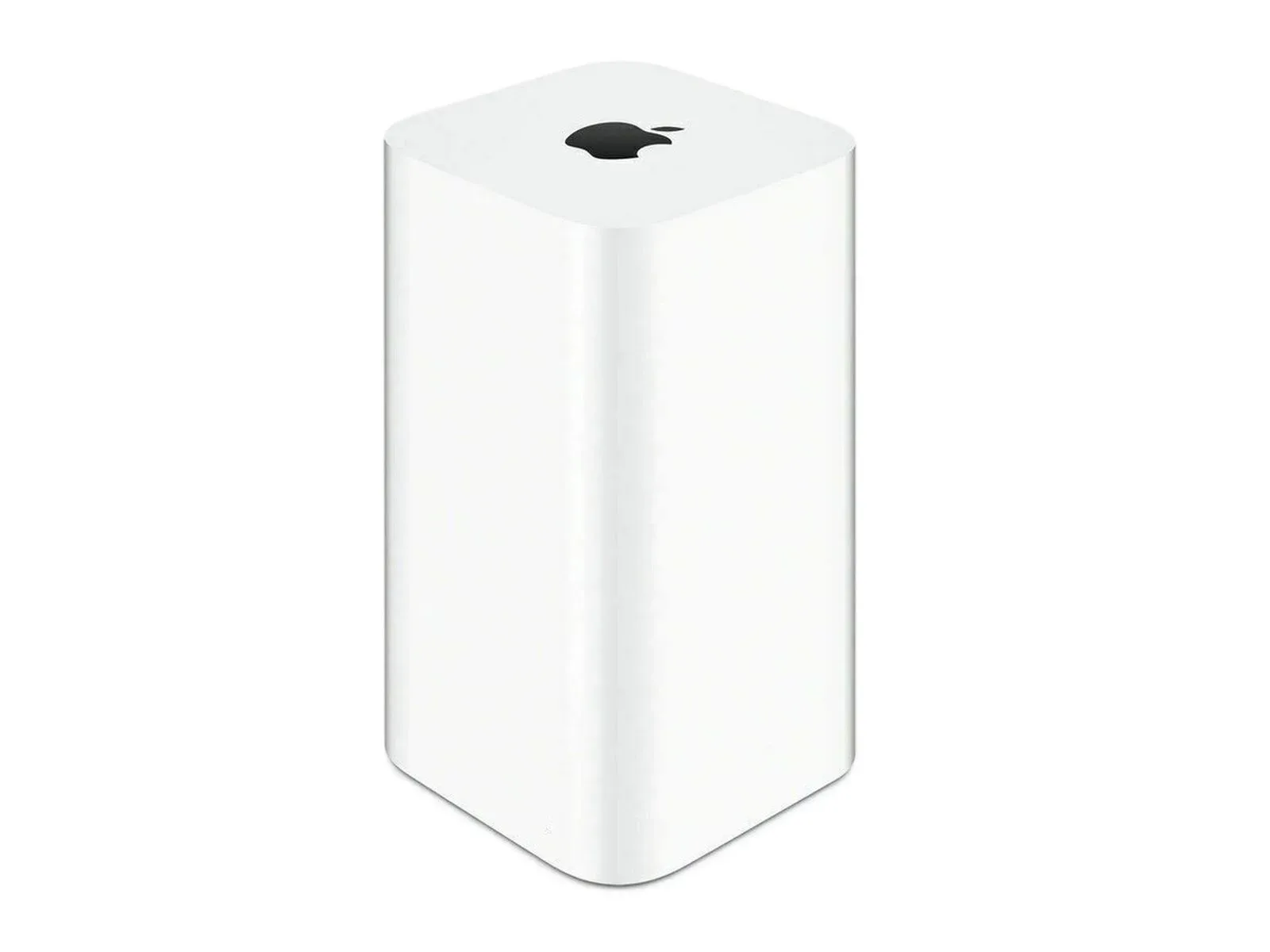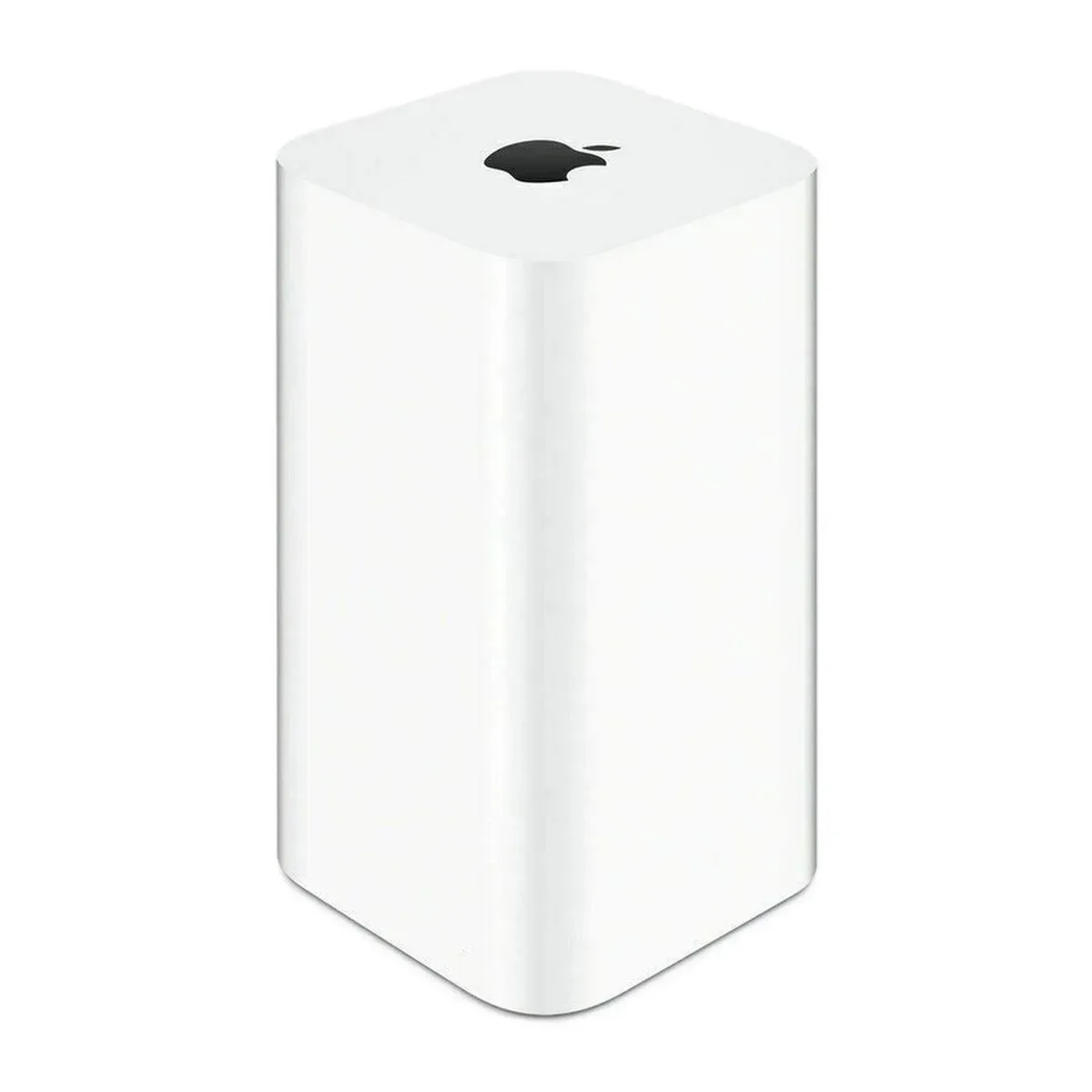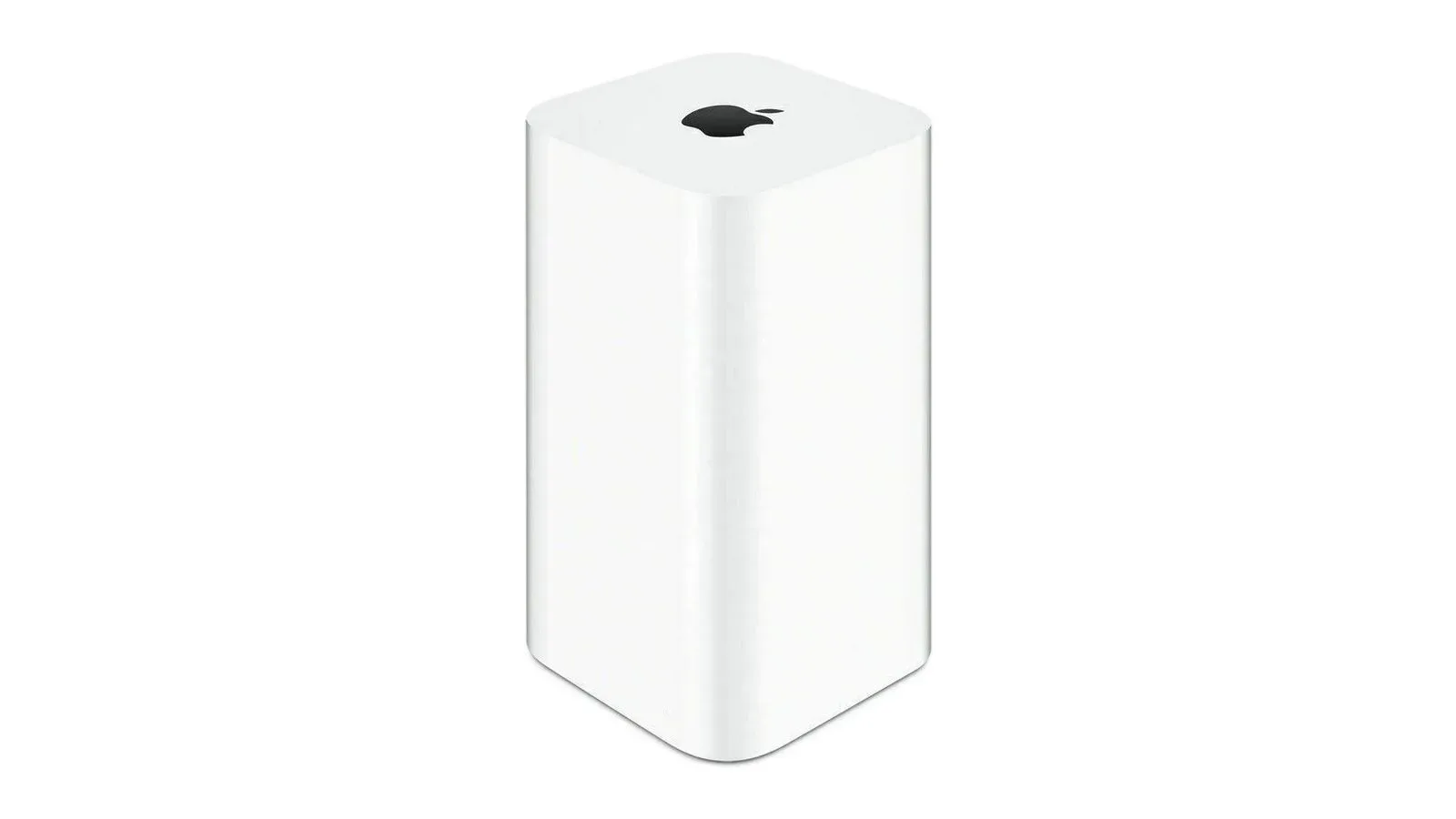
macOS 27, known as macOS Golden Gate, will no longer let Time Machine back up to an AirPort Time Capsule. The change is straightforward but significant for anyone who has kept one of Apple’s discontinued backup routers in service: macOS is removing support for AFP, the older file-sharing protocol on which Time Capsule’s Time Machine setup depends.
Once on macOS 27, Time Machine backups use SMB exclusively. The Time Capsule does not support SMB in the form macOS 27 requires, so this is not a case of hunting through settings for a hidden compatibility switch. A Mac upgraded to Golden Gate cannot continue making Time Machine backups to that device.
For players who use a Mac for their gaming library, screenshots, controller utilities, mods, emulation-related files, or other local projects, the practical message is less dramatic than “everything is gone,” but more urgent than a routine software footnote: make a backup plan before changing the operating system. A backup that quietly stops running is not a backup plan.
What is changing, and why it matters
Time Machine is macOS’s backup tool. It is intended to preserve copies of files over time so that a user can recover material after deletion, corruption, drive failure, or a problematic system change. An AirPort Time Capsule, meanwhile, is older Apple hardware that combined network functions with storage intended for Time Machine backups.
The break comes from the network file-sharing language used between the Mac and backup destination:
- AFP, short for Apple Filing Protocol, is the legacy protocol that Time Capsule relies on for Time Machine backups.
- SMB, or Server Message Block, is the protocol macOS 27 will use exclusively for Time Machine backups.
That distinction is the heart of the compatibility issue. The Time Capsule hardware cannot provide SMB support in the specific form Golden Gate needs. Keeping the Time Capsule powered on, retaining its existing backup archive, or connecting it to the same network does not change the protocol mismatch for new Time Machine backup jobs after the upgrade.
The warning did not arrive without notice. macOS Tahoe began showing users a warning in June 2025 that Time Capsule backups would stop functioning in the following macOS release. Golden Gate is now that release.
This is a backup-destination issue, not a claim that every game save behaves the same way
It is tempting to translate a Time Machine story directly into “game saves are at risk,” but the responsible version is narrower. The supplied information establishes that Time Machine can no longer back up to a Time Capsule on macOS 27. It does not establish where any particular game, launcher, emulator, or storefront stores its saves, whether it uses cloud synchronization, or whether it is included in a given person’s Time Machine selections.
Those details can vary by game and setup. The immediate action, therefore, is not to assume a particular save file is protected or unprotected. It is to identify what the current Time Capsule backup contains, decide whether those files matter, and ensure another backup destination is operating before the operating-system upgrade.
That is relevant beyond games. A Mac often accumulates hard-to-replace local material: capture footage, edited clips, artwork, documents, configuration files, archived downloads, and personal projects. Even when an online service stores some data elsewhere, a local backup can still be the recovery path for files that were never synchronized.
What existing Time Capsule users should do before upgrading
Apple’s stated alternatives are an external drive or a modern NAS. NAS means network-attached storage: storage available across a local network rather than plugged directly into only one computer. Neither option is automatically “better” for every person. The key requirement is that the replacement works with the current Time Machine approach on macOS 27, which means SMB rather than AFP.
Option 1: Use an external drive
An external drive is the most direct replacement named for affected users. Its major practical advantage is simplicity: the storage is physically connected to the Mac when backups are run. For someone with one Mac, this can be a clean way to replace a discontinued network backup target without also maintaining a separate network-storage system.
Before upgrading, users should make sure the drive is available and that Time Machine is configured to use it. More importantly, they should verify that a backup actually completes. Selecting a destination is not the same as confirming a usable backup exists.
Option 2: Move to a modern NAS
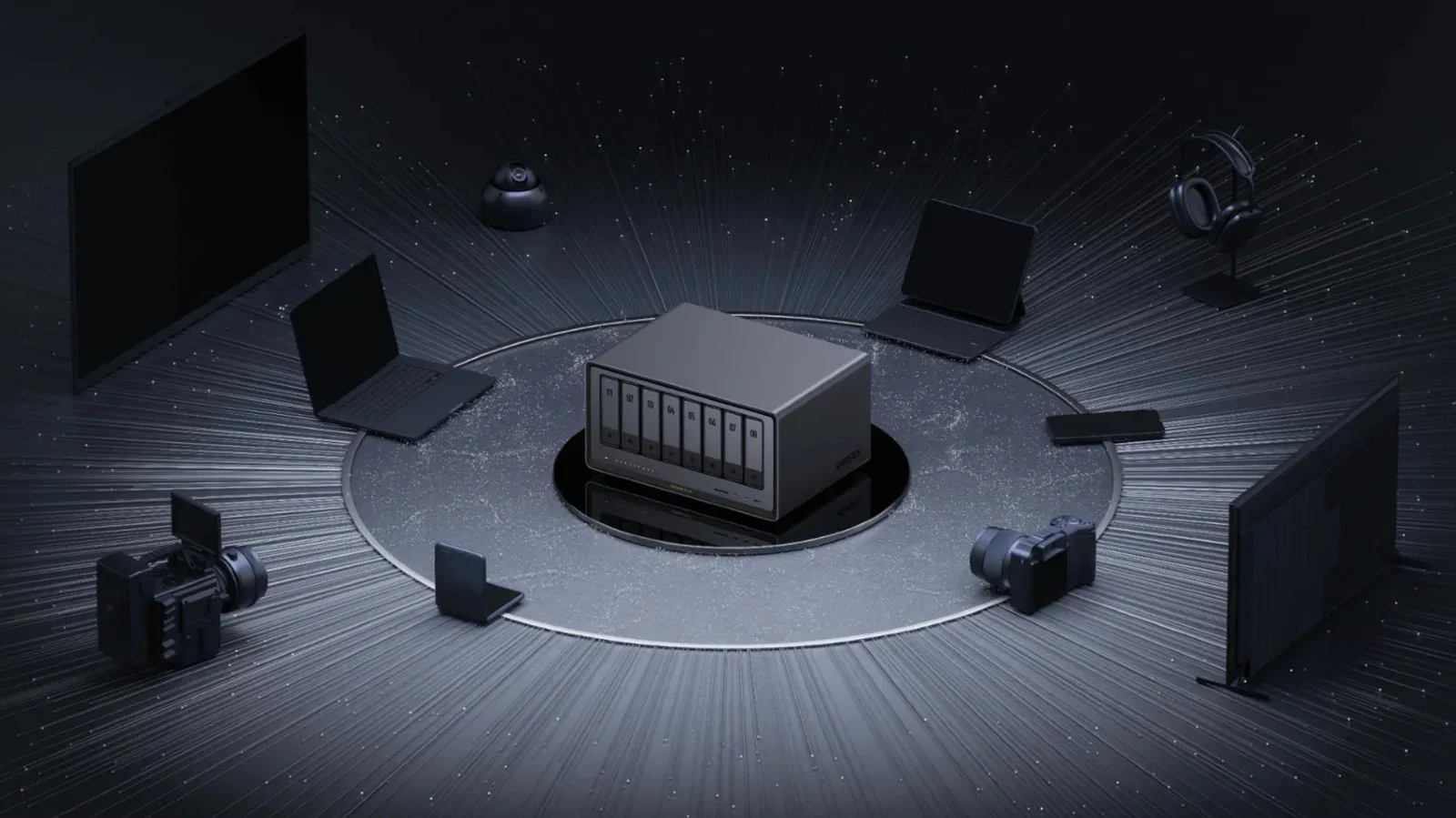
A modern NAS is the network alternative Apple identifies. For a household or setup where a wired external drive is inconvenient, network-attached storage can preserve the general idea of keeping backups on the local network. But “modern” is important here. Since macOS 27 requires SMB for Time Machine backups, prospective NAS owners should confirm compatibility with that requirement rather than treating any network drive as interchangeable with the old Time Capsule.
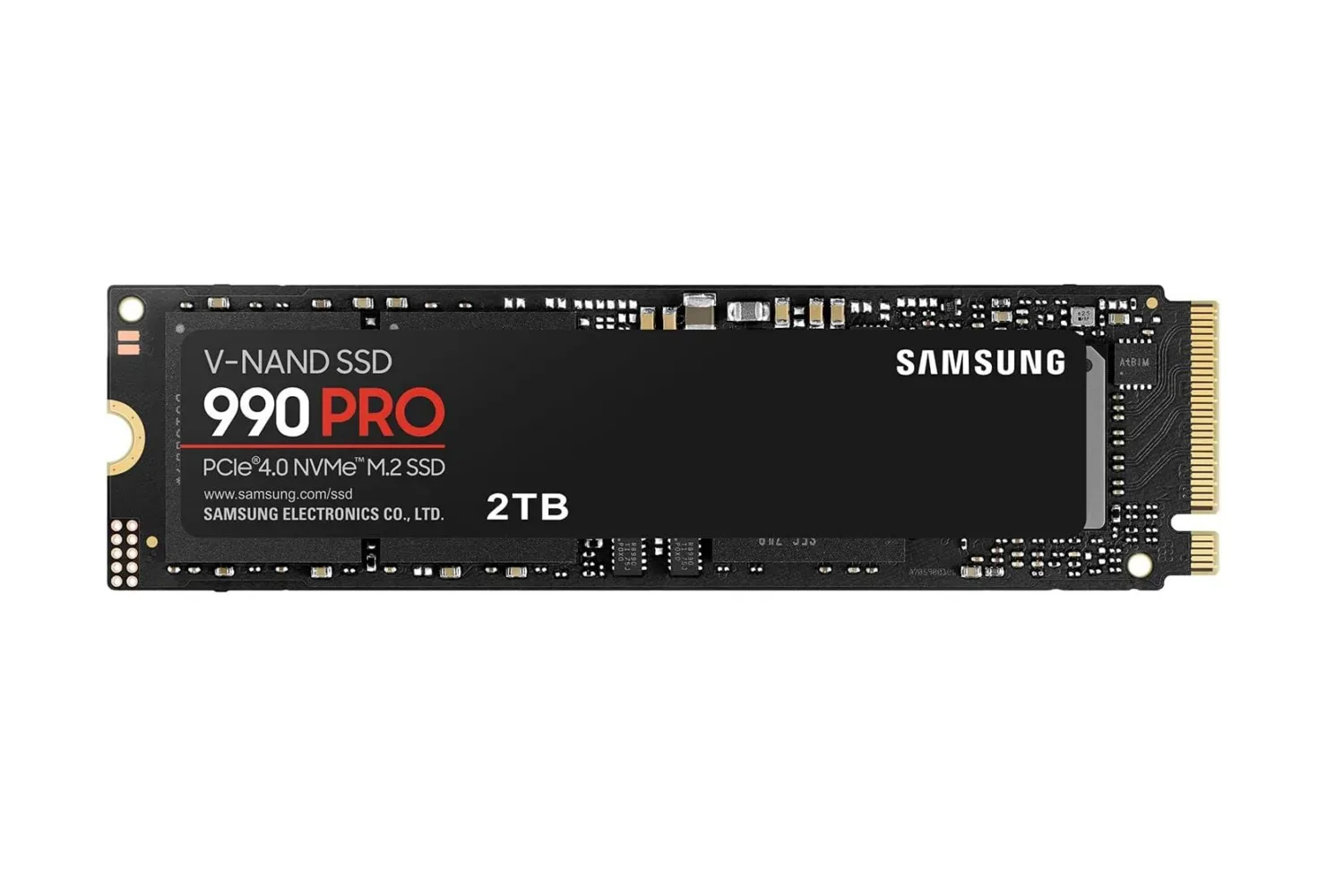
Users replacing aging backup hardware may also be evaluating broader storage upgrades. For context on a current high-capacity storage product and the market pressure around flash memory, see this look at the Samsung 990 Pro 2TB SSD listing. That is not a Time Capsule replacement recommendation; a drive and a compatible Time Machine destination are separate questions. It is simply a reminder that storage decisions frequently involve both capacity and workflow.
A sensible migration checklist
The source material does not prescribe an exact migration procedure, and users should not assume that changing a backup destination moves every old backup automatically. The safest general approach is to treat the operating-system update and the backup migration as two related but distinct tasks.
- Check whether the Mac currently backs up to a Time Capsule. If it does, the Golden Gate upgrade will interrupt that arrangement.
- Choose a replacement destination before installing macOS 27. Apple identifies an external drive and a modern NAS as alternatives.
- Confirm protocol compatibility for a network destination. A NAS must support the SMB-based Time Machine method required by macOS 27.
- Run and verify a backup on the replacement. Do this ahead of the OS upgrade, not after the old destination has already become unusable for new backups.
- Keep track of what you need to preserve. That may include local game-related work, personal media, documents, and other files that are not easily recreated.
Verification deserves emphasis because the visible failure mode here may be deceptively quiet. The Mac can appear normal after an OS upgrade while the expected Time Capsule backup routine is no longer available. Establishing the replacement in advance turns the update into a planned transition instead of a recovery exercise.
Do not confuse an old backup archive with an ongoing backup service
The announced change concerns the ability to back up to Time Capsule after upgrading to macOS 27. It is best understood as the end of an ongoing backup path. An existing archive and the capacity to make future backups are different things. Users should avoid treating the presence of old Time Capsule data as proof that their Mac remains protected once Golden Gate is installed.
There is also a distinction between preserving data and preserving a particular piece of legacy hardware. An AirPort Time Capsule may still have personal or collector appeal as a discontinued Apple product, but that does not make it a supported future-facing Time Machine endpoint under macOS 27. For backup purposes, compatibility is the deciding factor.
The larger lesson for game libraries and personal archives
This change is a useful illustration of a mundane technical risk: dependencies can disappear even when the files themselves are fine. Nothing in the reported change says that a user’s games, saves, screenshots, or documents suddenly cease to exist. The problem is that the established route for copying them to a backup device is removed.
For gamers and collectors of digital material, that difference matters. A library can be accessible today and still lack a reliable recovery path tomorrow. A player may have a locally stored capture or a project folder that is not part of a cloud service. They may have installed software whose data location or synchronization behavior they have never checked. Time Machine is only one part of a protection strategy, but when it is the part that has been running automatically, losing it without replacement creates an avoidable gap.
Golden Gate’s AFP removal is ultimately a firm compatibility cutoff, not a reason for panic. Users still on a Time Capsule have clear replacement categories available: an external drive or a modern NAS. The important timing detail is that the move should happen before the macOS 27 upgrade, while the existing backup arrangement is still understood and a new one can be tested deliberately.