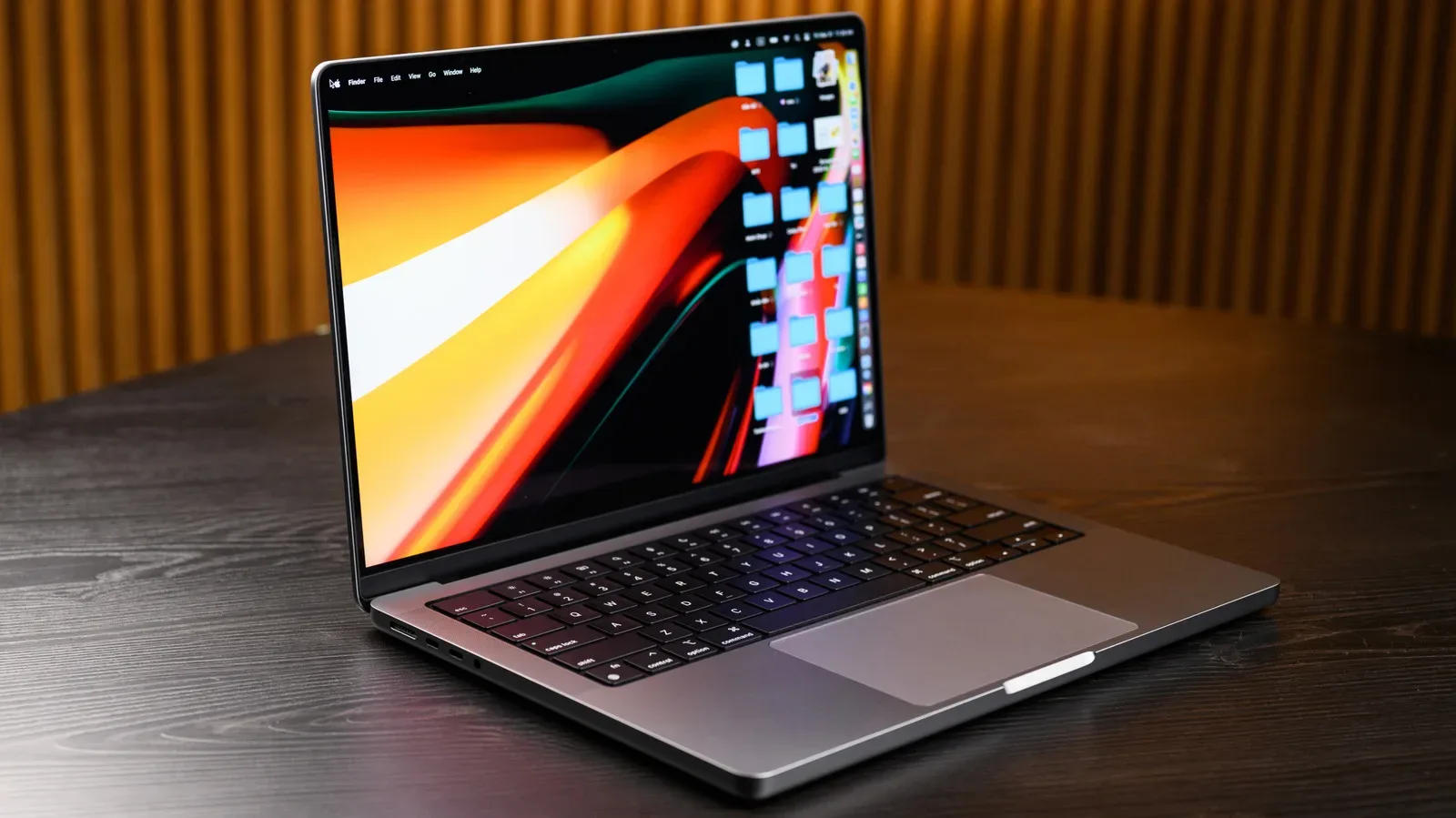
A MacBook does not need a ceremonial daily shutdown any more than a game needs to be restarted after every menu screen. For most people, Sleep is the sensible default between ordinary work, study and gaming sessions: close the lid, step away, then return to the same apps and windows after unlocking the machine.
That does not make shutdown obsolete. A full shutdown has a specific and useful job. It closes applications, stops macOS, clears RAM and leaves the computer drawing no power. That distinction matters when the laptop will sit unused for days, is about to go into a bag, or needs a more complete power cut while diagnosing a troublesome accessory.
The useful answer is therefore not “always sleep” or “always shut down.” It is to match the mode to the break ahead. The good news is that choosing the less-than-perfect option on an ordinary day is unlikely to create a disaster. The better news is that a few settings and habits can avoid unnecessary battery loss, heat concerns and interruptions when it is time to get back to whatever was on screen.
The short version: sleep for continuity, shutdown for a clean stop
Sleep preserves the active session in memory. In practical terms, that means a MacBook can return to its previous state after its lid is opened and the user authenticates. Open documents, browser tabs and applications are intended to be waiting where they were. That fast resumption is the central benefit: it removes the small but repeated friction of quitting everything and reopening it later.
Shutdown does the opposite in the ways that matter. macOS closes apps, shuts down the operating system and clears RAM, or random-access memory. RAM is the working memory that holds the active session while the computer is running. Clearing it is part of creating a genuinely off state, rather than pausing the current one.
For a quick decision, use this rule:
- Choose Sleep for a lunch break, the end of a normal day, or a gap of the next few days when the MacBook is likely to be used again.
- Choose Shutdown when the machine will be unused for several days or weeks, when leaving it behind for a trip, or before putting it into a bag if there is any concern it might remain active.
- Choose Restart when an application or macOS itself is misbehaving and a normal reboot is appropriate.
- Choose a full shutdown rather than restart when troubleshooting requires the system’s components to be completely powered down, such as when investigating an accessory issue.
There is no evidence here for a rigid daily shutdown schedule. In fact, a MacBook does not need to be powered off every night. A weekly shutdown or restart can be a reasonable housekeeping habit, but it is not a requirement unless a problem calls for it or a software update requires a restart.
What happens when a MacBook sleeps
Closing a MacBook’s lid is the simplest way to put it to sleep. Sleep can also be selected from the Apple menu. The important idea is that the computer is not fully off: the current session remains in memory so the device can resume quickly.
Sleep can also be more active than its name suggests. A feature sometimes called Power Nap allows certain work to continue while the Mac is asleep. That can include fetching email, syncing Calendar information and responding to Find My requests. When connected to power, the Mac can undertake more demanding background activity, including Time Machine backups and search indexing.
Those functions are useful precisely because they reduce the gap between walking away and returning. A user may come back to fresher mail or calendar data without deliberately waking the computer first. But background work is also why “the lid was closed” is not necessarily identical to “nothing was happening.”
On modern Apple silicon MacBooks, sleep should consume very little battery, generally under one percent an hour. That makes sleep practical for normal use even when a charger is not nearby. If the battery becomes critically low during sleep, macOS can hibernate: it saves the session to disk and shuts down in order to prevent work from being lost.
Hibernation in this context is a protective fallback, not the everyday choice a user needs to micromanage. The system stores the session on disk before stopping so that a drained battery does not automatically mean a wiped-out workspace. The tradeoff is that restoring from that state will not be as immediate as waking from ordinary sleep.
If sleep is draining more battery than expected
Significant battery loss during sleep is a clue worth investigating, rather than a reason to abandon sleep altogether. The practical first steps are modest: disconnect external drives and hubs, then look at whether persistently active software is involved. Examples include Slack, cloud-storage tools and browser pages that continually refresh.
This is less about blaming one particular app than about recognizing the basic principle: hardware and software that keep requesting attention can undermine the low-power expectation of sleep. A plugged-in drive or hub can be one variable; a tab repeatedly refreshing or a sync client constantly working can be another.
Users who want sleep to be quieter on battery can also adjust network wake behavior. In System Settings > Battery > Options, the Wake for network access control governs the background-network behavior associated with Power Nap. Selecting Only on Power Adapter or Never prevents those activities from operating while the MacBook is asleep on battery.
That is a useful choice for someone prioritizing battery preservation over background freshness. It does not mean sleep itself is unsafe or wrong; it simply changes whether the Mac is allowed to wake for network-related tasks while unplugged.
Sleep timing and the difference between the display and the Mac
A dark display is not always the same thing as a sleeping computer. macOS provides separate controls that make this distinction important. To adjust idle timing, open the Apple menu, choose System Settings, then select Lock Screen in the sidebar. The settings named Turn display off on battery when inactive and Turn display off on power adapter when inactive allow different time periods for battery and plugged-in use.
After the display turns off, the MacBook will generally sleep shortly afterward if no action is taken. But another setting can deliberately keep the computer itself working after the screen is dark. Under System Settings > Battery > Options, Prevent automatic sleeping on power adapter when the display is off keeps the system awake on external power while allowing the screen to turn off.
That setting is not inherently bad; it exists for situations where the system needs to remain running. Still, it changes the expectation that a black display equals an inactive computer. It is worth checking for anyone trying to understand why a MacBook appears to be doing work when they assumed it was asleep.
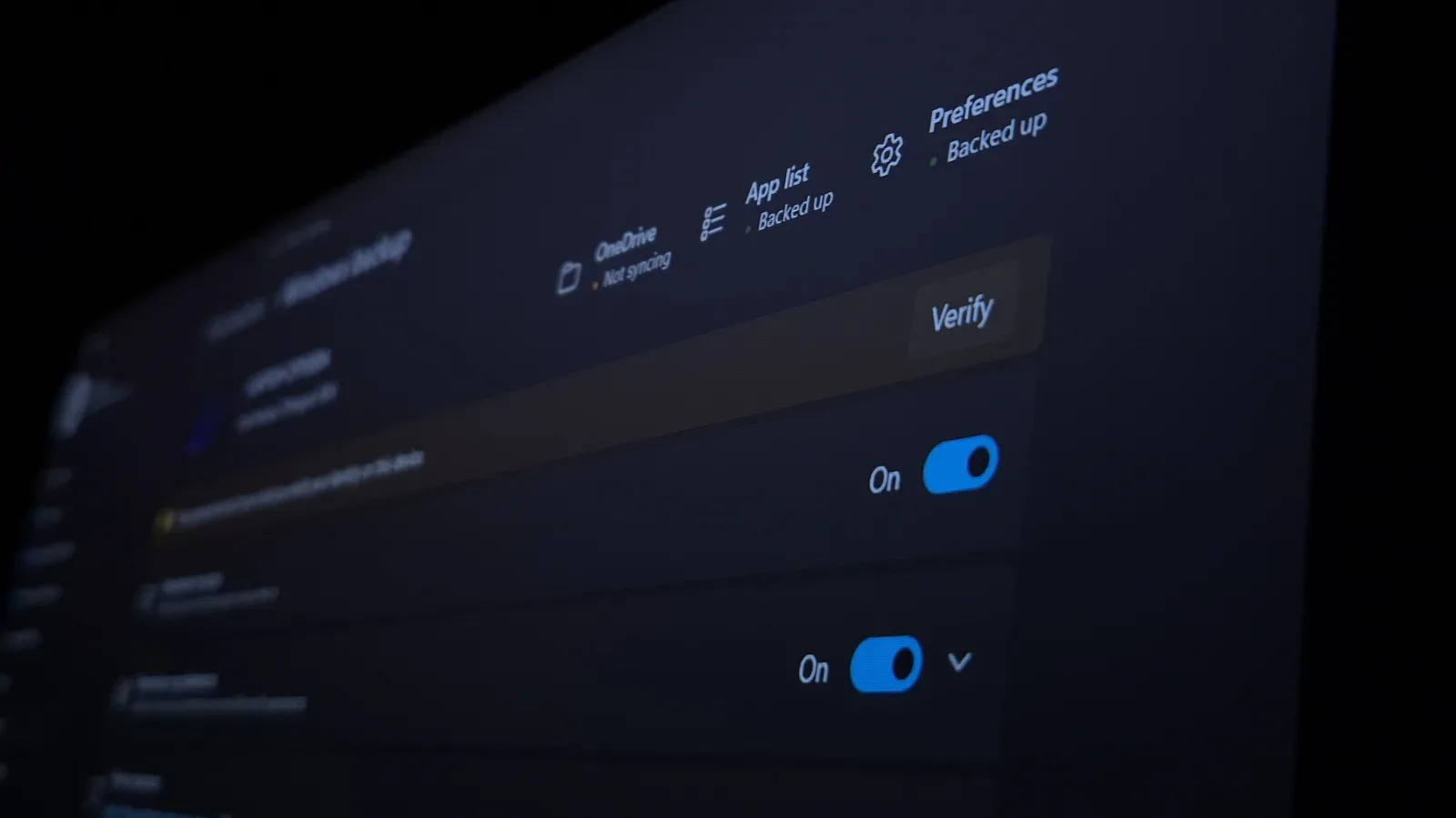
Similar power-management choices are relevant beyond macOS. Players who move between platforms may also want to review Windows 11 settings worth changing before a long PC gaming session, though the sleep and shutdown behaviors described here are specifically about MacBooks and macOS.
What a real shutdown changes
Choosing Shut Down from the Apple menu starts a normal shutdown process. Apps are closed, macOS stops and RAM is cleared. Once it has fully shut down, the machine is not drawing power. Starting again requires opening the lid or pressing the power button.
There is a one-minute countdown after selecting Shut Down, giving the user an opportunity to cancel. The shutdown window also includes Reopen windows when logging back in. When enabled, macOS will relaunch the applications that were open before the shutdown when the computer boots again. This can make a shutdown less disruptive, but it should not be confused with sleep: the system still has to start afresh rather than instantly reveal the session held in memory.
Holding the Option key while clicking Shut Down skips the countdown. That route attempts to close apps gracefully, but it does not provide a prompt to save changes if an application’s automatic-save behavior runs into trouble. For routine use, the normal shutdown is the safer, less rushed choice when there is no urgency.
There is one MacBook-specific detail that is easy to overlook: do not close the lid until the screen has gone dark during the shutdown process. Closing it prematurely can result in slower startup next time.
Restart is not precisely the same as shutdown
Restarting from the Apple menu is often the right response to a stuck app or broader system oddity. It is a reset of the working software environment. However, a restart does not fully power off the machine’s components. If the goal is to completely remove power while troubleshooting connected hardware or similar issues, a full shutdown is the more appropriate option.
This distinction is especially worth remembering for people accustomed to Windows behavior. With Windows Fast Startup, a normal shutdown is not necessarily a complete power cycle by default, while restarting is more thorough. The Mac guidance described here runs differently: a macOS shutdown is the method to use when a full power cut is needed.
Travel is where the choice becomes less casual
A MacBook that is staying on a desk or table can generally sleep without drama. A MacBook being placed into a bag deserves more caution, particularly if it is allowed to perform Power Nap activity on battery. If the computer fails to sleep correctly and continues generating heat, an enclosed bag becomes a poor place for it to do so.
That does not mean every trip requires treating sleep as forbidden. It means shutdown is the conservative choice when packing up, especially where there is uncertainty about the machine’s sleep behavior. If the MacBook will be left at home throughout a vacation or otherwise unused for days or weeks, shut it down before leaving. The saved battery and fully inactive state outweigh the slight delay of starting up on return.
For short everyday movement, the right answer can still be sleep, provided the laptop has reliably slept and is not unexpectedly running hot or losing a surprising amount of charge. The distinction is practical risk management: a few idle minutes at a desk and many hours enclosed in a bag are not the same scenario.
Buttons, locks and the option to force a shutdown
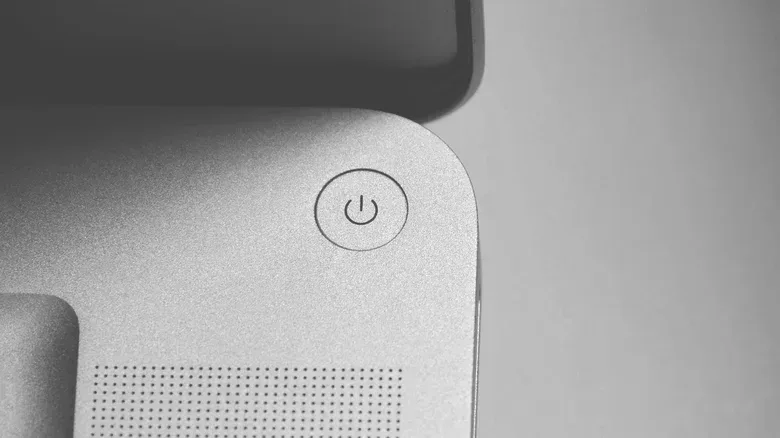
On a current MacBook, a quick press of the Touch ID button in the top-right locks the computer. Older MacBooks use a Power button for the equivalent physical control. If the locked machine is left on battery for a while, it will eventually sleep.
Holding that button for several seconds forces a shutdown. This is an emergency measure for a fully unresponsive system, not a convenient substitute for the Apple menu. A forced shutdown can lose unsaved work because it does not give the operating system and apps their normal opportunity to close cleanly.
That final distinction brings the whole decision back into focus. Sleep is designed for an interruption. Shutdown is designed for an endpoint. Restart is a useful remedy when software has become unreliable. Forced shutdown is the escape hatch when the normal controls no longer respond.
For the everyday MacBook routine, the uncomplicated policy is also the best one: let the laptop sleep between regular sessions, check the battery and background-wake settings if sleep is unusually hungry, and reserve shutdown for long absences, packed travel and cases where a clean power cut actually solves a problem.