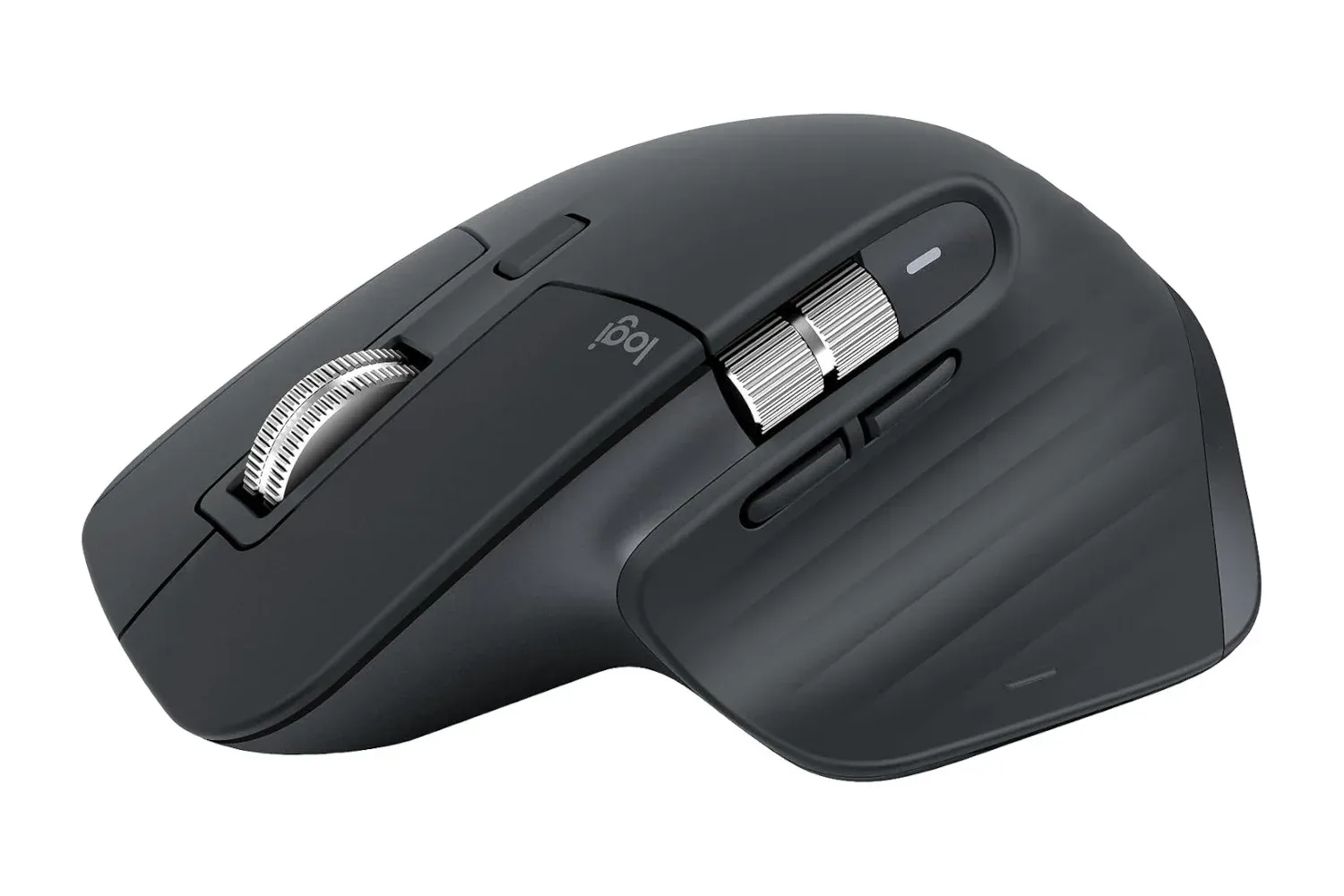
The Logitech MX Master 3S is currently listed at $80, down from a stated regular price of $100. That is a 20% reduction for a wireless Bluetooth mouse positioned around long sessions, quiet operation and software-based customization rather than the aggressively gaming-first design of a dedicated esports peripheral.
For PC players who split a desk between work, browsing, creative tasks and games, that distinction matters. The MX Master 3S appears built to be the mouse that stays connected while the spreadsheet closes, the game launches and somebody nearby would rather not hear every click like a tiny office castanet recital. The sale is described as limited-time, so the $80 figure should be checked before treating it as the standing price.
What the MX Master 3S brings to the desk
The main practical pitch is a combination of comfort, precision and flexibility. The mouse has a distinctive shape intended to remain comfortable over long periods of use. Comfort is necessarily personal: hand size, grip style, desk height and wrist position can all change whether a particular contour feels natural. Still, an ergonomically minded shape can be especially relevant for people spending hours moving between documents, timelines and games.
A wrist rest may also help some setups, particularly where the user’s wrist is held at an awkward angle. That is not a substitute for a comfortable posture, but it is a useful reminder that a mouse’s shape is only one part of the desk arrangement.
The MX Master 3S supports up to 8,000 DPI. DPI, or dots per inch, is a sensitivity measurement: at higher settings, a smaller physical hand movement moves the pointer farther on screen. A high maximum does not automatically make a mouse better for every player or task. It simply gives the owner a wider range of sensitivity options. Lower sensitivity can offer more deliberate cursor movement, while a higher setting can reduce how far the hand has to travel across the desk.
In games, many players will tune sensitivity in the game itself as well as through mouse settings. The best result is usually consistency, not chasing the biggest number on a spec sheet. The MX Master 3S’s 8,000-DPI ceiling may be useful to people who prefer quick desktop navigation or limited mouse movement, but this is not presented as a dedicated gaming mouse. Buyers looking specifically for competitive play should consider whether their preferred genre and setup call for features associated with that category rather than assuming a high DPI figure settles the question.
Quiet buttons are more useful than they sound
One of the more broadly practical features is quieter clicking. Mechanical keyboard noise can be part of the charm for plenty of PC setups; mouse clicks are a different matter when they are occurring repeatedly through late-night work, shared calls or a quiet room. Reducing click noise can make a peripheral easier to live with, even if it is not the sort of feature that turns heads in a specifications table.
That is an example of why the MX Master 3S’s appeal is likely broader than gaming alone. It is designed for people who use a computer continuously through a mixed day rather than for a single narrowly defined use case. A player who edits clips, manages a library, handles office tasks and then plays PC games may value the quieter operation just as much as the cursor sensitivity.
Related coverage includes Logitech MX Master 3S Returns to $80 in Limited-Time PC Accessory Deal.
Bluetooth and a multi-device workflow
The mouse uses Bluetooth connectivity. Wireless performance is an understandable concern for players, but the supplied details characterize the connection as strong and suitable for responsive use. Individual results can still depend on a computer’s Bluetooth hardware, nearby wireless activity and the rest of a user’s setup, so it is sensible to regard connectivity as part of the whole system rather than a promise that every desk behaves identically.
The more distinctive workflow feature is its ability to work across different systems, including moving text and files between them. That can be valuable in a multi-device environment: a desktop PC, laptop or another computer can otherwise turn a simple copy-and-paste job into an exercise in messaging oneself, emailing attachments or locating the correct cable in a drawer full of mysterious cables.
For owners with that kind of setup, the feature could be more consequential than the mouse’s gaming crossover. Moving a cursor and selected content between systems reduces friction in daily tasks. It is also the kind of capability that is only meaningful when it matches a buyer’s habits. Someone who uses one computer almost exclusively may get more immediate value from the comfortable shape, quiet controls and adjustable sensitivity than from cross-system file movement.
Options+ is where customization enters the picture
Customization is handled through the Logitech Options+ app. Software matters because it allows the hardware to adapt to different uses instead of forcing the user to accept one fixed control arrangement. The supplied details say users can customize what the mouse does as needed, which makes the MX Master 3S better suited to a role that shifts between productivity and entertainment.
In practical terms, software customization is worth considering before purchase because it often determines whether extra controls become helpful shortcuts or simply remain buttons that are never pressed. The strongest use case is a person with repeated actions they want to simplify, whether that is moving through a work routine or setting up preferred controls for general PC use. It also means a buyer should be comfortable installing and using the companion app if that flexibility is central to the purchase.
For a gaming desk, the broader picture is that peripherals do not all have to be purpose-built gaming gear to be useful alongside games. A mouse that prioritizes comfort and quiet operation may make the most sense when gaming is one significant part of a wider PC routine. Conversely, a buyer whose only priority is high-level competitive input should avoid reading the MX Master 3S as a direct stand-in for every dedicated gaming model simply because it offers a high DPI setting and Bluetooth.
How to judge the $80 listing
At the stated $100 regular price, the MX Master 3S asks buyers to place real value on its ergonomic design, low-noise clicking, 8,000 DPI option, Bluetooth connection, Options+ controls and multi-system functionality. At $80, the decision is easier for someone who already wants that specific productivity-led feature set. The reduction is $20, and the listing is described as one of the stronger discounts that appears for this model.
The best fit is likely someone who wants one mouse for a varied PC life: daily work, extensive navigation, multiple devices and some gaming. The case is less clear for someone buying solely for a genre where they expect every aspect of the peripheral to be tailored to competitive gaming. Features should be weighed against the actual use case, not just the discount badge.
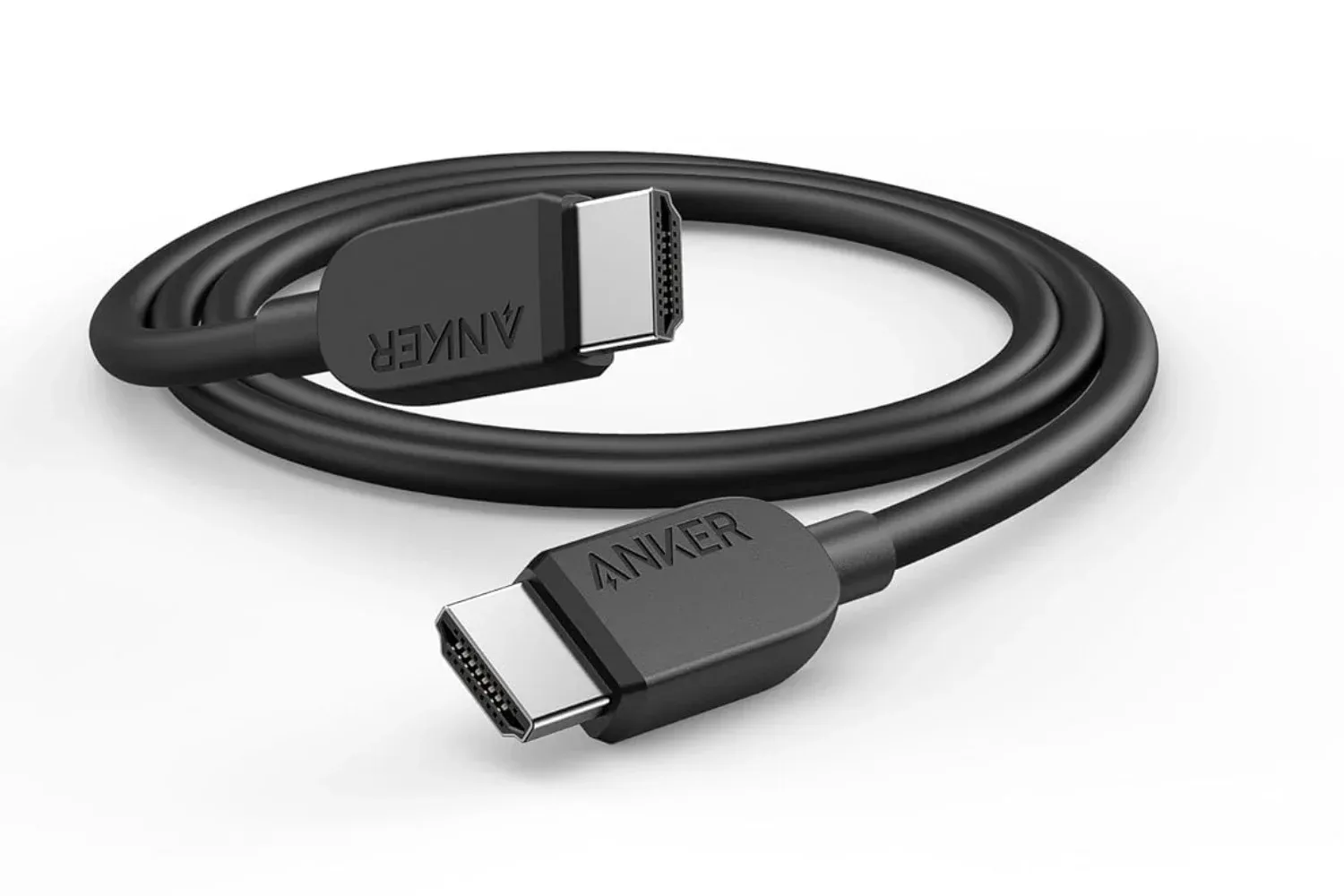
There are other ways to tune a PC setup around a mouse purchase, too. Display hardware, storage and networking can all affect the broader experience, while a simple cable can be relevant for a high-refresh display connection. For example, Anker’s 6-foot HDMI 2.1 cable listing outlines a separate, inexpensive consideration for compatible 4K 120Hz setups.
The MX Master 3S deal itself is straightforward: it is listed at $80 for a limited time, rather than its stated $100 regular price. Buyers interested primarily in comfortable all-day use, quieter clicks and cross-system convenience have the clearest reason to pay attention before the listing changes.
Shop the products
Check current price, model and availability at the retailer.