The MacBook has a long-running talent for making familiar PC actions feel briefly mysterious. A right-click is one of them. There may be no obvious right mouse button on the built-in trackpad, and Apple uses the name secondary click rather than “right-click” in macOS settings. The good news is that the function is straightforward once the available gestures are clear.
Secondary click is the action that opens a context-sensitive menu: the compact list of extra commands related to whatever is under the pointer. Depending on the app and item selected, that menu can provide useful choices without forcing a trek through the menu bar. It is a small input shortcut, but one that can remove plenty of repetitive clicks from everyday MacBook use.
On current-era macOS setups, secondary click has been enabled by default for many years. That means a new MacBook generally does not require a settings expedition before it can do the job. A user can use the built-in trackpad, Apple’s Magic Mouse, or a third-party pointing device; the best option is mostly a question of what feels natural in the hand. The universal fallback is also reassuringly simple: hold Control and click normally.
The quick ways to perform a secondary click
There are several routes to the same contextual menu. Learning more than one is worthwhile because a MacBook may move between trackpad-only travel use, a desk setup with a mouse, and whatever peripheral happens to be connected that day.
- Control-click: Hold the Control key, then perform an ordinary click. This works whether the pointer is being controlled with a trackpad or mouse.
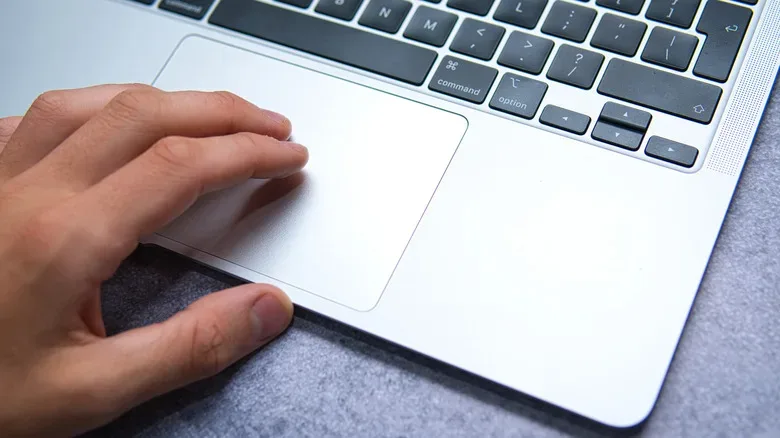
- Two-finger trackpad gesture: Tap or click with two fingers on the MacBook’s built-in trackpad.
- Magic Mouse side click: Click the front-right area of a Magic Mouse to invoke the secondary click, despite the mouse’s smooth surface not presenting a visibly separate button.
The Control-click method is especially useful as the “nothing else is working” option. It does not depend on remembering which corner has been assigned on a trackpad or whether a mouse has an unusual hardware layout. Hold Control, click the relevant item, and the secondary-click menu should appear.
For many trackpad users, though, two fingers are the faster daily habit. It keeps both hands close to the MacBook and does not add a keyboard modifier. Put two fingers on the trackpad and tap or press, according to the configured behavior. The command is intended to be an alternative to the right button found on many conventional mice, not a different class of command with a different destination.
Choosing a trackpad secondary-click style
MacBook trackpads offer three configurable secondary-click choices. This is helpful because people approach the hardware differently. One person may prefer the two-finger gesture; another may want the predictability of a designated corner. macOS places these decisions in the Trackpad controls within System Settings.
- Open System Settings on the MacBook.
- Select Trackpad from the left sidebar.
- Open the Point & Click section.
- Find the Secondary click pop-up menu.
- Select one of the available options: Click or Tap with Two Fingers, Click in Bottom Right Corner, or Click in Bottom Left Corner.
The labels are useful because they describe precisely what changes. The two-finger selection accommodates a tap or a click with two fingers. The corner choices turn either the bottom-right or bottom-left portion of the trackpad into the secondary-click area. There is no universally correct choice: it is a preference setting, so selecting the gesture that causes the fewest accidental commands is sensible.
If the two-finger method keeps producing unintended secondary clicks while navigating, a bottom-corner assignment can make the gesture more deliberate. Conversely, someone who frequently uses the trackpad over its full surface may prefer two fingers instead of reaching consistently for a lower corner. The setting exists to fit the user’s existing motion rather than demand a single approved MacBook hand position.
Changing secondary click on a mouse
A mouse has its own control panel because its physical assumptions differ from the built-in trackpad. With a Magic Mouse, the right side of its front surface can act as the secondary-click zone even though the design does not show a conventional button division. Third-party MacBook peripherals can also be used, and the Control-click method remains an available alternative.
To set the mouse behavior in macOS:
- Open System Settings.
- Choose Mouse in the left sidebar.
- Go to the Point & Click section.
- Use the Secondary click pop-up menu.
- Choose whether a click on the left or right side of the mouse should trigger the command.
This left-or-right option matters for comfort and familiarity. Most users expecting a traditional mouse layout will likely select the right side, while the left-side choice offers another arrangement for those who prefer it. The important part is not the terminology but consistency: once the setting matches the way a person instinctively reaches for the mouse, contextual menus become a quick muscle-memory action.
Why the Control key shortcut still matters
Trackpad gestures and mouse zones are efficient, but Control-click is worth keeping in the toolkit. It is a single, plainly defined instruction that applies across the input options described here. If a user is unsure whether they are using a connected mouse’s expected button, or cannot remember the selected trackpad-corner preference, Control-click avoids the guesswork.
It can also make the language in macOS easier to translate. A dialog or help reference may call for a secondary click, while a user may think in terms of a right-click. For practical purposes in this situation, they refer to the same outcome: calling up additional commands for the item that has been clicked. Apple’s wording emphasizes the action’s role as an alternate click rather than the position of an actual button.
Fastest cheat sheet: Use two fingers on the MacBook trackpad, click the Magic Mouse’s front-right side, or hold Control while clicking with any compatible pointing setup.
Making the MacBook setup feel less alien
The right-click question is often less about capability than discoverability. A MacBook trackpad does not visually announce a right-side button, and the Magic Mouse deliberately minimizes visible hardware divisions. That design can be elegant, but it means the familiar PC vocabulary of “press the right button” does not always map cleanly to what is in front of the user.
Fortunately, the secondary-click options are intentionally flexible. A person who values a conventional corner-based action can configure one. A person who wants a gesture can use two fingers. A person switching among devices can depend on Control-click. None of these methods is a workaround; they are legitimate ways to access the same feature.
This sort of customization is also useful when building a broader Mac desk arrangement. Users comparing Apple desktop hardware or portable systems may want to review current Mac-related coverage, including select M5 MacBook Air configurations listed with discounts. Whatever MacBook model or mouse arrangement is involved, the secondary-click settings remain a practical place to make the interface match the user rather than the other way around.
A small setting with a large everyday payoff
There is no need to wait for a mouse upgrade to settle on a comfortable secondary-click routine. Although a next-generation Magic Mouse has been rumored, the existing Magic Mouse behavior, the built-in MacBook trackpad choices, and the Control-click fallback already cover the essential scenarios. Start with two fingers if using the trackpad, or the right side if using a Magic Mouse, then adjust the System Settings option if that movement feels awkward.
Once the preferred method is committed to muscle memory, “how do I right-click on this?” stops being a MacBook speed bump. It becomes what it should be: one quick gesture that exposes the next useful option.