Every PC player eventually meets the same unwelcome boss: the game that has stopped responding while its window remains stubbornly planted on the screen. Sometimes it is a browser holding a guide, a launcher that refuses to disappear, or a chat app that has decided it is now decorative furniture. Windows does not use the Mac phrase “force quit,” but it gives you several ways to achieve the same result: ending a program process when a standard close request has failed.
The important distinction is between asking software to close and ordering it to stop. A normal exit lets an application save data, finish housekeeping, or warn you about work that has not been saved. Force-ending a process skips that courtesy. It can rescue a desktop from a frozen full-screen game, but it can also discard unsaved progress, interrupt an installation, or leave a file in an incomplete state. Start with the least aggressive option that works, then escalate only when the app has clearly stopped cooperating.
Start with a normal close request
The familiar X in the upper-right corner of a window is Windows’ standard request to close. It is the best first move because the program has an opportunity to shut down cleanly. A document editor may ask whether you want to save changes. A browser may warn that downloads are active. A game may get a chance to write its save data and return you to its launcher rather than vanish in the middle of an autosave.
Alt + F4 sends essentially the same kind of request to the active window. It is especially handy when a title is in full-screen mode but still responding to Windows. Take care, though: “active” means the window most recently selected. With several monitors, a second screen full of utilities, or a busy desktop, it is easy to close the wrong program. Before using the shortcut, make sure the stuck application actually has focus.
Closing a visible window does not always end its process. Programs intended to continue in the background may minimize into the system tray, the cluster of small icons near the taskbar’s clock, rather than fully exit. Discord, Spotify, Slack, and Telegram are common examples. They can still deliver notifications or keep audio running even though their main windows have disappeared.
If an app has tucked itself into the tray, look for an explicit Quit, Exit, or Close command by right-clicking its icon. Some programs also place this option in their menus, often under File, and may offer a shortcut such as Ctrl + Q. Settings within an individual app can sometimes control whether closing its window exits it completely or leaves it running in the background.
Task Manager is the reliable force-quit tool
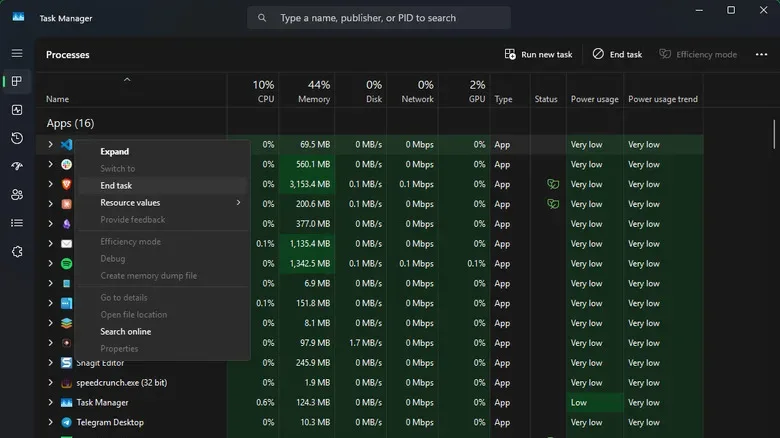
When a program ignores the normal shutdown request, Task Manager is the core Windows answer. Press Ctrl + Shift + Esc to open it directly. You can also right-click an empty area of the taskbar and choose Task Manager.
Open the Processes section to see active apps, background processes, and Windows processes. Finding the right entry is usually easiest by sorting with the Name heading or by using the search field. If the real problem is a system suddenly gasping for air rather than an obviously frozen window, sorting by a resource column such as Memory can reveal the biggest offender. A number next to an app’s name means Windows has grouped multiple related processes beneath it.
Select the troublesome application and choose End task, either from the button in the upper-right area of Task Manager or from the right-click menu. This stops the selected process without waiting for it to close politely. Any work the application had not saved can be lost, so this is not a substitute for using an in-game save menu, saving a document, or closing a browser normally. It is the escape hatch for software that is no longer giving you those choices.
Once the process is gone, the program can generally be opened again. If a specific game, launcher, or utility repeatedly locks up, updating it is a sensible first maintenance step. If updates do not improve the situation, uninstalling and reinstalling the problem application may clear damaged or misbehaving files. For a broader perspective on the design priorities behind games that aim for responsive, systemic worlds, see this discussion of immersive sims and gameplay-first development.
Do not casually end Windows Explorer
Task Manager also displays Windows Explorer among Windows processes. This is not merely a folder window. Explorer helps run File Explorer and key parts of the Windows interface, including the taskbar. Ending it can make the desktop and taskbar disappear, which can feel alarming even when the PC itself is still running.
For that reason, Windows normally presents Restart task for Explorer rather than a simple end command. Restarting it can be useful when the taskbar or File Explorer has frozen. If Explorer has been ended by another route and the interface is missing, Task Manager’s Run new task option can be used to launch explorer.exe again.
Add End task to the taskbar menu
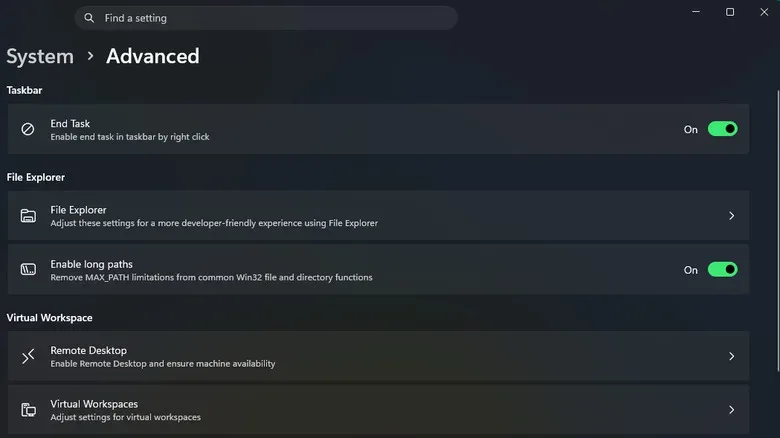
If you regularly need a quicker way out of frozen apps, Windows includes an optional taskbar command. Press Win + I to open Settings, then go to System > Advanced and enable the End Task switch. Afterward, right-clicking an open application on the taskbar provides an End task option.
This saves a trip into Task Manager, which can be valuable when an unresponsive game has buried everything else. The wording matters: Close window sends a conventional close request, while End task terminates the process immediately. Make sure the taskbar item belongs to the intended app before clicking. It is a fast tool, not a forgiving one.
Escalate with Details and process trees
On occasion, ending the main application entry is not enough. A stuck app may have spawned related helper processes that remain active or prevent a clean relaunch. In that case, move to Task Manager’s Details section, locate the troublesome process, right-click it, and select End process tree.
This is a more forceful measure because it closes the chosen process and the processes associated with it. It can be effective for especially stubborn software, but it also raises the risk of losing unsaved data or closing a component you still needed. Confirm the process name carefully and avoid using it as a guess-and-check solution on unfamiliar Windows processes.
Create a desktop shortcut for only non-responsive apps
Windows also has a command-line utility named taskkill. Rather than manually hunting down a process name every time, you can build a desktop shortcut that targets processes Windows identifies as not responding. This is useful as an emergency button, particularly if a frozen full-screen program makes normal navigation difficult.
- Right-click an empty part of the desktop and choose New > Shortcut.
- Enter taskkill /f /fi "status eq not responding" as the location for the item.
- Select Next, name the shortcut something unmistakable, and select Finish.
In that command, /f tells Windows to force the termination, while /fi applies a filter. The filter limits the command to processes whose status is “not responding.” That is a safer idea than a broad command intended to kill everything, but it still deserves respect: use it only when you accept that the frozen program may lose unsaved work.
You can optionally right-click the new shortcut, choose Properties, and set a custom key combination in the Shortcut field. Setting its Run behavior to Minimized prevents a command window from demanding attention each time the shortcut is used.
Other utilities and the reboot fallback
Third-party tools can provide additional emergency shortcuts. SuperF4, for example, is designed to add Ctrl + Alt + F4 for force-closing the current app and Win + F4 for selecting a window whose process should be ended. Such options may be useful when Task Manager cannot be reached or a game’s full-screen display has become a particularly determined gatekeeper.
When none of these approaches works, restarting the PC clears stuck programs. It is the broadest solution, so save anything that still responds in other applications before doing it. Regular restarts can also reduce the likelihood of apps becoming unstable over long sessions. The hierarchy is simple: ask the app to close, use Task Manager when it will not, use a targeted emergency option when necessary, and reboot when Windows itself has stopped leaving room for negotiation.