Google has expanded Gemini for Mac with a computer-use capability that can operate apps, work with files and use websites to carry out multi-step tasks. Rather than merely suggesting what a user should click, the feature is designed to handle the clicking, typing, menu navigation and form completion itself while the user remains at work elsewhere on the Mac.
It is a meaningful change in scope for an AI assistant on a personal computer. A conventional chat assistant can draft a resale listing, summarize metrics or outline a presentation. Computer use aims to bridge the gap between that answer and the work of moving through the relevant applications to complete it. In practical terms, Gemini may be asked to perform repetitive parts of a workflow across the apps, files and web pages a user has allowed it to access.
For PC and Mac players, creators and collectors managing a small mountain of screenshots, clips, notes and listings, the promise is easy to understand: less time spent on routine interface work. The equally important question is how much access an assistant receives while doing it.
What Gemini’s computer use does
Computer use is the term for an AI system interacting with a graphical desktop environment: selecting buttons, entering text, opening menus and filling out forms. The supplied details describe Gemini for Mac carrying out those actions in an isolated window, with a live preview shown inside the Gemini chat interface.
That isolated workspace matters. It means the agent’s task is not presented as invisible background automation with no observable trail. Users can watch the process in the preview while Gemini works, giving them a chance to keep tabs on where it is navigating and what it appears to be doing. Watching is not a replacement for reviewing important work, but it is a more accountable setup than handing a task to software with no visible activity at all.
Google has positioned the new mode around chores that are repetitive but still require hopping among several tools. Examples include batch photo editing, preparing product listings for resale platforms, and turning metrics plus screenshots into a presentation. Those examples show the feature’s intended range: file handling, desktop-app interaction and browser-based tasks can form parts of one workflow.
A gamer sorting a library of captures could see the appeal in the first example. Someone selling physical games or hardware could see why the second is tempting. And a creator organizing performance figures and captured images for a deck may recognize the third. Those are possible applications of the described workflow categories, not a guarantee that Gemini will complete every task perfectly or that it is suited to every app and site.
Permissions are the real controller settings
Gemini lets users choose which apps it can use, and it asks for approval before what Google describes as “key actions.” The detail is essential because an agent with access to a desktop can encounter sensitive material quickly: accounts, private messages, saved documents, inventory information and browser sessions can all sit only a few clicks away from an ordinary task.
Permission controls should be approached as part of the task design, not as a one-time setup hurdle. If a job only needs image-editing software and a folder of screenshots, granting broad access beyond those needs creates exposure without an obvious benefit. Likewise, an instruction to prepare a listing is not the same as an instruction to publish it, make an account change or submit a form. The approval checkpoint for key actions is the place to slow down and verify what will happen.
There is also a practical distinction between access and automation. Access determines what Gemini can open or use. Automation is the set of interface actions it performs after that access is available. Both deserve attention. Restricting an agent to the minimum relevant apps and folders narrows the material it can encounter; using approvals limits the most consequential steps it can take.
A sensible first-task checklist
- Start with a bounded, low-stakes task that has a clear desired result.
- Allow only the apps needed for that task rather than treating every permission request as routine.
- Keep the live preview visible, especially when the workflow moves to a website or form.
- Read approval prompts before accepting them, particularly if a step could publish, send, alter or expose information.
- Review the completed work before relying on it, since visible automation is not the same thing as error-free automation.
These are not special rules for Gemini alone. They are common-sense guardrails for any tool that can navigate interfaces on a person’s behalf. The efficiency payoff is greatest on repeatable work, which also makes it easier to define limits up front and spot a result that has gone off course.
Apple’s incoming macOS 27.3 controls add context
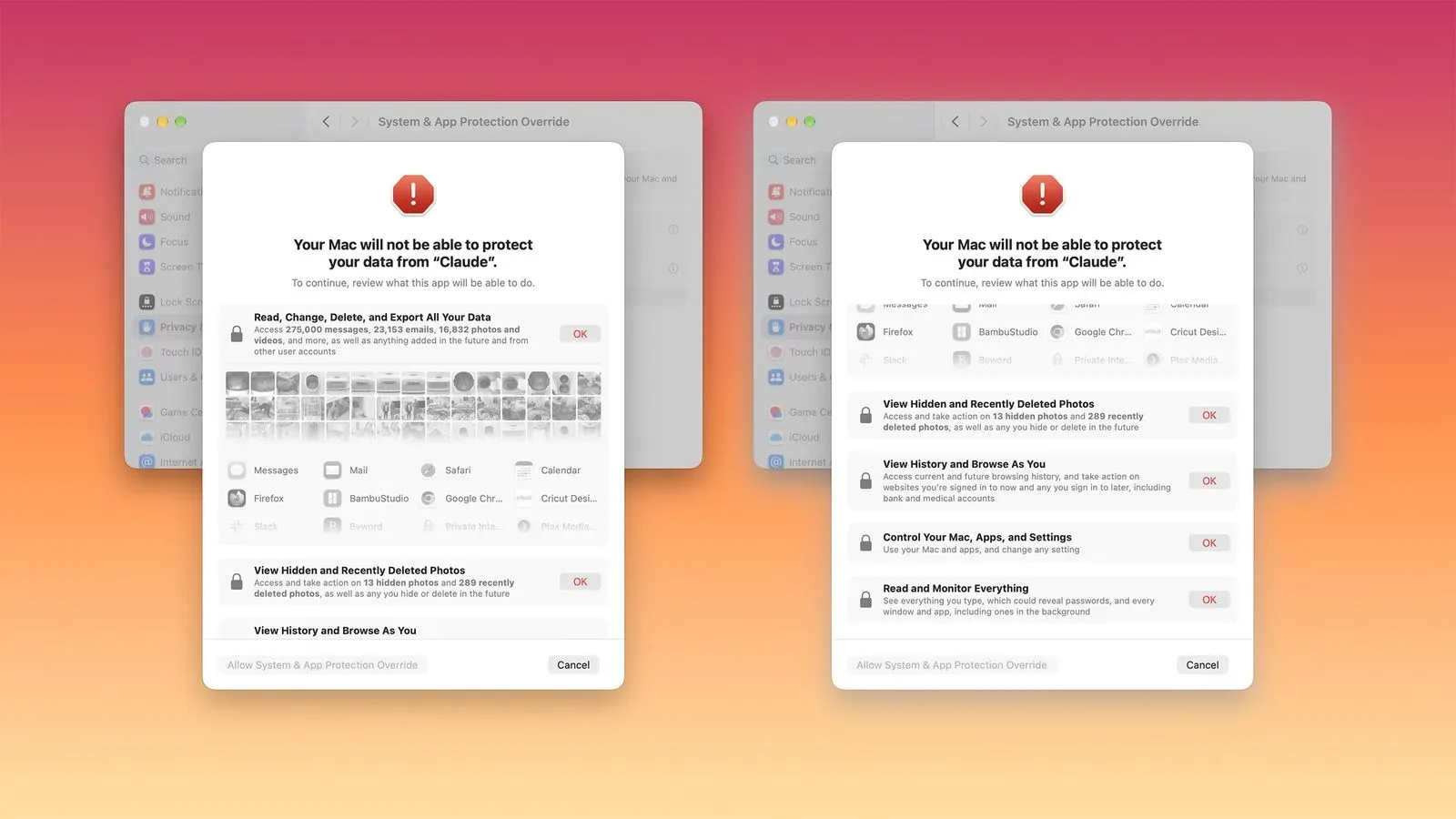
The launch arrives before macOS 27.3, an update that will more explicitly warn users about the risks of granting applications unrestricted access to data. Apple’s planned controls are especially relevant to AI agents because these tools can act across other apps rather than staying inside one self-contained program.
macOS 27.3 will let users restrict access to particular apps and folders, or require an application to request permission every time access is sought. Apple also plans a transparency indicator to show when one app is controlling another. In everyday language, that indicator is meant to make agent activity easier to recognize instead of leaving the user to infer it from a sudden flurry of windows and inputs.
The timing produces a slightly awkward but useful permission reality. People who install apps requesting Mac permissions before macOS 27.3 arrives will not have to grant those permissions again when the update lands. They also will not see the new explanation screens Apple intends to provide. That makes deliberate review at installation particularly valuable for anyone considering Gemini’s computer-use features before the operating-system update.
Apple’s forthcoming changes do not make a user’s decisions for them. They provide more clarity and granularity around what an app may reach. Gemini’s own app selection and approval model, the live preview, and Apple’s platform-level controls should therefore be viewed as layers rather than interchangeable safety features.
Why this matters for PC-minded workflows
Much of the conversation around AI remains focused on text generation, but desktop control shifts the issue toward execution. A well-written answer is easy to discard. An assistant that can click through software and websites can save meaningful time, but it can also turn a vague instruction into a chain of real actions. That is why observability and permission boundaries are central to this kind of feature, not side notes.
For the gaming audience, the most grounded use cases are organizational rather than magical. Managing photos for a collection listing, arranging images and metrics into a presentation, or working through repeated form fields are all tasks where routine clicking can become tedious. The feature may be most useful when the human supplies the judgment—what should be listed, which images are appropriate, what information is accurate—while Gemini handles prescribed mechanical steps.
It is less wise to confuse an agent with an owner or final editor of a task. A resale listing may involve descriptions, photos and fields that deserve a person’s review before a consequential submission. Metrics and screenshots can be placed into a presentation, but a user should still check whether the selected material supports the message they intend to communicate. Automation can reduce the friction between idea and execution; it does not eliminate responsibility for the final result.
That balance will likely be familiar to readers following the broader AI business story, including the growing public-market focus on frontier AI. As AI tools move from generating content to operating computers, the questions extend beyond whether a model can produce a useful response. They include how visibly it acts, how narrowly its privileges can be defined and when a person is asked to approve a decision.
Availability and requirements
Gemini for Mac is available to download from Google’s website. The computer-use feature is available in the United States for Google AI Plus, Pro and Ultra subscribers. Plans start at $4.99 per month.
An Apple silicon Mac is required. Anyone considering the feature should also factor in its staged availability: eligibility depends on both being in the U.S. and having one of the specified Google AI subscription tiers. As with any permission-heavy software, checking the access requested during setup is as important as confirming hardware compatibility.
Gemini’s new capability is best understood as an agentic desktop tool: an assistant intended to take actions through apps, files and websites, not just discuss them. The isolated window, live preview, selectable app access and key-action approvals provide meaningful controls. But the practical value of those controls depends on users treating them as active decisions while delegating only the work they are comfortable monitoring and reviewing.