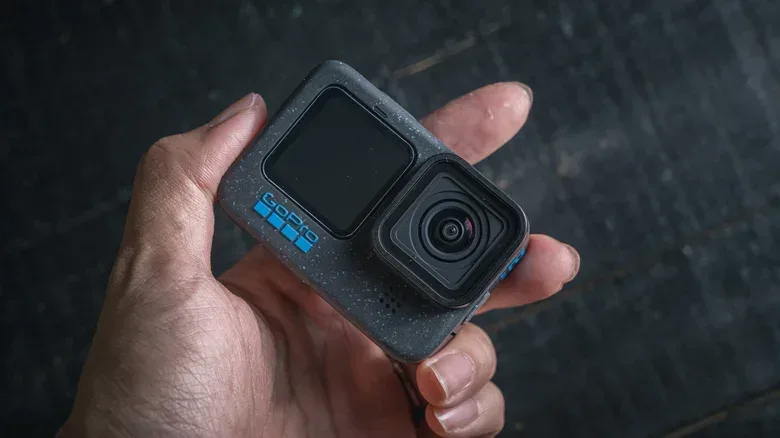
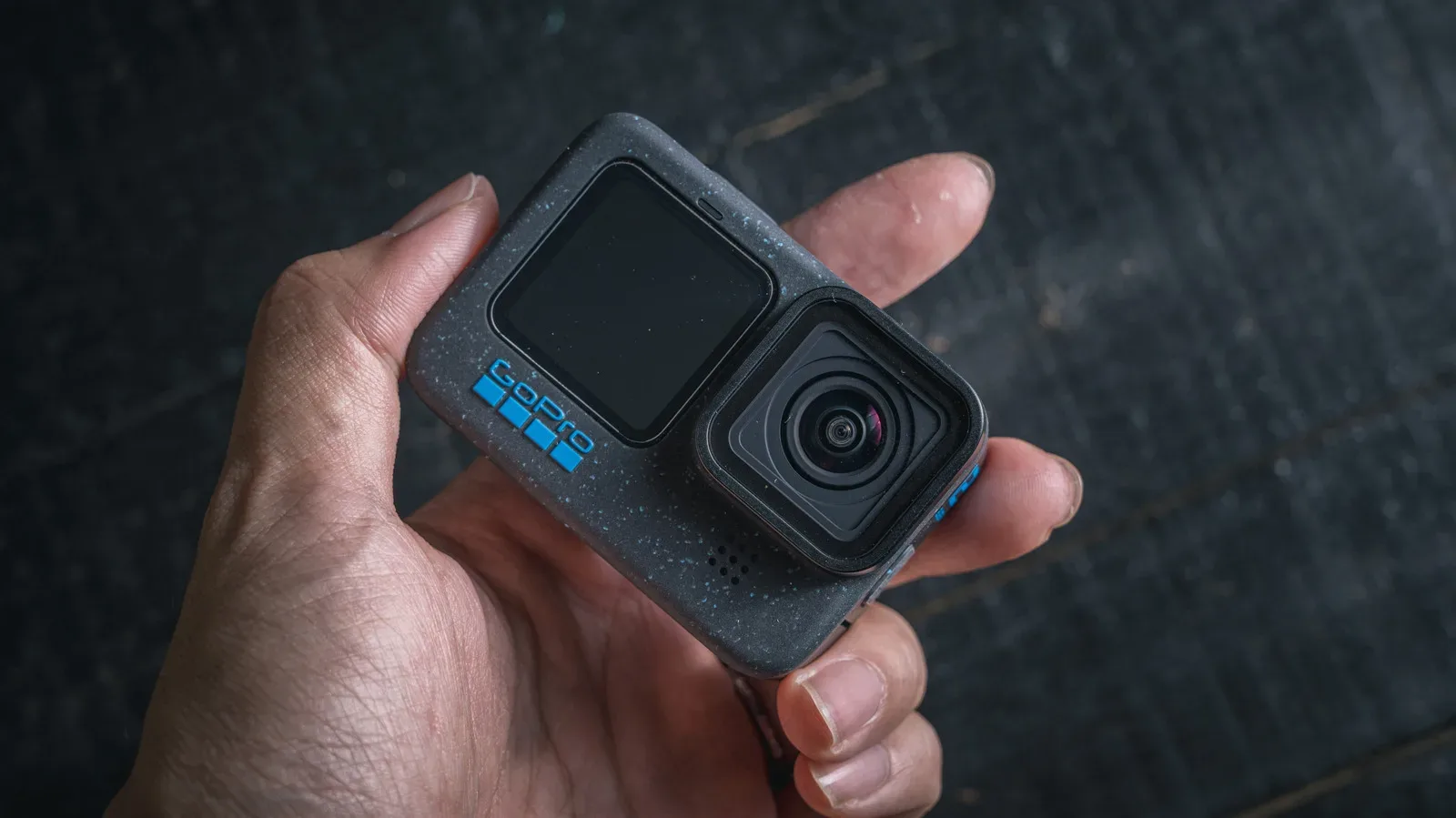
Old action cameras have a familiar fate: a newer model arrives, the former favorite gets moved to a drawer, and its increasingly tired battery makes selling it feel scarcely worthwhile. That does not mean the camera itself is finished. A GoPro that can still capture 1080p—or, on some models, 4K—can be reassigned to a job where USB power matters more than battery endurance.
Two especially practical roles are a basic in-car dash cam and a computer webcam. Neither conversion requires pretending an older camera is magically equivalent to a purpose-built modern device. They do, however, make sensible use of what the camera already offers: a wide view, video recording, and the ability to operate while plugged in.
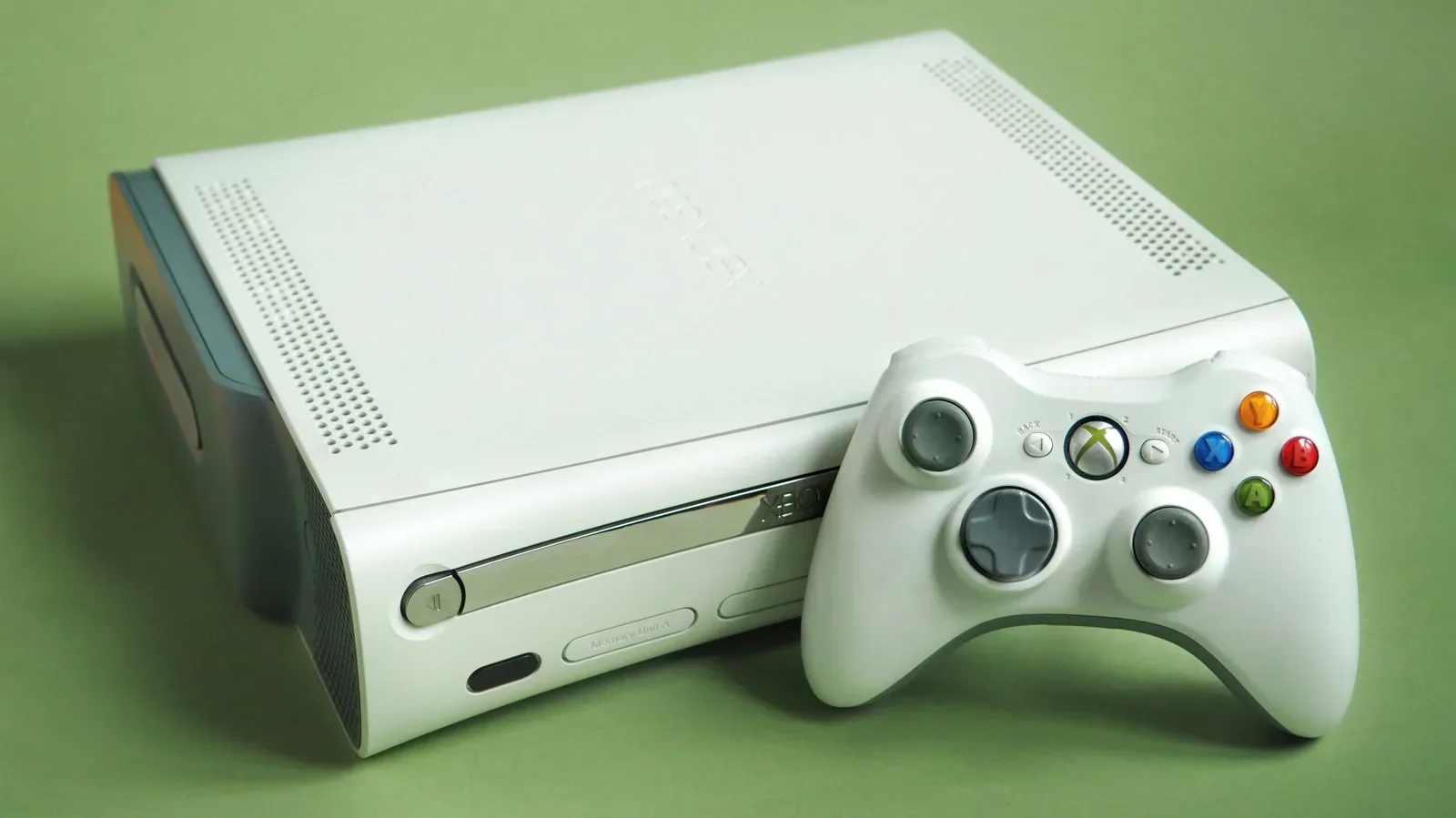
The central question is not simply whether the GoPro turns on. It is whether its specific model has the right connection and whether the new job can be supported with a stable mount, continuous power and appropriate storage. A retired gaming device can sometimes find similarly useful second life—our guide to repurposing an old Xbox follows the same basic idea—but a camera creates footage that needs a little more setup discipline.
Option one: make the GoPro a dash cam
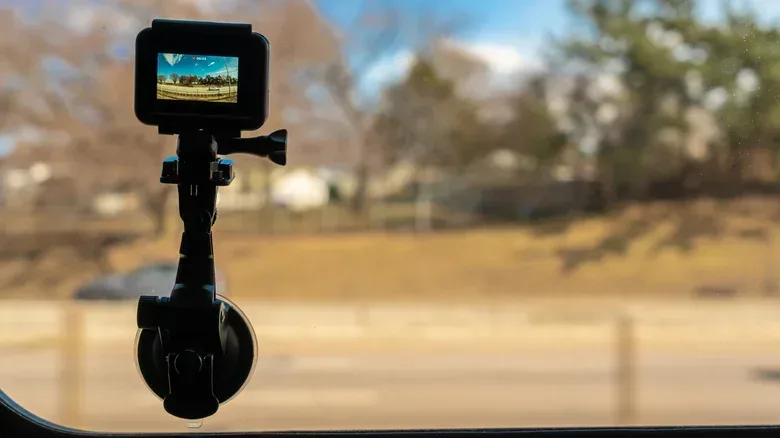
A GoPro is already designed around capturing action from a broad angle, which makes road recording a natural reuse case. The physical setup is straightforward: attach the camera using a suction-cup mount on the windshield or dashboard, connect it to a USB port or charger, then frame the road ahead. The practical value comes from making the recording process routine, rather than depending on a battery-powered camera that may quit midway through a drive.
For image settings, 1080p at 30 frames per second (fps) or above is a reasonable baseline. Resolution refers to the amount of visual detail in each frame; 1080p is a common full-HD format. Frame rate is the number of individual images captured every second. At 30 fps or higher, footage should provide a clearer record of what happened than a lower-detail or less fluid setting.
The feature that makes the arrangement workable for regular driving is loop recording. Instead of continuing until the memory card fills and stopping, the camera records in cycles and removes earlier clips to free capacity for newer ones. GoPro loop-recording settings can use 20-, 60- or 120-minute recording cycles, or use maximum storage before overwriting. This turns a finite microSD card into a rolling record of the most recent driving time.
That convenience comes with one major habit to build: after an accident or another incident worth preserving, stop the recording as soon as it is safe to do so. A loop recorder does not know which clip matters. If recording continues long enough, the system can overwrite the exact material the driver intended to keep.
Storage and power are the real dash-cam essentials
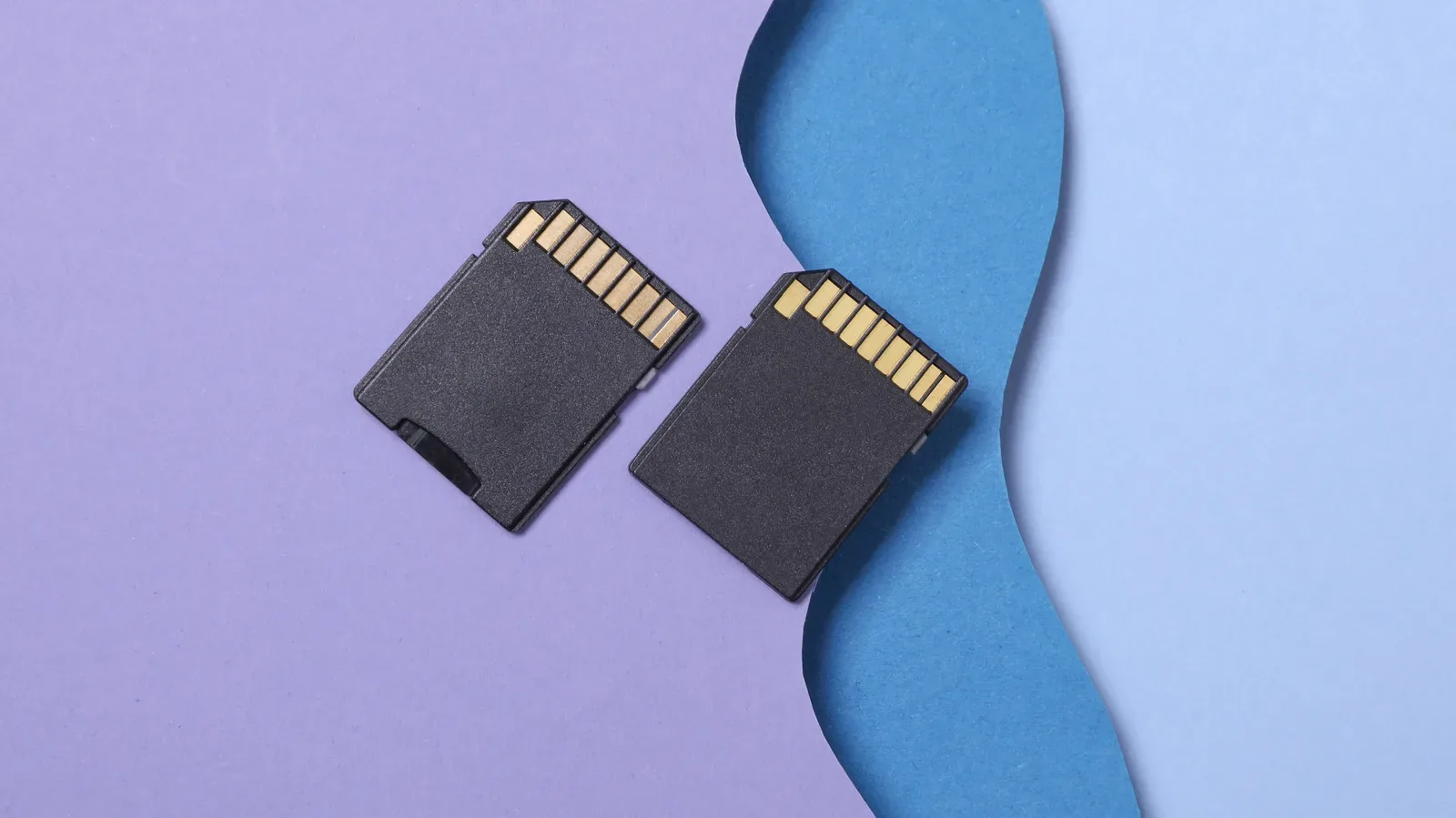
A good-quality 64GB microSD card is generally enough for hours of 1080p recording. That makes it a sensible starting point for a repurposed camera, though it does not remove the need to check that the card is working and installed before a journey. The point of loop recording is continuous turnover, not unlimited archival storage.
Related coverage includes How to Turn an Old GoPro Into a Dash Cam or Webcam.
Keeping the GoPro plugged into vehicle USB power or a charger also changes the importance of an aging battery. A degraded battery is inconvenient when the camera must be used untethered outdoors; it is less decisive when the new role provides power throughout the drive. The cable should be treated as part of the installation rather than an afterthought, since a camera that loses power cannot record.
There is also a start-of-drive step with a conventional setup: press the shutter button to begin recording each time the car is started. Forgetting that step means having a mounted camera that is not actually documenting anything.
Some owners can reduce that friction through GoPro Labs. An experimental feature there can make a compatible camera power on and begin recording when it receives USB power. Compatibility begins with the Hero 7 Black, so it is not an option for every old model. The experimental designation is also a useful reminder to view it as a convenience feature, not a reason to skip checking that the camera is positioned and operating as intended.
Dash-cam checklist
- Mount the camera securely on the windshield or dashboard and aim it for a wide, unobstructed road view.
- Connect reliable USB power so the worn battery is not carrying the job alone.
- Use at least 1080p at 30 fps or higher.
- Enable loop recording and choose an available cycle length or the maximum-capacity option.
- Use a good-quality 64GB microSD card as a practical capacity for hours of 1080p footage.
- Start recording at the beginning of a drive, unless a compatible Hero 7 Black-or-newer model is configured through GoPro Labs to start on USB power.
- Stop recording promptly after an event that needs to be retained.
Option two: use the GoPro as a webcam
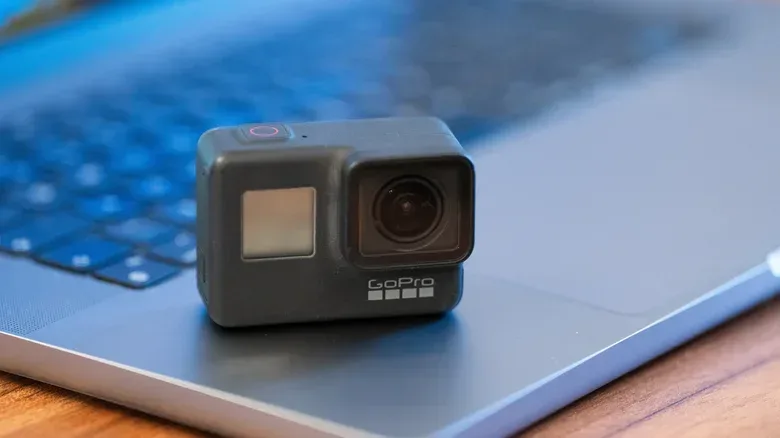
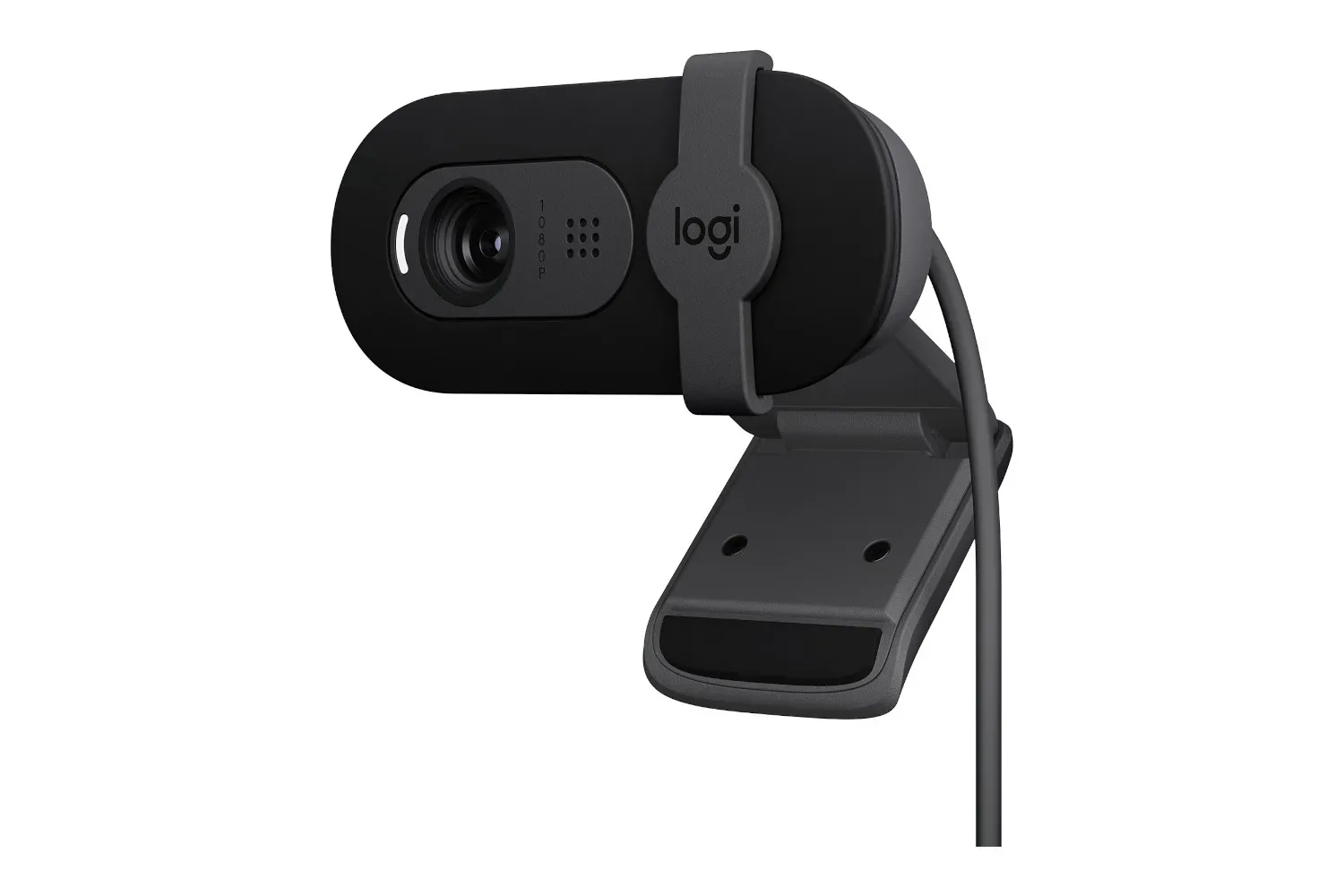
The desktop role is even more appealing when a laptop’s built-in webcam is low resolution or performs poorly in dim conditions. A GoPro can provide a higher-quality alternative, and USB operation once again reduces the relevance of battery health. The right process depends heavily on the model year.
For a GoPro Hero 8 Black or newer, the direct route is the GoPro Webcam app. Install the app on the computer, connect the camera through USB, and select the GoPro as the camera in a supported video application. It can then appear as a webcam option in services and apps such as Zoom or FaceTime.
This is the simplest setup because the computer is receiving the camera as a webcam over the USB connection. It also means the camera can draw power over that connection, avoiding the short-session limitations that an old battery might otherwise introduce. The key practical implication is that Hero 8 Black-and-newer owners may already have what they need beyond the computer and USB connection.
Older Hero models need a capture device
Hero 4, Hero 5, Hero 6 and Hero 7 Black cameras can still perform webcam duty, but their route is different. These models have micro-HDMI ports. HDMI is a video connection, while micro-HDMI is its smaller connector format used on compact devices. To make the computer recognize the camera as a webcam, feed that micro-HDMI output into a USB capture device.
A capture device converts the camera feed into something the computer can use as a webcam input. The Elgato Cam Link 4K is one cited example, typically priced around $100. That extra hardware is the dividing line between “plug it in and select it” and a more involved conversion. It is worth accounting for before buying accessories for a camera that otherwise seemed free to reuse.
Older-model owners should also plan for separate power if the GoPro’s battery has significantly deteriorated. The video path through micro-HDMI and a capture device does not itself solve the camera’s power requirement. In other words, a usable picture is only half the configuration; the GoPro must remain powered for the entire call, stream or recording session.
Camera picture and meeting sound are separate problems
A GoPro’s built-in microphones are not designed for video conferencing. That does not erase the benefit of using the camera for video, but it means audio needs its own plan. A dedicated microphone is the recommended companion for webcam use. This separates the strengths of the setup: let the GoPro handle the visual feed, and let a microphone intended for calls handle voice capture.
Mounting also matters. Put the GoPro on a mini tripod rather than leaving it loose on a desk or propping it against an object. A stable mount makes framing repeatable and helps keep the camera at an intentional angle. This is particularly relevant to an action camera because its broad view can include more of a room than a narrow laptop webcam. Positioning is therefore part of how presentable the final image feels.
Which reuse path fits your camera?
The dash-cam conversion is broadly compatible in concept because it relies on ordinary video recording, a mount, USB power and storage management. Its most important operational feature is loop recording. The more automated USB-triggered recording option is limited to models beginning with the Hero 7 Black and remains experimental through GoPro Labs.
The webcam conversion has a cleaner model split. A Hero 8 Black or newer can use the GoPro Webcam app and USB connection. Hero 4 through Hero 7 Black models can provide video through their micro-HDMI ports, but need a USB capture device and may need separate power. The older path remains viable; it simply asks for more equipment and more cable management.
- Choose dash-cam duty if the main priority is continuous road footage and you can reliably start recording or use compatible USB-power automation.
- Choose direct webcam mode if you own a Hero 8 Black or newer and want to select the camera in calls through a USB connection.
- Choose HDMI capture webcam mode if you have a Hero 4, 5, 6 or 7 Black and are comfortable adding a capture device and separate power where needed.
Repurposing is about working around the battery, not ignoring the limits
The underlying logic of both projects is simple: an old GoPro’s battery may no longer be a selling point, but fixed USB power can make that weakness far less important. What remains useful is the camera’s sensor, its video capability and its ability to capture a wide scene.
For the vehicle setup, that usefulness depends on loop recording, enough microSD space and a driver who protects relevant footage before it is overwritten. For the desk setup, it depends on choosing the correct connection method for the camera generation and pairing the image with a proper microphone. Those are modest constraints, but they are the difference between an old camera becoming useful equipment and returning to the drawer.
Shop the products
Check current price, model and availability at the retailer.