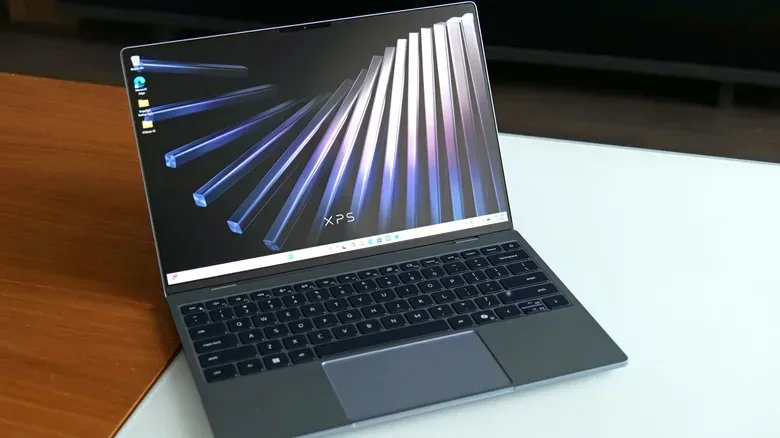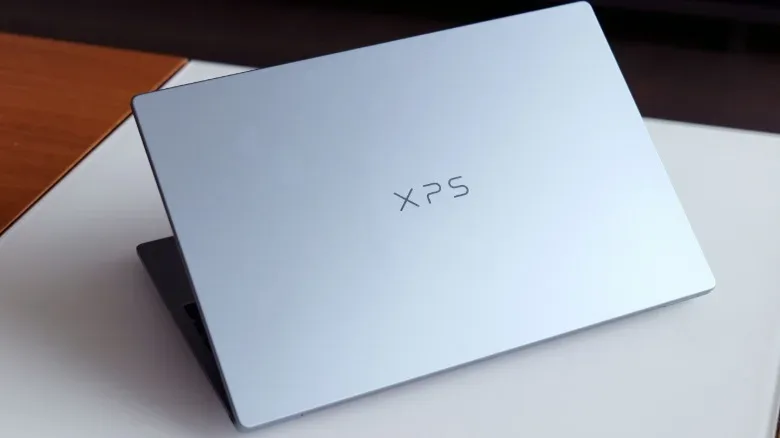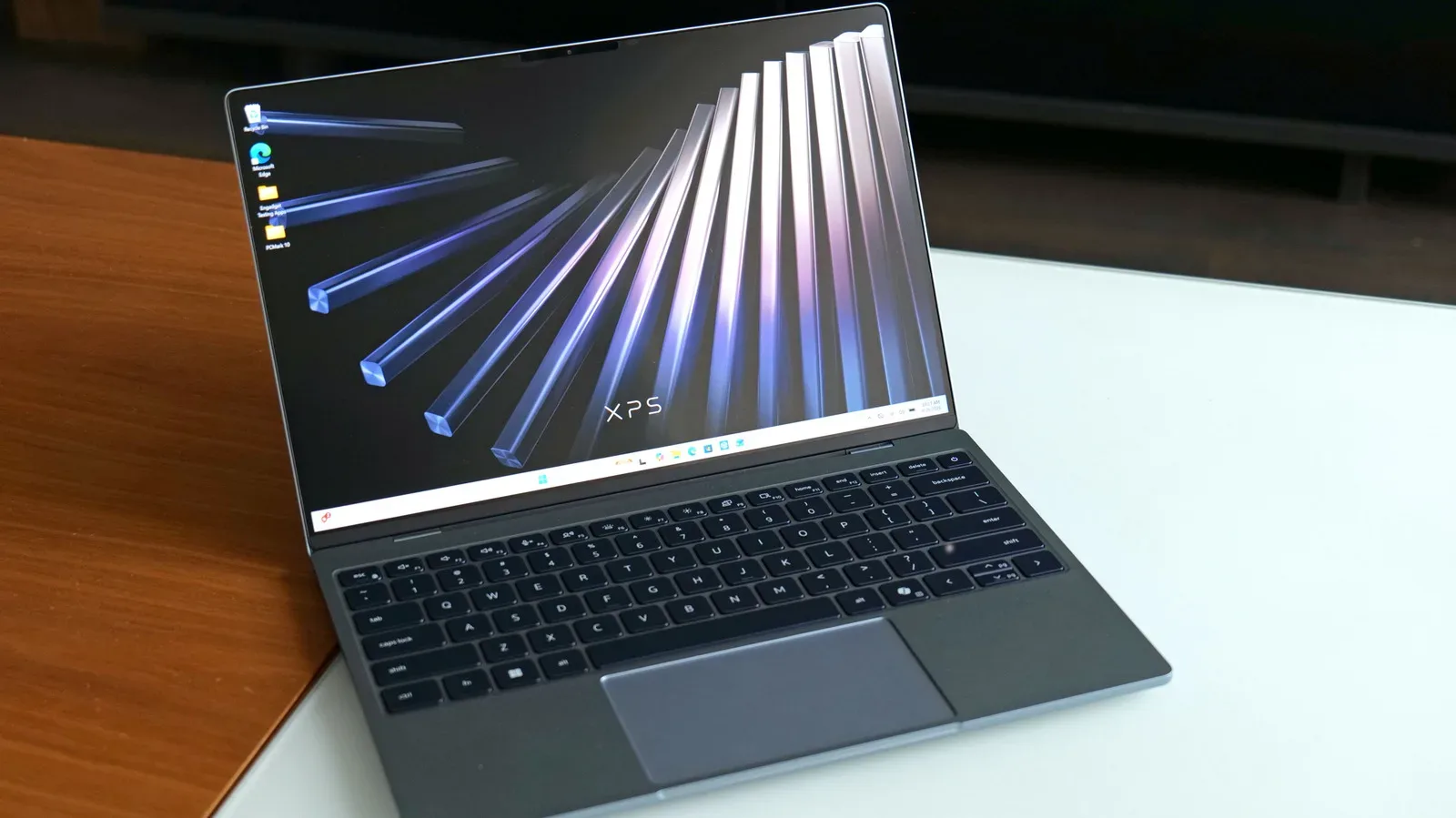
Dell’s new lower-cost XPS 13 has much of the appeal people expect from the name: a sleek, highly portable chassis, a good screen and strong battery potential. But its configuration list creates a far more important dividing line than a routine processor or storage upgrade. The entry model has 8GB of memory, while a midrange version doubles that to 16GB. Results from otherwise comparable systems make the practical choice unusually clear: the 16GB XPS 13 is the version worth targeting.
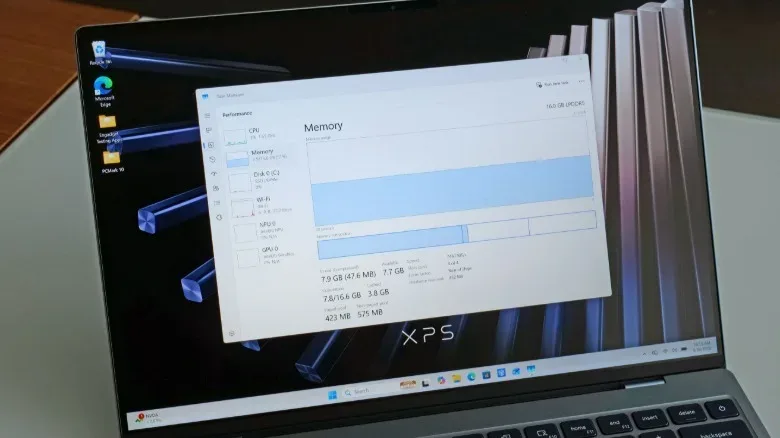
That recommendation is not about treating memory capacity as a luxury spec-sheet number. It is about how much room Windows 11 has to work before a person even opens a browser, office application, chat client or game launcher. In measurements on the 16GB model, memory use reached 56 percent at initial startup with no other apps open. An outstanding Windows update accounted for part of that figure, but following the update and a full restart, utilization still sat around 40 percent.
On a 16GB machine, that leaves meaningful breathing room. On an 8GB machine, the same approximate baseline would leave only about 1GB free for the software people actually bought a laptop to run. The base XPS 13 is not alone here—this is a wider Windows 11 issue—but it makes a considerable difference to the value proposition of a laptop that begins at $700.
Why 8GB can turn into a bottleneck so quickly
RAM, short for random-access memory, is the fast working area used by the operating system and active programs. A browser with multiple tabs, a document editor, a voice-chat application, a game launcher and Windows services all need a share of it. More RAM does not inherently make a processor faster. It does, however, reduce the likelihood that the computer has to shuffle active data out of that fast workspace when several tasks compete for capacity.
When physical memory is exhausted, Windows can use part of the system’s storage as virtual memory, commonly referred to here as the page file. This safety net is valuable because applications do not simply stop the moment RAM fills up. Yet even a modern SSD is generally much slower than system memory. Repeatedly moving data between RAM and storage can therefore make a system feel less responsive, particularly during multitasking or while switching between applications.
That distinction matters more than an idle-memory percentage alone. An 8GB laptop may be adequate for a narrowly controlled workload, especially if it is kept free of background software and open browser tabs. But a general-purpose Windows notebook has to accommodate unpredictable real-world use. A video call can arrive while a pile of tabs is open; an update may be running; a game client may remain active after a quick match. Buying a configuration with so little spare capacity means buying a machine closer to its fallback behavior from day one.
There is an argument for debloating Windows 11—removing unwanted software, limiting startup tasks and otherwise trimming background activity—to make 8GB more workable. That approach can help, but it asks every buyer to invest time and possess enough confidence to change system settings. It also does not alter the central constraint: a laptop expected to last through everyday use should have room for normal software demands without requiring registry changes, power-user utilities or a carefully managed startup list.
The numbers show a larger gap than a simple spec upgrade
The two XPS 13 configurations compared here use the same Intel Core 5 320 processor and 512GB SSD. That makes the memory difference particularly revealing. In PCMark 10, a benchmark built around common PC activities, the 16GB XPS 13 scored 6,904, while the 8GB configuration scored 5,319. That is roughly a 30 percent advantage for the system with twice the memory capacity.
Benchmarks are not a direct translation of every person’s workday, and no single score can predict every application. Still, this comparison is useful because processor and storage capacity were held constant. It illustrates that choosing more RAM can affect the machine’s overall behavior rather than merely allowing more browser tabs to remain open.
The battery result is even more striking. In PCMark 10’s Modern Office battery test, the 16GB XPS 13 lasted 17 hours and 40 minutes. The 8GB model reached 15 hours and 56 minutes. The difference exceeds 90 minutes. One proposed explanation is that heavier use of the page file on the lower-memory laptop reduces power efficiency once it runs short of available RAM. That is a reasoned interpretation of the testing, rather than proof that memory capacity alone determines battery life, but it fits the broader performance picture.
For a portable machine, a gap of that size is meaningful. Battery claims often focus on a laptop’s best-case endurance, but the more useful question is how efficiently it handles the work a person actually throws at it. If the 16GB configuration can stay away from slower storage-backed virtual memory more often, it may provide a smoother experience while also lasting longer in an office-style workload.
What this means for games, even on a productivity-first laptop
The XPS 13 is positioned as an extremely portable productivity system, not a dedicated gaming laptop. That does not make its gaming behavior irrelevant. Plenty of PC players use a compact notebook for less demanding games, strategy titles, indie releases, streaming, remote play or something quick between work and travel.
In several games, including Teamfight Tactics, average frame rates on the 16GB XPS 13 were routinely 5 to 10 percent higher, or more, than on the 8GB version. The improvement is not a promise that more RAM transforms the XPS 13 into a high-end gaming rig; the shared Intel Core 5 320 remains the same and the machine’s intended role remains productivity. Rather, it is evidence that limited memory can hold back even modest gaming workloads.
Gaming performance is often discussed in terms of the graphics processor and VRAM, the video memory used by a graphics chip. Those remain important, especially in visually demanding games. System RAM is a separate pool, but it still has to accommodate Windows, launchers, background applications and game-side data. In systems where graphics resources are shared or general memory is already crowded, an 8GB total can become restrictive quickly. Readers weighing broader graphics-memory concerns can also see why VRAM has become a PC gaming spec that deserves close attention.
For the XPS 13 buyer, the practical interpretation is straightforward: 16GB is not a performance upgrade reserved only for specialist editing or huge creative projects. It is an upgrade that helps preserve the laptop’s ability to do ordinary things at once, including running lighter games without creating quite as much friction elsewhere in the system.
The upgrade costs $200, and that changes the budget math
Dell’s move from 8GB to 16GB costs $200 on this XPS 13. That is a substantial step up from the $700 starting price, so it should not be dismissed as pocket change. It also means the enticing base price is not necessarily the most honest indicator of what a comfortably usable configuration costs.
At the same time, the upgrade reflects a difficult memory market. An 8GB RAM module from a reputable manufacturer was priced around $175, and that example operated at 4,800 MT/s, compared with the 7,467 MT/s memory used in the XPS 13. The comparison is not perfectly one-to-one: a replaceable SODIMM module is not identical to the soldered-on memory in this laptop. But it does show why looking only at capacity, without considering current component pricing and speed, can obscure the situation.
MT/s, or megatransfers per second, describes data-transfer rate. Higher transfer rates do not erase the impact of insufficient capacity, but they are part of the full memory specification. In this case, capacity is the first concern. A fast 8GB configuration is still only 8GB when Windows and everyday programs have already consumed most of it.
The more complicated ownership issue is that this XPS 13 uses soldered memory. That means shoppers should treat their purchase-time RAM selection as a long-term decision, rather than assuming they can cheaply add another module later. A $200 configuration upgrade is painful, but it may be more palatable than living with a capacity limit that cannot be upgraded after checkout.
Small compromises versus the configuration that actually fits the laptop
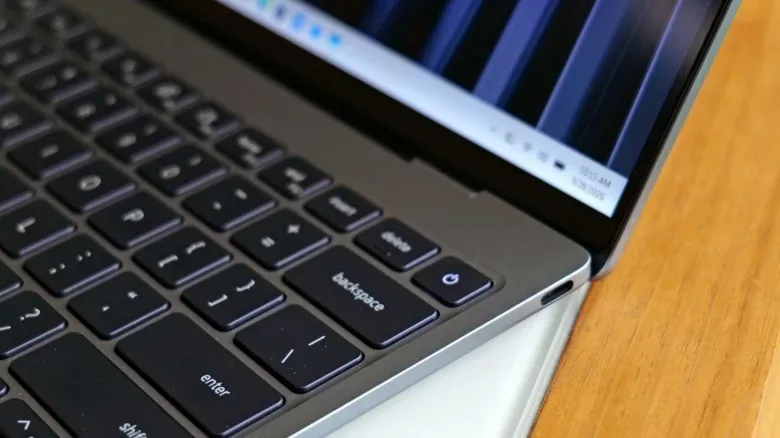
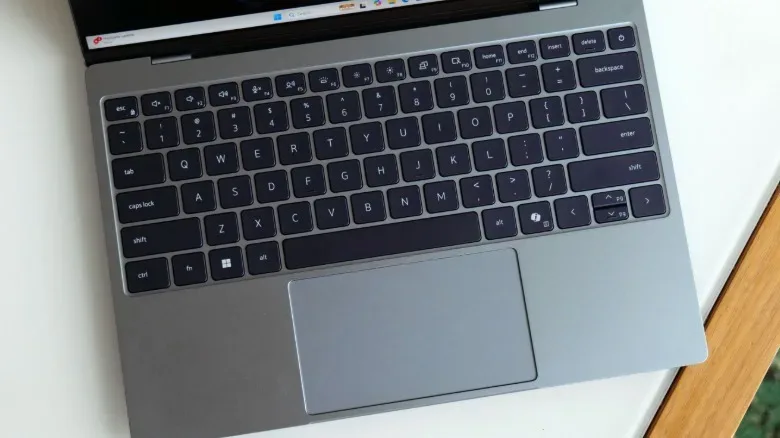
The XPS 13 has some modest shortcomings beyond memory. There is no 3.5mm headphone jack, and the touchpad can feel somewhat mushy, particularly along its bottom edge. Neither is ideal. Wired-headphone users may need an adapter, and touchpad preference is personal enough that prospective buyers should account for it.
Those compromises are minor compared with choosing 8GB for a modern Windows 11 laptop intended to remain useful for years. The base version does preserve a lower entry point for people whose budgets cannot stretch further. It is also fair to recognize that a carefully managed workload can make it viable for some users. But viability is not the same as a recommendation, and the comparative results suggest that the lower-cost configuration leaves too much of the laptop’s potential on the table.
The sensible buying checklist is therefore short:
- Choose the 16GB configuration if the budget permits.
- Do not assume identical processor and SSD specifications guarantee identical day-to-day results.
- Remember that battery life can be influenced by memory pressure as well as display, processor and battery capacity.
- Treat soldered RAM as a decision that likely cannot be revisited later.
- View the 8GB model as a budget compromise for tightly limited use, not the default sweet spot.
Dell has built a thin, portable XPS 13 with an appealing foundation. The midrange version shows what that foundation can do when it is given enough memory to breathe: substantially higher PCMark 10 performance, more than 90 additional minutes in the Modern Office battery test and better frame rates in lighter games. For shoppers choosing between the headline starting price and the 16GB step-up, the extra memory is the upgrade that most directly protects the machine’s everyday usefulness.