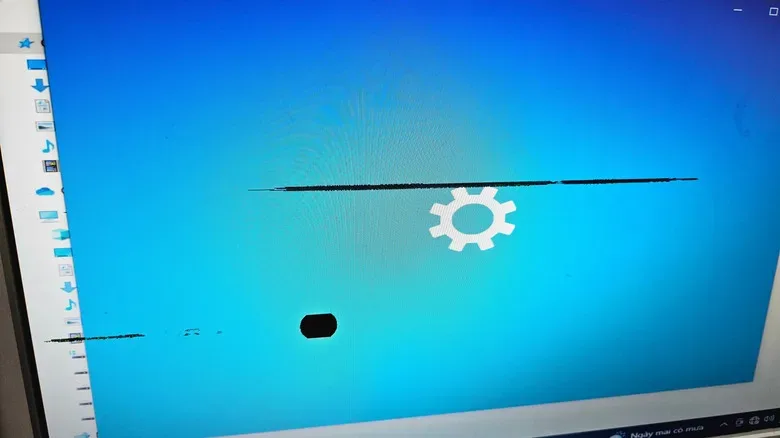
There is a special kind of dread reserved for the tiny mark that refuses to leave a screen. At first, it looks like dust, a fingerprint, or perhaps the stray smudge left by an ambitious snack break. Then the cloth comes out, the screen gets cleaned, and the dot remains exactly where it was: a microscopic squatter occupying one square of your monitor, TV, handheld, or laptop display.
Not every stubborn mark is a failed pixel. A troublesome cable, a display input issue, an application artifact, or plain old grime can imitate one. But if the dot stays put through sensible checks, the two usual suspects are a stuck pixel and a dead pixel. They may be similarly tiny, but their visible behavior and their likelihood of recovery are very different.
For players, this is more than a cosmetic mystery. A brilliant green speck can become bizarrely obvious in a dark horror game; a black point can be noticeable against a bright menu, snowy game world, or desktop window. Knowing which defect is on the panel helps set expectations before the troubleshooting ritual begins.
The quick distinction: lit versus unlit
The easiest way to separate these faults is to look at whether the questionable point produces light.
A stuck pixel is effectively stuck in an active state. It remains illuminated and commonly appears as a fixed red, green, blue, white, or otherwise bright point. Its color does not need to match what the rest of the image is doing. If a tiny red dot continues to show up while the screen is meant to display black, for example, that strongly suggests a stuck pixel.
A dead pixel, by comparison, no longer functions as intended and stays black. On a bright white, yellow, or pale-blue test screen, it tends to appear as a small dark pinprick that does not change along with the image. In short: a stuck pixel is conspicuous because it is always shining; a dead pixel is conspicuous because it never does.
That distinction matters because the two problems do not have the same outlook. A stuck pixel can sometimes return to normal operation after troubleshooting. A dead pixel is not generally recoverable. If it is truly dead, the realistic choices are living with it or pursuing a replacement through whatever return or warranty options apply to the device.
A glowing red, green, blue, or bright dot points toward a stuck pixel. A dot that stays black when the display should be bright points toward a dead pixel.
Why a single point can look so dramatic in games
Modern displays pack enormous numbers of pixels into a relatively small space, which is why one malfunctioning point can seem too insignificant to matter in theory. In practice, games are exceptionally good at making isolated flaws stand out. A fixed bright pixel has no respect for cinematic lighting, stealth sequences, loading screens, or a carefully composed UI. It simply sits there, confidently doing its own thing.
Contrast is the main culprit. A bright stuck pixel may be hard to find in a colorful action scene but immediately visible on a black loading screen. A dead pixel may disappear into deep shadows yet reveal itself whenever a game presents a pale sky, a white browser page, or a clean in-game map.
It is also important not to confuse a pixel fault with other visual behavior. Screen burn-in is a different issue and can be more intrusive because it may resemble a persistent image or UI remnant rather than one tiny point. Likewise, an image issue that comes and goes with a particular application, graphics setting, cable, port, or connected device may not be a panel-level pixel problem at all.
Eliminate the impostors before diagnosing the panel
Before declaring that a display has lost a pixel to the void, take a few straightforward steps. The objective is not elaborate repair; it is making sure the tiny anomaly actually belongs to the panel.
- Clean the display carefully. A speck, smudge, or dried mark can look remarkably pixel-like from normal viewing distance. Clean the panel thoroughly using an appropriate method for the screen.
- Check more than one application. Move between a desktop, a game, a browser, video playback, and system menus where possible. A true pixel problem should remain in the same physical location even as the displayed content changes.
- Try another cable if the hardware permits. A faulty or poorly seated cable can create visual weirdness that is not a dead or stuck pixel.
- Test a different input device. If a monitor is connected to a PC or console, using another compatible input can help isolate whether the display itself is responsible.
- Pay attention to location. A genuine panel defect is locked to the same spot on the screen. An artifact that moves with a window, HUD element, or video frame has a different explanation.
These checks are useful for a gaming desk in particular, where multiple consoles, PCs, docks, adapters, HDMI or DisplayPort cables, and refresh-rate settings may be in play. Display troubleshooting can quickly resemble a side quest with too many inventory items. Starting with the obvious reduces the chance of blaming the panel prematurely.
Connection issues can be their own source of confusion, especially in setups where several wireless and wired devices compete for attention. For broader setup housekeeping, our guide to why gaming setups may not need eight router antennas covers a separate, but familiar, category of hardware overthinking.
Use solid-color tests to expose what is happening
Once other explanations have been ruled out, solid-color display tests are the most practical way to inspect a suspected pixel. These tests fill the entire panel with individual colors, giving a malfunctioning subpixel nowhere to hide.
Tools and sites such as Dead Pixel Buddy can help identify pixel defects. Other utilities, including JScreenFix and Dead Pixels Test and Fix, offer tests and may also attempt methods intended to address stuck pixels. Their role should be viewed realistically: they can help reveal the issue and may help with a stuck pixel, but they cannot promise a repair.
Run the test colors one at a time and look at the same spot on each screen:
- On a black background, a stuck pixel may reveal itself as a red, green, blue, or bright dot.
- On a white or other light background, a dead pixel is easier to spot as a fixed black point.
- On red, green, and blue screens, a pixel or subpixel that fails to change as expected can become more obvious.
Take your time. It can help to step back, then inspect more closely. The goal is not to stare so intensely that every bit of normal panel texture becomes a suspected conspiracy; it is to determine whether one precise point remains abnormal across colors.
Intermittent stuck pixels are harder to catch
Not every stuck pixel performs on command. Some may appear only intermittently, particularly where power or heat is involved. That makes diagnosis frustrating: the display can look entirely normal when a test is open, only for the colored point to return during a game later.
If the issue seems to come and go, open a pixel-testing tool as soon as it appears again. Confirming the defect while it is visible is more useful than relying on memory of where it was or what color it seemed to be. Note whether it appears after the display has been on for a while, during particular kinds of content, or only with a specific device connected. Those observations do not turn an intermittent fault into a certain diagnosis, but they can make the pattern clearer.
What can actually be fixed?
The key practical difference remains repairability. A stuck pixel has possible troubleshooting paths and can often be restored to normal. Test-and-fix tools are among the available avenues worth considering when the problem is confirmed as stuck.
A dead pixel does not share that prospect. Because it is no longer functioning, software cannot reliably bring it back. It may be frustrating news, but it is also useful news: endless attempts to revive a truly black, dead point are unlikely to change the result.
That does not automatically mean a display must be discarded. One dead pixel may be tolerable depending on its position and on how noticeable it is in normal use. A defect at the edge of a panel may be far easier to ignore than one in the center of a crosshair, character portrait, or spreadsheet. Clusters of affected pixels, naturally, are much harder to overlook.
If the display is new or covered by a relevant policy, check the terms that came with it before deciding what to do. If replacement is not an option, the choice is mostly about personal tolerance. The good news, relatively speaking, is that a dead pixel is usually less visually invasive than broad display defects such as burn-in. The bad news is that once you have noticed the dot, your brain may recruit it as a permanent member of the UI.
A sensible order of operations
When a mysterious spot appears, avoid jumping immediately to worst-case conclusions. Clean the screen, check other apps, and verify the signal path with another cable or input device where available. Then use solid-color testing to establish whether the point is permanently bright or permanently black.
From there, the diagnosis is simple even if the dot itself is not: bright and fixed suggests a stuck pixel, which may be recoverable; black and fixed suggests a dead pixel, which generally is not. That small distinction can save a lot of pointless troubleshooting—and let you get back to the actual screen drama, preferably the kind happening in the game.