An old computer that no longer receives operating-system security patches is not automatically ready for the recycling pile. If its hardware still works, a lighter operating system can turn it into a useful web, email and streaming machine. Google’s free ChromeOS Flex is one of the more straightforward options: it installs ChromeOS-style software on compatible PCs and Macs rather than requiring a purpose-built Chromebook.
The appeal is particularly clear for hardware that struggles under a newer Windows installation. ChromeOS Flex is a lean, browser-centered operating system. That narrower scope means it generally demands less from an older machine than Windows and can make modest hardware feel more responsive for everyday web-based work.
There is a major qualification before anyone reaches for a USB drive: ChromeOS Flex is not identical to the ChromeOS installed on a retail Chromebook. It has meaningful restrictions around Android apps, sign-in conveniences and operating-system flexibility. It is best understood as a focused way to extend a computer’s useful life, not as a no-compromise replacement for every Windows program or every Chromebook feature.
Why an old computer may still be worth saving
Windows 10 reached end of life in October 2025, although extended security updates remain available through October 2027. Mac owners face a similar support-lifecycle question as older systems eventually lose eligibility for newer releases; macOS 27 drops support for Intel Macs, while security patches continue only for as long as macOS 26 remains supported.
End of support matters because security patches fix newly discovered flaws. Continuing to use an unsupported operating system for internet-connected tasks creates a growing risk over time. But support status describes the software, not necessarily the condition of the processor, memory, display, keyboard, storage or networking hardware. A laptop that is too slow or too old for a current mainstream OS may still be perfectly adequate for documents in a browser, video, webmail and online services.
ChromeOS Flex is Google’s official installation path for that scenario. In practical terms, it brings the Chrome browser and a ChromeOS-style environment to hardware that did not originally ship as a Chromebook. The result is deliberately web-first: the browser is the central application, rather than one program among a vast collection of locally installed desktop software.
That focus can be a strength. Someone who primarily lives in browser tabs may get far more value from a refreshed older PC than from its old Windows installation. It is also worth separating this route from the broader PC-upgrade conversation: newer gaming hardware and component shortages are their own issue, as discussed in the pressure AI demand and memory pricing can place on PC gamers. ChromeOS Flex does not turn legacy hardware into a modern gaming system; it aims to make a still-functional computer useful for lighter tasks.
Check the basic requirements before starting
ChromeOS Flex has relatively modest baseline requirements. The computer needs an Intel or AMD processor, at least 4GB of RAM and 16GB of storage. RAM, or random-access memory, is the working memory used by active programs and browser tabs. Storage is the longer-term space that holds the operating system and files. Meeting those thresholds does not guarantee that every feature or peripheral will work perfectly, but failing them makes the project a nonstarter.
Processor age is also important. CPUs from 2012 or earlier do not support newer ChromeOS versions. That means a machine can appear capable on paper yet still be unsuitable because of the generation of its processor.
Google maintains a list of ChromeOS Flex-certified models with defined support windows. Certification is useful because it identifies configurations with a stated support period. A computer that is not on that list is not necessarily incapable of running Flex, but its long-term update window is less certain. Compatibility can vary by exact hardware configuration, so certification is more than a cosmetic badge.
What to gather
- A compatible PC or Mac with an Intel or AMD CPU, 4GB of RAM and 16GB of storage.
- A USB flash drive with at least 8GB of capacity.
- A functioning computer with Google Chrome installed, which can be the same machine intended for Flex if it currently works.
- A backup of anything important on the target computer and on the USB drive.
The backup warning is not ceremonial. Preparing the installation USB deletes the flash drive’s contents. Installing ChromeOS Flex to the computer deletes the data on that computer’s internal drive as well. Copy personal files elsewhere before proceeding, and make sure anything still needed from existing Windows or macOS software has been accounted for.
How to create the installer and test the machine
On the working computer, open Chrome and install the Chromebook Recovery Utility extension. With the 8GB-or-larger flash drive inserted, open Chrome’s Extensions menu, represented by the puzzle-piece icon near the top-right of the browser, then launch the utility.
- Select Get started.
- Choose Google ChromeOS Flex in the device-selection menus, then continue.
- Select the USB flash drive and let the utility prepare the installation media.
- Move that finished USB drive to the computer that will run ChromeOS Flex.
The next part is the boot process. Restart or power on the target machine and repeatedly press the key that opens its boot menu. Common possibilities include F10, F12 and Delete, but the correct choice differs by model. The computer manual or a model-specific search can identify it. If Windows starts loading, restart and try pressing the key earlier.
In the boot menu, choose the USB device. It may appear with a label such as “USB: ChromeOS Flex.” The system should then load a setup wizard offering two paths: try ChromeOS Flex or install it.
Trying it first is the sensible compatibility check. The temporary mode lets a user see whether the machine boots correctly and whether the experience is suitable before committing to the internal drive. Its limitation is persistence: it does not retain data between restarts, so it is not a practical permanent setup. Still, it is a valuable opportunity to confirm the old machine is a good candidate rather than erasing a working installation on faith.
Once satisfied, select the install option. This is the irreversible point for the existing contents of the computer: ChromeOS Flex installation wipes the device. After installation finishes, remove the USB flash drive and restart. The computer will then boot into its newly installed operating system.
What “browser-first” means in everyday use
ChromeOS Flex makes the most sense when the tasks someone needs can happen in Chrome. The operating system’s lightweight nature comes partly from its limited, web-oriented design. That is an advantage for a basic household computer, a secondary laptop or a machine that otherwise would not have a secure role after its prior OS support ended.
It is less appropriate when a person depends on traditional locally installed Windows applications, specialist peripherals, or Android apps. A prospective installer should inventory those needs before wiping a disk. “Can I open the website I use?” is a different question from “Can I run the application I currently use?” The answer may be favorable for one and not the other.
There can be Linux support on some hardware, but that should not be mistaken for a simple universal solution. Where available, installing apps involves the command line: a text-based interface in which a user enters commands rather than selecting everything through conventional graphical menus. That may be useful for experienced users, but it changes the simplicity calculation for anyone expecting a familiar desktop-app store workflow.
The compromises compared with a Chromebook
The biggest limitation is Android software. ChromeOS Flex does not include the Google Play Store or the Android virtual machine. A virtual machine is a software-created environment that allows another operating-system environment to run in a contained way; here, its absence means Android apps cannot be installed, including through sideloading. Sideloading refers to installing an app outside the standard store route.
That gap is particularly relevant because most Chromebooks include Play Store support. A user moving from a Chromebook should not assume their Android apps will transfer to a Flex installation, while a Windows user should not assume Flex gains Android functionality merely because ChromeOS is associated with Chromebooks.
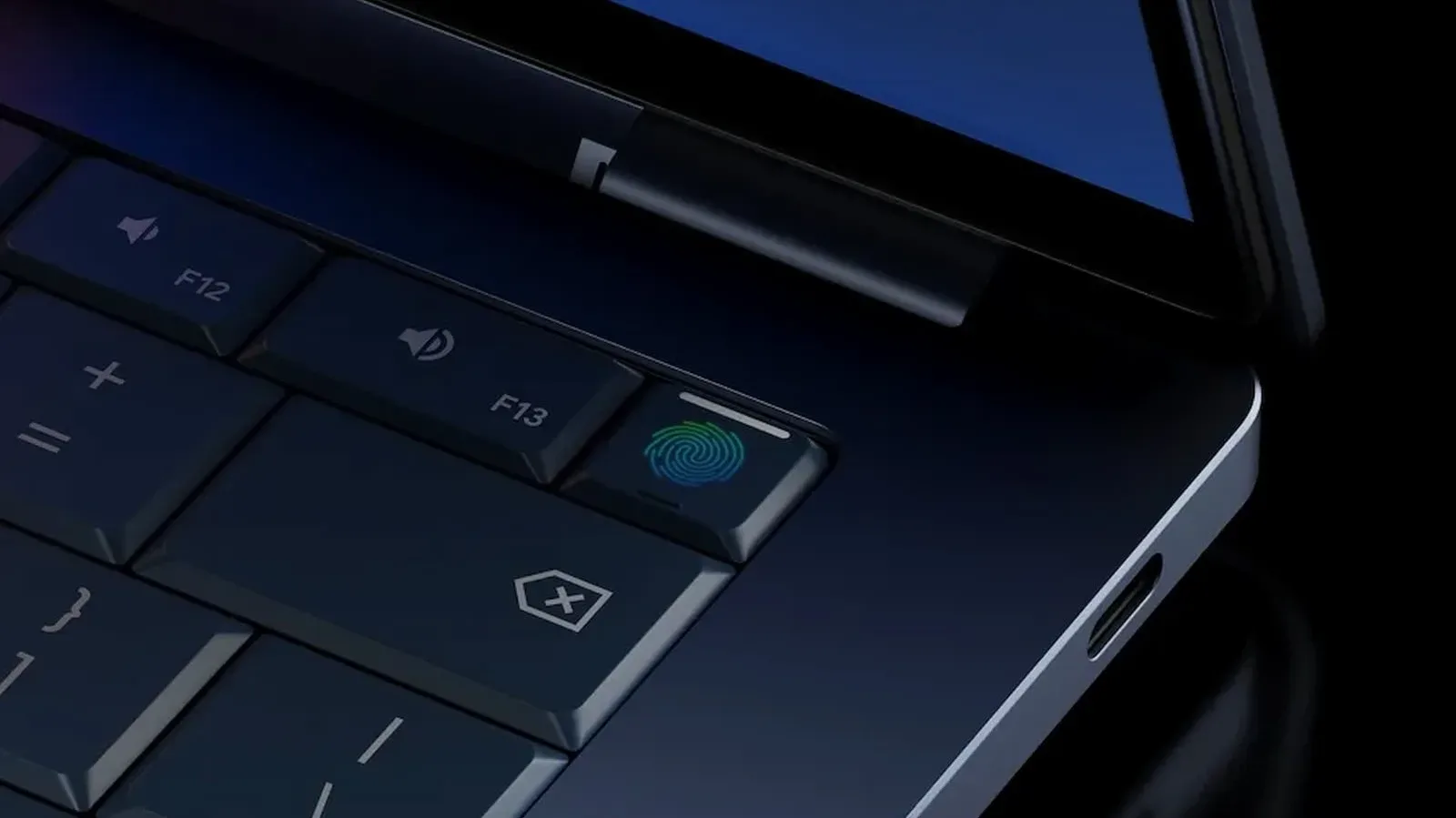
Sign-in is another daily friction point. ChromeOS Flex does not offer biometric authentication or a PIN for account login at boot, even if the PC has hardware that could otherwise support such methods. Native Chromebooks can offer these options because they include dedicated security hardware. On Flex, the practical result is that the Google account password must be entered at startup. It sounds small on a feature list but can become noticeable for anyone who frequently closes and reopens a laptop.
Storage arrangements also require a decision. ChromeOS Flex does not officially support dual-booting alongside Windows or another operating system. Dual booting means keeping two operating systems on one computer and choosing which one starts at boot. It is technically possible to put Flex on a flash drive and boot from it manually while leaving Windows on the primary drive, but performance will be noticeably slower. This approach can preserve the old installation, yet it is better viewed as a cautious experiment than the ideal long-term configuration.
A practical way to decide
ChromeOS Flex is a strong candidate when an old computer has compatible hardware, its owner is comfortable with a browser-focused workflow, and its existing files have been safely backed up. The try-before-install option is particularly important for hardware not listed among certified models. It helps establish whether the machine boots and feels usable without immediately deleting its current system.
It is a weaker fit for people who need Android apps, rely on PIN or biometric login, expect to retain Windows beside it, or require particular desktop programs. Linux remains another way to repurpose aging hardware, but ChromeOS Flex is designed to involve less setup complexity for users whose needs are mostly online.
For the right machine and routine, that trade is compelling: an officially supported lightweight OS can be more valuable than forcing an aging computer to continue running software it can no longer comfortably or safely support. The key is to treat the installation as a change of purpose. ChromeOS Flex can revive the computer, but it does so by making it a different kind of device.