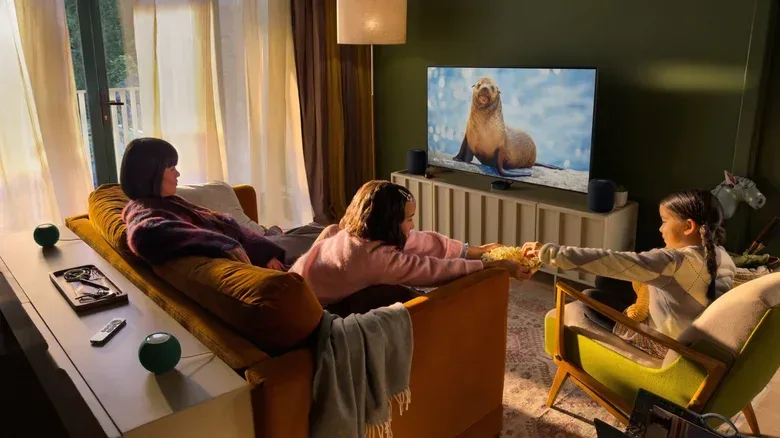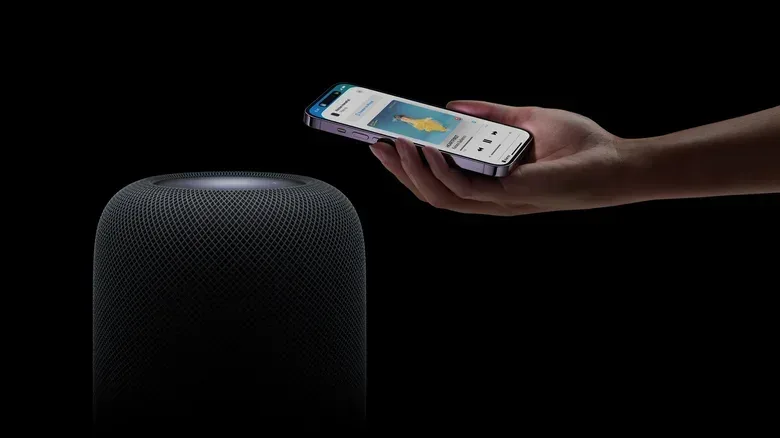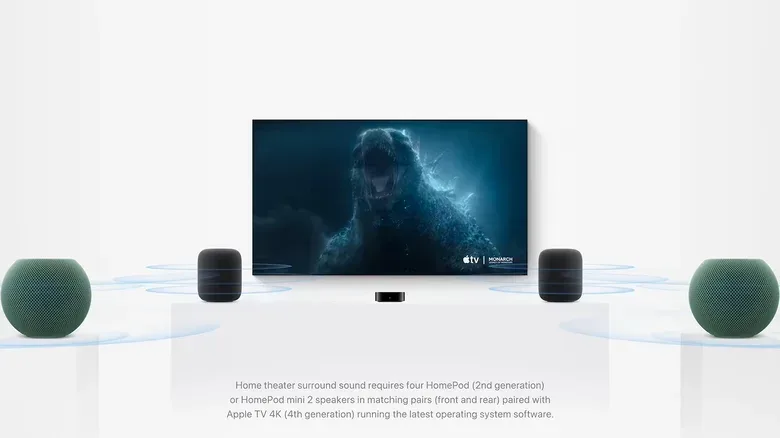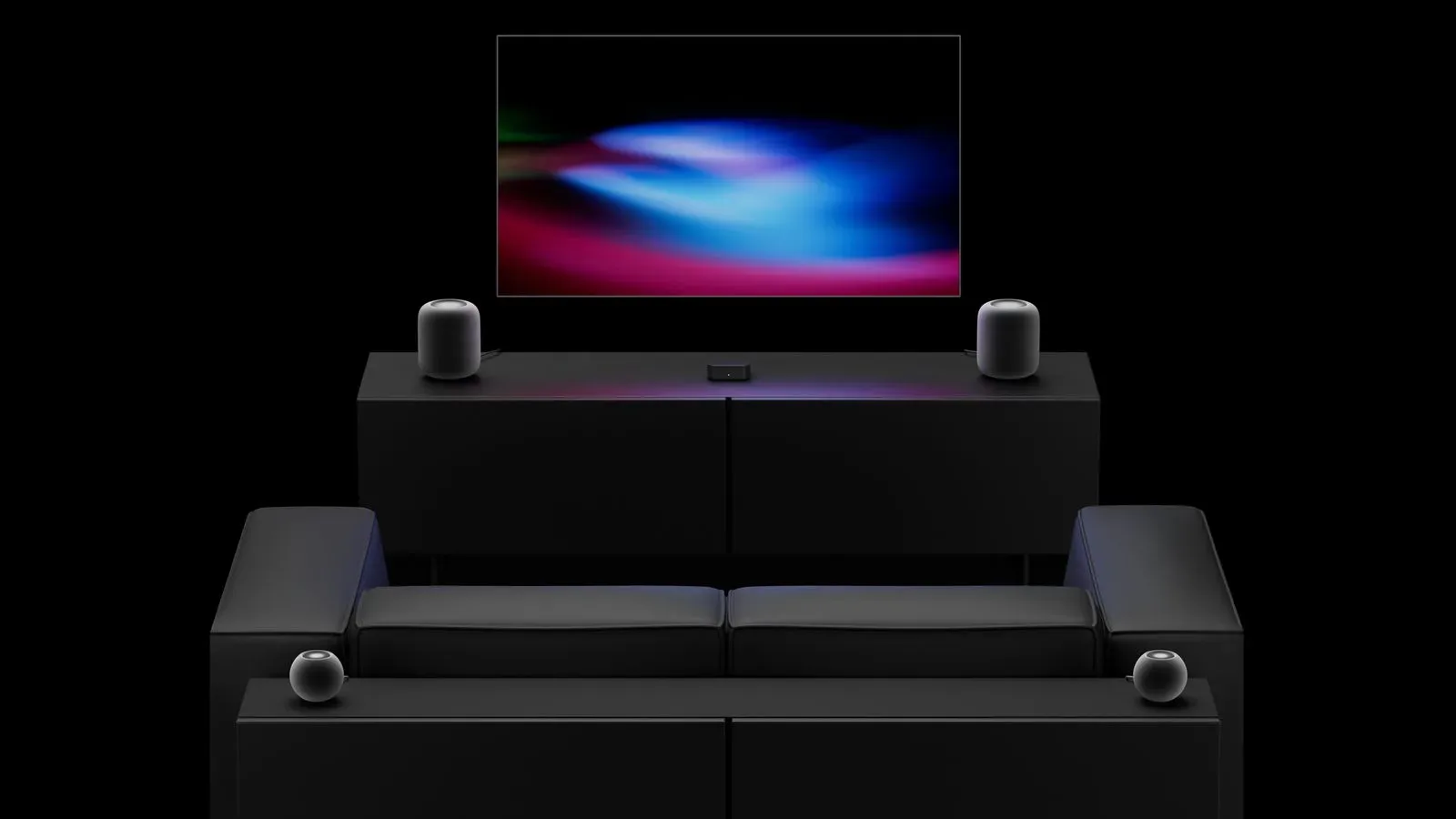
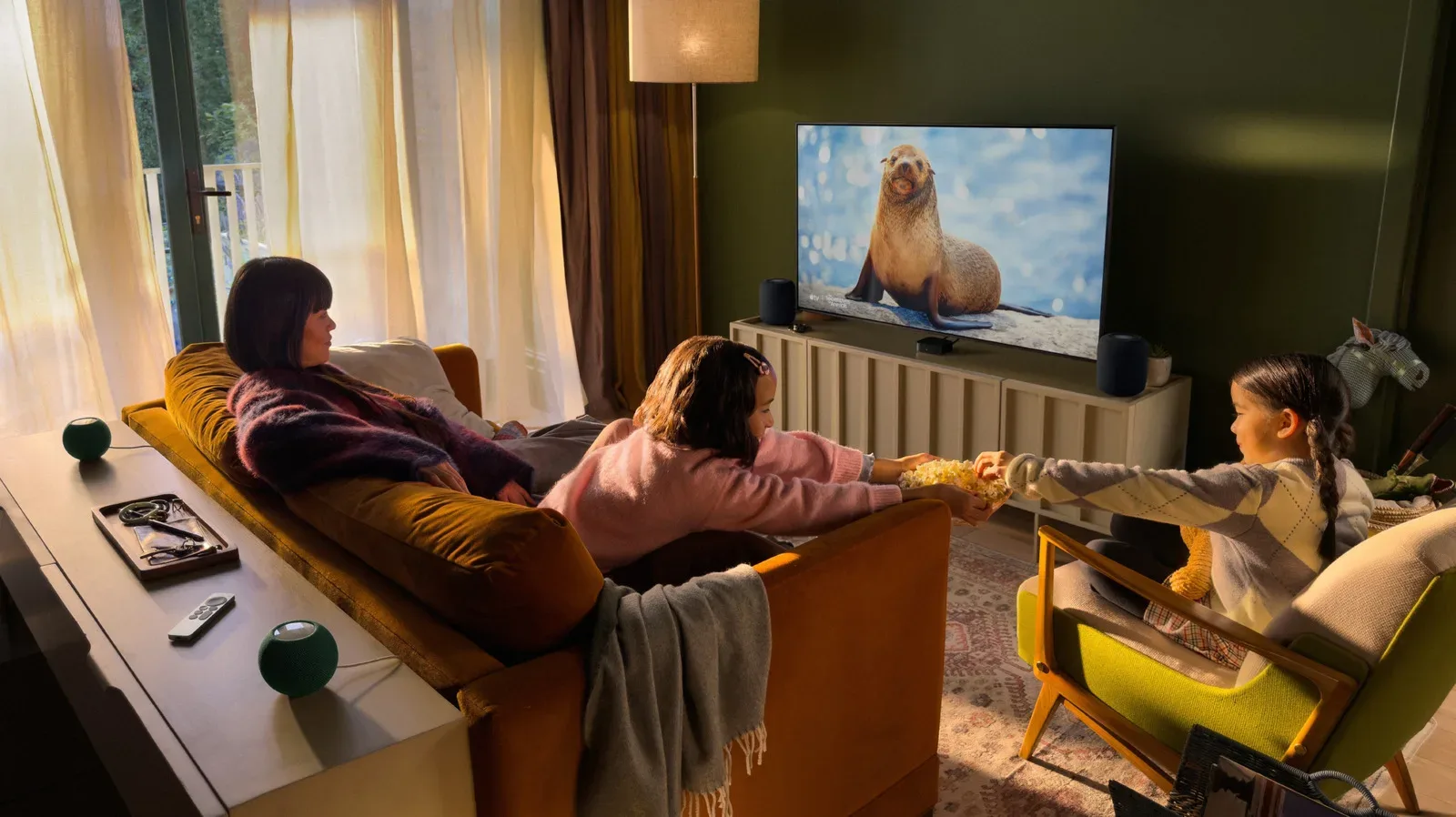
Apple’s fourth-generation Apple TV 4K adds a more ambitious HomePod-based home-theater option: a surround configuration using as many as four speakers. The appeal is easy to understand. Instead of treating a television setup as one box, one HDMI cable and whatever audio happens to emerge from the TV, the system is designed to turn a room assignment in Apple Home into a coordinated speaker layout.
The catch is that this is a notably closed and costly route to better living-room audio. The surround feature requires the fourth-generation Apple TV 4K; it is not available to earlier Apple TV 4K models, even though certain other new capabilities, including the enhanced Siri AI system, are intended to reach older hardware. It also depends on compatible second-generation HomePods or HomePod mini 2 speakers, current software, and a little patience with the Home app’s room and grouping logic.
For people already committed to Apple’s home ecosystem, the steps are relatively direct. For everyone else, the most useful first step may be doing the compatibility and budget math before moving a single speaker.
The short version: what a surround setup requires
A full Apple TV surround configuration needs the following:
- A fourth-generation Apple TV 4K.
- Up to four compatible speakers: second-generation HomePods, HomePod mini 2 speakers, or a combination of the two.
- All devices updated to their most recent software.
- The Apple TV and every speaker assigned to the same room in the Home app.
- An iPhone or iPad for adding and managing HomePod accessories in the Home app.
There is an important matching rule for a four-speaker arrangement. Two pairs can be combined, but the front pair must match and the rear pair must match. In other words, a system may use two HomePods at the front and two HomePod mini 2 speakers at the rear. It should not mix one type of speaker with another within a given pair.
That rule matters because a surround setup is not merely four devices all playing at once. The system needs a coherent front and rear structure. A front pair is responsible for the audio placed ahead of the viewer, while a rear pair handles sound positioned behind them. Matching the two speakers in each position gives the system a consistent pair to work with, even if the front and rear pairs are different product types.
Surround sound, stereo, and “home theater” in plain language
Stereo means two speakers act as a left-and-right pair. It can provide a wider sense of space than a single speaker, but it does not add speakers behind the listener.
Surround sound, in this specific setup, expands beyond the two-speaker left-and-right arrangement by adding a rear pair. The reason placement and confirmation matter is that the system needs to know which speakers are in front and which are behind. That spatial arrangement is the foundation for an immersive effect rather than simply louder playback.
Home theater is the Apple Home grouping used for this speaker configuration with the Apple TV. It is not just another name for connecting a smart speaker to a television. The process combines the Apple TV and selected HomePods into a defined system, then uses a tuning sequence to adapt the arrangement to the room.
The practical takeaway: four speakers are not required if the goal is simply better TV sound. Two compatible speakers can still form a stereo option. Four are for people specifically seeking the more enveloping front-and-rear layout.
Compatibility is the first hurdle
The biggest limitation is the Apple TV generation. This surround feature is tied to the fourth-generation Apple TV 4K, so an existing earlier Apple TV 4K does not become surround-capable through the availability of other new software features. That distinction is worth making before buying speakers or planning cable-free cinema nights around hardware already in the cabinet.
On the speaker side, the relevant models are the second-generation HomePod and HomePod mini 2. The setup allows up to four of them. It also permits a mixed-size system under the pair-matching restriction: matching full-size HomePods in one location, matching mini speakers in the other.
Before beginning setup, update every participating device to the latest available software. That is more than routine housekeeping. The Apple TV must recognize the speaker grouping and the Home app must expose the necessary home-theater controls. Starting while devices are on different software versions is an avoidable way to turn a straightforward setup into a hunt through missing menus.
Budget reality: this is premium-room territory
The fourth-generation Apple TV 4K was released on November 13, 2026, at $299. A second-generation HomePod is listed at $349, while a HomePod mini 2 costs $149. The all-in figure changes depending on the speakers chosen, but a four-speaker system can reach as much as $1,700 when built with the higher-priced HomePod models.
That number puts this firmly in premium territory. It is also why the speaker count should follow the intended use rather than the most elaborate configuration on the menu. If the goal is a left-and-right TV speaker arrangement, a two-speaker stereo setup is the relevant alternative. Buying four speakers only makes sense for a room where rear placement is realistic and where the additional spatial effect is the point of the purchase.
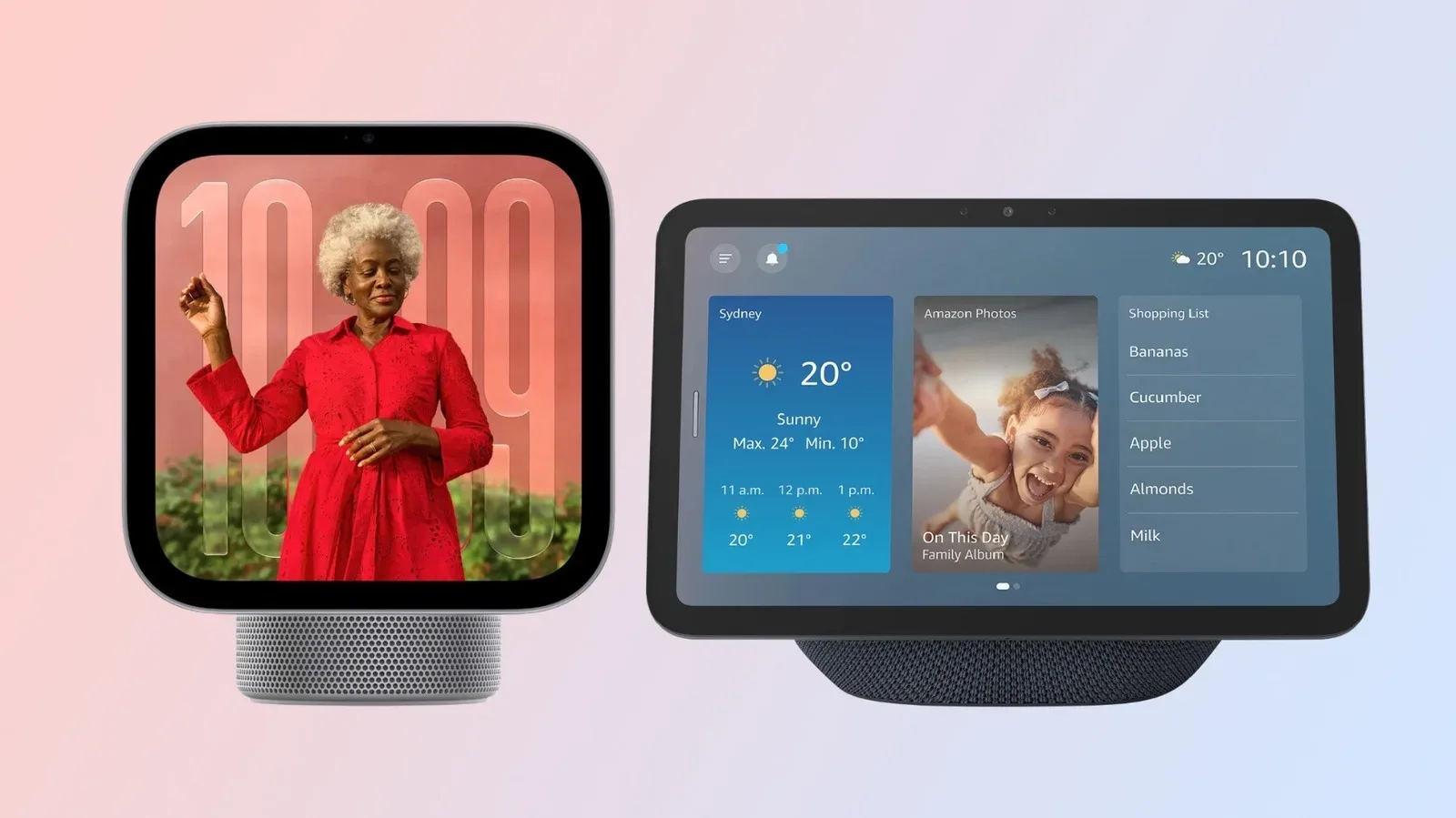
There are broader smart-home considerations too. Anyone comparing platforms may want to weigh displays, voice features and other household devices alongside television audio; our look at Apple HomeView and Amazon Echo Show differences is useful context for that larger ecosystem decision. But for this setup, the non-negotiable question remains simple: do you have the exact Apple TV generation and compatible HomePods required for surround?
Step 1: put the Apple TV in the correct Home app room
Apple’s configuration begins with a bit of digital housekeeping. The Apple TV and the speakers must share the same room in the Home app. The room is not just a label for organization; it is the way the system associates the devices that will become the home-theater group.
- Turn on the Apple TV 4K.
- Open Settings.
- Choose AirPlay and Apple Home.
- Under the Apple Home section, select Select a Room.
- Assign the Apple TV to the room where the theater system will be used.
Choose the room deliberately. If the devices are scattered across different room entries, the Home app will not treat them as the single theater environment needed for the next stage.
Step 2: add each HomePod and assign it to the same room
New speakers are added from an iPhone or iPad through the Home app. Repeat these steps for every HomePod or HomePod mini 2 intended for the theater configuration:
- Turn on the speaker.
- Open the Home app on an iPhone or iPad.
- Tap Add, then select Add Accessory.
- When prompted, scan the code or hold the iPhone or iPad near the speaker.
- Tap the speaker when it appears.
- Approve Add Accessory to Network when prompted.
- Select the same room assigned to the Apple TV.
- Name the speaker, then tap Continue and Done.
Names are not a trivial detail in a multi-speaker setup. Clear naming makes it easier to identify the device that needs attention while grouping, checking placement, or moving an existing accessory later.
Moving an existing HomePod into the theater room
There is no need to add a speaker from scratch if it is already part of the home. In the Home app, press and hold the relevant HomePod, open the accessory settings using the gear icon, select Room, and choose the theater room. The same screen can create a new room if necessary.
Do this for each speaker before attempting to create the theater group. The cleanest workflow is to verify the room assignment for the Apple TV and all speakers first, then begin grouping once everything is visibly located together.
Step 3: create the home-theater speaker group
With the Apple TV and the chosen speakers in the same Home app room, start the surround configuration from a HomePod:
- Open the Home app.
- Tap one of the HomePods.
- Tap the gear icon to open settings.
- Scroll to Create Home Theater.
- Select the HomePods that will be included in the home-theater system.
- Tap the checkmark in the top corner.
The Home app should then notify you to continue on the Apple TV. At this point, the Apple TV takes over the portion of setup that deals with physical placement and tuning.
Step 4: place the speakers and run tuning
Turn on the Apple TV and follow its on-screen instructions. The prompts tell you where to position the speakers in the room. In a mixed system using both full-size HomePods and HomePod mini 2 speakers, the larger HomePods are suggested for the front of the room.
Once the speakers are placed, choose Start Tuning. The system plays a sequence of tones to tune the home theater to the space. This is the calibration phase: the system is using sound played in the room to establish its configuration rather than relying solely on the labels assigned in the app.
When the tones are complete, continue through the on-screen confirmation steps for speaker placement and color selections, then choose Confirm. The confirmation matters because it is the final check that the system’s digital view of the speakers matches the physical layout you intended.
Two speakers? Build a stereo pair instead
A four-speaker surround setup is not the only useful outcome of this hardware. If you have two compatible speakers, create a stereo pair through the Home app:
- Select a HomePod in the Home app.
- Open Settings.
- Choose Create Stereo Pair.
- Follow the on-screen instructions.
After the pair is created, make sure it is assigned to the same room as the Apple TV. Turn on the Apple TV and follow the prompts until the option to Use as TV Speakers appears. This produces the two-speaker television setup without pretending that two speakers can provide the front-and-rear positioning of the four-speaker configuration.
What to check when setup does not line up
The information provided by the setup process points to a small set of likely checks when a device or option does not appear where expected:
- Confirm the Apple TV model. The surround capability is limited to the fourth-generation Apple TV 4K.
- Update software first. Every Apple TV and HomePod participating should be on the latest software.
- Check room assignments. The Apple TV and all selected speakers need to be in the same Home app room.
- Review pair matching. In a four-speaker arrangement, the two fronts must match one another and the two rears must match one another.
- Follow the Apple TV prompts after grouping. Creating the group in Home is only part of the process; placement, tuning and confirmation continue on the TV.
The broader lesson is that Apple has made surround sound a structured Home setup rather than a loose collection of independently connected speakers. That can make the experience approachable once the prerequisites are met, but it also means the ecosystem rules are part of the product. For the right Apple TV owner, the result is a path from a simple stereo pair to a four-speaker room layout. For shoppers starting from nothing, the hardware total is substantial enough that the setup checklist should come before the shopping cart.