A new Windows PC can feel less like a clean save file and more like a live-service game lobby: there are icons everywhere, alerts asking for attention, and at least one feature trying to sell a subscription before you have decided whether you need it. That does not mean every preinstalled program is harmful. It does mean that a quick audit can make a machine quieter, simpler and better suited to the way you actually work or play.
The point is not to uninstall software on principle. “Debloating” is the common term for removing unnecessary apps and background extras from a fresh Windows installation, but it should be a deliberate process rather than a scorched-earth ritual. An app you use is not bloat. An app that sits unused while serving ads, consuming storage, prompting for a trial renewal or duplicating something you already have probably is.
Storage and memory are part of the calculation. SSD capacity is finite, and installed apps can also use RAM—short-term working memory—while active. Even when the measurable resource impact is modest, repeated notifications and unwanted promotional screens have a real cost: they turn ordinary PC use into a series of interruptions. That is especially irritating on a gaming PC, where the ideal background process is usually the one that stays in the background.
Here are eight Windows staples and common installs worth reviewing. Some are easy removals for people who never use them. Others are better treated as replacements only when the alternative solves a specific problem.
1. Media Player: adequate by default, limited for edge cases
Windows’ current Media Player should not be confused with the older Windows Media Player associated with earlier versions of the operating system. The modern app plays a broad range of everyday audio and video files well enough for casual use. If all you need is a music library and the occasional common video file, there is no urgent reason to evict it.
Its limitations become clearer when a file arrives in an unusual format, needs conversion, or comes with subtitles. VLC is the obvious free alternative for users who regularly deal with those situations. It supports a very wide range of video formats without asking users to add separate codecs or extensions. A codec is the component that encodes or decodes digital audio or video; an unsupported codec is a common reason a video refuses to play correctly in a basic player.
VLC also handles file conversion and can use externally obtained subtitle files. Subtitle files with extensions such as .srt and .vtt can be dragged into the app when a video lacks captions. That makes it useful for a library of older downloads, niche video formats or locally stored media. In short: keep Media Player if it meets your needs; choose VLC if format support and subtitle flexibility matter more than a minimal default experience.
2. Clipchamp: decide whether its free tier matches your export needs
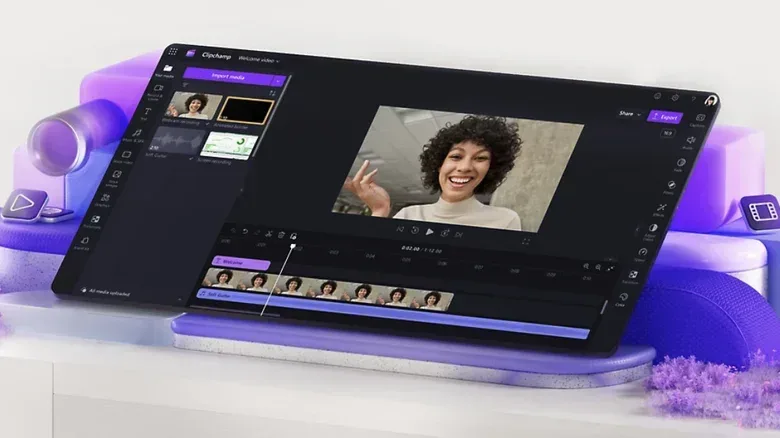
Clipchamp is included with Windows 11 and gives beginners approachable tools for trimming, cropping and assembling video. It supports editing and exporting up to 1080p, which can be enough for plenty of simple social clips, gameplay highlights and personal projects.
Related coverage includes 8 Windows Apps Worth Removing or Replacing.
The catch is that several attention-grabbing additions are connected to Microsoft 365: Copilot integration, 4K exporting, premium stock assets, filters and effects. That does not automatically make Clipchamp a bad editor. It simply makes it important to identify the features a project requires before committing time to a workflow. If 1080p cuts are all that is needed, the built-in option may be perfectly sensible. If 4K output or paid creative assets are essential, the subscription boundary matters.
CapCut is one alternative aimed at amateur creators while offering a deeper set of tools for users who want to progress. It has a paid subscription starting at $19.99 per month for those seeking its fullest feature set. The useful lesson is broader than either product: an editor should be picked by the format, resolution and effects you actually need, not merely because it was already sitting in the Start menu.
3. uTorrent: an especially easy candidate for replacement
uTorrent is a torrent client, meaning software used with the BitTorrent file-sharing protocol. Regardless of how someone uses torrents, the client itself is not the same thing as the files obtained through it; users remain responsible for ensuring they have the right to download or share material.
For people who do need a torrent client, uTorrent’s advertising and installation experience are meaningful drawbacks. Free software can be sustained in many ways, but ads and attempts to bundle extra software create friction at the exact moment users should be able to trust what is being installed. Its history is also difficult to ignore: uTorrent drew backlash in 2015 after new installations secretly included Epic Scale, a Litecoin miner.
That past incident does not need to become an endless courtroom drama to inform a practical choice today. Software trust is cumulative, and a tool with ads plus unwanted-installation baggage has to work harder to justify itself.
qBittorrent is the fuller replacement for people who want a familiar torrent-client experience without the bloat and ads. It has built-in search engines, a somewhat larger footprint than uTorrent, and broad acceptance on private trackers. A footprint here means the resources and storage an application occupies. Transmission is the cleaner choice for users who want a leaner, more barebones client. Pick the former for features; pick the latter for restraint.
4. Antivirus trials: uninstall the sales funnel, not your security habits
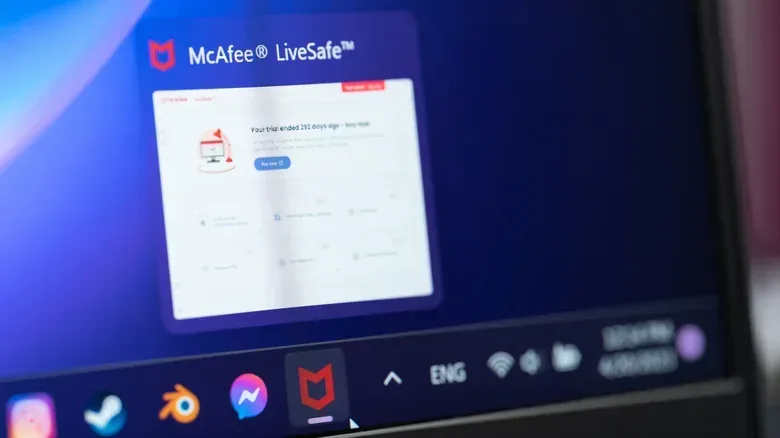
Trial versions of Norton, McAfee and similar antivirus suites are a frequent feature of new-PC setup. The most immediate annoyance is familiar: reminders that a trial is ending, even if you never intended to start a paid relationship with the software.
For basic virus protection, Windows Defender is sufficient for most people. That makes an unwanted trial a reasonable removal. But there is an important distinction between “not necessary for everyone” and “contains no additional services.” Paid security suites can bundle a VPN, scam detection and identity-restoration support alongside antivirus protection.
A VPN, or virtual private network, routes internet traffic through an encrypted connection to a VPN service. It is a separate service category from malware protection, even when both are sold in one package. Likewise, identity-restoration support addresses a different potential problem than detecting a virus. Anyone who actively values those extras can weigh them on their own merits. Everyone else can remove the trial, leave Defender enabled and avoid paying simply to silence an alert.
The practical security rule is not “install every shield.” It is to use the protection available to you consistently and avoid treating pop-ups as proof that a subscription is mandatory.
5. Microsoft News and Microsoft Weather: remove them if they add no value
Microsoft Weather is functional, but its advertising can spoil an otherwise simple task. If you prefer weather information in a browser or already use another service, there is little reason to maintain a separate app solely because it came with Windows.
Microsoft News deserves a similarly personal calculation. A news feed is only useful when it helps someone find relevant, reliable reading without becoming an ad-heavy stream of low-value material. Users who dislike that model can curate their own information through RSS, trusted publications’ apps, social accounts, or selected alerts. RSS is a feed format that lets readers follow updates from chosen sites in a single reader, rather than relying entirely on an algorithmic feed.
Neither removal is a performance miracle. The benefit is cleaner attention management. If you never open one of these apps, removing it reduces clutter and eliminates another potential notification source. If Weather is part of your routine, however, keeping it is also a completely valid answer.
6. Xbox: keep it for Game Pass and cloud features, skip it if Steam is your whole world
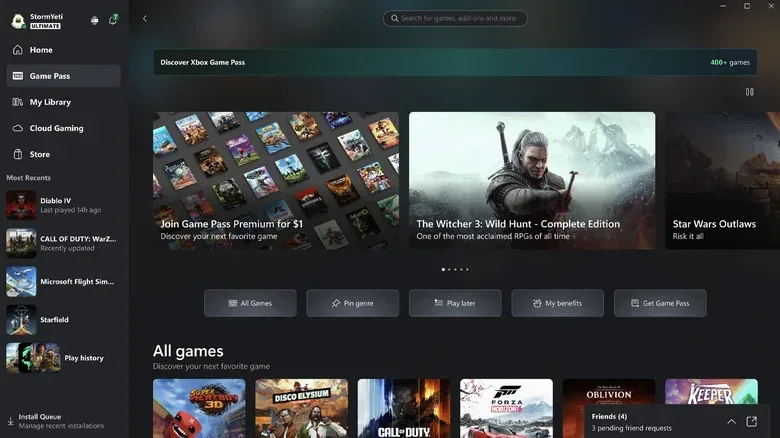
The Xbox app is not automatically bloatware, particularly on a gaming PC. It supports cloud gaming, social features and a console-like mode, and it can bring together games from different storefronts. For players using Game Pass or Microsoft’s ecosystem, it can be a useful hub rather than an intrusion.
For a non-gamer, the app is harder to justify. And gamers who buy and launch everything through Steam may find little reason to keep another game front end running around the map. The same applies to people who previously used Game Pass but no longer subscribe.
This is the clearest example of why blanket cleanup lists can mislead. “Xbox” might mean unnecessary resource use to one person and access to a preferred game library for another. Before uninstalling, check whether it handles games, friends or cloud access you would miss. PC players already thinking about component value can also read our look at why RAM capacity changes the value equation; software choices should be equally tied to real use rather than specs alone.
7. Solitaire and Minesweeper: nostalgia should not require ads
Solitaire and Minesweeper were once simple Windows diversions. The current Microsoft Solitaire Collection offers a premium version for $1.49 per month that removes ads, which is inexpensive but still an awkward proposition for games defined by their simplicity.
Free browser-based alternatives exist for anyone who just wants the classic experience. Solitaire for Free includes more than 30 variations and some card and background customization. Minesweeper for Free sticks closer to the straightforward formula, with difficulty as its main configuration option.
Players who want an offline option can consider Free Solitaire on Steam. It offers multiple modes and variants, substantial card customization including personalized art, and no ads. This is less about declaring one card game the champion and more about preserving a clean experience. A five-minute break should not need to become a negotiation with subscription prompts.
8. Microsoft Office trials: check compatibility before going free
Office trials are designed to make Microsoft 365 feel like the default response when you open a document, spreadsheet or presentation. For users who do not need the full suite, they are often just a recurring invitation to subscribe. Microsoft 365 access starts at $9.99 per month or $99.99 per year.
Google Workspace is a strong free option for personal documents, spreadsheets and presentations, particularly when simple sharing by web link is valuable. Google Docs and related tools cover the common basics without demanding a desktop installation.
There is, however, a major compatibility caveat. Microsoft formats such as .docx and .xlsx are corporate standards. Google’s tools can export to those formats, but complex documents can develop formatting problems during conversion. That is why “free” does not always mean “friction-free.” If a school, employer or collaborator expects a carefully formatted Office file, test the round trip before making a permanent switch.
OnlyOffice is another free alternative for people who prefer dedicated applications and want an Office-like experience, with paid options aimed at businesses and developers. The sensible route is to remove the trial if it is only an upsell, then choose a productivity suite based on the documents you exchange—not on which icon appeared first on a new PC.
A low-drama Windows cleanup checklist
- Start with unused trials and ad-heavy apps. They offer the clearest gain with the lowest chance of disrupting your routine.
- Check what an app does before deleting it. The Xbox app, media software and security packages can be useful in the right setup.
- Back up or note important preferences. This is particularly sensible before replacing a media player, editor or productivity suite.
- Install a replacement only when you need it. Removing one unused app just to add another is not much of a cleanup.
- Prioritize compatibility and safety over minimalism. Defender should remain active if you remove a third-party antivirus trial, and Office alternatives should be tested with important files.
The best Windows setup is not the one with the fewest icons. It is the one with software that earns its place: tools that play the files you own, edit at the quality you need, protect the system without pestering you, and launch the games or documents you actually use. Everything else can stop camping on your drive.