Knowing the exact GPU in a Windows PC is useful long before anyone starts considering a physical upgrade. A game’s listed requirements, a sudden performance problem, or a driver issue all become much easier to interpret once the machine’s graphics hardware is identified correctly. The good news: Windows already includes several ways to do it, and none require opening the case.
The first wrinkle is that a computer may have more than one graphics processor. This is especially common on laptops, where integrated graphics can handle ordinary desktop work while a separate, more powerful GPU from NVIDIA, AMD, or Intel takes on heavier graphical workloads. A logo on the chassis therefore is not a definitive inventory of every graphics device installed, nor does the GPU driving the desktop necessarily tell the whole story about a game’s graphics workload.
For most players, Task Manager is the quickest starting point. Device Manager offers a concise hardware list and driver details, while the DirectX Diagnostic Tool provides another built-in check for graphics and DirectX information. Used together, these tools can clarify what Windows detects, how much graphics memory is reported, and whether a generic driver may be standing in for the proper one.
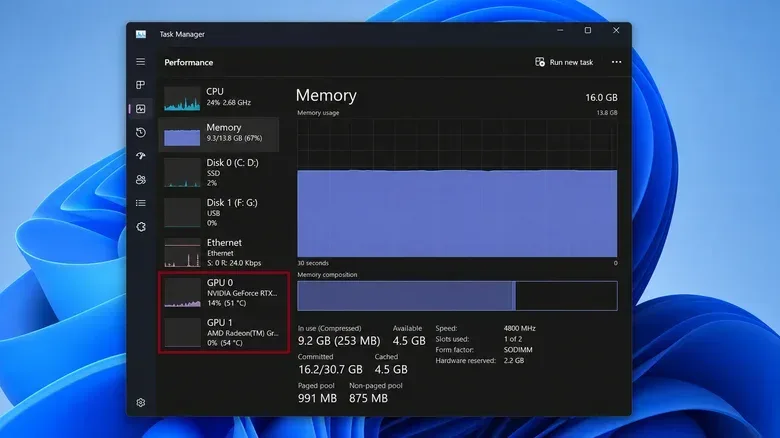
Start with Task Manager’s Performance view
Task Manager is often associated with closing an unresponsive application or identifying a process using too much CPU time. Its Performance section is also a practical GPU dashboard. It can show the graphics processor’s model name, current activity, memory information, driver data, DirectX details, and—when the hardware makes it available—a temperature reading.
- Press Ctrl + Shift + Esc to open Task Manager.
- In Windows 11, select Performance from the left-hand sidebar. In Windows 10, select the Performance tab at the top.
- Select GPU 0.
- Read the graphics processor model shown in the upper-right area of the panel.
- If Task Manager lists GPU 1 or additional GPU entries, select each one and note the names.
Checking every listed entry matters. Windows can expose an integrated GPU and a discrete GPU separately. The integrated processor is commonly built into the CPU package and uses system memory for graphics work. A discrete GPU is a separate graphics device and commonly has its own graphics memory. That distinction is useful when comparing a PC against a game requirement or trying to establish which component needs attention.
GPU 0 does not mean “best GPU”
It is tempting to assume GPU 0 is the fastest card, the gaming card, or the device currently doing the most work. It is none of those things by definition. The numbering is based on hardware location rather than a performance ranking. A PC with GPU 0 and GPU 1 should be treated as a system with two detected graphics devices, not as a leaderboard.
That is an important practical distinction on a laptop. Seeing an integrated processor under GPU 0 does not by itself establish that a demanding game is limited to integrated graphics, and seeing a discrete device as GPU 1 does not make it secondary in capability. The useful first step is simply identifying both names accurately.
What the memory figures actually mean
Task Manager’s GPU page also displays dedicated and shared memory. Those labels are helpful, but they need a little context before they are used to judge gaming capability.
Related coverage includes How to Find Your GPU in Windows Without Opening Your PC.
Dedicated GPU memory, often called VRAM, generally means memory available directly to a dedicated graphics processor. Graphics hardware uses that memory for the data it needs during rendering. The amount is a relevant specification when a game lists a VRAM requirement.
Shared GPU memory is regular system RAM that the graphics processor can borrow when needed. It is not a second pool of VRAM in the same sense as dedicated graphics memory. Integrated graphics depend mostly on system RAM, because they do not generally have separate onboard memory of their own.
There is one reporting detail worth keeping in mind: an integrated GPU may have a portion of system memory reserved for graphics, and Windows can show that reservation as dedicated memory. That does not turn an integrated processor into a conventional discrete card with its own VRAM. When assessing a PC, identify the GPU model first, then read its reported memory figures with the integrated-versus-discrete distinction in mind.
Task Manager is also useful while diagnosing a problem because it can show a GPU’s present workload. That is more informative than a model name alone when the question is whether a graphics device is currently busy. Temperature is another potentially useful value, although it appears only if the hardware supports reporting it through Windows.
Use Device Manager for a clean device list
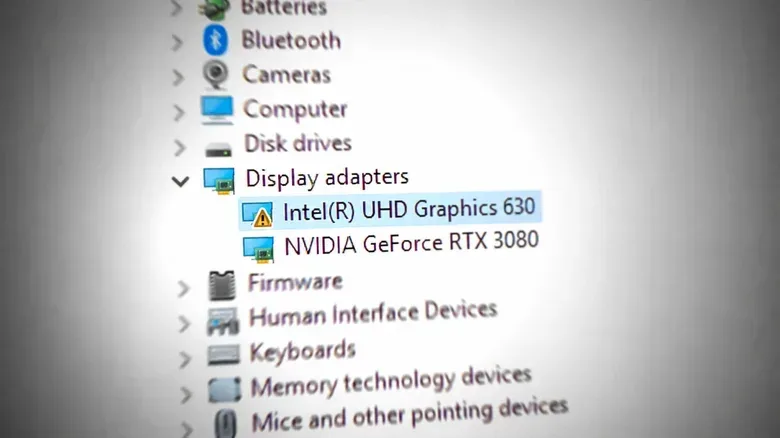
When the goal is simply to confirm the graphics hardware Windows recognizes, Device Manager is a straightforward alternative. It skips performance graphs and goes directly to the list of display devices.
- Right-click the Start button.
- Select Device Manager.
- Expand Display adapters.
- Review every item listed there.
This view can quickly confirm whether Windows sees both integrated and dedicated graphics hardware. It is especially handy when Task Manager’s labels need a second check, or when someone needs the exact device names without sorting through utilization charts.
Device Manager also provides driver information for each device. Double-click the GPU you want to inspect, then open the Driver tab. Windows will show the installed driver version and date there. Those details are useful reference points before troubleshooting graphics behavior or deciding whether a driver update is the sensible next step.
Watch for Microsoft Basic Display Adapter
If Device Manager shows Microsoft Basic Display Adapter instead of the expected NVIDIA, AMD, or Intel model name, Windows is using a generic display driver. This does not automatically prove a hardware failure. It does, however, mean that checking the proper GPU driver is a sensible early troubleshooting step before drawing conclusions about the card itself.
A generic display driver can obscure the expected hardware identification and make it harder to evaluate the system’s graphics setup. Establishing whether the intended GPU driver is installed is therefore more productive than assuming the computer lacks the graphics hardware entirely.
Check DirectX information with dxdiag
The DirectX Diagnostic Tool, commonly opened as dxdiag, is another Windows utility that can verify graphics and driver details. DirectX is the collection of Windows technologies games use to communicate with hardware for tasks including graphics. The tool is useful when a game or troubleshooting process specifically asks which DirectX version is present.
- Press Windows + R to open the Run dialog.
- Type dxdiag.
- Press Enter.
- Open the Display tab to review GPU and driver information.
- Open the System tab to view the DirectX version installed on the PC.
This is not a replacement for checking a game’s full requirements, but it is a compact way to verify key pieces of information Windows reports. If a machine has more than one graphics processor, take care to review the relevant display information rather than treating the first label seen as the complete answer.
Match the tool to the question
Each built-in option answers a slightly different version of “What GPU do I have?”
- Task Manager: Best as a quick all-around check of model name, graphics-memory reporting, current workload, driver details, DirectX information, and possibly temperature.
- Device Manager: Best for a clean list of detected display adapters and for checking the installed driver’s version and date.
- DirectX Diagnostic Tool: Best when GPU driver information and the installed DirectX version are the details being sought.
For gaming, the most dependable routine is to record the name of every GPU shown, determine whether the PC has integrated graphics, a discrete GPU, or both, and then compare the appropriate hardware details with the game’s requirements. The distinction between dedicated memory and shared system memory should be kept in view during that comparison.
For performance issues, start by identifying what Windows detects rather than guessing from a sticker, an old purchase description, or GPU numbering. Check Task Manager for the listed devices and current activity, then use Device Manager to inspect the driver entry. If the generic Microsoft Basic Display Adapter appears, address the driver situation before escalating the diagnosis.
Players who need more granular monitoring can use third-party utilities such as HWiNFO to follow GPU temperatures, clock speeds, and power readings. Those figures go beyond the core question of identity, but they can be relevant when investigating performance behavior. For the basic task of finding the GPU model, though, Windows already supplies the essential tools.
If your PC use includes emulation, it is similarly helpful to know the exact Windows graphics configuration before evaluating a build’s compatibility or performance expectations; see our coverage of a KytyPS5 build for Windows, Linux and macOS.