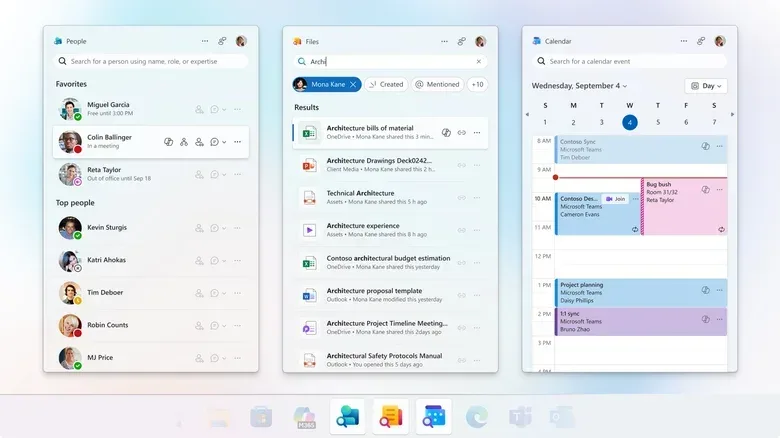
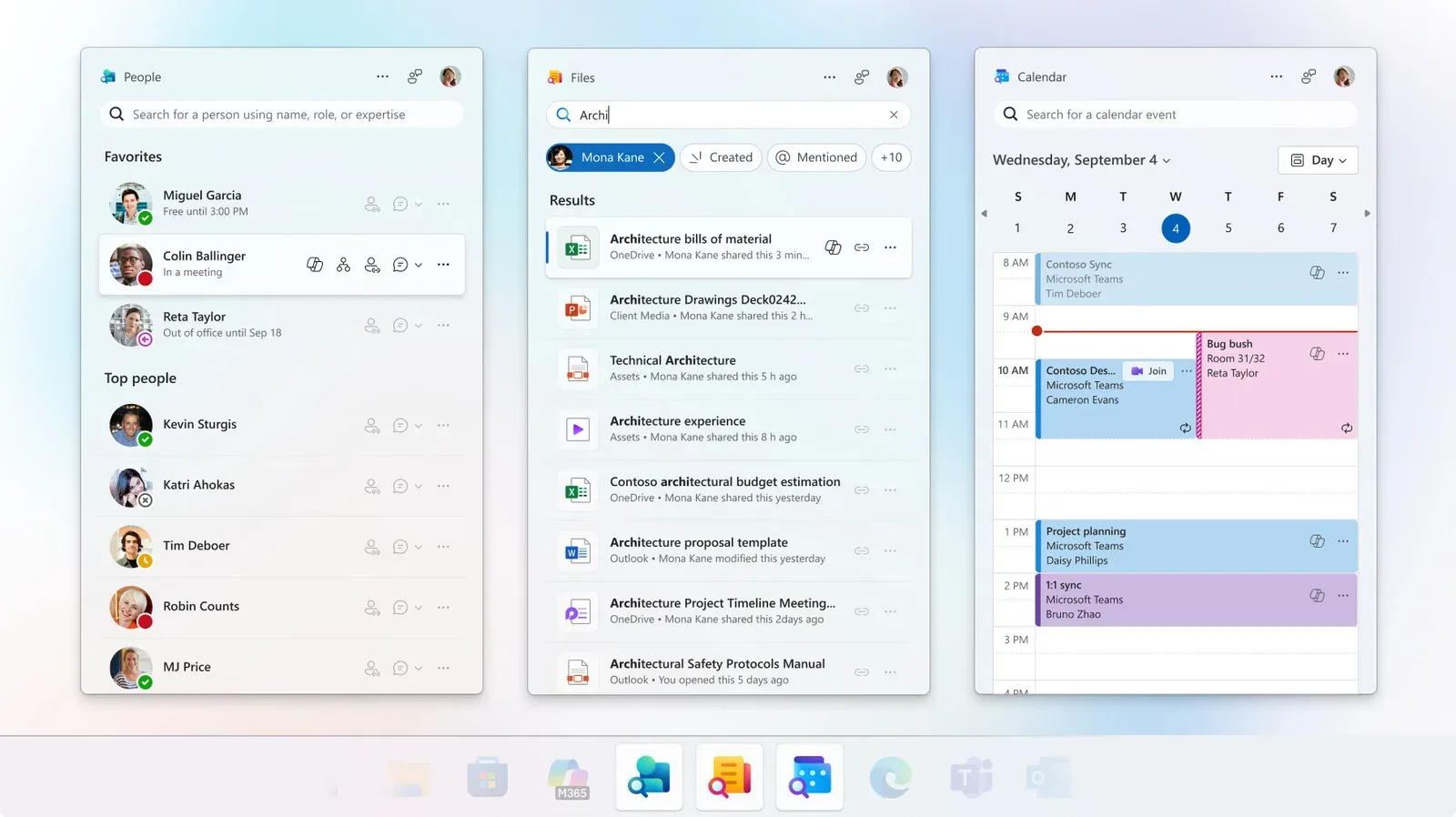
Microsoft is retiring three small Microsoft 365 utilities for Windows 11: People, Files and Calendar Companion apps. The apps are scheduled to stop working on December 16, only 14 months after their release.
For most home PC owners, this is likely a non-event. The companions were primarily aimed at Windows 11 systems managed by an employer, and they were automatically added for people with commercial Microsoft 365 or Office 365 licences. They were not installed across every Windows edition; Windows 11 Home users, for example, may never have encountered them.
For affected workers, the immediate practical message is straightforward: these particular taskbar-oriented shortcuts are going away, but the underlying work information is not. Microsoft says the apps draw on SharePoint Online and Exchange Online, and the data stays in those Microsoft 365 services rather than inside the companion apps themselves.
That distinction matters. Removing a companion is not the same thing as deleting a contact, meeting, shared document or cloud file. It removes one interface for reaching that material.
What Microsoft is actually shutting down
The three companions were designed as quick-access tools rather than complete replacements for Microsoft 365’s main applications. Each one focused on a familiar piece of workday admin: finding colleagues, locating files or checking the calendar.
People Companion
People was the colleague-and-contact lookup tool. It could surface a person’s contact details, profile and skills, their place in an organization chart, online or offline presence, and whether they were in a meeting. Users could mark frequently contacted people as favourites, keeping a manager or immediate team closer at hand.
It also acted as a jumping-off point for actions already associated with Microsoft’s workplace suite: starting a Teams call, seeing shared files, sending an email, sharing contact details and checking a person’s availability. A Copilot connection allowed users to ask the AI about projects involving a particular colleague.
In other words, People put an employee directory, presence indicators and several communication shortcuts into a compact Windows utility. Presence is the status information that indicates whether someone is online, offline or otherwise unavailable. An organization chart, meanwhile, maps reporting relationships in a company.
Files Companion
Files was meant to make shared Microsoft Office documents easier to reach and distribute. It allowed users to locate files with keywords, filter or sort results by file type, and create links to share with colleagues.
Those are useful jobs, but they overlap substantially with tools many workers already use: the Windows Start menu search, OneDrive and the file views within Microsoft’s productivity apps. That overlap is central to understanding why the retirement may have little effect on established workflows. A person who already searches from Start or goes to OneDrive for shared documents does not need to move their files anywhere; they simply keep using the route they already know.
Calendar Companion
Calendar provided another small-window view of a Microsoft 365 schedule. It could display and edit events, help users find a specific calendar item, copy meeting links and join meetings.
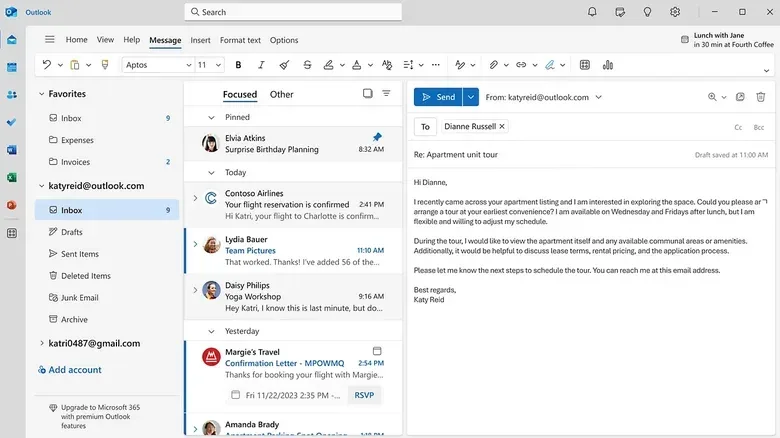
Again, its role was complementary rather than exclusive. Microsoft’s Outlook app for Windows includes Calendar, Contacts and email, while Teams offers calendar viewing, instant messaging and video-call functions. The retirement takes away an extra point of entry, not the calendar service itself.
Why the apps are disappearing remains unstated
Microsoft did not provide a reason for ending the three companions. Any explanation beyond the retirement itself should therefore be treated as analysis, not confirmed fact.
One plausible reading is that the apps occupied an awkward middle ground. They were built to reduce friction: a quick glance at a calendar, a fast route to a coworker or a shortcut to a document. Yet Windows and the wider Microsoft 365 suite already had ways to perform those tasks. When a tool is narrowly available, tied mainly to employer-managed devices and duplicates familiar functions, it can be difficult to make it an indispensable part of a worker’s routine.
Some users may also prefer fewer preinstalled work utilities on their PCs. The term bloatware commonly refers to software considered unnecessary or excessive, particularly when it arrives preloaded. Whether the companions were useful or unwelcome will vary by workplace, but a separate app for every slice of a productivity suite can make a desktop feel busier rather than simpler.
There is no basis to say that low usage, redundancy or concerns about bloatware caused the decision. Those are reasonable possibilities raised by the apps’ position alongside existing Windows and Microsoft 365 tools, not a stated rationale.
Who needs to do anything?
The first step is simply to establish whether the companions are installed. Because the tools were not universal Windows features, many people will have nothing to remove and no workflow to replace.
Employees using company-managed PCs should not assume they need permission to change anything. Their IT administrator may handle removal centrally. Managed devices are computers configured and maintained under an employer’s IT policies, which can include installing, updating or removing software remotely.
If the apps remain on a device and the user is expected to remove them, the supplied removal path is:
- Open Windows Settings.
- Select Apps.
- Open Installed Apps.
- Search for Microsoft 365 companions.
- Select the three-dot menu and choose Uninstall.
People on managed systems should follow their organization’s normal support process if they are unsure. The key concern is not data loss: files, calendar items and related cloud information remain in Microsoft 365 services. The concern is making sure the next available tool is familiar before a needed meeting, contact lookup or file share becomes urgent.
A simple replacement map for workers
The cleanest replacement is usually not a new download. It is choosing the existing Microsoft tool that best matches the task.
- For calendar, contacts and email: Use Outlook for Windows. It includes tabs for all three.
- For chat, meetings and calls: Use Teams, which also offers calendar capabilities.
- For file search and sharing: Use Windows Start menu search or OneDrive, available through a desktop app or browser.
This is less a migration than a consolidation. No export process has been described because the companions did not serve as isolated storage containers. A worker can preserve continuity by identifying where their team normally works now: Teams for conversations, Outlook for schedules and OneDrive or Windows search for documents.
That may be especially useful for people who relied on People as an availability checker. Teams is the obvious place to look for messaging and call-related functions, while Outlook retains contact and calendar access. Users who depended on Files for shared links should make sure they can find the relevant OneDrive location and understand their workplace’s normal sharing practices.
What it means for Windows 11 work setups
The demise of three short-lived companions is a reminder that a workplace desktop is often an assembly of overlapping layers: Windows, Microsoft 365, cloud storage, email, calendar, Teams and sometimes additional collaboration platforms. A feature can be convenient without being foundational.
For IT teams, the retirement creates a modest cleanup job and a chance to clarify which interfaces the organization wants employees to use. For employees, it is a prompt to reduce reliance on a taskbar shortcut when the same service is available in a main application or browser.
It also highlights an important difference between an app and a service. The app is the local window or shortcut on a PC. The service is the online system holding the work information and making it available. In this case, removing the windows does not erase the service-backed content. SharePoint Online is used for cloud-based file and collaboration work, while Exchange Online underpins email and calendar-related information in Microsoft’s cloud environment.
That separation is why the transition should be relatively low-risk for ordinary users. It does not guarantee that every person will like the replacement workflow, but it does mean they should not need to reconstruct a calendar or retrieve documents from an obsolete local app.
Alternatives beyond Microsoft’s own apps
Organizations are not restricted to Microsoft’s ecosystem, either. Slack and Google Workspace are among the widely used business options for cross-device messaging, file sharing, calls and remote-work collaboration. Still, the companion shutdown alone does not require a company to replace Microsoft 365 or Teams. The direct alternatives are already present within Microsoft’s own set of applications.
The wider issue is workflow consistency. Separate systems may offer different strengths, but every extra destination can also create uncertainty about where a meeting link, conversation or shared file belongs. The companion apps aimed to compress several actions into small Windows panels; their retirement shifts those actions back to the fuller applications that already hold the relevant context.
For a broader look at how workplace platforms and major software decisions can affect the technology landscape, see this industry report on changing hardware availability.
What to do before December 16
If People, Files or Calendar Companion is part of a daily routine, open the usual replacement now and perform the equivalent task once. Check the next meeting in Outlook or Teams, find a common shared document through OneDrive or Start search, and locate an important coworker through the standard contacts or Teams workflow. That small rehearsal is more valuable than discovering a changed interface moments before a call.
Then remove the companions if IT has not already done so and workplace policy permits it. Keeping unused or retired apps on a device is generally unhelpful, and reducing unnecessary software can support storage, performance and security hygiene.
The central takeaway is reassuringly unglamorous: on December 16, three Microsoft 365 Companion apps stop working, but not the calendars, people data and files they were built to surface. For the Windows 11 workers who had them, the adjustment is chiefly about choosing the existing Microsoft 365 doorway that fits each job.