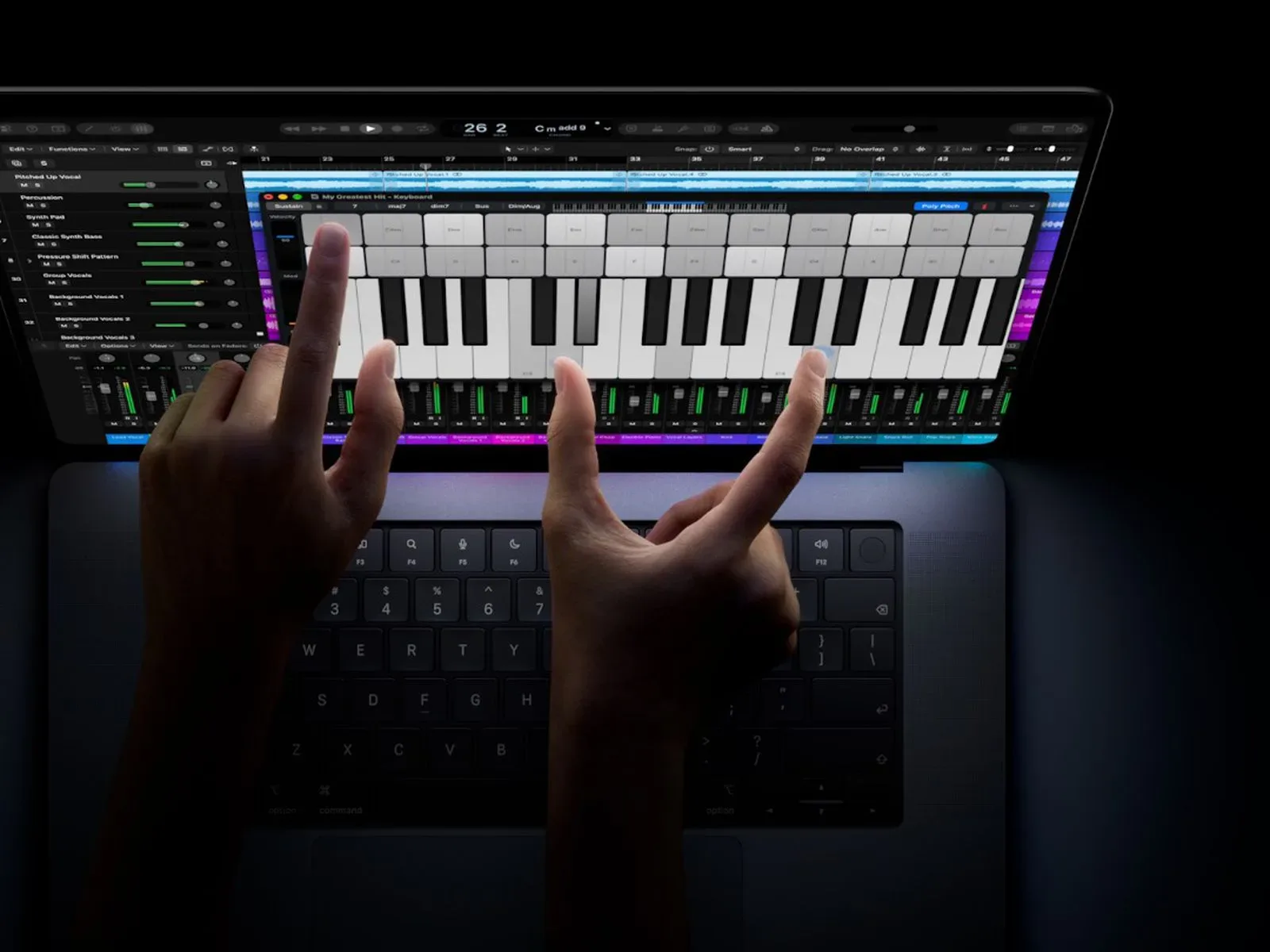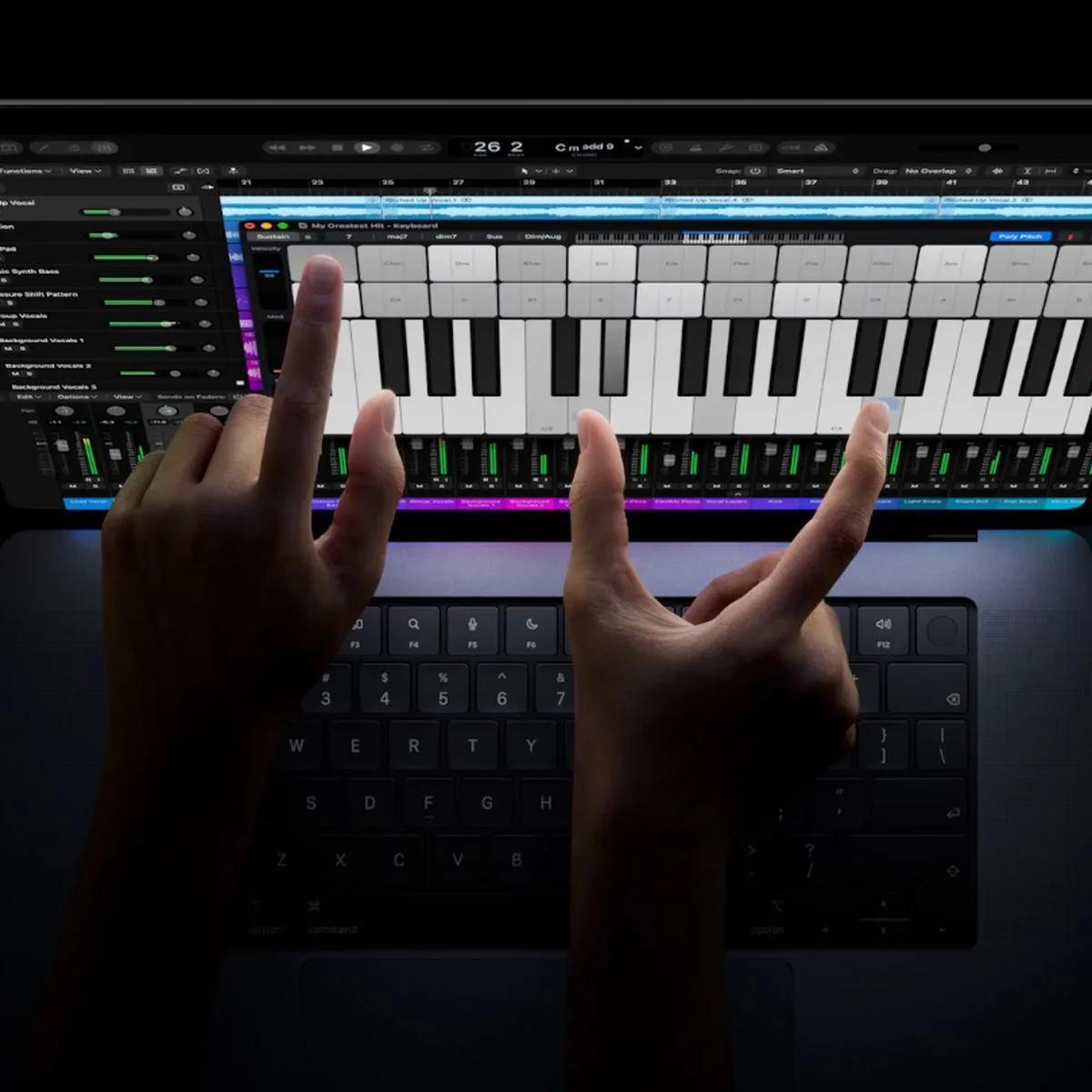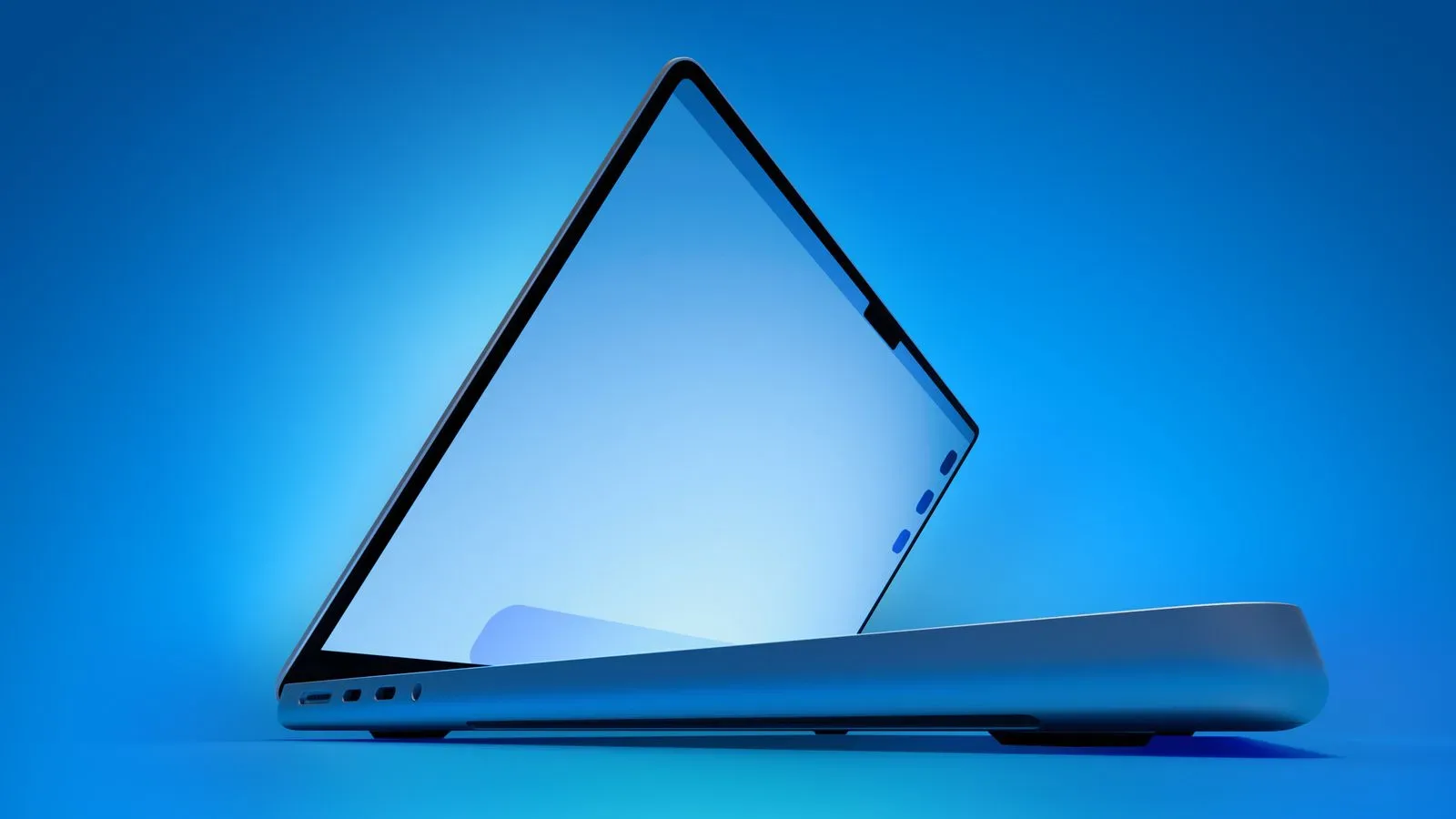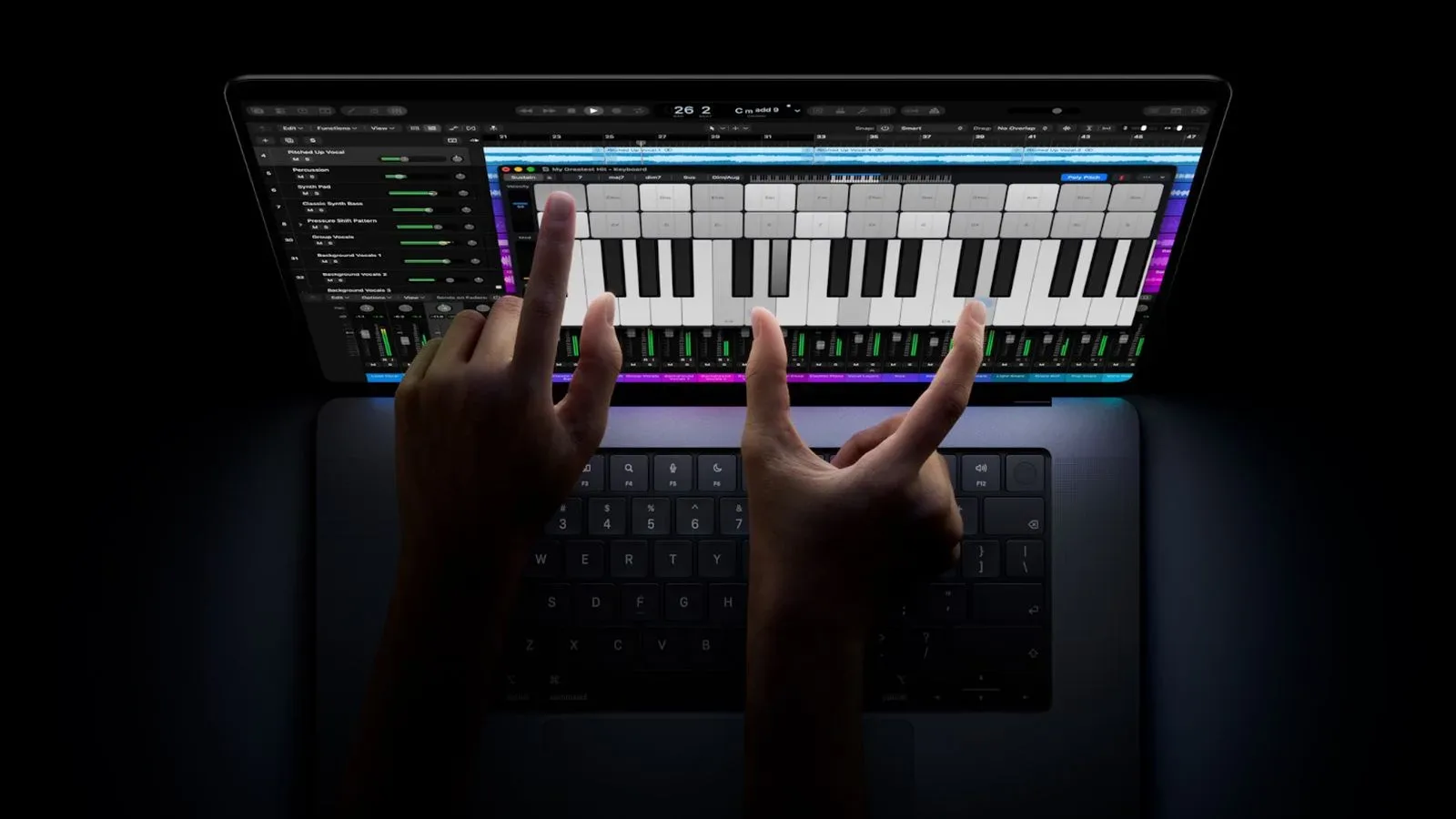
The new MacBook Pro models with OLED displays reportedly include an accessibility control that can disable touch input completely. The detail was shared by Federico Viticci, who also said macOS Golden Gate offers an option to enable pinch-to-zoom across its interface.
Those two details matter because they describe a touch-enabled laptop experience with user choice at its center. Touch can be useful for direct interaction with on-screen controls, but it can also be something a person wants to limit or remove from their workflow. A full disable option would mean the touchscreen need not remain active merely because it is built into the hardware.
What the reported setting would do
Touch input refers to commands sent when a user taps, swipes, or otherwise contacts a touchscreen. Turning it off would prevent those screen contacts from being interpreted as macOS actions. The display would still function as a display; the reported control concerns touch interaction rather than the screen’s visual output.
That distinction is important. An OLED panel is the display technology in the reported MacBook Pro models, while touch input is an interaction layer. The ability to disable one does not imply disabling the other. Owners could therefore retain the visual benefits of the display while choosing keyboard, trackpad, mouse, or another preferred input method rather than touching the screen.
The report identifies the control as an accessibility setting. Accessibility features are designed to make a device more workable for people with different physical, visual, cognitive, or situational needs. Their usefulness often extends beyond the particular need that prompted their inclusion. A person who finds unintentional taps disruptive, for example, could potentially benefit from a touch-disable setting without changing how they use the rest of their Mac.
Why a complete touch-off switch is significant
A touchscreen changes the number of ways a person can interact with a laptop. That flexibility can be welcome, but it also introduces another possible source of accidental input. When touch is active, contact with the screen can become a command. A clearly available off switch gives users a way to make that behavior deliberate rather than permanent.
For desktop-style work, many people primarily rely on a keyboard and pointing device. In that context, a disabled touchscreen could help preserve a familiar workflow. It could also be useful where someone is positioning the display, pointing at material on screen, cleaning the panel, or simply prefers that a finger touching the display has no software consequence. These are practical implications of the reported functionality, not a confirmation of how the setting is presented or configured in macOS.
It also reflects a useful principle in input design: more capability does not require more compulsory behavior. A laptop can offer touch interaction while leaving users in control of whether it is active. That matters particularly for accessibility, where a feature that helps one person can create friction for another if it cannot be adjusted.
Pinch-to-zoom across macOS Golden Gate
The other reported option concerns pinch-to-zoom throughout the macOS Golden Gate interface. Pinch-to-zoom is a gesture in which two contact points move apart to enlarge content or together to reduce it. On a touch-enabled display, it provides a direct way to change the apparent scale of interface elements or content without moving through menus first.
The wording here is notable: the feature was described as applying across the Golden Gate interface, rather than being confined to an individual app. If implemented as described, that would make the gesture a broader interface behavior. However, the available information does not specify exactly which screens, apps, elements, or circumstances are covered. It also does not detail whether pinch-to-zoom changes only temporary viewing scale or has other display and accessibility effects.
For users who want touch enabled, interface-wide zoom could make small visual details easier to inspect quickly. For users who do not want touch involved at all, the reported accessibility control would offer the opposite preference: no touch commands. The two options are not contradictory. They suggest settings aimed at making touch either more useful or entirely absent, depending on the person using the laptop.
A practical split between touch-first and traditional laptop use
For games and game-adjacent creative work, the reported controls could be relevant even though the information does not describe game-specific features. A MacBook Pro may be used for browsing storefronts, managing libraries, editing clips, creating artwork, chatting, or handling other screen-heavy tasks. Some users may welcome direct touch and zoom when navigating visual material. Others may want to avoid the possibility of screen gestures while working through a keyboard-and-trackpad routine.
The value is less about declaring one input method superior and more about preserving consistency. A user who prefers conventional macOS interaction could leave touch inactive. Someone who benefits from direct manipulation and magnification could enable the appropriate behavior. That kind of choice is especially meaningful when the same device may move between work, entertainment, communication, and creative tasks in a single day.
The broader games space has long involved different control preferences, from controllers and keyboards to touch interfaces and specialized peripherals. This MacBook Pro detail is not a gaming announcement, and no performance or game compatibility claims are supported here. Still, the principle is familiar: controls work best when people can tailor them to the way they play, create, or navigate. For another example of hardware designed around different ways to use games, see the SGBC FPGA console’s focus on Game Boy-family cartridges and modern TVs.
What remains unclear
The information currently available is narrow. It identifies a complete touch-input disable setting and an option for pinch-to-zoom across macOS Golden Gate, but it does not provide step-by-step instructions, a settings path, screenshots, hardware configuration details, or a complete list of supported behaviors.
It is also not clear whether touch input is enabled by default, whether the accessibility setting can be quickly toggled, whether it applies per user account, or whether any exceptions exist. Likewise, the scope and exact mechanics of the reported pinch-to-zoom option have not been detailed. Users should avoid assuming behavior beyond the two reported capabilities until Apple provides fuller documentation or the setting is otherwise demonstrated in detail.
Even so, the reported controls point to an approach that treats touch as configurable rather than mandatory. For a new class of OLED MacBook Pro hardware, that could be as consequential as touch itself: people who want direct interaction may have it, and people who need or prefer a conventional non-touch experience may be able to preserve it.