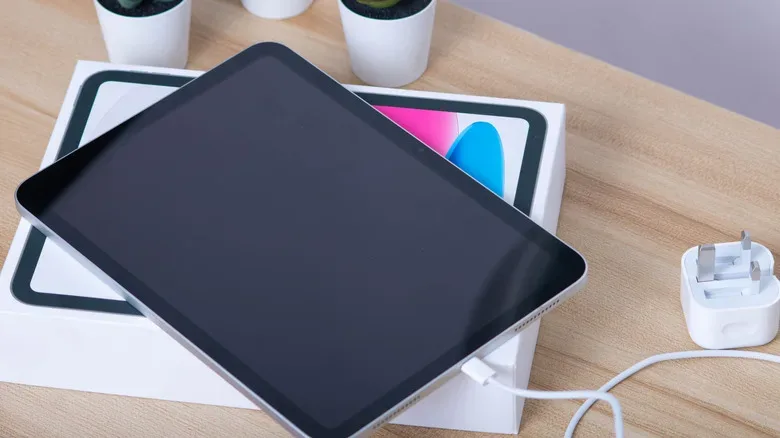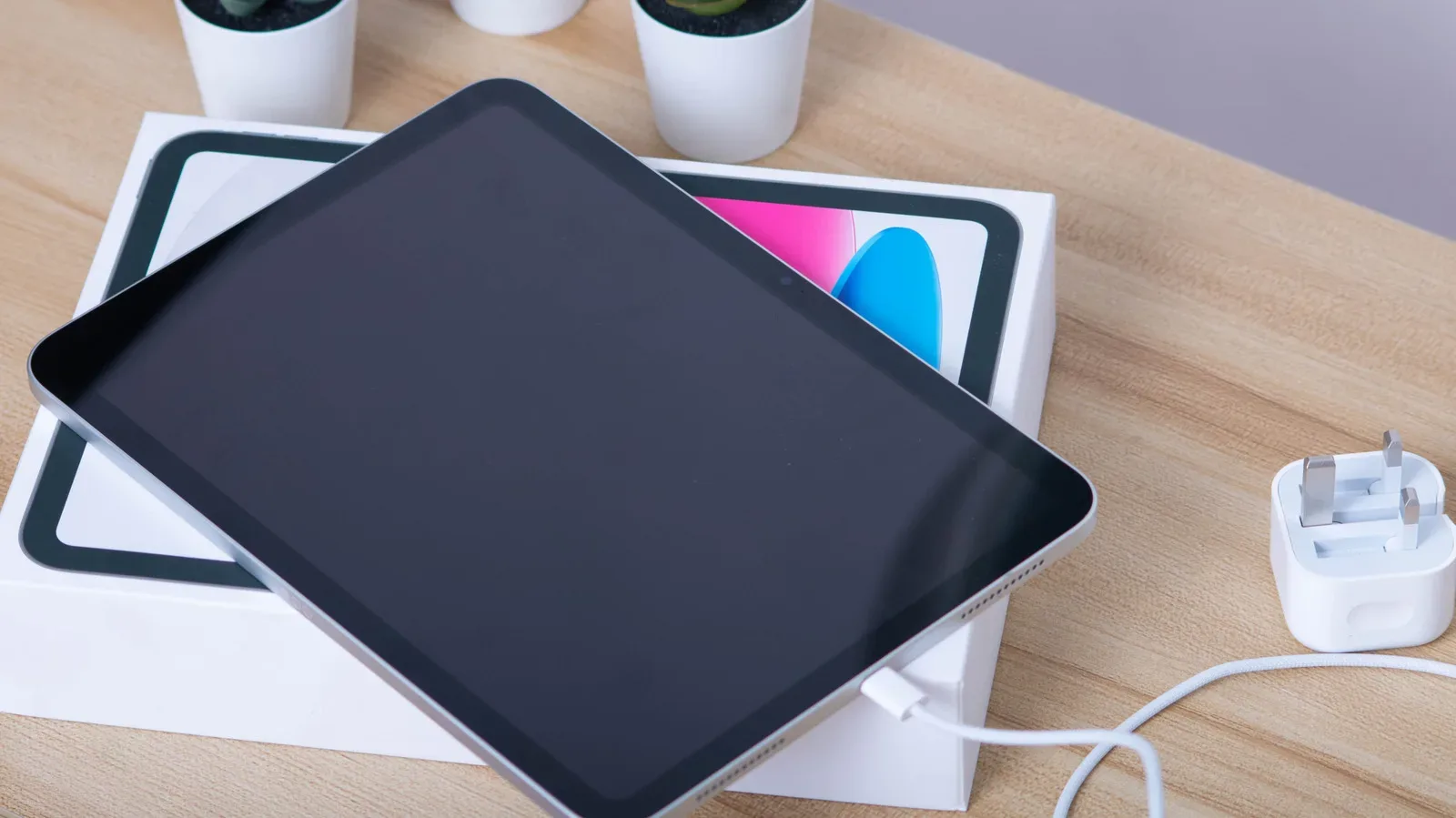
An iPad that refuses to charge can feel like a hardware catastrophe, especially when the battery is already empty. In many cases, though, the tablet itself is not the first suspect. The sensible place to begin is the charging chain: the wall outlet, power adapter, cable and connector all need to work together before power can reach the iPad.
That matters because an iPad’s larger battery needs more power than a phone-sized device. A plug can fit, a cable can appear intact and the screen can still stay dark if the adapter is too weak, the cable is failing, or the port cannot make a clean connection. The most useful approach is therefore not to buy parts immediately or poke around inside the port. It is to isolate one variable at a time.
Start with the charger, cable and outlet
A damaged cable or underpowered adapter is a common explanation for charging trouble. Use the first-party charger supplied with the iPad where possible, or a reputable fast charger and a quality cable compatible with that charger’s charging standard. The practical baseline described here is at least 10W. An older, low-output block that seemed adequate for another small device may connect without supplying enough power to revive or charge an iPad effectively.
“W” means watts, a measure of power. For this problem, the important takeaway is simple: a physically compatible charger is not automatically a sufficiently capable one. Power has to be available from the adapter and delivered through the cable reliably.
Cheap third-party accessories can be unreliable and may have weaker quality control. That does not mean every non-first-party accessory is bad, but it does mean an unknown cable or adapter should be treated as a test candidate rather than proof that the iPad has failed.
Run a controlled accessory test
- Try a different wall outlet.
- Try a different cable with the same adapter.
- Try a different adapter with the same cable.
- If possible, use accessories that successfully charge another device.
- When a known-good combination is available, connect it to the iPad and leave the tablet connected for a while before deciding it has not worked.
This order turns guesswork into a basic elimination test. If one cable-and-adapter pairing works while another does not, the evidence points at the accessory rather than the iPad. If changing outlets fixes it, the outlet was part of the problem. Conversely, if multiple working accessories and outlets fail only with the iPad, attention should shift toward its port or software state.
Do not make too much of a blank display immediately after connection. An iPad left unused for weeks or months may have a deeply discharged battery. Devices can be slow to respond after being completely drained for an extended period, even when connected to a fast charger. In that situation, repeatedly unplugging it or assuming it is permanently dead can be less useful than leaving it on a dependable charger for a good while.
Check the environment before blaming the battery
Heat and cold can interrupt normal charging. Apple advises against charging an iPad in direct sunlight and identifies 32°F to 95°F as the suitable temperature range for safe charging. Outside that range, iPadOS may slow charging or stop it in order to protect the lithium-ion battery.
A lithium-ion battery is the rechargeable battery type used in the iPad. The protection behavior is important: a pause in charging under extreme conditions can be intentional rather than evidence of an immediate defect. Move the iPad out of direct sun or an overly cold location and allow it to return to a more moderate environment before retesting. There is no need to escalate from “it is too hot or cold to charge normally” to invasive cleaning or repair assumptions.
This also gives a useful ordering to the whole process. First test power delivery, then consider whether the iPad has been fully drained or is outside a safe temperature range. Only after those checks should physical port damage become the leading theory.
What a flickering charging symbol can tell you
An on-and-off charging indicator can suggest that the connection is not stable. That instability may come from a compromised cable, but it can also indicate blockage or damage inside the iPad’s charging port. A cable that works normally with other devices but will not charge the iPad is a particularly meaningful clue.
Before doing anything to the port, inspect it. Use a phone flashlight and look carefully inside. Visible bent or scratched pins, or discoloration, can indicate physical damage. The port is the small but essential interface through which the cable connects; damage there is not something to solve by forcing a connector in repeatedly.
Lint and dust are a less dramatic possibility. A buildup can stop the cable from seating properly, interfering with the electrical connection even when neither accessory appears broken. If debris is visible, use the soft bristles of a clean brush to remove it gently.
What not to put in the charging port
- Do not use paperclips or other small metal objects. They can scratch the internals.
- Do not use cotton swabs. They can leave fibers behind.
- Do not force a cable into a port. Resistance can be a sign of obstruction or damage, not an instruction to apply more pressure.
This is an area where restraint is more useful than improvisation. A cleaning attempt that leaves fibers behind or scratches contacts can turn a simple debris issue into a more serious repair question.
When a force restart is worth trying
If the charger, cable, outlet and port do not appear to explain the problem, a force restart is the next reasonable software-oriented step. This is not a factory reset and does not delete the iPad’s data. It is a forced restart—closer to interrupting and restarting a stalled computer than wiping the device.
The button sequence depends on whether the iPad has a Home button.
iPads without a Home button
- Press and quickly release the Volume Up button, the one closer to the Power button.
- Press and quickly release Volume Down.
- Then press and hold the Power button.
- Keep holding until the Apple logo appears. It may take several seconds.
iPads with a Home button
- Press and hold the Power button and Home button together.
- Keep holding until the Apple logo appears.
Once the iPad starts normally, reconnect the known-good charging setup and observe whether charging behaves consistently. The key word is consistently. A one-time symbol or a momentary connection is less informative than a stable charging indicator using accessories that have already passed the earlier tests.
When the evidence points to service
Seek Apple support when several known-good chargers, cables and outlets have been ruled out; when the charging indicator repeatedly cuts in and out; or when inspection reveals bent pins, scratches or discoloration in the port. Those signs make an accessory-only explanation less likely.
Repair coverage can depend on the device’s warranty status and the cause of the damage. A manufacturing defect may be handled differently from accidental damage. AppleCare protection may cover port damage with a deductible. The useful practical move is to document what you observed—such as the accessories tested and any visible port damage—before discussing repair options.
There is a broader lesson here for anyone using Apple hardware: not every alarming symptom establishes a dramatic failure, and a methodical test beats assumptions. That same caution is valuable when weighing unverified hardware claims, such as a purported M6 Pro benchmark result that raised questions about whether the chip exists. For a charging issue, the evidence is much closer to home: test the power path, check temperature, inspect carefully, restart safely, and stop DIY work when the port itself looks damaged.