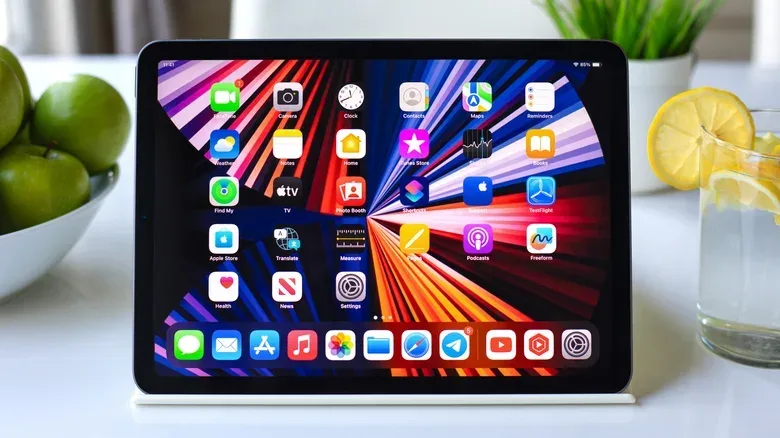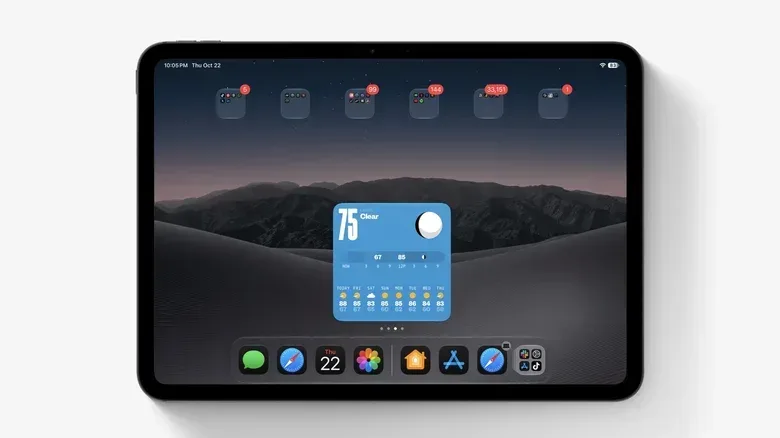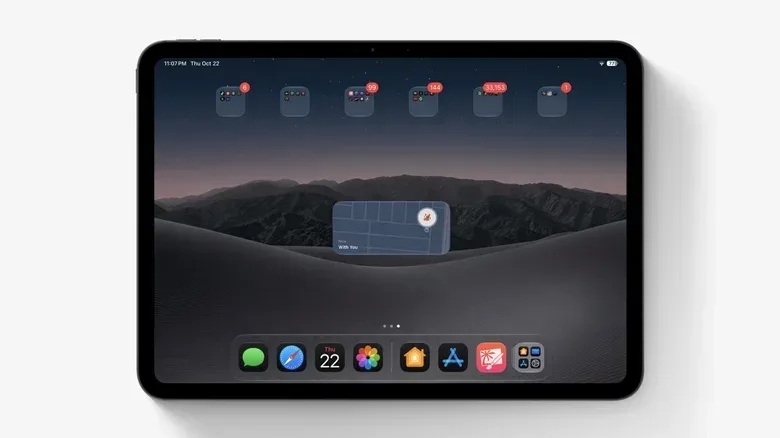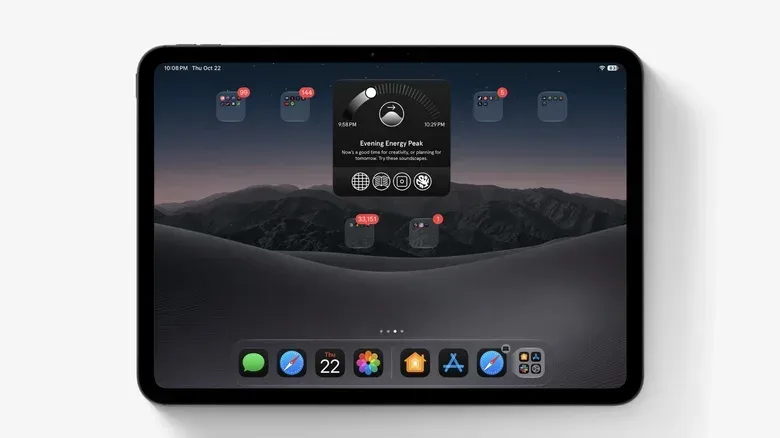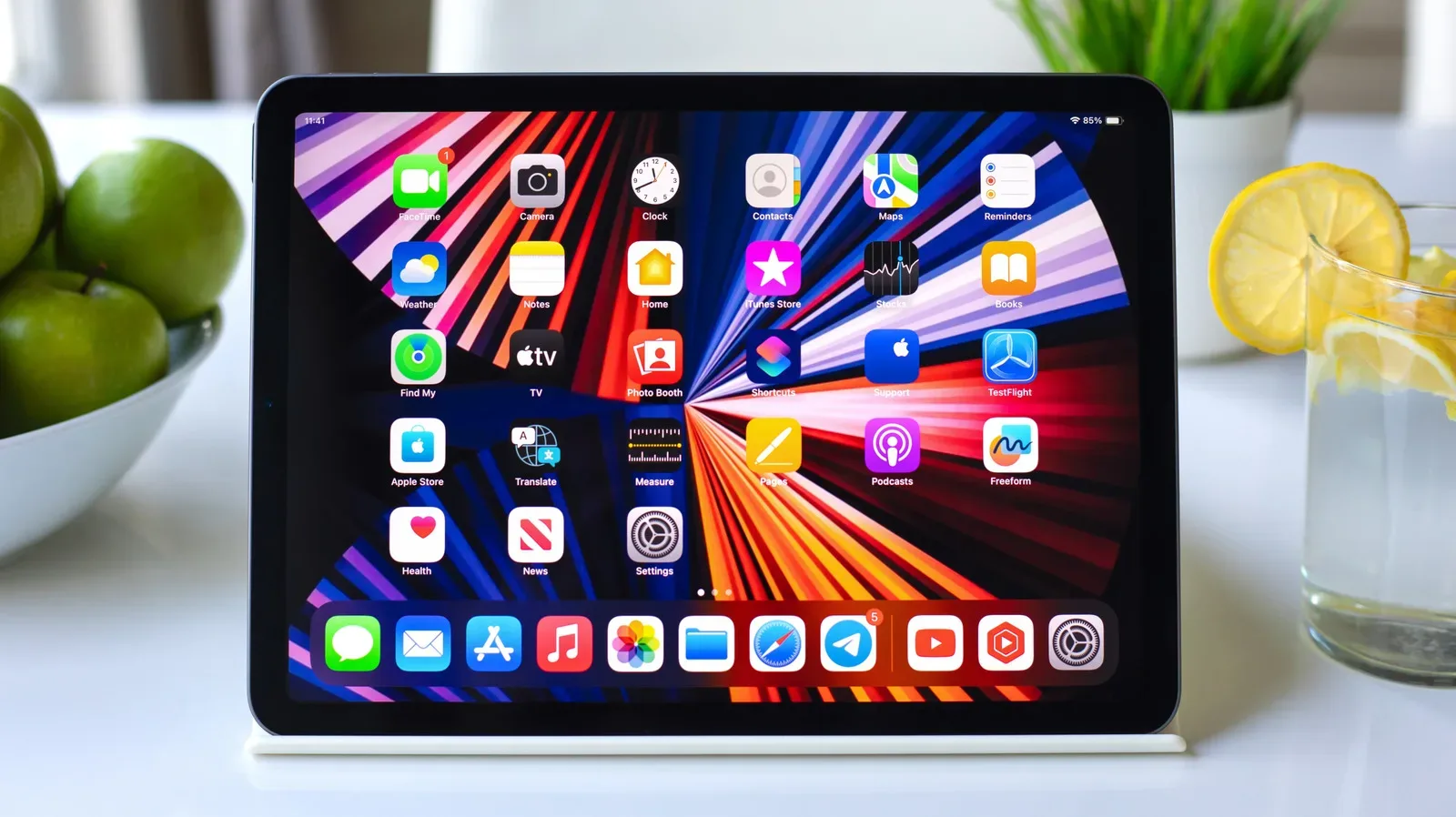
The iPad Home Screen can be more than a grid of app icons interrupted by a calendar square. Widgets are compact panels that surface information or shortcuts without requiring a full trip into an app, and on a larger display they can do real organizational work. iPadOS 27 expands that potential with extra-large widgets in Today View, giving apps more room for status information, controls and lists.
The useful distinction is between a widget that merely displays something and an interactive widget that can complete a simple action in place. A weather panel may save a tap by showing conditions. A Home panel may save several taps by switching off a light immediately. Neither replaces its full app, but both reduce the tiny bits of friction that make a tablet feel less personal and less ready for the task at hand.
To see what is installed, touch and hold an empty area of the iPad Home Screen, choose Edit, then select Add Widget. Apps may offer several sizes and layouts. Some app icons can also be turned into widgets by touching and holding the icon and selecting an available widget size, though support varies by app. The right setup is not the one with the most panels; it is the one that puts information you repeatedly need where your eyes already land.
1. Parcel: delivery tracking without the tracking-number shuffle
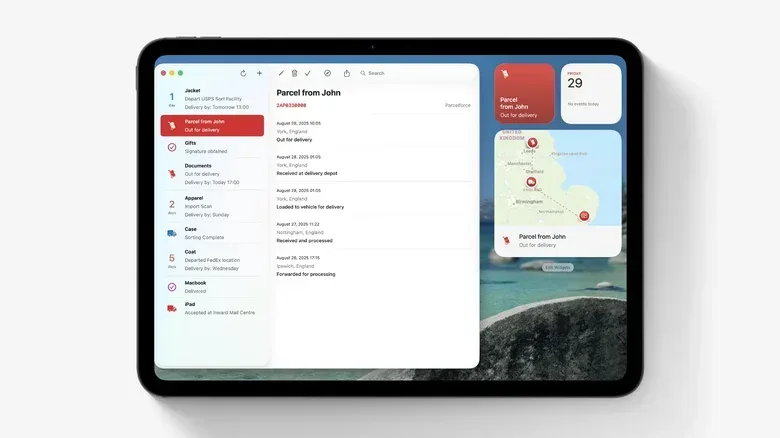
Parcel is aimed at the familiar situation where several deliveries are moving at once and every carrier has a different page to check. Its widget can show upcoming shipments, while map widgets in different sizes can show a package’s position. The service supports up to 300 delivery providers, including UPS, USPS, FedEx, DHL and Amazon Logistics.
Its practical advantage is reducing data entry. Connecting an Amazon account can add orders automatically, while other packages can be entered by scanning a shipping-label barcode instead of typing a long tracking number. Parcel also has a native Mac app and browser-based access, making its list available beyond the iPad.
The free tier is deliberately limited: it tracks three deliveries at a time and omits push notifications. Premium removes those limits for $6.99 per year. That makes it most compelling for frequent shoppers or anyone coordinating deliveries, rather than a person who only occasionally waits for a single parcel.
2. Home: a compact smart-home remote
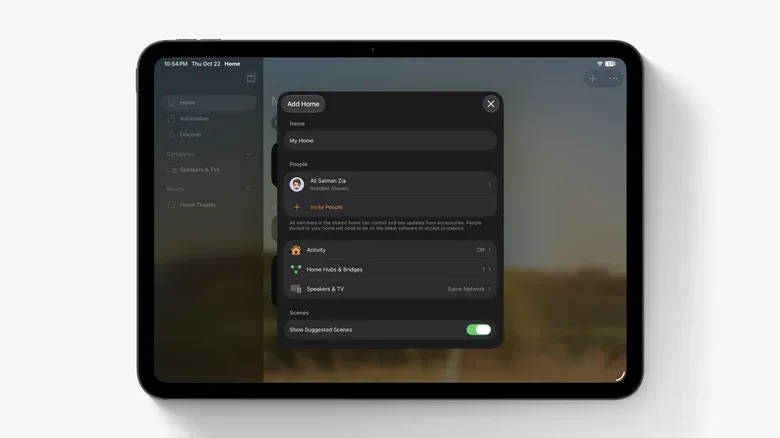
The built-in Home widget is a clear example of interactivity. It can perform quick actions, such as turning lights on or off, without first launching the Home app. With a compatible HomeKit garage-door controller, it can also lock or unlock garage doors.
Configuration matters here. Touch and hold the widget, choose Edit Widget, then select the accessories and scenes it should display. A scene is a saved collection of actions, such as a bedtime setup that turns everything off. Keeping a frequently used bedroom lamp or shutdown scene in the widget is more useful than filling it with every accessory in the house.
Related coverage includes 10 iPad Widgets That Can Make Your Home Screen More Useful.
The widget is designed for quick binary controls—on or off—not every possible adjustment. Brightness, color and thermostat settings still require opening the app. Think of it as the light-switch layer of the system: best for the actions that need to happen now, not for detailed configuration.
3. (Not Boring) Weather: data with a game-like presentation
(Not Boring) Weather takes a visual approach that is far removed from a plain forecast tile. Its 3D, game-inspired presentation can show temperature, conditions, precipitation, UV index and wind on the Home Screen or Lock Screen. That presentation may suit an iPad layout with a little more personality, but it is not solely decorative.
The app can use weather data from Apple, AccuWeather, Foreca and the National Weather Service, selected in its settings. It also covers severe-weather alerts for heat waves, storms, flood risk, hurricanes and blizzards. In other words, a playful interface does not mean it lacks alerts that matter.
The app is free to use, and its App Store privacy label says its developer does not collect data from the app. Its real-time weather widget requires a $14.99-per-year membership. That tier also adds faster forecasts, air-quality and pollen information, plus additional full-widget themes. The free-versus-paid split is worth checking before building a Home Screen around the real-time widget.
4. Find My: a last-known-location check before leaving
The built-in Find My widget can place devices, AirTags, third-party Find My items and trusted people on the Home Screen with their last known locations. Its value is immediacy: before heading out, an iPad owner can check where keys, a backpack or another tagged item was last seen without waiting for the main map interface to load.
The underlying Find My network can locate compatible devices even when they are offline or powered off. Nearby Apple devices anonymously and securely help report location. The widget does not change how that network works; it exposes a small, relevant view of it in a place that is easy to check.
For frequently misplaced belongings, pairing the widget with Notify When Left Behind can be more helpful than treating either feature as a panic button. That notification alerts the user when a device is left somewhere unfamiliar. The widget is best understood as a quick status display, while the main app remains the destination for a detailed map and more extensive actions.
5. Endel: one-tap soundscapes for focus, rest or sleep
Endel offers AI-powered soundscapes designed around focus, relaxation, sleep and movement, with adjustments intended to account for circadian rhythm. Its widget lets an iPad user begin one of those modes directly from the Home Screen. For a tablet used for schoolwork or desk work, that removes the moment of searching for background audio before beginning a session.
All soundscapes are available offline, an important practical point for flights or unreliable connections. The free edition includes Focus, Sleep, Relax and Move, though individual sessions are limited to 10 minutes and can be restarted. Premium, listed at $6.99 monthly, opens the wider library, including nine varieties of Colored Noise, Dynamic Focus, artist collaborations and Spatial Orbit, an immersive Spatial Audio experience. It also adds Focus Timer for timed work sessions alongside Endel audio.
Endel offers a subscription or a one-time lifetime purchase, and its website may list lower prices than the App Store subscription. The widget itself is simple, but that is the point: if the intended habit is to start a work session rather than browse choices, direct access is more valuable than a dense menu.
6. Mail: let the important inbox be the widget
Apple’s built-in Mail widget can show recent unread messages, a chosen mailbox or mail from VIP senders. Selecting an email opens that message directly in Mail. Its most focused use is the VIP view, particularly for people who have a small group of senders whose messages should not disappear among promotions and newsletters.
To add a sender, open one of their emails, tap the sender-information header, tap the sender’s name, choose View Contact Card, then choose Add to VIP. Those senders appear in Mail’s VIP mailbox and can be surfaced through the widget.
This is a small change with a useful implication: it alters the Home Screen from a general notification display into a lightweight triage tool. A manager, client or child’s school can sit above lower-priority mail without demanding that every new unread message receive equal visual weight.
7. Widgetsmith: make the space change with the day
Widgetsmith is for iPad owners who want control over the appearance and timing of their widgets. It supports custom date, time, weather, calendar, reminders and photo widgets, with adjustable fonts, colors and layouts. It can also customize the Lock Screen, allowing a more consistent visual style between screens.
The key feature is scheduling. A single spot on the Home Screen can show weather in the morning, then a calendar during working hours. This is a better use of limited screen real estate than forcing every data point to remain visible at every hour. It also changes the design question from “What widget looks good?” to “What is useful at this time of day?”
Recent styling options include clear and frosted treatments that reveal wallpaper beneath the widget, as well as a photo-background option. Widgetsmith’s built-in weather tool includes air quality, pollen and tide details, but those features require premium, starting at $1.99 per month.
8. Screen Time: put the usage reality check in view
The built-in Screen Time widget is intentionally less exciting than a colorful forecast, but it may be more consequential. The small widget shows a daily total. A larger one adds a breakdown of time spent in apps and categories, allowing a quick check without going through Settings.
iPadOS 27 adds Time Allowances and Schedules. Time Allowances cap time spent in categories such as Entertainment, Games and Social Media. Schedules control which apps are available at particular times. These are controls rather than mere reporting, and the difference matters: reporting tells someone that a limit was crossed; a limit can stop extra use automatically.
For families, this provides a readily visible check on a child’s iPad use and tools to restrict it. For an adult, it can provide an unembellished measure of where time is going. Its usefulness depends on being willing to look at it—and, when appropriate, act on what it shows.
9. Craft: build a task-and-notes dashboard
Craft is a documents and planning app whose widgets can pin a particular document, list recent documents, or keep a task list visible. The Tasks widget supports checking off items without opening the full app. Lock Screen widgets offer shortcuts to actions including document creation and Quick Entry.
Its Daily Notes structure is particularly well suited to a tablet dashboard. A dedicated widget can link to yesterday’s, today’s or tomorrow’s note. Each widget can also be assigned to a particular Craft Space, keeping professional tasks distinct from personal material. Craft widgets are available on iPhone and Mac as well.
On an iPad, two widgets can sit side by side without making the screen feel cramped: tasks on one side, the current daily note on the other. That layout is a concrete example of widgets working as a workspace rather than ornament. Craft is free, while a monthly or annual premium subscription unlocks all features and removes certain limits.
10. Journal: a visible invitation to write
Journal arrived on iPad with iPadOS 26, and the larger screen gives it room for longer typing, physical-keyboard use, handwriting and Apple Pencil sketches. Its widget can show a current writing streak or offer prompts that change through the day, lowering the effort required to begin an entry.
iPadOS 27 adds a choice between daily and weekly streak tracking. That flexibility is meaningful because a daily counter can motivate one person and discourage another; a weekly measure can better suit a less rigid writing routine. Multiple journals can also separate subjects such as travel and work.
Journal entries are personal, so the app can be locked with Face ID, Touch ID or a passcode. A prompt appearing on the Home Screen is not a replacement for privacy, but it makes the writing habit easier to notice while the lock helps protect what is actually written.
How to choose widgets without turning the Home Screen into clutter
Start with a behavior, not an app. Parcel fits a period of frequent deliveries. Home fits a household with compatible accessories. Screen Time fits someone who needs visibility or limits. Craft and Journal fit planning and writing routines. Widgets should answer a repeated question or trigger a repeated action; otherwise, an ordinary app icon may be the cleaner option.
Then distinguish display from control. Find My, Mail and Screen Time are primarily glanceable status widgets. Home and Craft can directly complete certain tasks. Widgetsmith changes what appears based on time. A balanced layout can contain both types: one or two areas for current information, alongside one or two places that start something useful.
Finally, consider screen location and size. Extra-large widgets in Today View can make sense for a broad at-a-glance view, while compact Home Screen widgets should be reserved for the actions that deserve permanent placement. Rearranging an iPad works on the same basic principle as organizing apps on a Samsung Smart TV: visibility is valuable only when it reduces the journey to something you actually use.
A well-chosen widget setup does not need all 10 options. A delivery tracker, smart-home control, task list and Journal prompt may be exactly right for one person, while another needs Mail VIP, Find My and Screen Time. The iPad’s larger canvas is the opportunity; selecting only the panels that earn their space is what makes it useful.