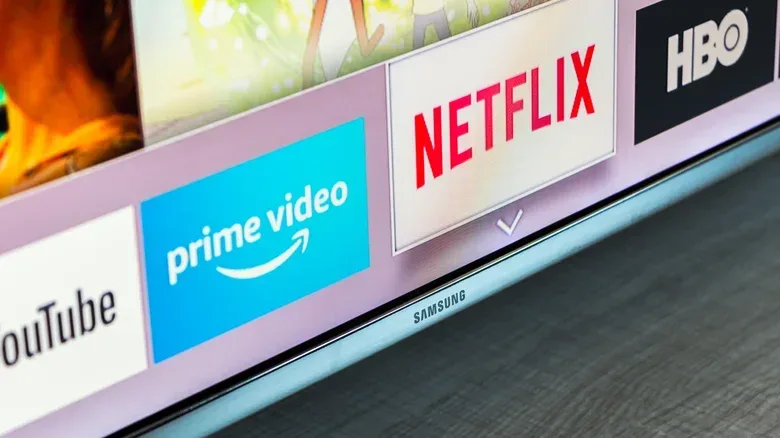

A Samsung Smart TV can put major streaming services, smaller video apps and self-hosted media tools in one place without requiring a separate streaming stick. That convenience is only as good as the home screen, though. If the app you use every night is buried behind a row of services you never open, the television is adding a few needless remote clicks to every viewing session.
The useful part is that Samsung’s interface lets owners search for supported apps, install them, pin them to the home screen, move those pins left or right, and remove an app from the home screen or from the TV entirely. The terminology matters: installing puts an app on the TV, while adding to Home or pinning places a shortcut where it is easier to reach. Those are related actions, but they are not necessarily the same action.
Controls can differ slightly across Samsung TV generations, particularly when opening the menu for an existing app. The basic workflow remains straightforward: start on the home screen, search or browse for an app, install it, then use the app’s context menu to pin or reposition it.
What may already be on the TV
Samsung Smart TVs commonly arrive with apps such as Netflix, YouTube, Disney+, Prime Video and Apple TV already present. That should not be treated as a fixed checklist. App availability can vary by region, so a service visible on one TV may not appear on another even if both are Samsung sets.
Preloaded software is convenient, but it is not a limit on what the TV can do. The apps menu and the built-in search function are the starting points for services that were not included during setup. This can include other streaming options or a self-hosted media-server app such as Plex. In practical terms, a self-hosted media server is software that organizes media from a user’s own collection and makes it available through a compatible app on the television.
There is still a boundary: an app must be supported by Samsung Smart TVs and available in the TV’s region. Searching for an app and receiving no result does not automatically mean there is a problem with the remote or setup. It may simply be unavailable locally, unsupported on Samsung’s platform, or restricted by Samsung. Some Smart TV apps have been publicly banned by Samsung.
How to find and install a new app
- Open the TV’s home screen.
- Use the remote to select the search bar at the top of the screen.
- Enter the name of the app you want.
- Select the app’s icon from the results, if it appears.
- Choose the option to install it.
Search is the efficient route when you know exactly what you want. It avoids scrolling through a broad catalog and is especially helpful when the app’s name is distinctive. If you are instead looking for something new to watch, visit the TV’s apps menu. Available apps can be browsed there by category.
Once installation completes, the TV should present a button that adds the new app to the home screen. Selecting that option immediately is the quickest way to make a new download part of the regular interface rather than leaving it in the fuller apps catalog.
Related coverage includes How to Add, Pin and Rearrange Apps on a Samsung Smart TV.
If the app does not appear in search
First, be precise about the name entered in the search field. If it still does not appear, the meaningful possibilities are limited: the app may not be offered in the region, may not support Samsung Smart TVs, or may be among apps Samsung does not permit. Repeating the search will not resolve a platform or regional availability restriction.
That distinction is useful when deciding whether an external streaming device is necessary. A smart television can reduce the need for another box or stick, but it does not guarantee access to every app. For a broader look at the separate question of when a streaming-device upgrade is worthwhile, see how long a new Apple TV 4K could last and when an upgrade makes sense.
Pin an installed app to the Samsung home screen
It is easy to leave the post-install screen and realize later that the app is not visible among the shortcuts you normally use. There is no need to install it again. Return to the apps menu from the home screen, locate the installed app, and press and hold on it with the remote. The resulting menu includes an option to add to Home.
Pinning is best understood as placing a shortcut in the TV’s high-traffic area. It makes sense for services that are used often, while less frequently used apps can remain available in the apps menu without consuming prominent space on the home screen. This is a small organizational choice, but it can make the interface feel considerably less cluttered for households using several services.
- Install: download the app to the TV.
- Add to Home / pin: put the app on the home-screen row for faster access.
- Move: change the app’s position in that row.
- Remove from Home: take away the home-screen shortcut.
- Delete: remove the app itself from the TV.
The final two actions should not be treated as interchangeable. Removing an app from Home is an organization decision; deleting it is a software-removal decision. The same context menu is used for both, so read the selected action before confirming it.
Rearrange apps so the first row matches your habits
After pinning apps, move the most-used ones closer to the position you naturally reach first. On the home screen, highlight the app you want to reposition and press and hold the remote’s select button. This opens an app menu. Choose Move, then slide the app left or right to its new place.
Older Samsung TV models can use a different input to bring up that menu. If holding the select button does not open it, try the remote’s down key while the app is highlighted. The aim is the same in either case: open the options attached to that particular app, then select the Move setting.
A simple ordering strategy prevents a home screen from becoming a second catalog to search through:
- Put the one or two services used most often at the front.
- Keep frequently used video sources near each other, such as a primary subscription service and a media-server app.
- Place occasional-use apps farther along the row.
- Review the order after adding several new apps rather than allowing installation order to dictate the layout.
This is not a feature that changes video quality, subscriptions or regional availability. It changes navigation. The benefit is fewer directional presses and less visual scanning when the TV is being used casually.
Remove a shortcut or delete an app
The same menu used to move an app also offers removal choices. If you only want a cleaner home screen, select the option that removes the app from Home. If you no longer want the app installed, use the deletion option instead.
Before deleting, consider whether the issue is really placement rather than the app itself. An app that is used occasionally may be better removed from the home screen while kept in the apps menu for later. Conversely, if the app is no longer useful, deletion is the clearer choice.
A quick troubleshooting checklist
Most snags in this process are navigation or availability issues rather than complicated technical failures. Work through the following checks:
- Cannot find an app: search by name, then remember that availability can depend on the region and Samsung support.
- Installed app is not on the home screen: locate it in the apps menu, press and hold it, then select Add to Home.
- Cannot open the app options menu: press and hold select; on an older model, try the down key.
- Want to change an app’s position: open its options and choose Move, then slide it left or right.
- Want less clutter without uninstalling: remove the app from Home rather than deleting it.
The key is to treat Samsung’s home screen as a customizable launch area, not an unchangeable list. Search and installation handle access to supported services; pinning and moving decide how quickly those services can be reached. Once those steps are separated, adding a new app or cleaning up an overfull row becomes a routine remote-control task rather than a settings scavenger hunt.