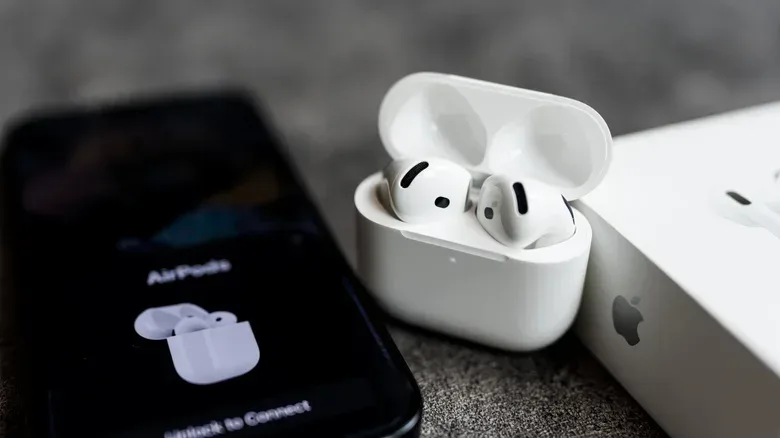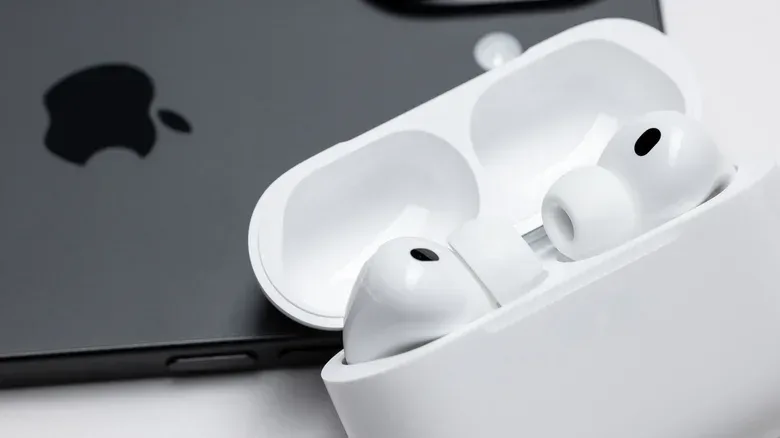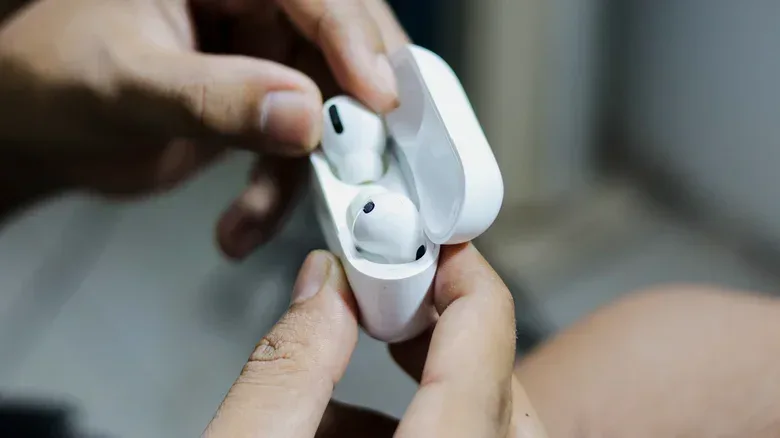
When AirPods refuse to connect to an iPhone, the symptom is usually simple: no sound, no pairing card, or earbuds that appear to have vanished from the Bluetooth list. The cause is not always simple, though. A flat case, a disabled Bluetooth radio, an audio-output selection, a handoff to another Apple device, old software and a genuine hardware defect can all produce roughly the same frustrating result.
The useful approach is to start with the checks that are quick, reversible and most likely to reveal what is actually wrong. That avoids jumping straight to a reset when the AirPods merely need power, or assuming the earbuds are broken when they have quietly switched to a Mac or iPad.
First, separate “not connected” from “connected but not playing”
These are related problems, but they should be handled differently. If the iPhone cannot see the AirPods at all, attention should go first to charge, Bluetooth and pairing. If the iPhone shows the AirPods as connected but audio is still coming from the handset or another device, check the audio-output control and automatic switching before doing anything more drastic.
Bluetooth is the short-range wireless connection the iPhone uses to communicate with AirPods. It must be enabled before the phone can find or connect to them. Pairing is the setup process that establishes a recognized connection between the devices. Audio output is the destination chosen for sound after a connection exists. A Bluetooth connection alone does not guarantee that an iPhone is currently sending music, game audio, podcasts or calls to the earbuds.
That distinction matters because it gives each step a purpose. A missing AirPods entry points toward detection and pairing. An entry that is present but silent points more strongly toward output routing, a switching issue or a charge problem with one earbud.
Start with power: the case matters as much as the earbuds
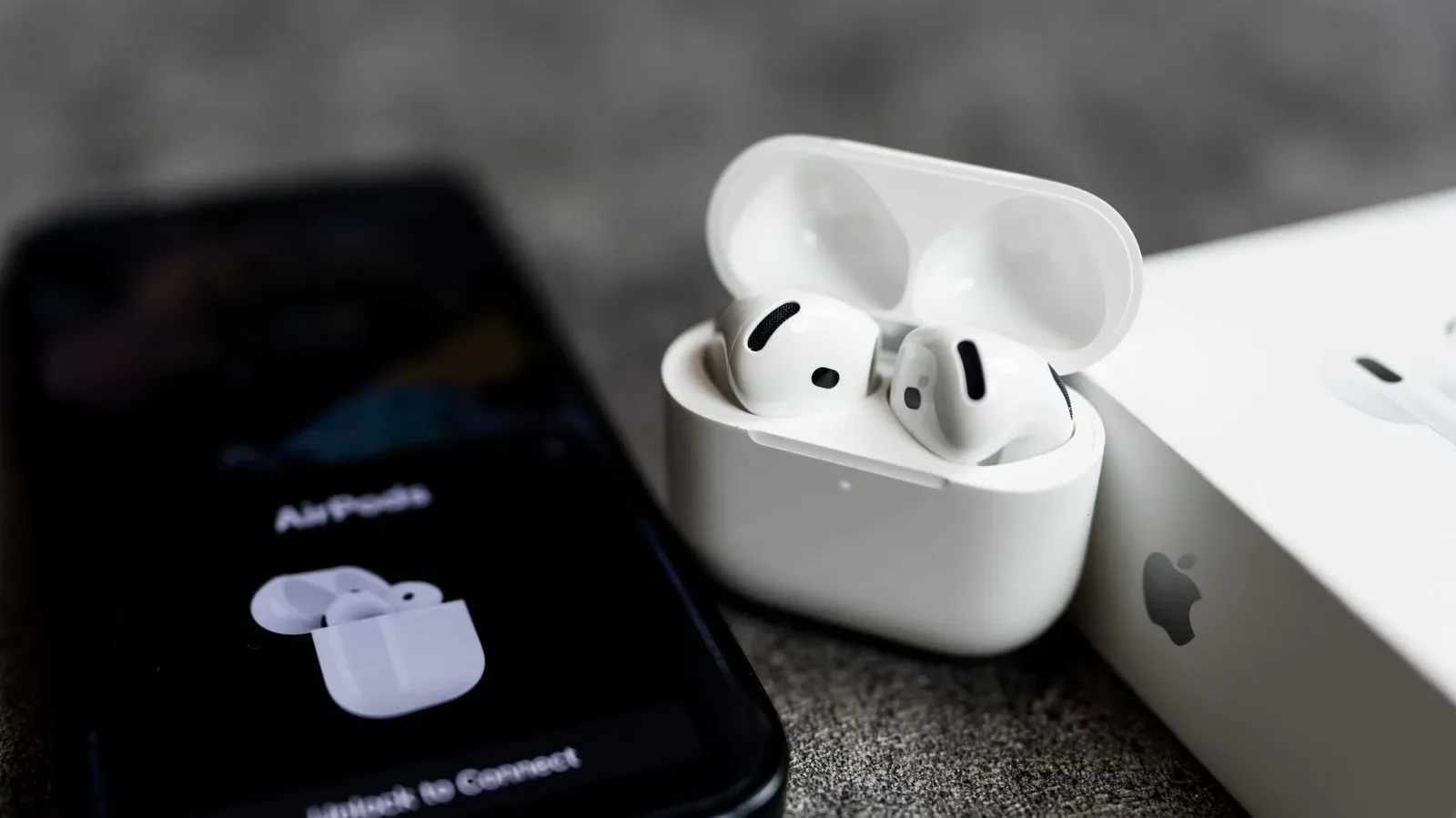
AirPods will not appear for an iPhone to connect to if the earbuds or their charging case are fully drained. In that state, there may not even be a low-battery warning. The absence of a pop-up should not be taken as proof that the case and earbuds have enough power.
Put both earbuds in the case, connect the case to power and leave it for a few minutes. Look for an indicator light and then try the connection again. This is the lowest-effort check and it addresses a failure that can otherwise masquerade as a Bluetooth problem.
Charging also depends on physical contact. Dirt or earwax on the earbuds’ charging contacts can stop an AirPod from receiving power even while it is sitting in the case. That is particularly relevant when one side works and the other does not: the apparently dead earbud may simply not be charging. Carefully clean the AirPods and the case contacts with a soft cotton swab, then place both earbuds back in the case and retry after charging.
Related coverage includes AirPods Won’t Connect to Your iPhone? Try These Fixes First.
Cleaning is a troubleshooting step, not a cure-all. Its value is that it helps rule out a basic connection between each earbud and the charging case. If there is no improvement after the AirPods have been charged and the contacts cleaned, move on to the iPhone-side checks.
Confirm Bluetooth, then choose the correct output
On the iPhone, open Settings, select Bluetooth and make sure the Bluetooth toggle is on. With the AirPods in your ears, check whether they appear in the Bluetooth device list. If they do, tap their name to connect.
Next, inspect the audio destination in Control Center. In the media controls, use the AirPlay button to view the available output devices and select the AirPods. This is the key step for the common situation in which the earbuds are paired but the iPhone is still directing sound somewhere else.
It can help to think of Control Center as the iPhone’s routing panel. The AirPods may be available, but playback will only reach them when they are selected as the active destination. Checking that menu is more targeted than repeatedly opening and closing the case, because it tests whether the issue is really sound routing rather than pairing.
Automatic switching may have sent your audio elsewhere
AirPods associated with the same Apple Account can automatically move among an iPhone, iPad and Mac based on which device begins playing audio. The feature is intended to remove manual reconnecting, but it can be confusing in a multi-device setup. A notification or other sound on a Mac may be enough for the AirPods to leave the iPhone.
When the earbuds seem connected to the wrong Apple device, start playback again on the iPhone. Pressing play on the iPhone can bring them back. Then confirm the selected output in Control Center rather than assuming that the most recently used device still has the connection.
This is also a useful explanation for intermittent problems. If the AirPods work normally when no nearby iPad or Mac is active, but behave unpredictably when several devices are awake, automatic switching is a more plausible suspect than an immediate hardware failure. The practical implication is straightforward: check where the audio went before resetting the earbuds and rebuilding the connection.
Software can affect connection reliability
AirPods receive firmware updates that can include feature additions and bug fixes. The iPhone’s iOS version matters too. Older firmware or iOS may contribute to connection trouble, so update checks belong in the middle of the process: after charge and basic Bluetooth checks, but before assuming the hardware needs replacement.
For the iPhone, go to Settings > General > Software Update and look for an available iOS update. Software support is not merely about new features; it can also determine whether devices continue to receive fixes that keep an ecosystem working reliably. That broader support question is also visible in the consequences of a smartwatch missing a major software update, even though it concerns a different platform.
For the AirPods themselves, open their menu in the Settings app and scroll to Version to view the installed firmware version. Compare it with the current firmware version listed by Apple. If an update is needed, connect the AirPods to power and allow about 30 minutes for the update to happen automatically.
There is an important practical limitation here: firmware updating is not presented as a manual button press. The supplied process is to charge the AirPods and wait. That makes it sensible to perform this step when you do not immediately need the earbuds, rather than treating it as an instant repair during a call or commute.
Re-pair only after the simple checks fail
If Bluetooth is on, the AirPods are charged, output has been selected correctly and the problem persists, reset and re-pairing is the next escalation. This process clears the existing pairing state so the iPhone can establish a fresh connection. It is more disruptive than choosing an output device, which is why it should not be the opening move.
Older AirPods with a rear case button
- Place both earbuds in the charging case.
- Open the lid.
- Press and hold the button on the back of the case for roughly 15 seconds.
- Follow the instructions that appear on the iPhone to complete pairing.
AirPods 4, AirPods 5 and AirPods Pro 3
- Place both earbuds in the case and open the lid.
- Double-tap the front of the case until the light turns white.
- Double-tap again when the light flashes white.
- Double-tap a third time when the flashing becomes faster.
- Use the iPhone’s on-screen instructions to finish pairing.
AirPods Max
For AirPods Max, press and hold the Digital Crown and the ANC button together for about 15 seconds, then complete the pairing steps on the iPhone. ANC means active noise cancellation, the feature designed to reduce surrounding sound.
Model-specific instructions matter. The case interaction for newer earbuds is not the same as the rear-button method used by older models, while AirPods Max have neither an earbud case nor that rear control. Identify the hardware first, then use its matching reset procedure. Using the wrong sequence can make a working device look unresponsive when the real issue is simply that it never entered pairing mode.
When the issue is more likely to be hardware
A hardware problem becomes more credible once the basics have been ruled out: the case and earbuds have been charged, contacts have been cleaned, Bluetooth is active, the correct audio output has been selected, automatic switching has been considered, software has been checked and a reset/re-pair has been attempted.
At that point, contacting Apple Support to discuss a replacement is the sensible next step. A replacement may be free when the AirPods remain within the one-year warranty or are covered by an AppleCare+ plan. That does not guarantee a replacement in every case, but it establishes the relevant coverage routes before paying for any service.
A compact order of operations
- Charge the case and both AirPods; look for an indicator light.
- Clean charging contacts gently with a soft cotton swab if one or both earbuds do not appear to charge.
- Turn on Bluetooth in iPhone Settings and try connecting from the Bluetooth list.
- Use the AirPlay control in Control Center to select AirPods as the audio output.
- Consider whether the AirPods automatically switched to a nearby iPad or Mac; start playback on the iPhone again.
- Check for iOS and AirPods firmware updates, allowing time for the AirPods to update while charging.
- Use the reset and re-pair sequence that matches the specific AirPods model.
- Contact Apple Support if the failure persists, particularly if coverage may apply.
Most AirPods connection issues are not mysterious once the failure is narrowed down. Power, wireless detection, output selection and device switching each leave different clues. Following that order turns a vague “they will not connect” complaint into a manageable set of checks—and helps reserve a support request for the cases that truly need one.