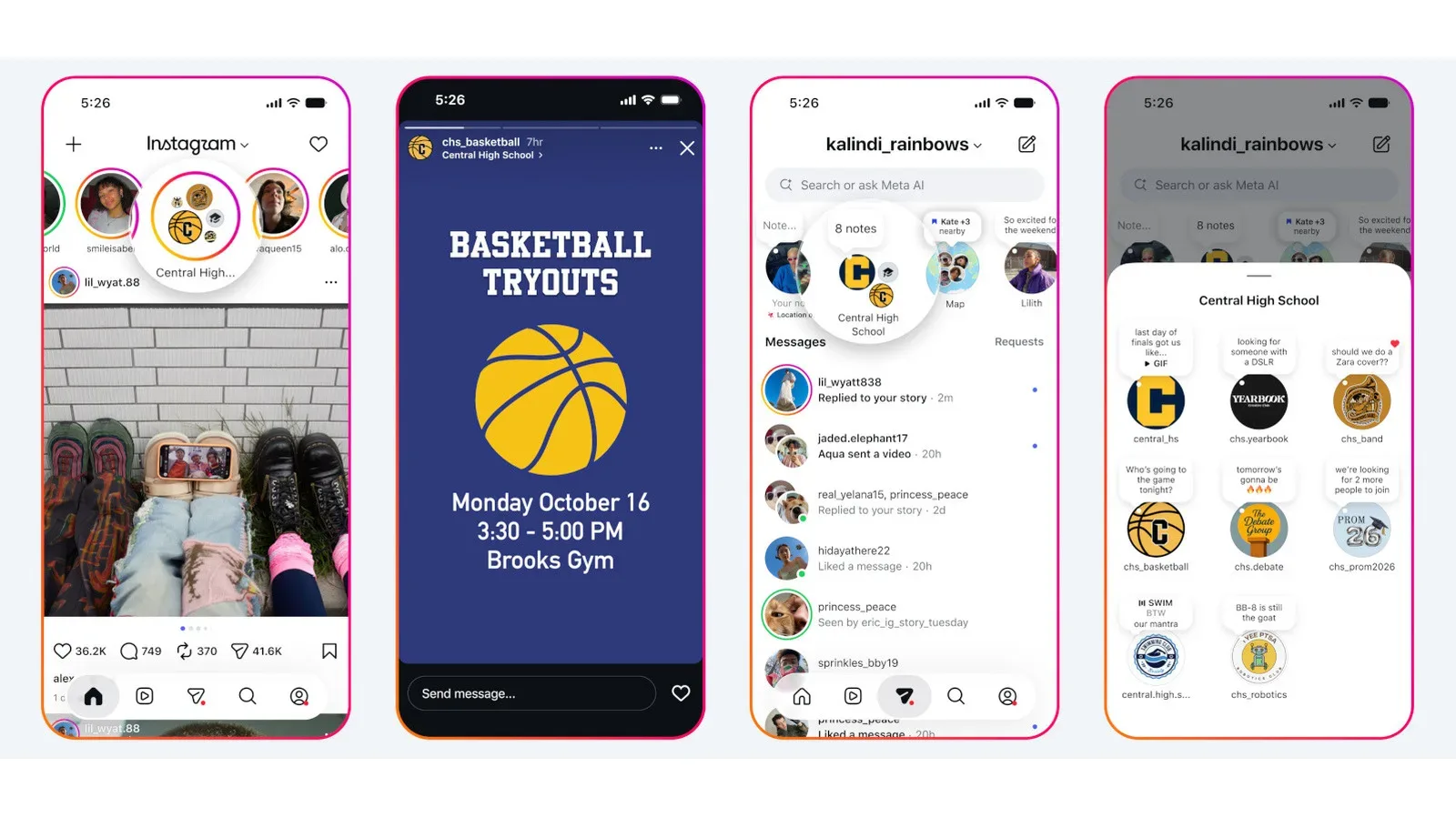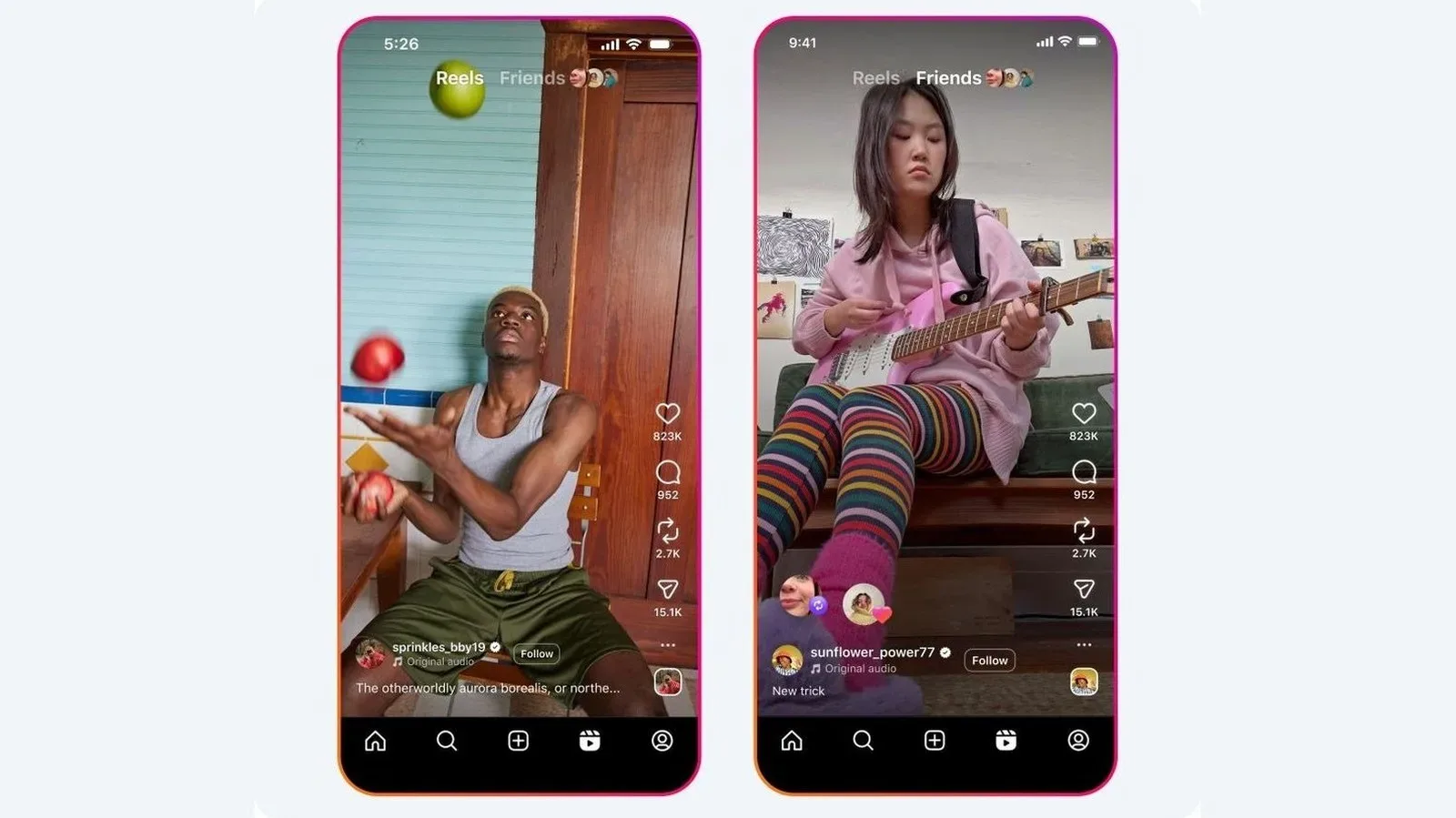
Instagram’s two curved arrows are a deceptively small button with a fairly big social consequence: they let someone put an eligible public post or Reel in front of their own followers without pretending they made it. In a feed built around clips, screenshots, art, game highlights, guides and jokes that travel quickly, that distinction matters.
A repost is not a new upload and it is not the same thing as adding something to a Story. It is an in-app reshare that preserves the connection to the original account. For the person reposting, it offers a way to build a visible selection of things they want their audience to see. For the person who created the post, it provides attribution alongside the possibility of reaching more people.
It is also easy to trigger by mistake. The repost control sits beneath posts and Reels alongside familiar engagement buttons, so knowing where reposts appear and how to reverse one is useful before the accidental “why did I share that?” moment arrives.
What an Instagram repost actually is
The repost feature allows an account to reshare a public post or Reel from another account to its followers. The icon is the pair of curved arrows found under the content, after the like and comment controls.
Its key feature is attribution. The material remains tied to the original creator rather than being presented as a post made by the person who tapped repost. In practical terms, reposting is amplification: someone is signaling that a post is worth seeing, not taking ownership of it.
This makes reposting different from copying a video, screenshotting an image, or downloading and uploading material again. Those actions can separate a piece of work from its original context. Instagram’s native repost option instead retains a direct line to the account that created it.
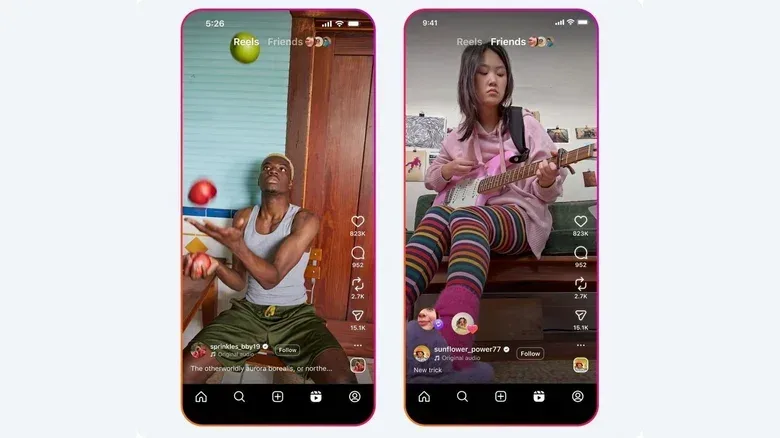
Reposts can surface in followers’ feeds and in the Friends tab within Reels. They are also collected in a dedicated reposts tab on the reposter’s profile. To view that area, open a profile and select the repost icon. That applies to your own profile as well as other profiles.
Repost versus Story sharing
A Story is generally a shorter-lived way to point people toward something. A repost has a more durable profile presence: it is kept in the account’s dedicated reposts area rather than disappearing after 24 hours as a Story does.
That distinction changes the decision a little. A Story can be a quick, temporary recommendation; a repost can function more like a standing record of the posts and Reels an account chose to endorse or collect. Since reposts are visible to all followers, it is worth treating the button as a public action rather than a private bookmark.
Who can repost, and what creators control
Not every post is automatically eligible. The material must be public, and the original creator must have enabled reposting. If that permission has not been granted, other people cannot use the repost feature for that content.
The same control works in reverse. Anyone who publishes posts or Reels can decide whether other accounts may repost them. The setting is found through:
- Open your Profile.
- Tap the menu button.
- Choose Sharing and reuse.
- Under Allow people to share your posts and reels, switch on Reposts on posts and reels.
That setting is a permission control, not a guarantee that content will be shared. Turning it on makes native reposting available for others; it does not force an endorsement or alter who originally created the material.
For artists, video makers and accounts posting game clips, the trade-off is straightforward. Allowing reposts may widen reach while retaining creator credit. Leaving reposts disabled limits this particular route of sharing. Neither choice prevents every possible workaround people might use elsewhere, but it does determine whether Instagram’s own attributed repost tool is available.
How to repost a public post or Reel
Once the original account has allowed reposting, the workflow is short:
- Find the public post or Reel you want to amplify.
- Tap the two-curved-arrows repost icon beneath it.
- If you want, use the thought-bubble option that appears to add a short note.
- Tap Save to complete the repost.
The optional note is useful when the reason for sharing needs a sentence of context: perhaps a warning, a recommendation, or a reaction to a Reel. But it is optional. The central action is still a repost of the original material, with its creator connection intact.
Before saving, consider the audience. Reposts are not a private “save for later” list; they are visible to followers and become part of the repost tab on your profile. The feature can certainly help organize a personal public collection of content you enjoy, but it also communicates a visible association with that content.
How to undo an accidental repost
The proximity of the repost icon to other engagement controls means accidental taps can happen. Fortunately, Instagram provides several routes to remove a repost.
Remove it from the original post or Reel
The quickest option is usually to return to the same post and tap the repost icon again. That reverses the repost.
There are additional removal actions available from the content itself:
- Long-press the post and choose Delete repost.
- For a video, tap the bubble showing your profile picture, then choose Delete.
These are useful when the icon state is not immediately clear or when you want a more explicit confirmation that the repost is being removed.
Clean up several reposts at once
For more than one unwanted repost, use Instagram’s activity controls:
- Go to Profile.
- Open Your activity.
- Select Reposts.
- Tap Select.
- Choose the reposts you want to remove, then tap Delete.
The same general process is available through a browser as well as the mobile app. This is the better route for a deliberate cleanup, such as trimming a repost tab that no longer reflects what you want connected with your account.
Why the feature matters for sharing game and pop-culture posts
For communities built around trailers, speedrun moments, fan art, gameplay discoveries and short-form reactions, the native repost tool creates a clearer chain than simply re-uploading someone else’s work. The account that found a great clip can show it to followers, while the person who made it continues to receive visible credit.
That does not turn reposting into a substitute for judgment. Attribution is valuable, but the audience still sees what an account chooses to boost. A short check of the original creator, the full caption and the surrounding context remains sensible before sharing something widely.
It is also worth distinguishing a repost from a technical problem with the app. If the control does not react as expected, it may be a touch-input issue rather than an Instagram setting; this guide to troubleshooting an unresponsive phone touchscreen covers practical checks for a display that stops registering taps.
A simple rule for using reposts well
Use reposts when you want to publicly recommend or preserve an eligible public post or Reel for your followers, while leaving the original creator visibly connected to their work. Use Stories when the share is meant to be temporary. And use the Reposts section in Your activity when a few stray shares need to disappear.
The two arrows may be only one tap, but the feature is more than a shortcut. It is a public curation tool with creator permission, attribution and profile-level visibility built into the process.