The Plus button beside an iMessage composition field is supposed to be a shortcut, not a tiny digital junk drawer. Yet it is easy for the menu behind that button to turn into exactly that: seldom-used apps sitting in prominent spots while the tools you actually want—photos, location sharing, stickers, voice features, GIFs, music, polls, or another installed integration—require an unnecessary hunt.
The useful bit is that the ordering is not fixed. iPhone users can rearrange the iMessage app list directly from a conversation, then use Messages settings to control whether installed apps appear there at all. That distinction matters. Reordering changes the position of an app in the menu; toggling an app off controls whether it is available as an iMessage app; and deleting an app removes it from the device. They are related cleanup tools, but they are not interchangeable.
Apple has expanded Messages substantially over time, including satellite messaging intended to reach an emergency contact from a remote location and cosmetic options such as customizable backgrounds. The Plus menu is another place where the expansion is felt. Since iOS 18, Messages has included several apps by default, and iOS 27 includes 14 default apps. That breadth can be helpful, but it also means a little personal organization can have an outsized effect on a feature used many times per day.
Open the iMessage app menu first
Start in the Messages app. Open an existing conversation or begin a new one using the compose control, represented by a pencil touching a white square at the lower-right corner of the screen. In the conversation view, tap the Plus (+) button beside the message field.
That opens the full list of available iMessage apps. Think of this list as the menu you are organizing—not the iPhone Home Screen. Moving something on the Home Screen is a separate action and will not, by itself, put a Messages shortcut in the place you want.
It is sensible to check that the iPhone is running the latest iOS before attempting the process. Interface labels and the contents of the default menu can change with system updates, so an older version may not present the same set of choices described here.
How to move an iMessage app where you want it
- Open a conversation in Messages.
- Tap the Plus (+) button next to the message field.
- Find the app you want to move in the available-app list.
- Press and hold its icon until it shrinks.
- Drag the icon to the preferred position in the menu.
- Release it to place it there.
That is the entire fix. There is no need to download a replacement launcher or remove apps merely because their order is inconvenient. The most practical approach is to reserve the first positions for actions used routinely and move occasional tools farther down.
A simple way to choose the order
There is no universal “correct” layout, because Messages use differs widely from person to person. Still, the menu is most useful when it follows frequency rather than novelty. A person who often coordinates meetups may put location sharing near the top. Someone who trades reactions and media in group chats may favor photos, stickers, GIFs, or music. A user who primarily sends spoken messages may want the audio option within easy reach.
Apps in the menu can support sending locations, recordings, stickers, GIFs, music, photos, and polls. Other apps can broaden that list; ESPN and Venmo are examples of integrations that extend what can be done from Messages. The benefit of a tailored order is not just visual neatness. It reduces the number of taps and the small moments of friction involved in finding a repeated action.
For readers who use an iPhone alongside other Apple-related services, our look at Spotify appearing on Apple’s HomeView through CarPlay mirroring is another reminder that where a feature appears can be as consequential as whether it exists at all. In Messages, the Plus menu is the surface where these integrations become visible and usable.
Adding apps through the Messages App Store
Rearranging existing entries is one thing; installing additional ones is another. To look for more iMessage apps, open Messages and enter a conversation. Tap Plus (+), then select the circular blue App Store icon. From there, browse popular options or search for a specific app.
Tap Get to download an app offered at no up-front charge. If it is a paid app, a price appears instead of the Get button. When you are done browsing, swipe down or tap the Close (X) control to exit the App Store view.
“Free” deserves a little precision here. A free download does not necessarily mean an app is free to use in every respect. Some free apps use in-app purchases, which can increase phone-related spending over time. Before adding an app simply because it appears convenient in a chat, it is worth considering whether it supplies a function you will genuinely use and whether its purchase model is clear.
Control access in Settings without deleting everything
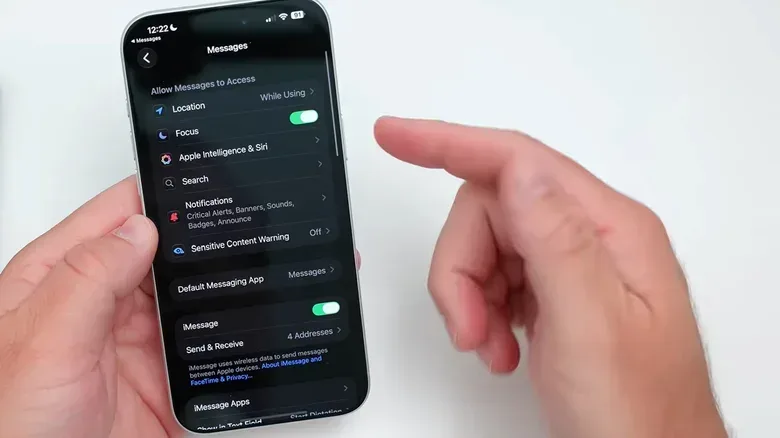
An app does not have to be fully deleted just because you no longer want its Messages component available. Apple provides a dedicated controls area for iMessage apps:
- Open Settings.
- Tap Apps.
- Tap Messages.
- Choose iMessage Apps.
In this section, the app can be toggled on or off. This is the less drastic cleanup option: it lets a user manage an app’s iMessage functionality without necessarily removing the wider app from the iPhone.
The practical implication is straightforward. If an app still serves a purpose elsewhere on the phone but its Messages shortcut is unnecessary, switch off its iMessage presence rather than deleting it. If the app is no longer wanted at all, remove it from the Home Screen instead.
When you actually want to delete an app
To remove an app from the device, press and hold its Home Screen icon until the action menu appears, then choose the red Remove App option. This is the more permanent-feeling choice compared with simply hiding or disabling an integration within Messages.
Before taking that step, it helps to identify the problem accurately:
- The app is useful, but buried: drag it higher in the Plus menu.
- The app is installed but you do not want it in Messages: use Settings > Apps > Messages > iMessage Apps and toggle it off.
- The app itself is unwanted: remove it from the Home Screen.
Using the least disruptive option first protects against removing something that is still needed outside a conversation. It also avoids treating a layout issue as an installation issue.
Privacy and purchase checks are part of customization
Adding a Messages integration is not purely a matter of convenience. It can affect what information is handled in and around conversations, and it can introduce spending prompts. These considerations are especially relevant for apps that connect messaging with AI services or other outside platforms.
In August 2026, OpenAI’s ChatGPT app for Mac added iMessage integration. The feature was useful to some people, while others raised privacy and security concerns. The broader lesson is not that every Messages add-on is unsafe; it is that an integration should be evaluated on its own purpose, permissions, and fit for the conversations where it may be used.
For families, iOS 27’s enhanced parental-control options can help manage in-app purchases under Family Sharing. The Ask To Buy setting is particularly direct: it can require children on the plan to receive confirmation before making an in-app purchase. That is relevant to Messages apps because a no-cost installation can still lead to paid features later.
A tidy menu can therefore double as a modest form of account hygiene. Keep shortcuts for apps you recognize and use, disable the ones that do not need access through Messages, and consider costs and privacy before expanding the list. Convenience works best when it is intentional.
One more Messages control: audio behavior
Customization is not limited to the position of app icons. Apple also allows changes to certain in-app behavior. The audio recording feature in Messages, for example, can be adjusted to cycle between voice note and dictation functions.
The terms describe two different jobs. A voice note is an audio message intended for the recipient to hear. Dictation is for speaking words that are turned into text for the message field. Users who accidentally invoke the wrong mode may find this small option more meaningful than any visual rearrangement.
Ultimately, the Plus menu is a utility panel. Its best arrangement is the one that makes the next action obvious: open a conversation, tap Plus, and put the everyday tools first. Once that is done, Settings supplies the second layer of control for unwanted integrations, while the App Store offers a deliberate route for adding new ones. A few minutes of sorting can turn a crowded list into something that behaves like a personal shortcut bar rather than a default-filled mystery box.