There is a decent chance an iPhone already carries one of the least glamorous but most useful tools in a pocket: a digital tape measure. Apple’s Measure app has been available since 2018, yet it is easy to miss because it lives quietly in the Utilities folder rather than arriving with the fanfare given to cameras, messaging features or new AI tricks.
The app is not a replacement for a real tape measure. That distinction matters. But it can be a genuinely practical way to get a fast estimate when someone is standing in a shop wondering whether a piece of furniture will fit, checking the approximate dimensions of carry-on luggage, or trying to level a shelf or picture frame without first digging through a drawer.
For iPhone owners, the core capability is built in. For owners of Pro models with LiDAR, the same app has a few extra tools intended to make spatial measurements more capable. Android users face a less tidy situation as first-party options recede and third-party alternatives vary widely.
Which iPhones can use Measure?
Measure came preinstalled on iPhone models beginning with the iPhone 6s and the first-generation iPhone SE. If it was removed, it can be downloaded again from the App Store. That means it should be present on a broad range of iPhones, not only the newest hardware.
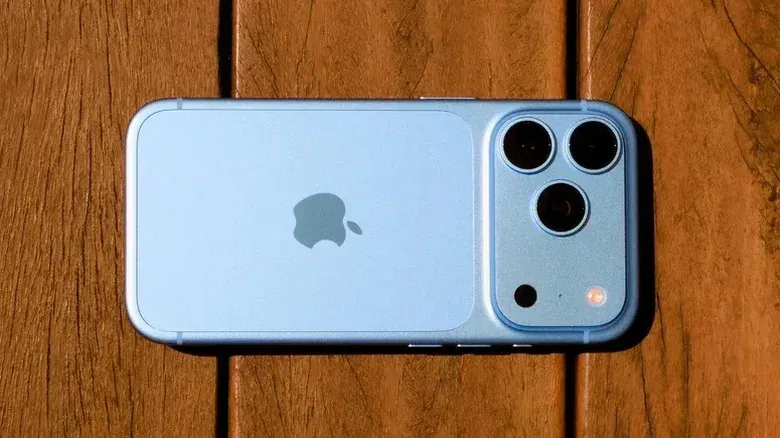
The basic experience relies on the phone’s camera to interpret the scene and place measurement points in it. On compatible Pro iPhones, Apple adds another piece of hardware: a LiDAR scanner.
LiDAR is short for “light detection and ranging.” In this use, the scanner sends out invisible laser light to help determine depth in the space in front of the phone. Put simply, it gives the device more information about how far away surfaces are. Apple introduced LiDAR to iPhone Pro hardware with the iPhone 12 Pro in 2020, and it has remained part of subsequent Pro-series iPhones.
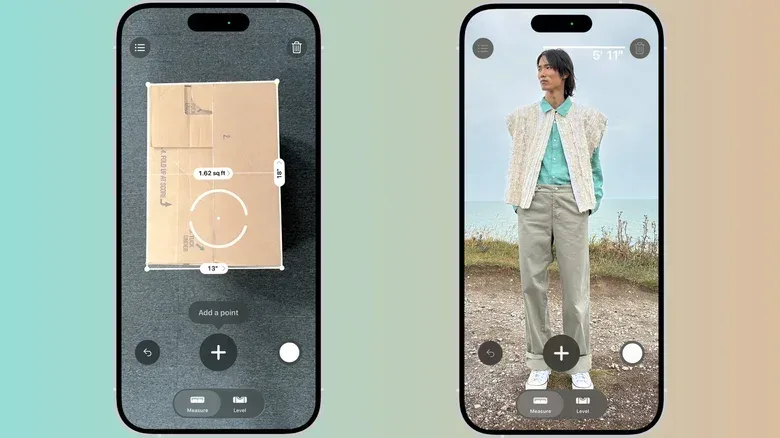
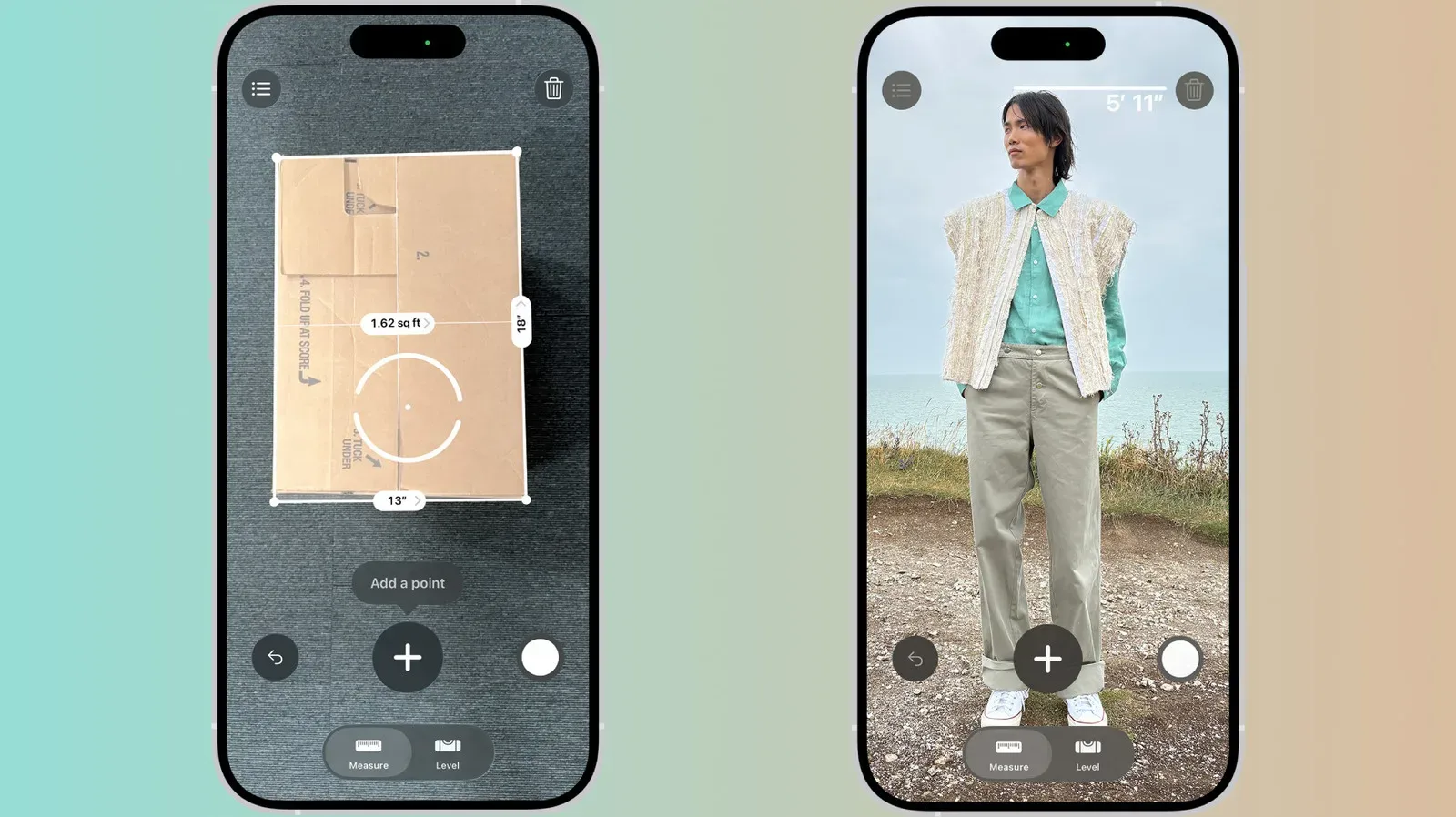
That additional depth information unlocks a more elaborate Measure experience. On those Pro models, the app can provide immediate height measurements for people, offer guide lines that attach to edges, show a close-up ruler-style view with tick marks, and retain a list of measurements taken during the active session.
That session detail comes with an important limitation: the list does not survive after the app is closed. If a dimension needs to be used later, save a screenshot or copy the result into another app before leaving Measure.
Related coverage includes Your iPhone Has a Built-In Tape Measure—Here’s How to Use It.
How to take a quick measurement
Measure first needs to understand the area around the phone. After opening the app, move the iPhone slowly around the scene. This initial motion lets it map the surroundings before a measurement is placed.
- Point the on-screen dot at one end of the object or distance.
- Tap the + button to set the first point.
- Move the camera view so the dot sits at the other end.
- Tap + again.
The estimated length then appears on screen. The process is straightforward, but its usefulness depends on taking a moment to establish each endpoint as carefully as possible. A rough starting point naturally leads to a rough result, which is why this is best seen as a quick spatial check rather than formal measurement work.
There are a few controls worth knowing once a measurement is on screen. The shutter button saves a screenshot to Photos. An undo control reverses the prior step, while the clear button, shown as a trash can, wipes the current work so another measurement can begin cleanly.
Rectangles and the built-in level
Measure does more than draw a single line between two points. When it identifies the edges of a rectangular object, it can display a white outline around that object. Tapping that outline, or tapping the + control, reveals its dimensions. That is especially useful for a quick check of something obviously rectangular, such as a frame, tabletop, box or luggage face.
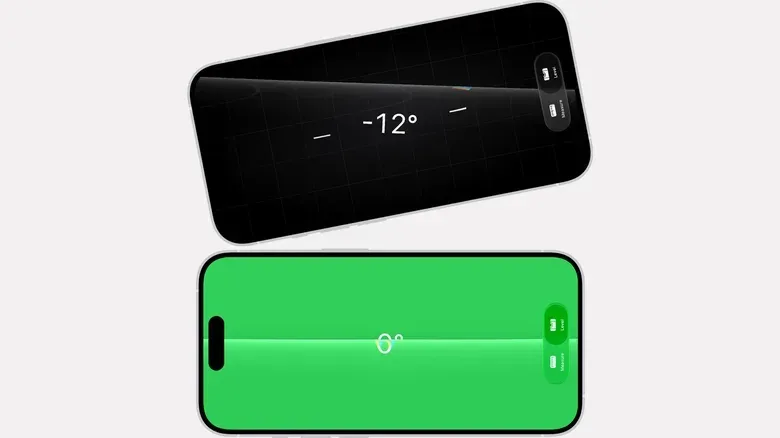
The app also includes a Level tab. This is a different job from measuring distance: it reports whether a surface is tilted and by how many degrees. Lay the iPhone flat against the relevant surface—such as a shelf or a picture frame—and the display indicates the offset.
It can also compare two slopes. Tap the screen to record the first angle, then put the phone against the second surface. Rotate it until the display turns green to match the saved angle. This is a simple feature, but it illustrates why phones can sometimes be handy tools even when they are not the best specialist tools. The device is already nearby, and the task may only require a quick reference point.
Where a phone measurement is genuinely useful
The strongest use case is convenience. At an airport, Measure can provide an on-the-spot check of whether a carry-on bag appears to be within an airline’s size limits. It is not a reason to ignore the airline’s own measuring fixture, but it may prevent a surprise by flagging an obviously oversized bag before reaching the gate.
Furniture shopping is another sensible scenario. A shopper can estimate a chair, table or other item’s dimensions in a store, then compare those results with measurements already taken at home. The result should be treated as a screening tool: it can help decide whether an item is plausibly the right size, while a traditional tape measure should settle the final decision.
More broadly, the app is suited to the little “how big is that?” moments that do not justify carrying a full toolkit. Its value is that a phone is often available when a physical measuring tape is not.
Accuracy: useful estimate, not a final authority
Apple says Measure works best with objects that have clear edges and are roughly 2 to 10 feet away. Those conditions are worth treating as operating guidance, not a footnote. Clear edges give the software a more distinct start and finish for a measurement. Keeping an object within that range also places it in the situation the tool is designed to handle most effectively.
Even within those conditions, there is a sensible dividing line. Use the app for a quick estimate, a shopping sanity check or a casual household task. Use a physical tape measure for work that is expensive, precise or potentially unsafe.
That includes projects where a small error can lead to wasted materials, an incorrect fit or a safety problem. The convenience of software does not change the consequences of a bad measurement. A tape measure remains the better choice when the number has to be definitive.
There is also a practical workflow here: measure a space at home with a conventional tape measure, keep those dimensions available, then use the phone when out shopping to make a fast comparison. The app is most useful when it reduces uncertainty before a more exact check, rather than pretending to eliminate uncertainty altogether.
Android’s shrinking first-party option
The situation is less straightforward on Android. Google previously had its own direct first-party alternative but discontinued it in 2021. Samsung’s Quick Measure app, which was preinstalled on some Galaxy phones, is scheduled to shut down at the end of 2026. It can still be downloaded beforehand, and Samsung says it should continue to work after that cutoff, while also saying it expects to bring the app back at an unspecified point with improved services.
That leaves many Android users looking at third-party apps. The hardware gap is part of the challenge: mainstream Android phones do not include a built-in LiDAR scanner equivalent to the one on iPhone Pro models. Without that depth-sensing hardware, measurement apps work with a more limited set of inputs.
Software choice is another issue. Third-party Play Store options can bring intrusive ads and forceful subscription prompts, turning a simple occasional utility into a more frustrating experience than it needs to be. For someone who wants a dependable tool for occasional real-world checks, a small keychain tape measure may be the more predictable answer.
The broader lesson is not that every phone must become a toolbox. It is that overlooked utilities can have real value when their limits are understood. Measure earns a place in the iPhone’s Utilities folder because it solves a particular problem quickly: getting a reasonable sense of size when the real measuring gear is somewhere else.
For another iPhone feature that can be easy to misread at a glance, see our guide to what CarPlay’s bell icon means.