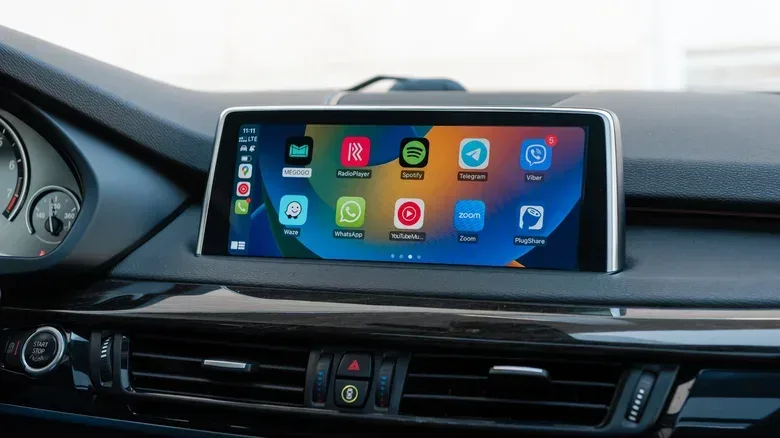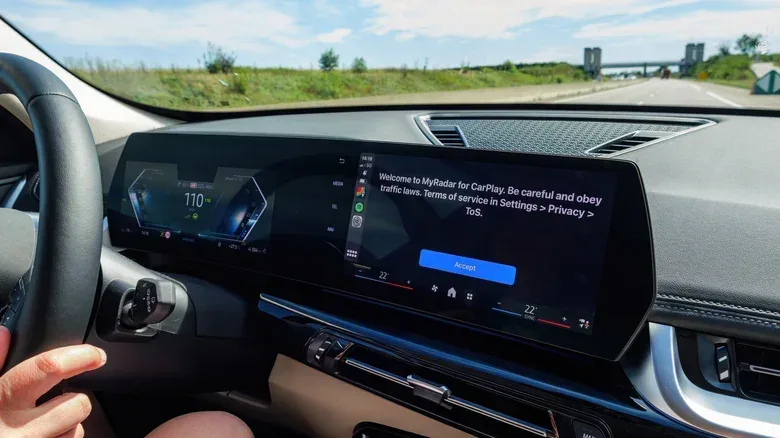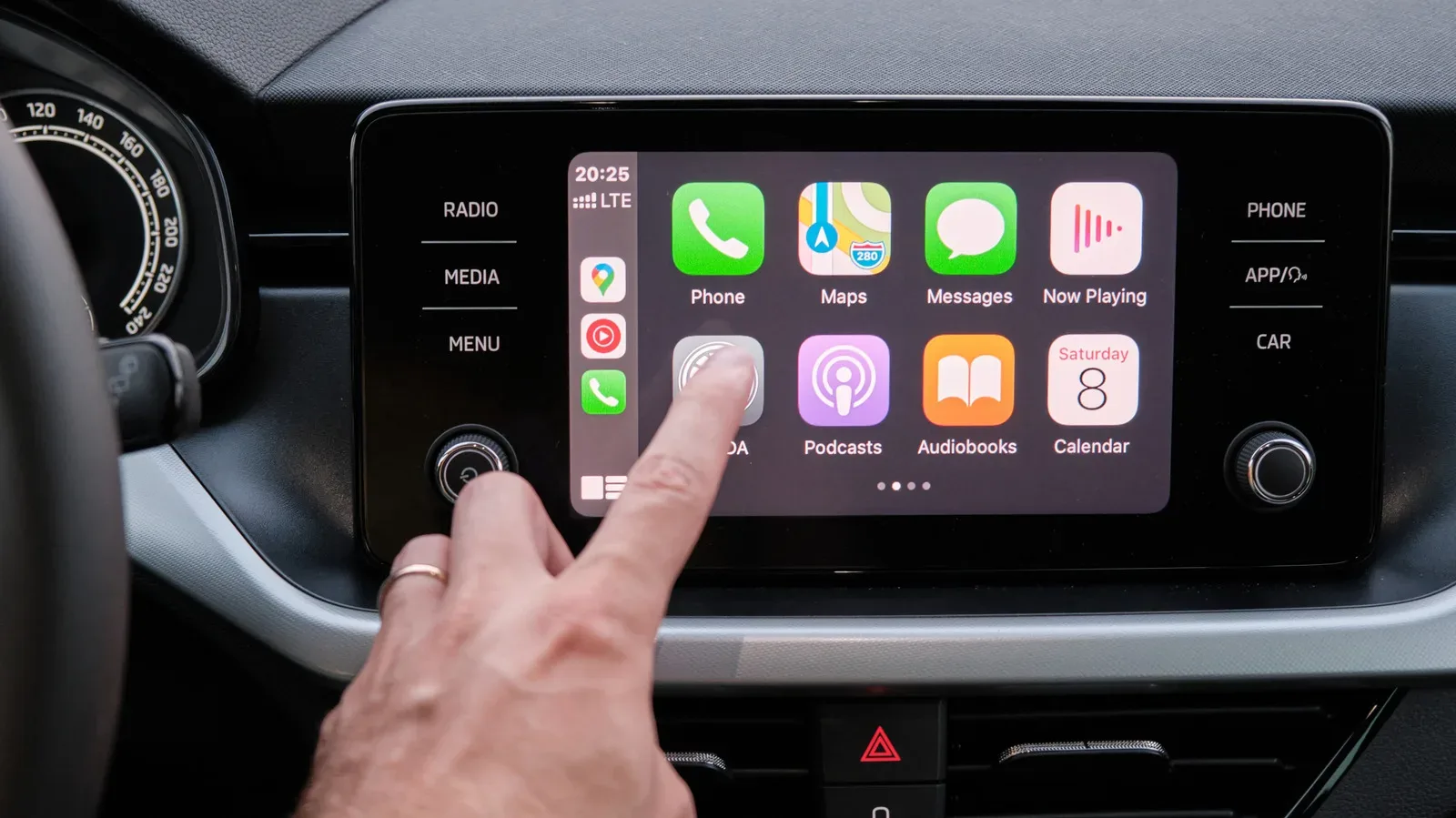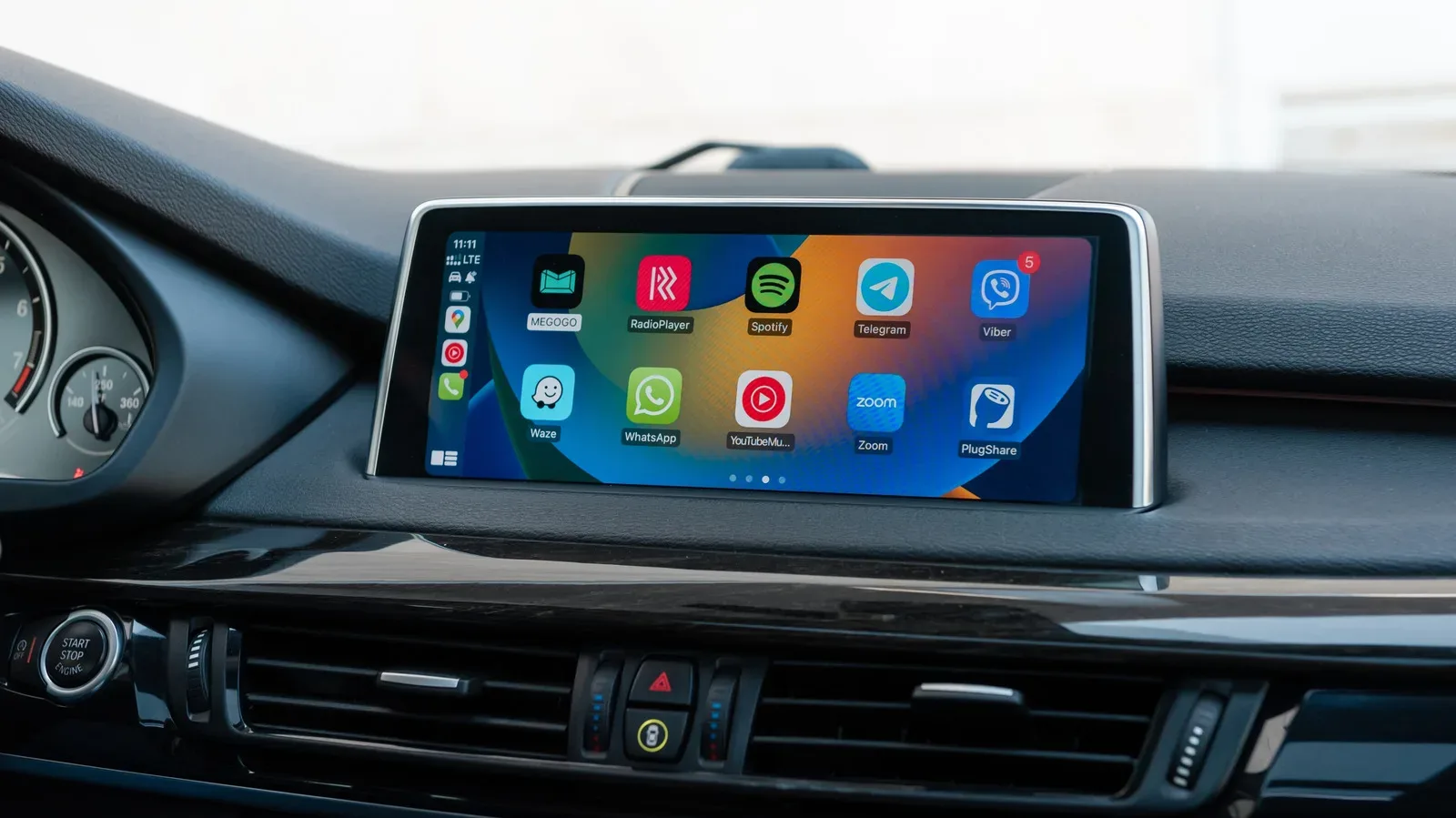
A small bell can appear on Apple CarPlay’s app-switcher panel without much explanation, which makes it easy to mistake for a generic alert indicator. It is more specific than that: the bell means Siri is currently set to automatically announce incoming messages while CarPlay is running.
That is potentially handy. A driver can hear an incoming message without manually asking Siri to read it or picking up the phone after parking. But the same convenience can turn into a string of interruptions if a group chat becomes active, if several apps are permitted to announce messages, or if passengers can hear messages that were meant to stay private. The bell is therefore less a warning that something has gone wrong than a reminder that an audio-notification choice is active.
For CarPlay users, the practical question is not simply whether the icon is on-screen. It is whether the current announcement settings suit the trip, the people in the vehicle and the degree of concentration the drive requires.
What the CarPlay bell is telling you
The bell indicates that Siri will announce incoming messages automatically. This can apply to messages from Apple apps as well as supported third-party apps. Rather than needing a separate Siri request for every arrival, the announcement behavior is enabled ahead of time.
In plain terms, Announce Messages is an iPhone notification feature that speaks messages aloud through the connected CarPlay setup. It is not the same thing as a notification badge, a navigation alert or proof that a particular unread message is waiting. The icon is associated with the automatic announcement setting itself.
That distinction matters because the remedy is not necessarily to clear notifications or restart CarPlay. If the spoken interruptions are unwelcome, the relevant controls are in iPhone notification settings. If the larger problem is that too many people and apps can reach the driver in the first place, Driving Focus is the more comprehensive tool.
How to control message announcements in CarPlay
Use the connected iPhone to find the CarPlay announcement options:
- Open Settings.
- Choose Notifications.
- Tap Announce Notifications.
- Select CarPlay.
With the overall Announce Messages switch enabled, CarPlay offers three behavior choices:
Related coverage includes What the Bell Icon Means in Apple CarPlay.
- Remember Previous Setting keeps the last-used behavior and is the default option.
- Announce makes CarPlay announce incoming messages whenever it is running.
- Silence prevents those automatic message announcements whenever CarPlay is running.
The wording is worth taking literally. “Remember Previous Setting” is useful for people who deliberately change the setting depending on circumstances. “Announce” is the consistent, always-on choice for CarPlay sessions. “Silence” is the consistent choice for a quieter cabin, even if message announcements may be useful elsewhere.
A quick adjustment can solve a one-off situation: a carpool, a passenger who does not need to hear conversations, a long podcast, or a day when a chat is unusually busy. For a lasting setup, however, it is better to review which apps are allowed to announce at all.
Choose apps carefully, not just the master switch
The app list lives in the broader Settings > Notifications > Announce Notifications section. This is where a driver can decide which apps are eligible to have incoming messages announced.
That app-by-app decision is important because not all alerts have the same value during a drive. A direct message from a close family member may be worth hearing promptly. A fast-moving group thread often is not. Shopping and food-service notifications are further examples of alerts that can generally wait until the vehicle is parked.
Reducing the list is often more effective than toggling every notification feature off. It preserves a narrow path for messages a driver genuinely wants to hear while removing the sources most likely to create a needless interruption. It also limits the chance that a conversation from an app such as WhatsApp is read aloud when passengers are present.
There is a privacy component as well as a distraction component. An automatically spoken message is no longer visible only to the intended phone owner; it can become audible to anyone in the car. Before leaving announcements enabled, it is sensible to consider who regularly rides along and what kinds of conversations arrive through each permitted app.
Why Driving Focus is the stronger starting point
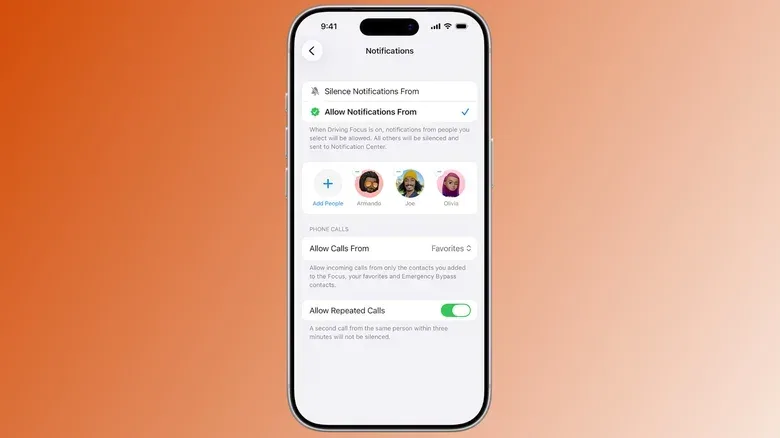
CarPlay’s announcement control governs whether Siri speaks incoming messages. Driving Focus, by comparison, is designed to manage incoming calls and notifications more broadly while driving. The two settings can work together, but they address different layers of the problem.
Driving Focus can be added or customized from Settings > Focus. If a Driving option is already available, select it. Otherwise, use the Plus button to add it.
Once configured, the mode can be set to allow calls and notifications only from selected contacts. It can also send an automatic reply letting particular people—or everyone—know that the driver is occupied. This provides a useful social signal: someone trying to get in touch is less likely to assume they are being deliberately ignored.
There is also an Intelligent Breakthrough & Silencing toggle, which may let notifications considered important come through. That wording deserves some caution. It is a filtering option, not a promise that every meaningful message will arrive or that every interruption that gets through will feel meaningful in the moment. Drivers who want the most predictable setup should decide deliberately how much they want to rely on it.
For automatic operation with CarPlay, scroll within the Driving Focus settings to While Driving and enable Activate With CarPlay. The Focus mode can then turn on and off as CarPlay runs, removing the need to remember a manual switch at the beginning and end of each trip.
A sensible setup for most drivers
The best configuration depends on the driver, but the evidence behind these controls points toward a simple principle: begin with fewer interruptions, then allow only what proves useful.
- Set up Driving Focus and limit allowed contacts to people who may reasonably need to reach you on the road.
- Enable activation with CarPlay so the routine does not depend on memory.
- Review Announce Notifications and remove apps whose alerts do not warrant an audio interruption.
- Pay special attention to group-chat apps, where several ordinary messages can quickly become a disruptive sequence.
- Choose CarPlay’s announcement behavior—remember, always announce or always silence—based on whether spoken messages are helpful for your normal journeys.
This layered approach gives each feature a clear job. Driving Focus determines the broader communication boundary. The app list narrows which services can speak up. The CarPlay bell setting decides whether automatic spoken message announcements occur while the in-car interface is active.
What the bell does not mean
Because CarPlay intentionally keeps the interface simple, small symbols can invite broad interpretations. The bell should not be treated as an all-purpose status indicator for every sound or alert in the vehicle. It is specifically tied to Siri’s automatic message announcements.
It also does not require a permanent choice. The CarPlay controls allow a user to silence announcements for every CarPlay session, force them on for every session, or retain the prior selection. That flexibility is useful, but it also makes an occasional settings check worthwhile—especially after a change in messaging habits, a new app or a shift in who usually rides in the vehicle.
Apple-related settings can increasingly affect the daily experience of devices beyond the phone itself. For another example of how the company’s ecosystem choices can matter after purchase, see our coverage of Apple Store return checks and sealed iPhone boxes.
Keep the road ahead of the conversation
Automatic announcements can reduce the temptation to look at a phone, but hearing every message is not automatically better than seeing none. A podcast or music track being interrupted repeatedly can pull attention away from the task that matters. So can the mental pressure of deciding whether each freshly announced message needs an immediate response.
For that reason, the bell is best viewed as a prompt to check a preference, not as a feature that must stay enabled. A selective list of approved contacts and apps, combined with Driving Focus that starts automatically with CarPlay, gives a driver a more controlled environment. Messages that truly matter still have a route through; ordinary chatter can wait.