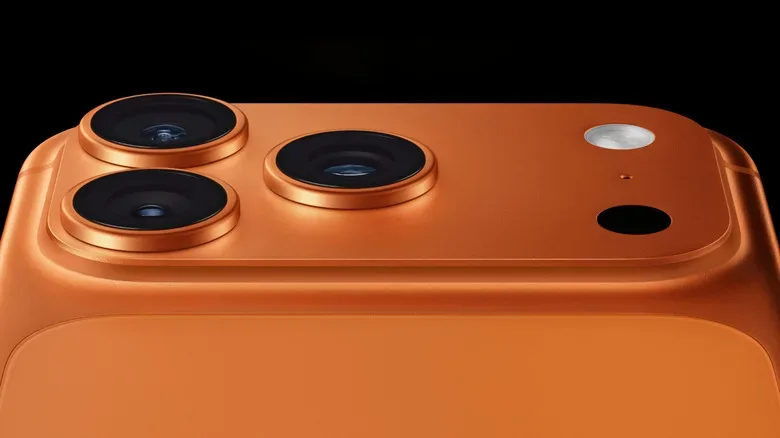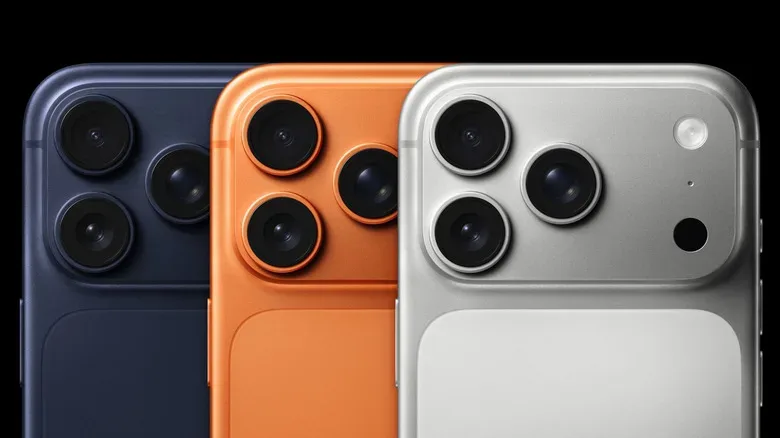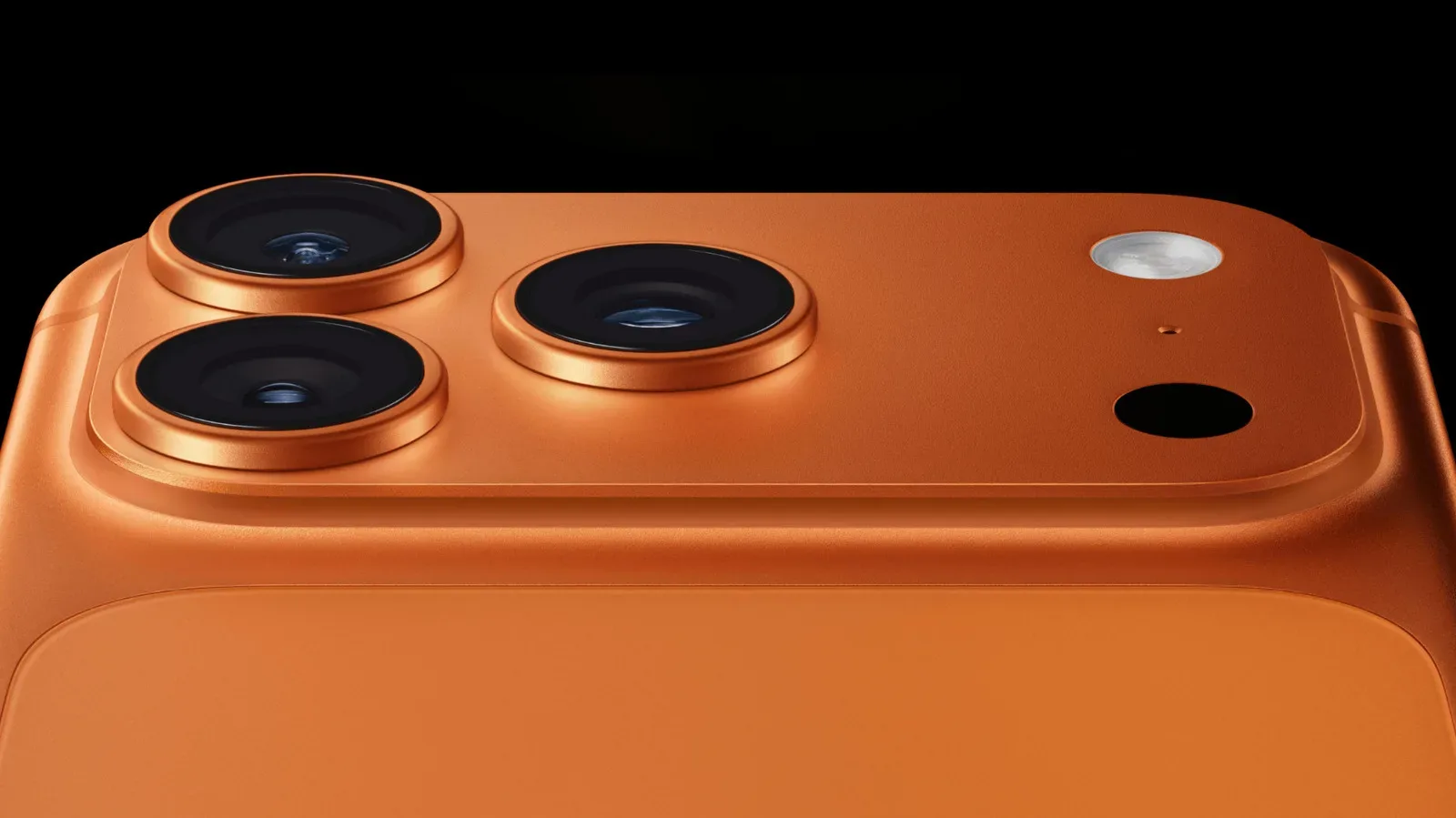
That dark circular component beside the rear camera lenses on certain iPhones is not a spare camera, a flash, or an easy-to-miss decoration. It is the LiDAR Scanner, a depth-sensing tool that lets compatible iPhone Pro models build a better sense of the physical space in front of them.
For players, creators, collectors and generally curious gadget owners, LiDAR is one of those features that can seem invisible because it mostly works in the background. There is no big “turn LiDAR on” button in Settings, nor is there a standalone Apple LiDAR app waiting on the Home Screen. Instead, iOS and apps that support the technology call upon the scanner when they need information about distance, surfaces or the outline of a room.
That quiet approach is also why many people own a LiDAR-equipped iPhone without realizing it. The scanner can contribute to augmented-reality placement, quick measuring tasks, interior scans, camera behavior in dim scenes and some important accessibility tools. It is a small piece of hardware with a job closer to spatial awareness than ordinary photography.
LiDAR, in plain language
LiDAR is short for light detection and ranging. The basic idea is straightforward: the sensor sends out invisible pulses of light, then calculates how long those pulses take to bounce back after reaching nearby objects and surfaces. From that timing, the phone can estimate how far away parts of the scene are and develop information about their shape.
A standard camera is excellent at recording a scene’s appearance: colors, textures, lighting and visible detail. LiDAR adds an estimate of the scene’s geometry. In other words, the cameras help an iPhone understand what it is viewing, while LiDAR can help it understand where nearby physical features sit in relation to the device.
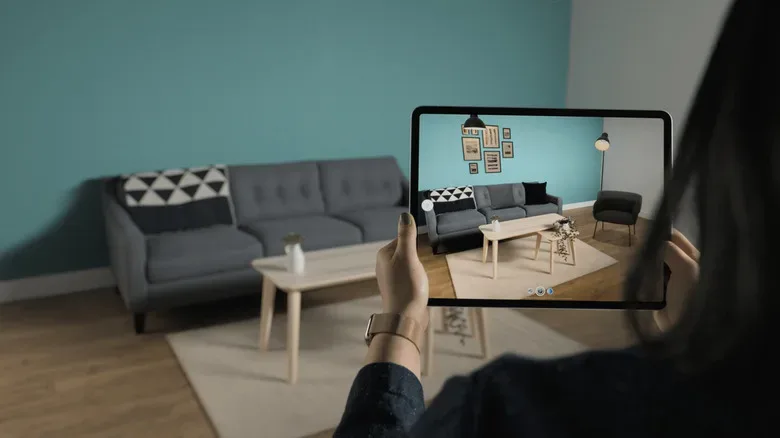
This distinction matters when an app needs to make a virtual object behave as though it belongs in a real environment. A digital chair in a room-design app, for example, is more convincing when it appears to rest on the actual floor rather than hovering or clipping strangely through a wall. In a game or interactive AR experience, more useful depth data can help digital elements sit more naturally among real-world surfaces.
Apple’s ARKit framework can use this spatial information to generate a rough three-dimensional mesh of the surroundings. Compatible software can then recognize broad environmental features such as floors, walls and other surfaces. It is not a magic perfect replica of every tiny detail in a room, but it can give apps a more practical spatial map than camera imagery alone.
Which iPhones include the scanner?
Apple first brought the LiDAR Scanner to iPhones with the iPhone 12 Pro and iPhone 12 Pro Max in 2020. Since that generation, it has remained a Pro-tier feature, appearing on every Pro and Pro Max generation through the iPhone 17 Pro and iPhone 17 Pro Max.
Related coverage includes How to Use LiDAR on an iPhone Pro.
The key word is “Pro.” Standard iPhone models do not include this particular scanner, and neither do mini, Plus, Air or other non-Pro variants. Owning a current model alone is not enough; the specific model name matters.
To check what iPhone you have, open Settings, select General, then tap About. The model name displayed there will establish whether it is one of the eligible Pro or Pro Max phones. Visually, the small dark scanner is also positioned on the rear camera array of supported devices, but checking the device name is the more dependable route.
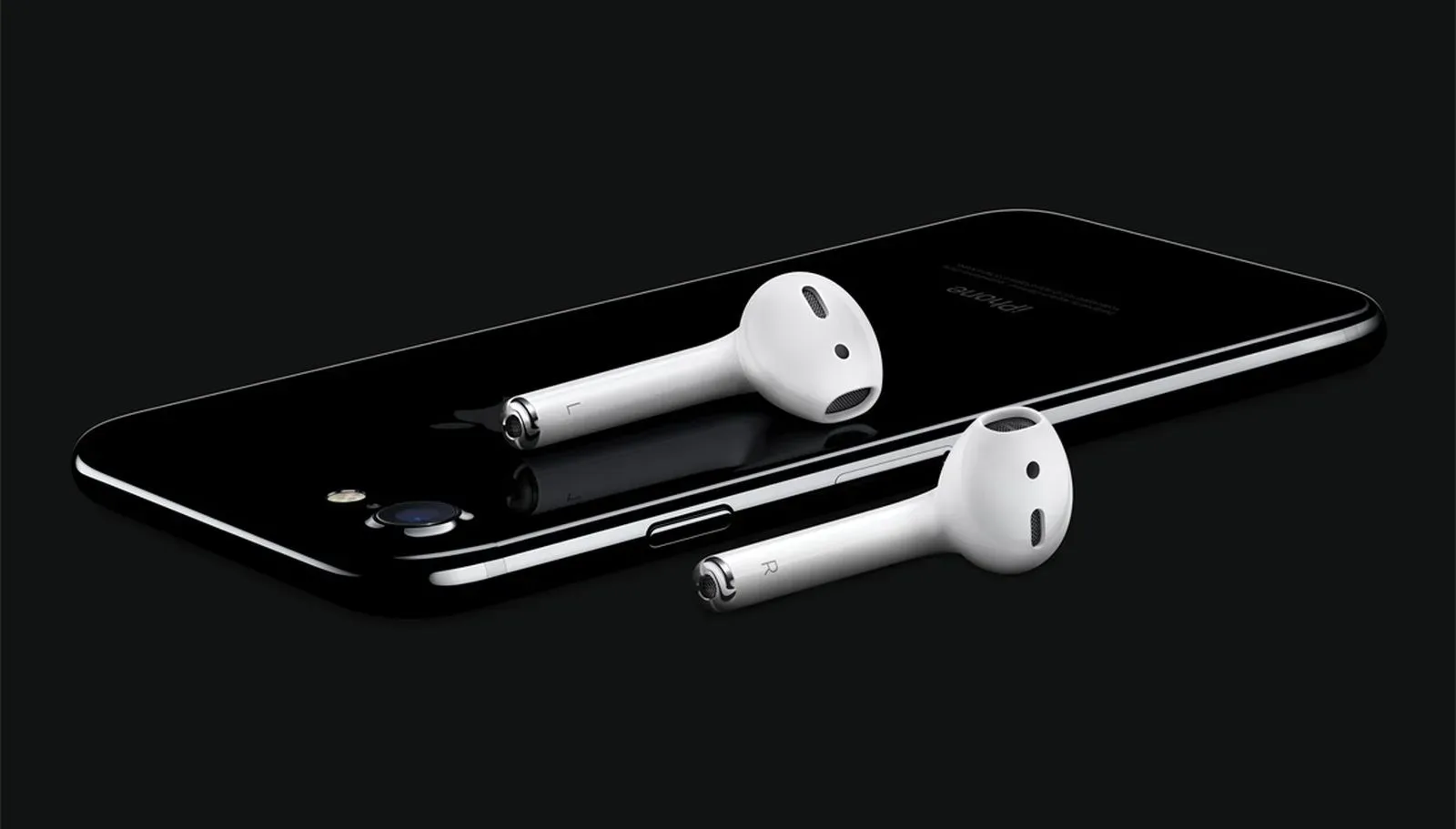
The same idea extends beyond iPhone. Every iPad Pro released from the fourth-generation lineup in March 2020 onward has a LiDAR sensor, where it serves the same broad spatial and depth-detection purpose. Apple’s habit of reserving particular capabilities for premium hardware has long shaped its product range, as seen in the company’s wider device strategy around products such as AirPods and the evolving iPhone ecosystem.
What LiDAR changes for photos and video-related camera behavior
LiDAR is not a replacement for the iPhone camera system. It can, however, assist the camera on supported Pro hardware. Apple uses the sensor for capabilities that include faster autofocus in low-light conditions and Night mode portraits.
Low light makes it harder for any camera to quickly identify and lock onto a subject. Depth information from LiDAR can help the phone judge where subjects and surfaces are even when the scene does not offer much visible illumination. That is the practical benefit: not an extra lens or a completely separate image, but additional data that can support the system’s focus and portrait processing.
It is worth keeping expectations sensible. LiDAR does not guarantee that every dark photograph will be sharp, beautifully exposed or free from movement blur. Lighting, subject motion and the camera’s other processing decisions still matter. Its role is assistance, not a promise that physics has been defeated by a tiny black circle.
Measure is the simplest built-in place to see it at work
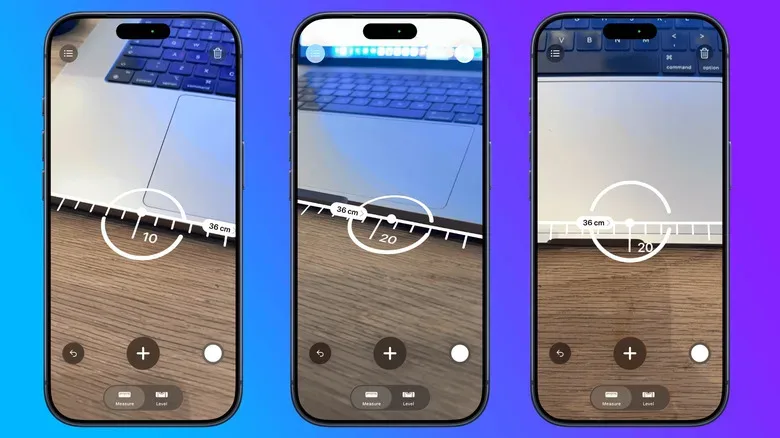
The most approachable way to explore depth-aware features is Apple’s Measure app. Measure is available on iPhones without LiDAR too, so the app itself does not prove that a phone has the scanner. On eligible Pro models, though, LiDAR enables additional conveniences including automatic edge guides and Ruler view.
For a manual measurement, follow these steps:
- Open the Measure app.
- Move the iPhone slowly around the nearby area so it can identify the object or surface.
- Place the center dot over the point where the measurement should begin.
- Tap the Plus or Add control.
- Move the phone until the dot is aligned with the end point.
- Tap Plus again to record the result.
On a LiDAR-capable Pro phone, automatic edge guides can make it easier to identify an object’s boundaries. Ruler view is another helpful presentation mode for suitable measurements. The app can also estimate a person’s height when the person is fully visible in the camera view.
These results should be treated as useful approximations rather than certification-grade dimensions. Measuring a shelf to see whether a game console, display case or framed print might fit is an appropriate kind of task. Planning a construction project, cutting expensive materials or making a decision where a small error could cause trouble calls for a proper tape measure and careful verification.
Room scanning and AR are where depth information becomes more ambitious
LiDAR’s more elaborate applications usually come from third-party apps or developer-built features rather than a single preinstalled control panel. Apps using Apple’s RoomPlan framework can combine camera and LiDAR information to identify features within an interior. Walls, doors, windows, furniture and other aspects of a room can be recognized while the software produces a three-dimensional model.
That creates obvious possibilities for rearranging a gaming setup, mapping a room before moving display furniture, visualizing décor or getting a broad digital outline of a space. The output is a model generated from the app’s interpretation of what it sees, not a substitute for professional surveying or architectural plans. Busy rooms, poor scan technique, reflective surfaces and general visual clutter can all limit what software understands.
Augmented-reality apps are another natural fit. They can use LiDAR depth readings to position digital objects more accurately against the real world. A virtual character can be placed on a floor, an item can be previewed in a room, or an interactive AR scene can have a better grasp of nearby surfaces. The exact behavior depends on each app, so a LiDAR-enabled phone does not mean every AR title or utility will use the sensor in the same way.
Importantly, there is nothing special to activate before opening one of these apps. If the developer has built LiDAR support into its software and the iPhone is eligible, the app can access the scanner when needed.
LiDAR also supports accessibility tools
One of the scanner’s most practical uses is found in Detection Mode inside the Magnifier app on iPhones equipped with LiDAR. This mode can identify nearby people, doors and furniture, then deliver information through audio cues, spoken feedback or haptic feedback.
For people who use these features, spatial information can offer helpful awareness of nearby objects and environmental features. It is a meaningful example of hardware that is often marketed through camera or AR language also being used to support accessibility.
Detection Mode is an aid, not a navigation system or a safety guarantee. It should not be relied upon in circumstances where an inaccurate detection could lead to injury or harm.
That limitation is essential. Sensor results can be imperfect, and phones cannot replace the care, established mobility tools or professional guidance appropriate to a person’s situation.
The useful takeaway for iPhone Pro owners
LiDAR is best understood as a background sensor that gives certain iPhone Pro models a stronger sense of depth. It assists selected low-light camera features, adds capability to Measure, makes room-scanning software more feasible, improves the foundations available to compatible AR apps and powers parts of Magnifier’s Detection Mode.
If you have a Pro or Pro Max iPhone from the iPhone 12 Pro generation through the iPhone 17 Pro range, it is already there waiting for compatible software to request it. Try Measure for a quick, low-stakes demonstration, check out room-modeling or AR apps only when you have a clear use for them, and remember that convenience-grade spatial estimates are not a replacement for precision tools or safety-critical judgment.