AirPods can make surprisingly expressive noises for such small devices. A brief chirp can be a simple low-battery warning. A repeated sound while the case is charging may point to interrupted power. A much louder alert can mean Find My has been activated. And an uncomfortable high-pitched squeal is a different category entirely: it can be associated with debris, moisture damage or an imperfect fit on AirPods Pro.
The useful trick is not to treat every sound as the same alert. The timing, volume and situation matter. Before hunting through settings—or assuming the earbuds have failed—check whether the sound occurs when the case is opened, when Bluetooth changes, while charging, or only while the earbuds are being worn. Those details narrow down what the AirPods are trying to communicate.
Start with the most likely explanation: battery status
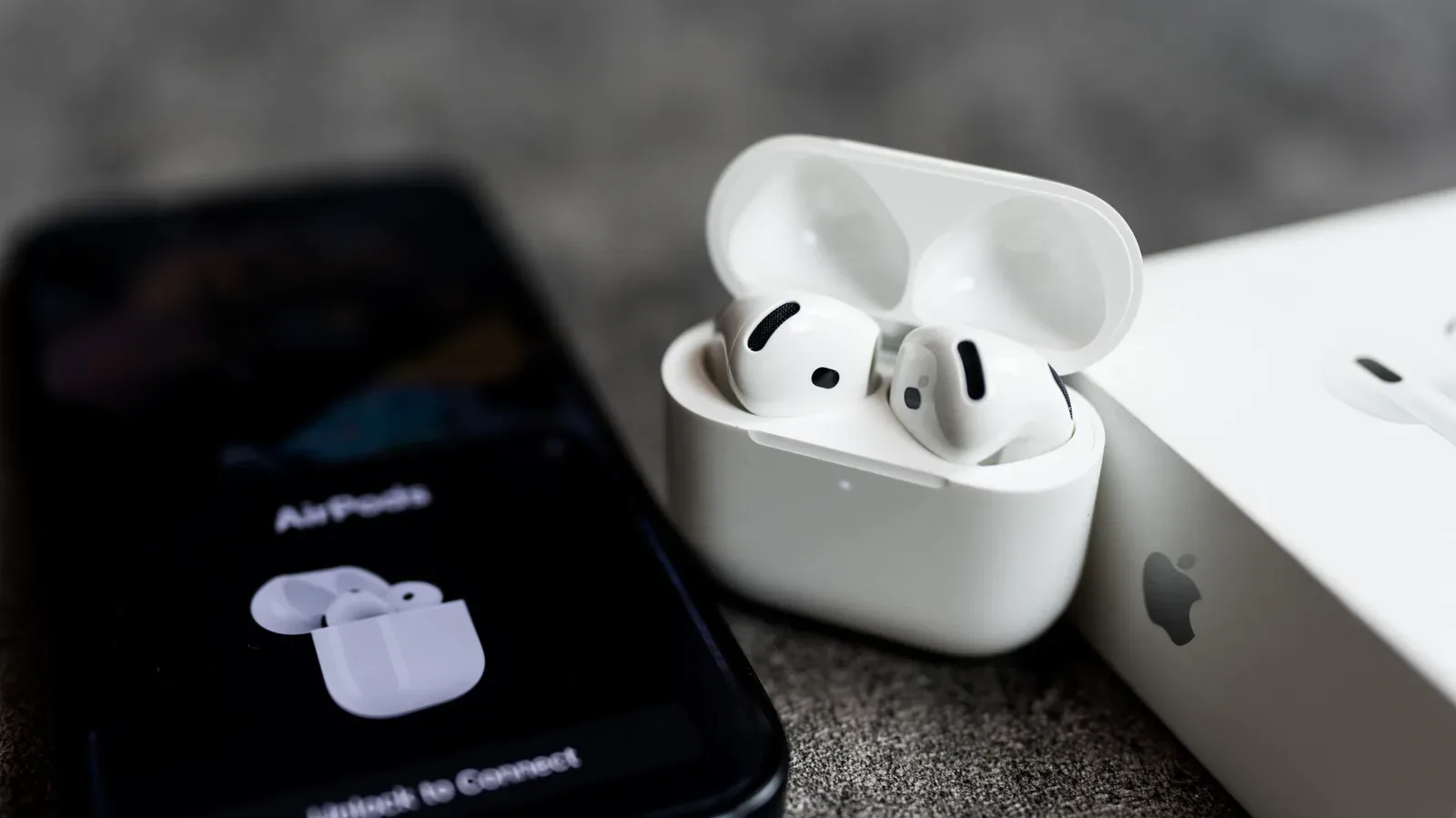
The most common reason for a chirp is a low battery. If the sound arrives around the time the earbuds have been in use for a while, open the AirPods case near the device they are paired with and check the displayed charge status. This is the fastest way to establish whether the alert is a routine power notification rather than a fault.
It is also worth separating the earbuds’ charge from the charging case’s charge. AirPods depend on the case for recharging when they are put away, so a sound that seems to come “from the AirPods” may relate to the case’s own power level or charging state.
If chirping persists even with the case connected to power, the evidence points away from a straightforward low-battery reminder. Interruptions or fluctuations in incoming electricity, along with other battery-related issues, can lead to continued chirping. In practical terms, the important observation is whether the noise happens specifically during charging or continues after the device is connected.
Bluetooth changes can prompt a noise too
Connectivity is another plausible cause. Turning off Bluetooth on the paired iPhone, for example, can lead to AirPods making a sound. That does not necessarily mean the hardware is damaged; it can be an audible response to a change in the connection between the earbuds and the device.
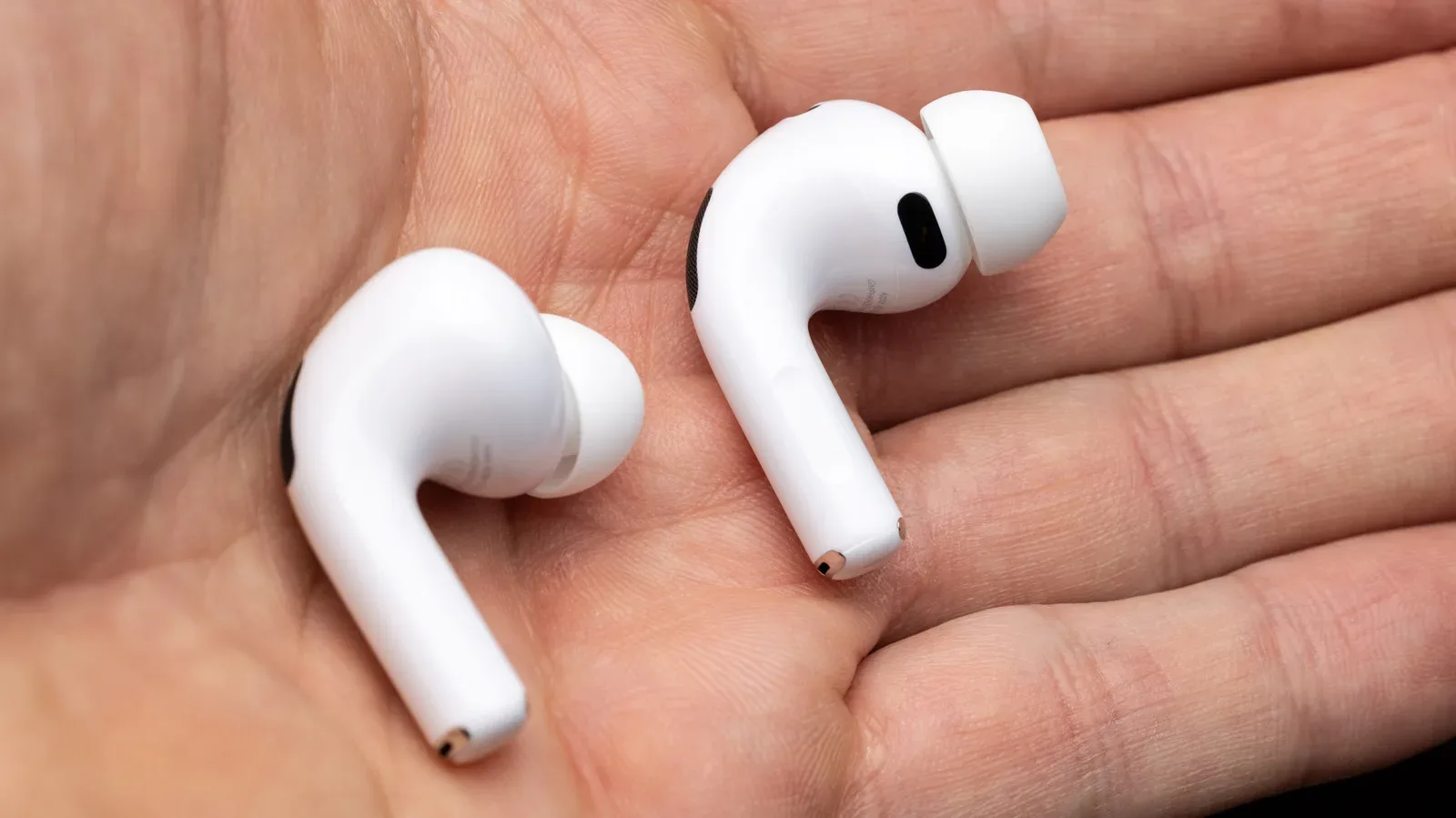
There are also more accidental triggers. Rubbing the AirPods together while they are out of the case may produce a sound. That is a useful reminder to look at the physical moment surrounding the noise rather than only at the phone’s settings. A one-off chirp after the earbuds touch each other is meaningfully different from persistent chirping while they sit untouched in a charging case.
For people who regularly tailor their iPhone interface, settings management is not unusual territory. Our guide to reordering, adding and removing apps from the iMessage Plus menu is another example of controls that are available in iPhone settings but easy to overlook. The AirPods sound option is similarly specific—and it only addresses one particular type of sound.
Related coverage includes Why AirPods Chirp, Chime or Screech—and What You Can Turn Off.
A quiet case chime may be part of Hearing Aid support
Not every chime maps neatly to battery or connectivity. AirPods Pro 2 and AirPods Pro 3 support Apple’s clinical-grade Hearing Aid feature. Apple says these models can occasionally play a quiet chime while in their charging case so their microphones and speakers can be checked and kept operating properly for high-quality hearing test results.
That distinction is important. A periodic, quiet chime from a compatible Pro model in its case may be deliberate maintenance behavior connected to the hearing-related feature, rather than an indication that the charging setup is failing.
“Clinical-grade” in this context describes Apple’s characterization of the Hearing Aid feature. It should not be read as a blanket explanation for every noise an AirPods product can make. It applies to the specified AirPods Pro generations and to the quiet in-case chimes described above. A loud alert, a sudden screech during use, or a sound tied to Find My calls for a different explanation.
When the sound is loud: Find My and feedback are not the same thing
A loud, persistent sound can be entirely intentional when Find My is triggered. The point of that alert is to make misplaced AirPods easier to locate. If someone has initiated a Find My sound, the volume and repetition are features of the locating process, not evidence of a battery problem.
A piercing or high-pitched feedback noise deserves more caution. Feedback is the unwanted loop that can occur when sound picked up by a microphone is amplified and returned into the system in a way that creates a whistle or squeal. With AirPods Pro, the supplied evidence identifies several potential contributors: water damage, dirt or gunk clogging the device, and ear tips that do not fit well enough to create a seal.
The seal is not merely a comfort issue. AirPods Pro include multiple sizes of silicone in-ear tips because ear shapes differ. If a tip does not sit securely enough to make that seal, a high-pitched noise can result. Trying the included sizes is the sensible first move. If none provide a suitable fit, third-party tips may be an option. Taking the AirPods to an Apple Store for inspection is also an option, particularly where moisture damage, blockage or continuing feedback is suspected.
Water damage is a notable dividing line in this troubleshooting list. A menu toggle can stop an optional charging-case sound, but it cannot repair damage from water. Likewise, changing a setting will not remove debris or correct an ear-tip fit. The right response depends on what sort of noise is occurring.
How to turn off charging case sounds
Apple provides a setting for people who do not want the charging case to make its optional sounds. This is the clearest fix when the sound in question is an ordinary chirp or chime from the case—not a Find My locating alert or a high-pitched feedback issue.
- Open the AirPods case.
- On the connected device, such as an iPhone, open Settings.
- Select the AirPods entry, usually named in the format of the owner’s name followed by “AirPods.”
- Open Audio & Routing.
- Find Enable Charging Case Sounds and switch it off.
That setting is targeted: it prevents charging-case sounds. It should not be expected to eliminate every possible noise the earbuds can generate. A Find My alert has a locating purpose; a feedback squeal suggests an issue that should be investigated; and sounds associated with Bluetooth changes or physical contact may have their own triggers.
A practical way to diagnose the noise before changing anything
Because several causes can sound broadly similar from across a room, use a short checklist before deciding that chirping is harmless or serious:
- Check the charge display: Open the case near its paired device. If charge is low, the battery warning is the likely explanation.
- Note whether it happens while charging: Repeated chirps despite being plugged in may be associated with power fluctuations, interrupted electricity or another battery issue.
- Consider the connection state: If Bluetooth was turned off or the paired device changed state, connectivity may be the trigger.
- Identify whether Find My was used: A louder, persistent sound can be the intended locator alert.
- Pay attention to the sound’s character: A sharp squeal or feedback sound, especially when worn, is different from a quiet in-case chime.
- Inspect fit and cleanliness: For AirPods Pro, test the supplied ear-tip sizes and consider whether dirt, gunk or water exposure could be involved.
The main lesson is reassuring but qualified: chirping is often routine, and a charging-case setting can silence one common kind of notification. But a harsh, persistent or high-pitched noise should not be casually grouped with that optional case chime. The sound is a clue. Matching it to the circumstances—battery, charge flow, Bluetooth, Find My, Hearing Aid support, fit or physical condition—gives the best chance of choosing the appropriate next step.