
For many people, Snapchat Memories has quietly become a long-running photo and video archive: old Stories, throwaway jokes that stopped being throwaway, clips from nights out, and years of saved conversations in visual form. That makes a storage cap more consequential than it initially sounds.
Each Snapchat account has 5GB of free Memories storage. Going beyond that threshold requires a paid storage plan, with 100GB starting at $1.99 per month. Reaching the limit does not mean an account’s existing Snaps are immediately deleted, but some Memories may eventually become locked in the app without an upgrade.
The practical alternative is not to panic-delete a personal archive. Snapchat’s My Data system can create a free export of an entire Memories library, without requiring Snapchat+. It is a sensible first move for anyone who wants a copy they control before deciding whether paid in-app storage, phone backups, or an external drive best fits their needs.
What Snapchat’s 5GB limit means in practice
Memories is Snapchat’s cloud-based archive for saved Snaps and Stories. “Cloud-based” means the media is retained on the service’s systems and can be revisited through the app, rather than existing only in a phone’s local photo library.
Convenience is the appeal: an archive remains available in Snapchat rather than being tied to the device used to create a Snap. The trade-off is that storage policy and access are controlled within the service. A separate export gives the account holder a second copy of the underlying photos and videos.
That distinction matters because a backup is not just more storage. It is a recovery option. Once a library has been exported and checked, it can be kept in another location even if the Snapchat archive is later trimmed to remain below the free allowance.
The paid 100GB tier may make sense for people who specifically want their full collection housed and browsable in Memories. But users who mainly want to preserve the media itself can use the free export route, then choose where their copies live.
How to request a complete Memories export
The full-library method uses Snap’s My Data tool and produces a ZIP file. A ZIP file is a compressed folder that packages many files together for downloading. It must be extracted, or unzipped, on a computer before its contents can be browsed normally.
Related coverage includes How to back up Snapchat Memories for free.
In the Snapchat app, follow these steps:
- Open Snapchat and tap the profile icon.
- Tap the gear icon to open Settings.
- Scroll to and select My Data.
- Under the data-selection controls, enable Export your Memories.
- Select Request Only Memories if the goal is a focused media backup rather than an export that also includes chat history or other account data.
- Set the date range to All Time.
- Confirm the email address that will receive the completed-export link, then submit the request.
The same request can be made from a computer by signing in at accounts.snapchat.com, opening the My Data section, and selecting the comparable Memories options.
Choosing “Request Only Memories” is a useful privacy and organisation decision. It narrows the archive to the material being preserved, rather than mixing personal media with unrelated account information. Setting the range to All Time is equally important: a partial range is not a full historical backup.
Expect a wait, especially for a large library
This is not an instant download. Snapchat prepares the archive before making it available, and a larger collection of photos and videos can take a week or longer. That delay is a reason to submit the request early rather than waiting until storage access becomes a pressing problem.
When the export is ready, return to the My Data area, choose See exports, and select Download. Save the ZIP file somewhere with enough room, extract it on a computer, and open the included index.html file in a web browser.
An HTML file is a webpage file. In this case, the index acts as a local gallery or directory for navigating the exported Memories and downloading individual items. It is worth keeping both the extracted folder and the original ZIP until the archive has been inspected. The ZIP is the initial package; the extracted folder is what makes the contents easier to review.
Verify the archive before deleting anything
A backup should be treated as unproven until it has been opened successfully. Check that several photos and videos load, including older items as well as newer ones. Confirm that the relevant folders and files are present. Only after that check is it sensible to consider deleting older content from Memories to reduce usage below 5GB.
This is especially important because the export process has some known rough edges. Exported filenames use timestamps, captions and stickers can appear as separate files, and the gallery can show incorrect dates. Those quirks do not necessarily mean the media is missing, but they can make a very large archive harder to organise.
Some third-party tools say they can correct dates or combine separately exported elements. Treat those claims cautiously. A tool used to process a personal photo library may need access to sensitive media, so its privacy practices and pricing deserve scrutiny before uploading anything or granting permissions.
For a handful of Memories, use Snapchat’s in-app export
Downloading a complete archive is the better route for years of media. For a smaller task—saving standout clips, a particular event, or a few favorite images—Snapchat also offers a direct export option.
- Swipe up from the Snapchat camera to open Memories.
- Press and hold a Snap.
- Tap Export.
Up to 100 Snaps can be exported at a time. That limit makes the feature useful for selective saving, but it is not an efficient substitute for the My Data archive when the objective is a comprehensive backup.
Set future Snaps to save in two places
Exporting the past solves only half the problem. Snapchat can also be configured so new saved Snaps go to both Memories and the phone’s photo library. This creates a second copy at the moment a Snap is saved, which reduces reliance on Memories as the sole archive.
In Snapchat, go to:
Settings > My App > Memories > Save Button > Memories & Camera Roll
After that setting is selected, tapping Save on a Snap stores it in both locations. The arrangement keeps the familiar Snapchat experience while placing a copy in the device library, where it can be handled by the owner’s usual backup routine.
For iPhone users with iCloud Photos enabled, or Android users who use Google Photos backup, media saved to the phone can be uploaded automatically to those services. Users who do not sync photos to a cloud service can instead transfer their archive manually to an external drive.
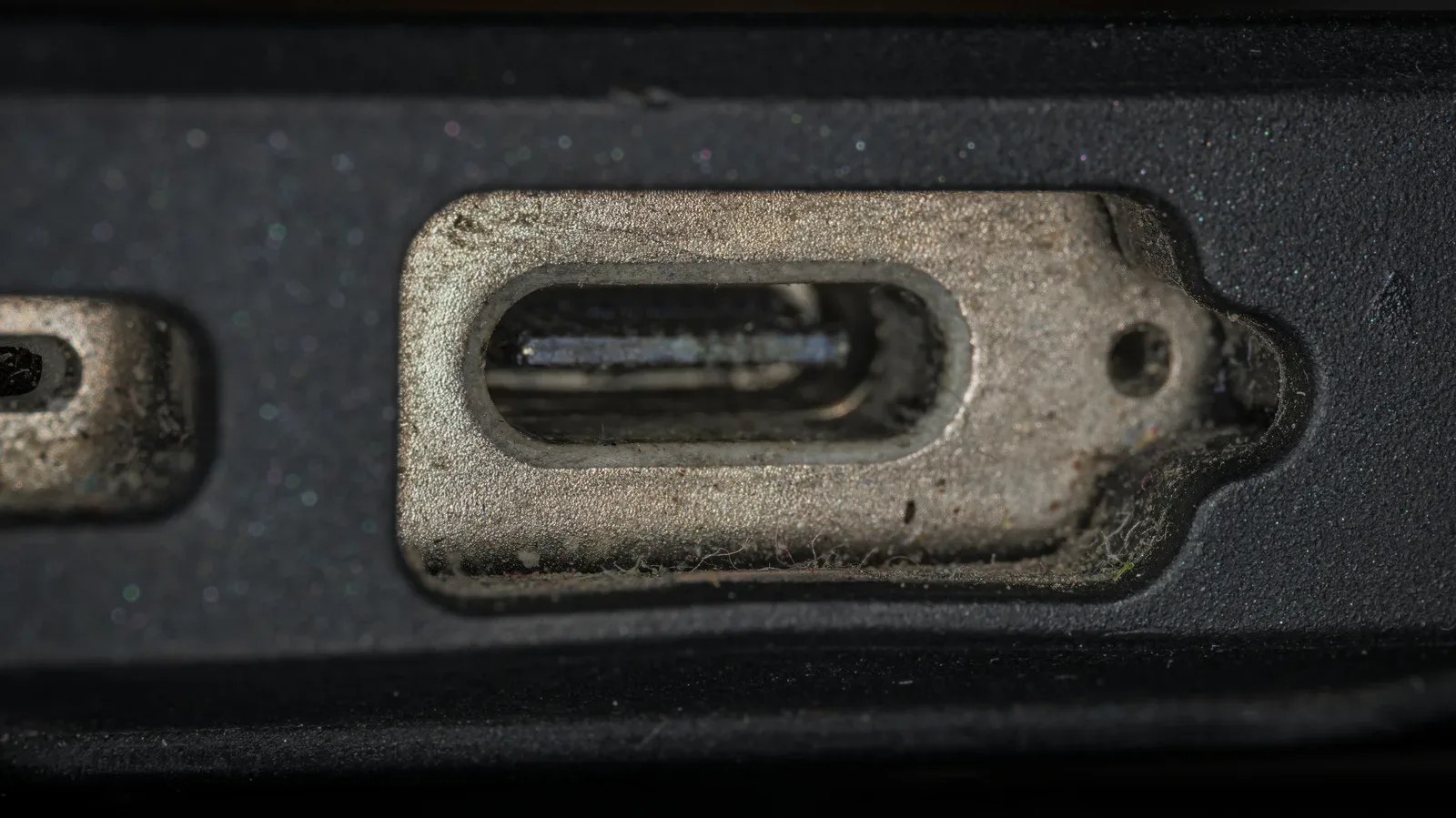
That manual route requires a little more discipline: connect the drive, copy the files, and verify that the copied media opens. Hardware condition also matters when moving a large archive; our guide to spotting USB-C port problems and ruling out cable faults covers practical checks that can help avoid an interrupted transfer.
A simple backup routine that avoids storage surprises
A good approach is to separate preservation from day-to-day access. First, request the all-time Memories export. Second, extract it and confirm the media opens. Third, retain a copy in a location outside Snapchat—whether that is a phone-synced photo service or a manually maintained external drive. Finally, enable Memories & Camera Roll so future saved Snaps have a second destination from the start.
After verification, deleting older Memories can be an option for users aiming to remain within the free 5GB allocation. It should not be the first step. A library that has been checked in more than one place is considerably less vulnerable than one that exists only inside an app.
Snapchat’s export is imperfect, and the wait for a large archive means it is not the smoothest possible experience. Still, the availability of a free full-library ZIP gives users a meaningful way to preserve their saved media without treating a subscription as the only path to keeping it.