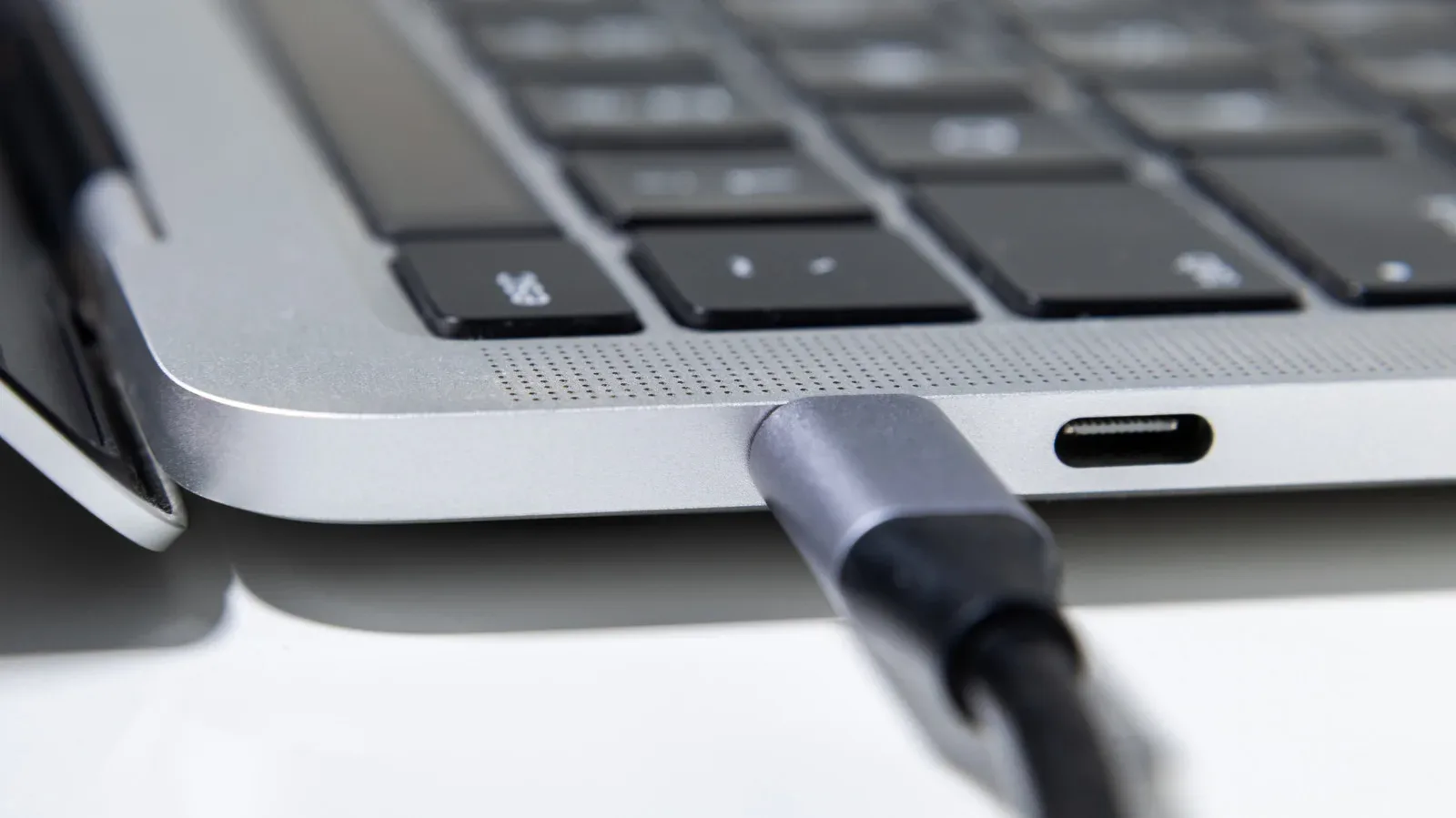
USB-C has become a single small doorway for some of the most important jobs on a phone, handheld, laptop or gaming setup: charging a battery, moving files, connecting accessories and, in some cases, extending a machine through a hub or dock. That convenience makes an unreliable connection especially frustrating. A controller may disconnect, an external drive may vanish in the middle of a transfer, or a device may appear to charge only if the cable is held at a particular angle.
Those symptoms can point to port damage, but they do not prove it. Dust in the opening, a worn cable, an unsuitable charger, a mismatched port or computer software trouble can all resemble a damaged USB-C socket. The sensible response is not to keep forcing plugs in and out. Instead, inspect the port, test the simplest replaceable parts first and treat signs of heat damage as a reason to stop using the hardware.
Why USB-C trouble can have bigger consequences than a loose connection
Older computer connections often used large exposed pins that could be bent. USB-C uses a compact, reversible connector, yet the port can still be obstructed or physically damaged. More importantly, USB-C is used for both data transfer and power delivery. Data transfer is the exchange of information between devices; power delivery is the supply of electrical power for charging or operation. A fault may affect one, the other or both.
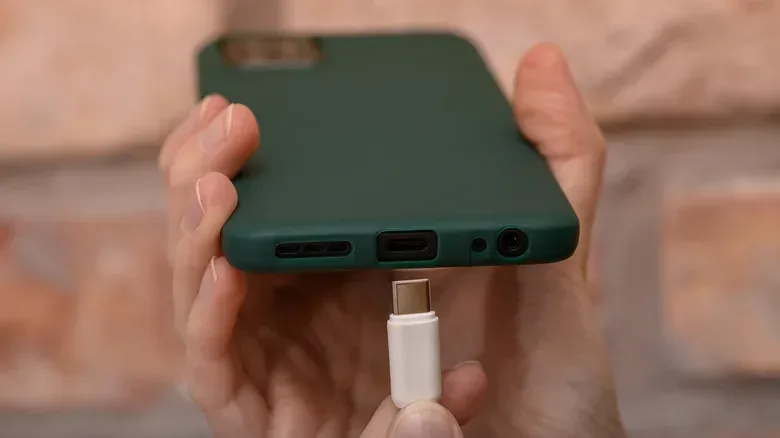
For a phone that depends on its USB-C port and lacks wireless charging, a truly broken port can eventually mean no practical way to replenish the battery. For a PC player, it could mean interrupted backups, an inaccessible peripheral or a compromised dock setup. That does not mean every failed connection is catastrophic, but it does mean the issue is worth diagnosing before it turns from an annoyance into lost access to a device.
It is also worth keeping the cable itself in the investigation. An old or damaged charging cable can be the root of the problem, and repeatedly using questionable cables does not help isolate the port safely.
Start with a visual inspection, not a forceful fix
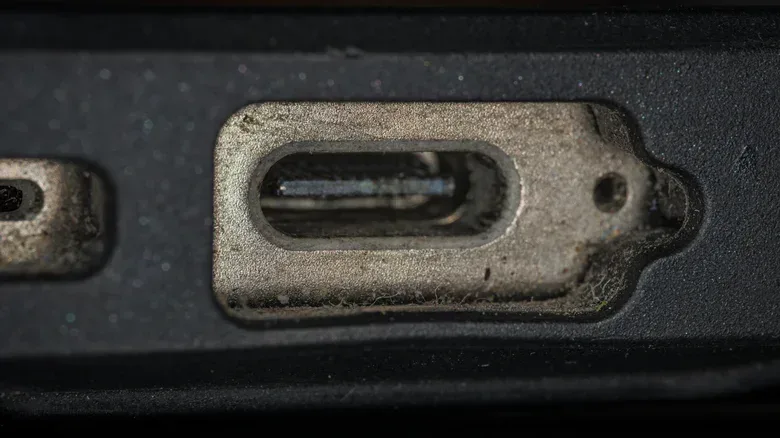
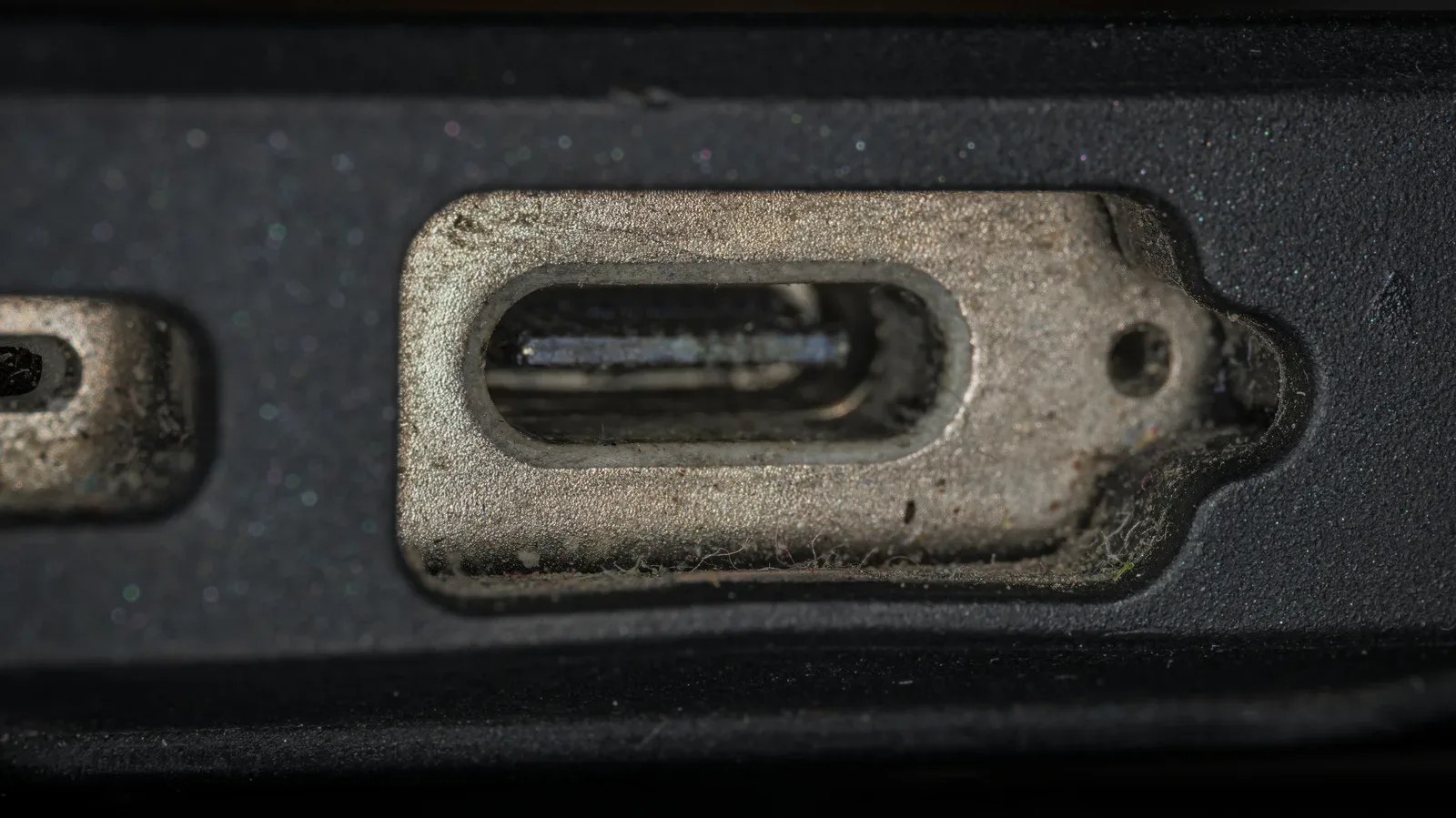
Disconnect the cable, shut the hardware down and use a flashlight to look into the USB-C opening. The purpose is simple: establish whether there is a visible obstruction or obvious physical damage before changing software settings or buying accessories.
- Look for debris. Lint, dust and other material can be difficult to see, yet it may stop a plug from seating properly. This is the comparatively hopeful outcome, provided no part of the device itself has broken off inside the port.
- Look for bent or broken pins. Visible damage inside the connector is a strong sign that the port needs closer attention and may require repair.
- Look for discoloration. Marks may have an innocent explanation, but they can also be associated with liquid, grime or scorching.
If the port appears to have loose debris, keep the procedure restrained. With the device unplugged and powered down, hold it with the opening facing downward and gently tap it against your hand. Gravity and a light tap may dislodge loose material. Do not turn diagnosis into damage by aggressively probing the connector.
Brownish or blackish markings deserve a much more cautious response. They can suggest scorching. In that case, stop using the device, power it off and seek repair rather than attempting to charge through the problem. The goal is not merely to restore a connection; it is to avoid continuing to use hardware that may have experienced heat-related damage.
Related coverage includes How to tell if your USB-C port is damaged.
Intermittent charging is evidence, not a final diagnosis
A healthy USB-C connection should behave consistently. A device that begins charging, stops, then resumes without an intentional change has a problem somewhere in the chain. Likewise, an external device that repeatedly connects and disconnects during data use is not operating normally. Still, inconsistency alone does not identify the guilty component.
Think of the connection as a chain: device port, cable, charger or host device, and sometimes software. The first useful test is substitution. Try a known-working cable. For charging trouble, also try a known-working charger. “Known-working” matters because it gives the test value: it is a cable or charger that has demonstrated reliable operation elsewhere, rather than another unknown variable from a drawer.
If the issue disappears with the replacement cable, the port has not been cleared of all suspicion, but the cable is the immediate and most plausible explanation. If the problem remains with a reliable cable and charger, the case for investigating the port, the device or its software becomes stronger.
Check whether the port is actually compatible with the task
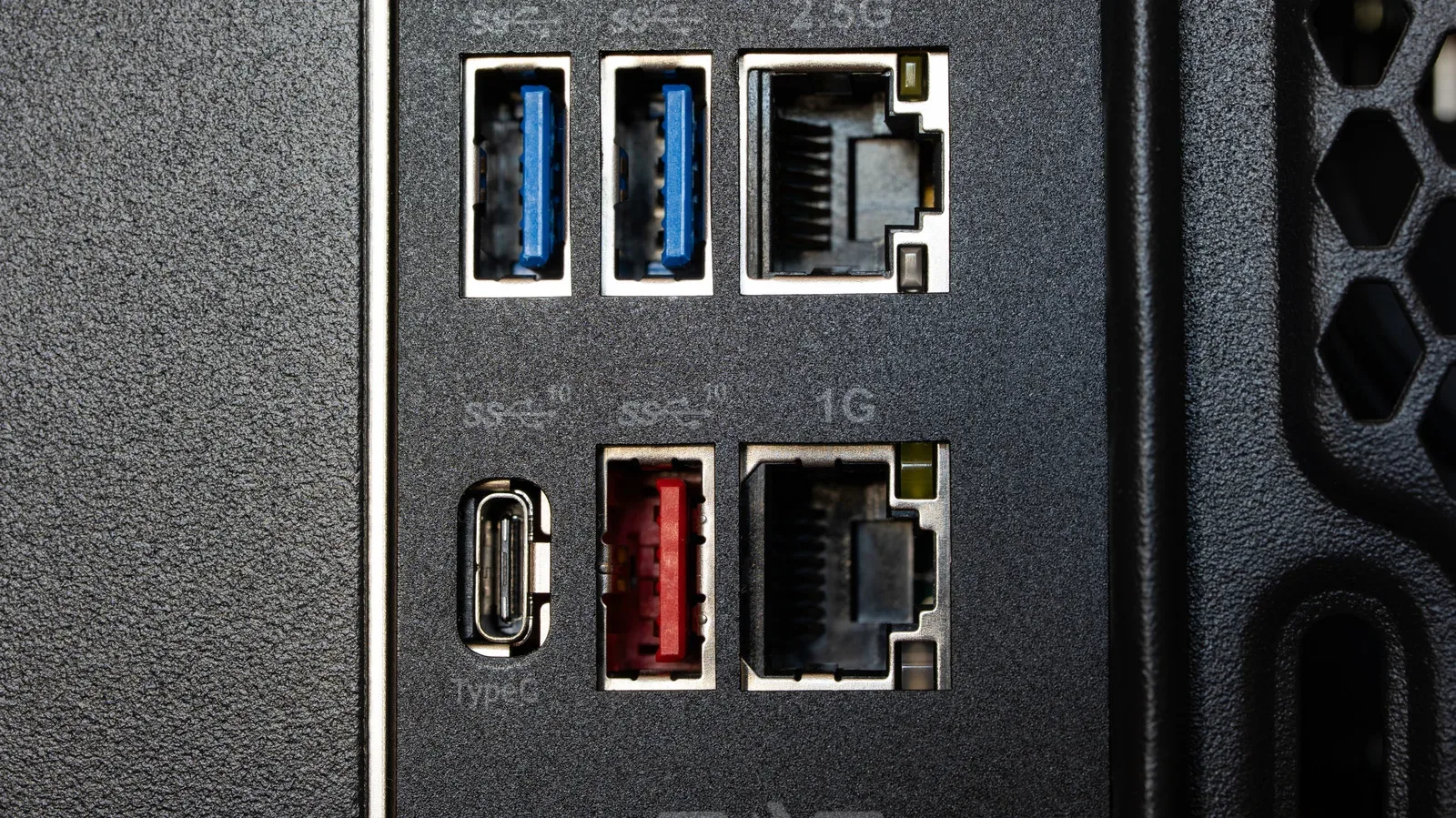
When absolutely nothing happens, do not leap straight to “dead port.” On a computer, the cable may be connected to a port that is not compatible with the job being attempted. That distinction matters because USB-C describes the connector format, while the practical behavior of a particular port still determines what it can do in a setup.
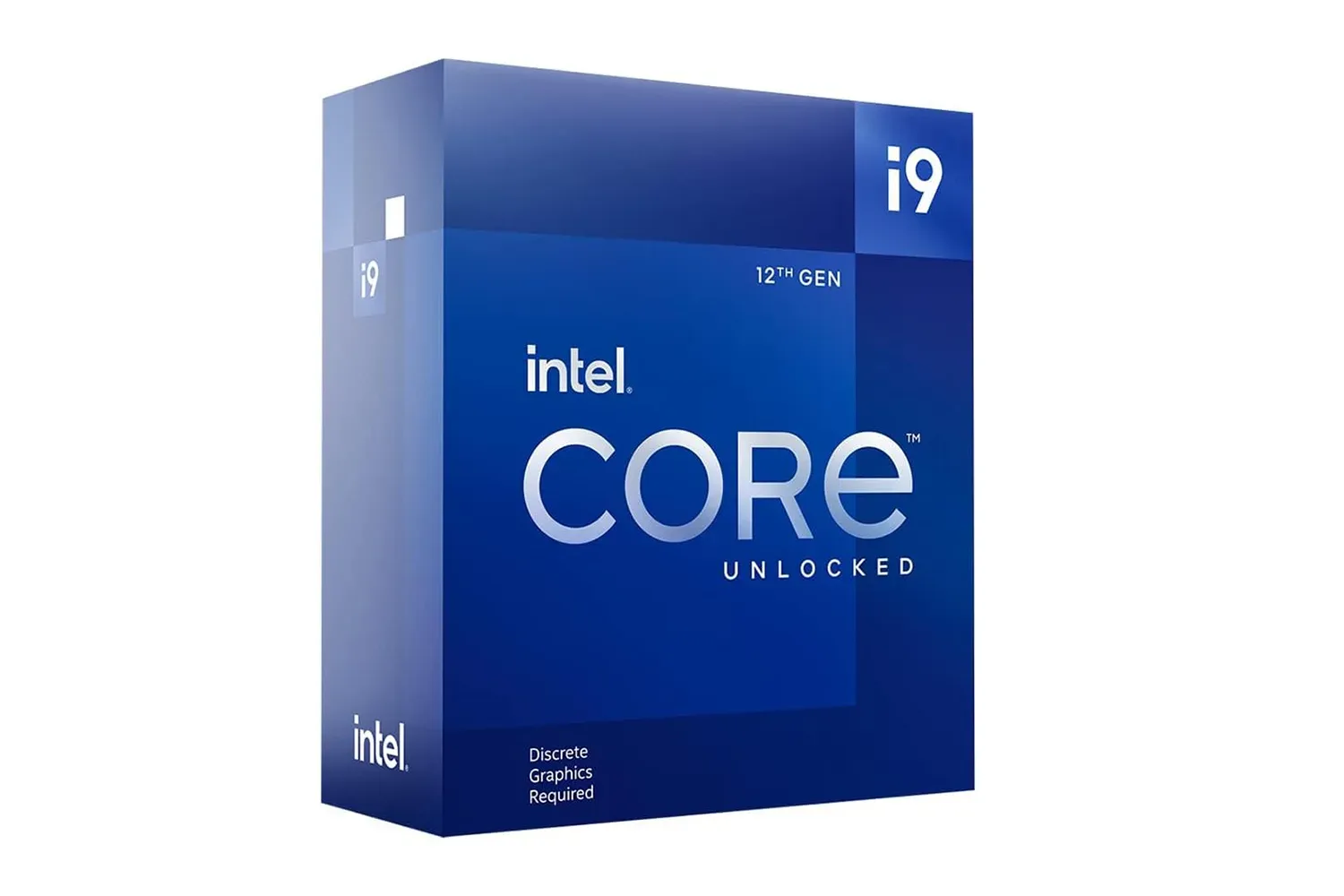
For gaming PCs, this is particularly relevant when a desk includes several USB-C connections, a dock, charging hardware and storage. Make sure the connection you are using is appropriate for the device and task before treating an apparent failure as physical damage. The same disciplined approach helps when changing or maintaining a system; our look at the Intel Core i9-12900KF’s place in a gaming PC is a reminder that a computer is a collection of interdependent parts, not a single black box.
Software can imitate a hardware failure on computers
On computers, USB behavior can be affected by drivers. A driver is software that helps the operating system communicate with hardware. If the relevant USB or motherboard drivers are corrupt, missing or incorrectly configured, a port may seem defective even where no physical damage is visible.
Before assuming a repair is necessary, check for operating-system updates. On Windows, open Windows Update. On a Mac, use macOS Software Update. Apple generally includes driver updates within broader macOS updates, while Microsoft makes them available independently. Updating is not a guarantee that an erratic connection will be fixed, and it cannot straighten a bent pin or reverse scorching. It is, however, a reasonable step once obvious physical issues, cable faults and charger faults have been considered.
This order is useful because it limits unnecessary changes. Inspect first. Substitute a dependable cable and, for charging, a dependable charger. Confirm the port is compatible with the intended use. Then check updates on a computer. Each step narrows the possibilities without pretending that a software setting can repair physical damage.
What a hub or Thunderbolt dock can and cannot solve
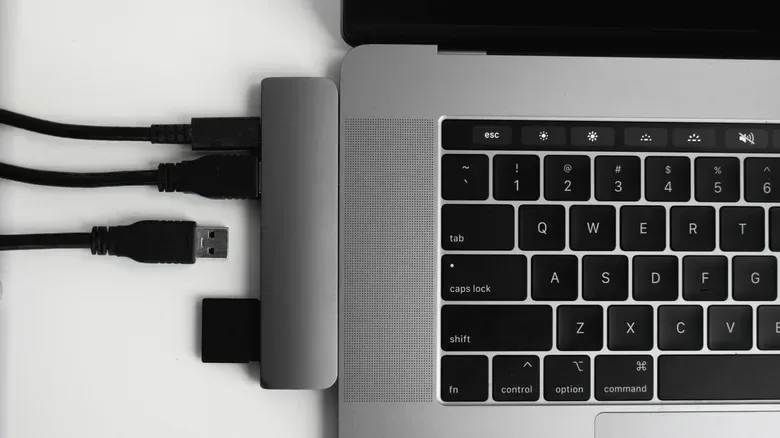
A single failed USB port does not always make a computer unusable. If other ports remain functional, a USB-C hub or an appropriate Thunderbolt dock may restore options or add connections. A hub expands the number of available connections from one port. A dock is a broader connection point for peripherals; whether it is suitable depends on the computer and the particular connection available.
There are limits, and they are important for anyone running a busy gaming or work desk. Devices attached through a hub share the connection’s bandwidth, meaning the amount of data capacity available through that link. A phone being charged and a hard drive being used for a backup may be competing for the same connection. Performance and reliability can therefore depend on what is connected at the same time.
Power is a separate consideration. If a hub lacks its own external power supply, attached devices share the power available from the computer’s port. That may be enough for a modest collection of accessories, but it is not an unlimited pool. Before relying on a hub as a workaround, list the devices that must operate simultaneously and remember that both data capacity and available power are shared.
A hub or dock is a workaround for a dead port only when another suitable port remains available. It does not repair the original damaged connector, and it should not be used to bypass a warning sign such as suspected scorching.
A practical decision path for an unreliable USB-C connection
- Power down and unplug the device before inspecting the port.
- Use a flashlight to check for debris, broken or bent pins and discoloration.
- With the port facing down, gently tap loose debris into your hand. Avoid forceful cleaning attempts.
- If there are brownish or blackish marks that suggest scorching, stop using the device and power it off pending repair.
- Test with a known-working cable. For charging problems, test with a known-working charger as well.
- Confirm that the computer port being used is compatible with the intended connection.
- On a computer, check Windows Update or macOS Software Update for USB and motherboard driver updates.
- If one port has failed but other suitable ports work, assess a USB-C hub or Thunderbolt dock while accounting for shared bandwidth and power.
The key distinction is between a problem that is inconvenient and one that may be unsafe. A dusty port or bad cable may be solvable with careful testing. Bent pins, broken internal parts and signs of scorching call for greater caution. USB-C’s small connector does a great deal of work in modern devices, so the best troubleshooting approach is equally compact: inspect, isolate variables, update where appropriate and stop immediately when heat damage is suspected.