A smart home is supposed to remove tiny chores from the day. A light comes on when it is needed, a thermostat makes better use of energy, and a plug or sensor quietly does its job in the background. When an accessory keeps disappearing from its control app, though, the automation turns into a recurring side quest: reset the device, retry setup, wait for it to reappear, then wonder whether it will still be online tomorrow.
The useful starting point is to treat repeated disconnects as a network-design issue before blaming an individual bulb, plug, lock or sensor. A smart-home device can lose contact for several distinct reasons: the router may have too many active clients, the accessory may only support the 2.4GHz Wi-Fi band, the device may be at the edge of usable range, or a platform’s hubs may not have enough redundancy. In a home with a mix of devices, more than one of those factors can be true at once.
The broad practical lesson is slightly counterintuitive: a more dependable smart home may involve fewer accessories communicating directly over Wi-Fi. Wi-Fi remains necessary for some categories, but low-power smart-home protocols such as Thread, Zigbee and Z-Wave can take pressure off the primary network for appropriate devices.
First, identify whether Wi-Fi is being asked to do too much
Every connected product occupies a place on a router’s list of active devices. Phones, computers and tablets are obvious entries, but the same list can also include televisions, consoles, speakers, cameras, lights, plugs, thermostats and sensors. Smart-home equipment becomes troublesome when that collection outgrows what the router can comfortably manage.
Wi-Fi 5 hardware is a particular warning sign in a device-heavy home. Its practical simultaneous-device limit is described as roughly 10 to 25 connections, with around 30 possible in especially favorable circumstances. That may sound sufficient when considering a household’s phones and laptops alone. It looks far less roomy once an installation adds many individual accessories. A router under connection pressure may begin dropping devices to accommodate others, and a lamp or plug is unlikely to receive the same priority in practice as a phone or laptop.
This is why a disconnect that appears random can still have a pattern. One accessory may vanish while another remains available, then the first comes back later. That does not necessarily mean either product is defective. It can mean the router is repeatedly trying to make room for its active clients.
Practical implication: if disconnects began after adding several connected accessories, router capacity deserves attention before replacing every accessory. Moving from Wi-Fi 5 to Wi-Fi 6 or Wi-Fi 7 is the direct upgrade path described for homes reaching these limits. The goal is not merely a newer number on the router box; it is a network that can accommodate the household’s actual number of simultaneous connections.
2.4GHz versus 5GHz: slower-sounding can be the better smart-home choice
One of the most frustrating setup problems comes from the gap between the Wi-Fi band a phone uses and the band an accessory supports. Many less expensive smart-home products are limited to 2.4GHz. That is not inherently a flaw. For small control messages, a low-power accessory does not need the bandwidth associated with newer or faster bands. What it does need is a stable connection it can actually join.
In this context, a Wi-Fi band is a portion of radio spectrum used by the network. The source material distinguishes 2.4GHz from 5GHz and 6GHz, and notes an important trade-off: 2.4GHz offers longer range. That makes it a sensible home for bulbs, plugs and sensors positioned farther from the router, provided they support it.
Mesh Wi-Fi can complicate the picture. A mesh system spreads network coverage using multiple points, but it may expose one unified SSID to devices while automatically steering them between bands. An SSID is simply the network name a person sees when connecting a phone, laptop or accessory. Automatic band steering is the router’s attempt to choose a band for a connected device rather than forcing the person to choose.
That convenience can interfere with setup. A phone may connect to 5GHz or 6GHz while a new accessory expects 2.4GHz, leaving the accessory’s setup app unable to locate the device. Even a product configured successfully may later suffer discovery issues under this arrangement. The problem is not that a unified network name is always bad; it is that some 2.4GHz-only accessories and their setup processes do not behave well with the router making band decisions in the background.
What to try when setup will not finish
- Confirm whether the accessory is limited to 2.4GHz before treating its failure as a general Wi-Fi outage.
- Check whether a mesh system is using one SSID and automated band steering, since that combination can hinder initial detection of some accessories.
- Where a standalone router permits it, enable separate 2.4GHz and 5GHz SSIDs.
- Place smart-home accessories on the separate 2.4GHz network when range and compatibility matter more than bandwidth.
Separating SSIDs is a targeted workaround, not a universal requirement. A unified mesh network can be useful, and the source material explicitly cautions that a mesh upgrade can itself cause difficulties for particular accessories. The important decision is to match the network arrangement to the devices already in the home rather than assume every product will accommodate the same setup.
Range is the unglamorous reason devices disappear
Not every dropout is a capacity or compatibility crisis. Sometimes an accessory is simply located at the fringe of its usable signal. A device at that edge can work in better conditions and fail when conditions become less favorable. That makes intermittent behavior especially deceptive: it may seem like software instability because it is not permanently offline.
There are two straightforward responses. The first is physical: reposition the router or the accessory when the layout permits. The second is structural: use a mesh system to extend coverage if the home needs it. Neither option should be selected blindly. A mesh network can improve reach, but its unified SSID and band steering may create the 2.4GHz configuration problem already discussed. Conversely, a standalone router with separated 2.4GHz and 5GHz SSIDs may be the more useful answer for an installation centered on longer-range, 2.4GHz-only accessories.
That is why “upgrade the network” is not a single instruction. Capacity, coverage and device compatibility are separate questions. A newer router may solve a crowded client list. A mesh system may solve distance. Separate SSIDs may solve setup and detection problems. The right move depends on which failure is actually happening.
Apple Home reliability may depend on hub redundancy
For households using Apple’s smart-home platform, a device can show a “No Response” status even when the corresponding setup works through Amazon Alexa or Google Home. Apple has worked to improve this with an overhauled framework, but a dependable installation may still demand a dependable underlying network.
One suggested safeguard is control redundancy: use two or more Apple home hubs. HomePods, HomeViews and Apple TV 4Ks can be combined for this role. Redundancy means there is more than one component capable of supporting control, rather than having the entire arrangement depend on a single hub. It does not cure weak Wi-Fi coverage or an overloaded router by itself. Instead, it removes a single point of failure from the home-control side of the system.
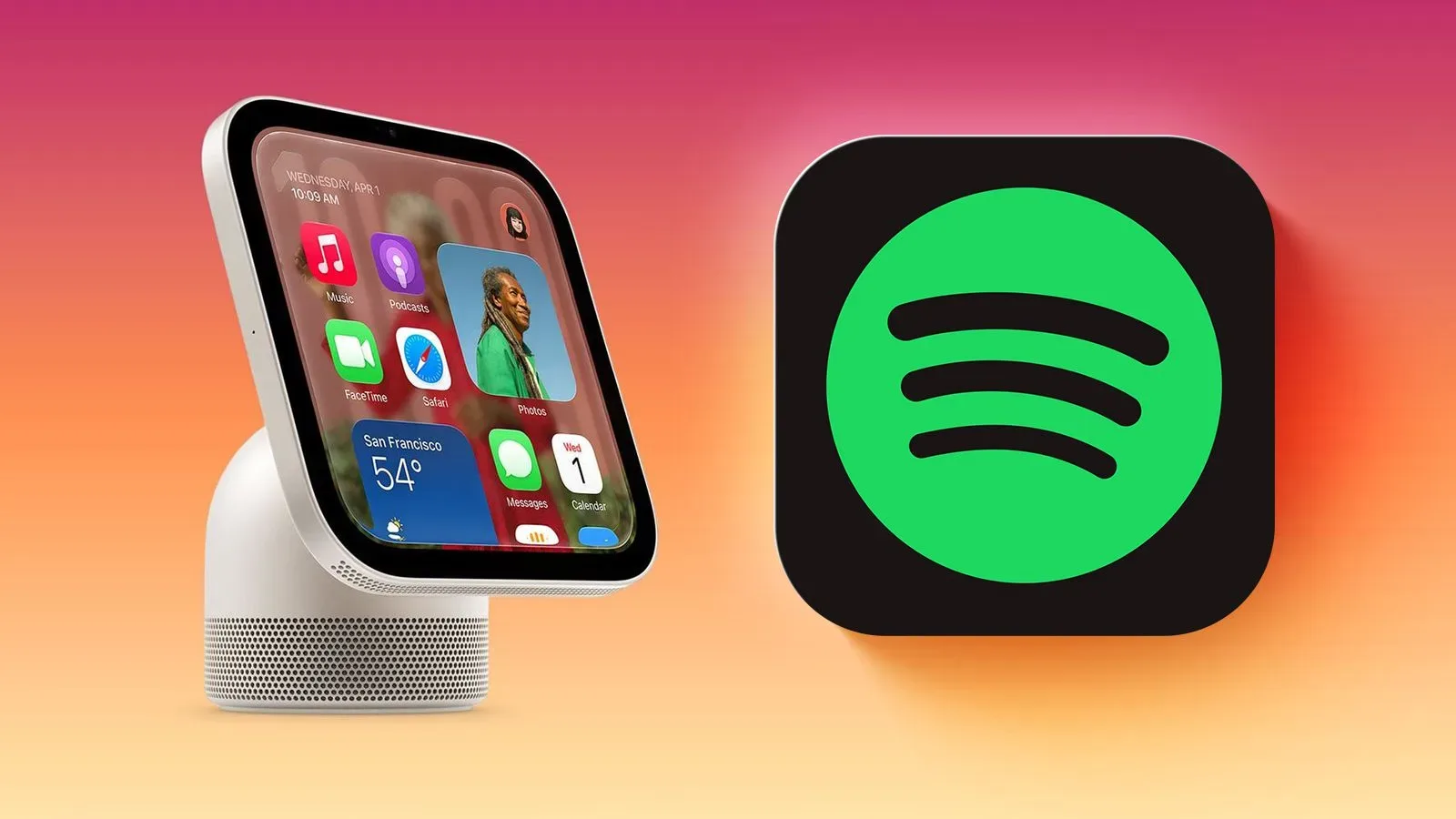
That distinction matters when troubleshooting. If Apple Home reports a device unavailable, first consider the accessory’s Wi-Fi band, signal range and overall router load. If those are adequate, the number and reliability of home hubs become more relevant. For readers following Apple’s expanding home hardware plans, the role of HomeView is also covered in this look at Spotify appearing on Apple’s HomeView through CarPlay mirroring.
The strongest Wi-Fi strategy may be using less Wi-Fi
Wi-Fi is not the only way for smart-home accessories to communicate. Thread, Zigbee and Z-Wave are alternate protocols designed for low-power devices. A protocol is the shared communication method that lets devices exchange instructions. In this case, these standards can move compatible bulbs, locks, plugs and sensors away from direct Wi-Fi connections.
The benefit is twofold. First, each compatible product shifted away from Wi-Fi reduces the burden on the main network. Second, these alternatives are mesh-based: devices can help extend the network’s reach. In a mesh arrangement, a device does not necessarily have to rely on one distant connection in the same way a Wi-Fi-only accessory does.
They still need an appropriate route into the wider home network. Zigbee and Z-Wave require a Wi-Fi hub. Thread requires a Wi-Fi-enabled border router, which is the accessory that links the Thread network with the rest of the home network. Some routers, speakers and displays include border-router capability, and Nanoleaf light panels are also identified as products with that feature.
Hub-based designs offer another practical resilience advantage. Philips Hue Zigbee lights, for example, can continue running some automations when the internet is unavailable. That is different from saying every smart-home function will work without an internet connection. It means certain local, hub-supported automations can continue rather than immediately becoming useless when outside connectivity drops.
Thread, Zigbee and Z-Wave are not replacements for every Wi-Fi device
These are low-power standards, so their bandwidth is limited. Bandwidth is the amount of data a connection can carry. It is sufficient for the brief commands and status messages used by lights, plugs, locks and sensors, but not for data-heavy tasks. Audio, video and vacuuming are specifically outside the practical scope described here. A smart-home plan still needs Wi-Fi for categories that require substantially more data.
This is not a reason to avoid low-power protocols. It is a reason to use them deliberately. Put simple, always-on accessories that fit their capabilities on Thread, Zigbee or Z-Wave where possible. Reserve Wi-Fi for products that genuinely need it, rather than forcing every device to compete for the same radio network.
A troubleshooting order that avoids unnecessary purchases
- Count the likely clients. Include smart-home accessories, not just the phones and computers people actively use. If the router is Wi-Fi 5 and the total has grown substantially, capacity is a credible explanation.
- Check the accessory’s band support. A 2.4GHz-only product needs a setup path compatible with 2.4GHz.
- Assess the network layout. Unified SSIDs and automatic band steering can be trouble spots for some accessories, while separate SSIDs may help on a standalone router.
- Look at location. A device at the edge of coverage may need repositioning, a better router placement or a mesh solution.
- Review platform infrastructure. Apple Home users dealing with recurring “No Response” reports may benefit from more than one home hub, alongside a stronger network.
- Plan future purchases around protocols. For bulbs, locks, plugs and sensors, compatible Thread, Zigbee or Z-Wave options can reduce long-term Wi-Fi congestion.
- Prepare for internet loss. Favor local, hub-based automations where they suit the household’s needs, and retain manual fallbacks for essentials.
The goal is not a completely Wi-Fi-free home; that is neither realistic nor desirable for every device category. It is a balanced setup in which Wi-Fi is not tasked with supporting every tiny always-connected object. Once capacity, band compatibility, range, hubs and protocol choice are considered separately, a flickering “No Response” message becomes less mysterious—and the lamp can return to being a lamp instead of a network administrator’s recurring boss fight.