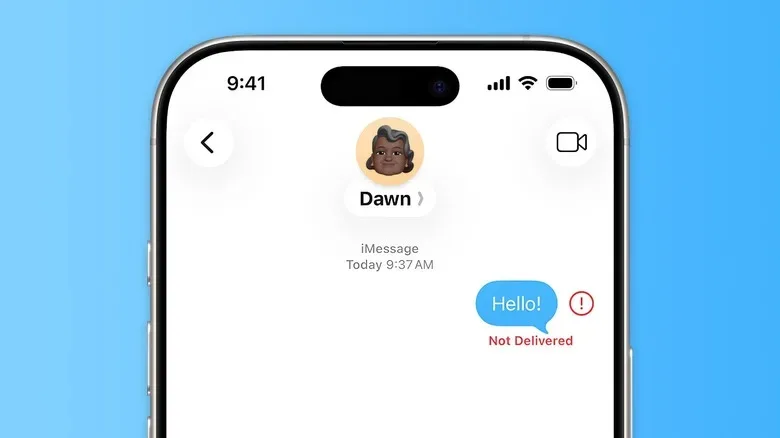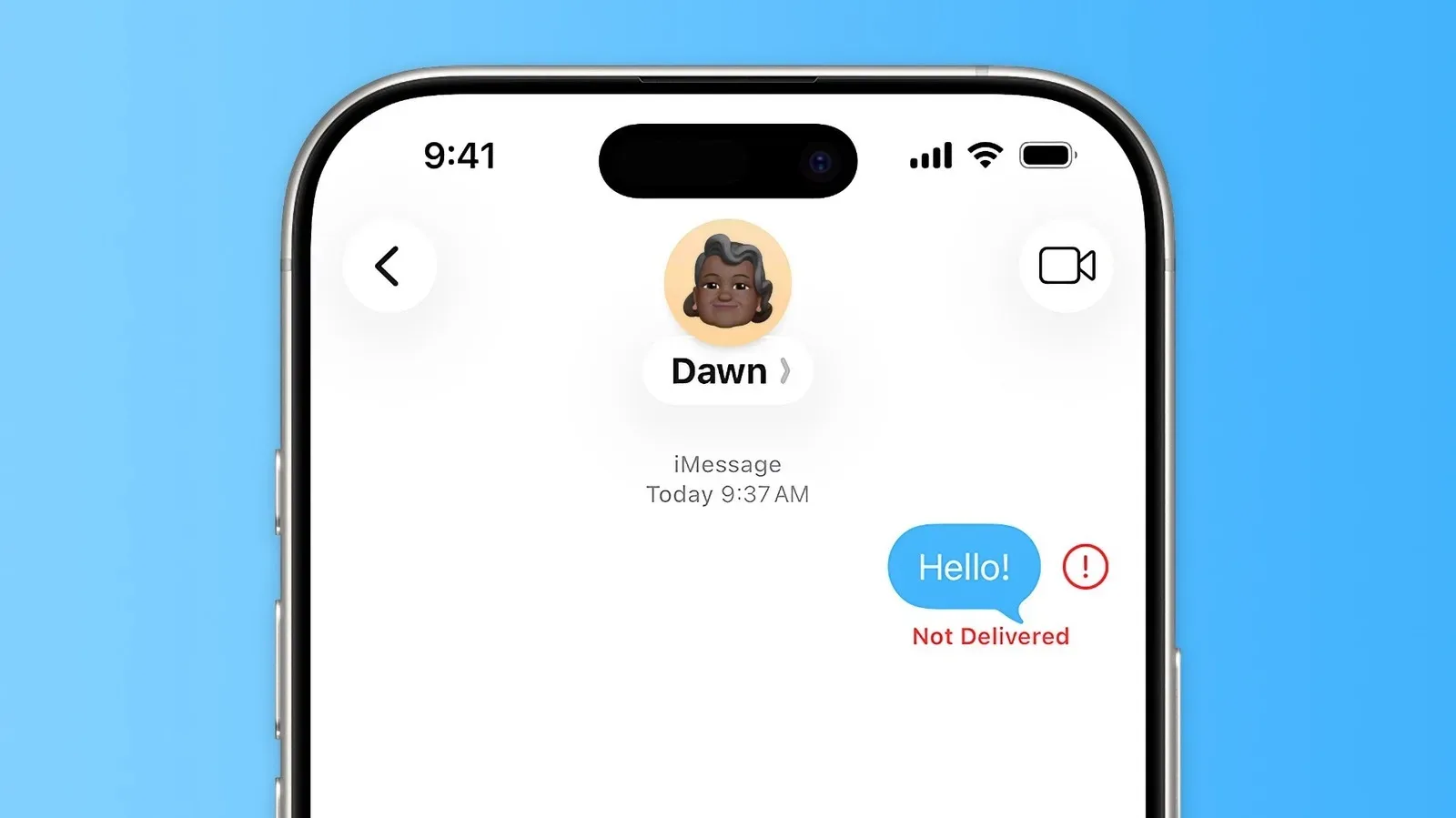
Few tiny red symbols create a larger burst of modern panic than the exclamation point beside an iPhone message. You write something time-sensitive, press send, and Messages responds with the unhelpful-looking “Not Delivered” warning. Before assuming the worst—or composing an apology by carrier pigeon—it helps to remember that Apple’s Messages app can send through several different systems. The right fix depends on which one has stumbled.
On iPhone, blue bubbles generally indicate iMessage, Apple’s internet-based messaging service for conversations with Apple devices. Green bubbles can represent RCS or traditional SMS/MMS, which matter especially when talking to Android users. iMessage and RCS need an internet connection. SMS instead uses cellular service, while MMS is commonly needed for media sent through conventional text messaging. A failure can therefore be caused by weak data, weak cellular reception, a temporary service issue, an incorrect account setting, or a problem affecting the recipient rather than the sender.
The important part is that “Not Delivered” is a starting clue, not a universal diagnosis. Use a quick set of checks first, then move on to the Messages settings only if basic recovery does not solve it.
Start with the failed message itself
Tap the red exclamation point next to the message that did not go through. Messages should offer a way to try again. This sounds almost comically straightforward, but a resend is worthwhile when the phone briefly lost a connection while the message was being transmitted. A train ride, basement, crowded venue, rural road, or an overloaded Wi-Fi connection can be enough to interrupt the process.
Before repeatedly retrying, look at the iPhone’s connection indicators. Do you have usable Wi-Fi? Is cellular service available? If the signal looks weak, move somewhere with better coverage if possible, or swap between Wi-Fi and cellular data. Turning Airplane Mode on briefly and then off can also prompt the phone to reconnect to the mobile network.
- Tap the red exclamation point and choose the resend option.
- Check whether Wi-Fi is connected and actually has internet access.
- Check cellular signal and data availability.
- Toggle Airplane Mode on, wait a moment, then turn it off.
- Try the same conversation again after the connection has stabilized.
One failed send during a poor-signal moment does not necessarily mean iMessage itself is broken. Treat it as a connection problem until the evidence points elsewhere.
Understand the blue-bubble fallback option
If an iMessage or RCS message has failed but cellular reception remains available, sending it as a regular text can be the fastest workaround. Press and hold the failed message, then select Send as Text Message when that option appears. The message changes from blue to green because it is being routed as SMS over the cellular network rather than sent through iMessage.
That distinction is useful when mobile data or Wi-Fi is unavailable but the phone still has enough service to send texts. It is not magic: SMS can fail in a dead zone too. Still, switching transport methods removes the need for the internet connection used by iMessage and RCS.
Related coverage includes How to Fix an iPhone iMessage ‘Not Delivered’ Error.
For a more automatic approach, open Settings > Apps > Messages and enable Retry as Text Message. With that setting on, the iPhone can attempt an SMS resend when iMessage or RCS cannot complete delivery. It is a sensible safety net for ordinary text, although users should be mindful that SMS may be subject to their cellular plan and does not carry the same internet-based feature set as iMessage.
When SMS is not the same as an iMessage resend
A fallback text is best thought of as a new route, not proof the first route is permanently damaged. iMessage offers Apple-specific capabilities, while SMS is the older carrier-based standard. Group chats, media, reactions, and other features may behave differently depending on whether the thread is using iMessage, RCS, or SMS/MMS. The practical goal during a delivery failure is simply to get the essential information to its destination.
Verify that iMessage is active and correctly addressed
If blue-bubble conversations repeatedly refuse to send, inspect the iMessage configuration. Go to Settings > Apps > Messages and ensure the iMessage switch is enabled. This check is particularly relevant after moving to a new iPhone, changing a SIM or cellular plan, restoring a device, or signing in and out of an Apple Account.
Next, open Send & Receive. Confirm that the phone number and/or email address people use to reach you are selected correctly. A misconfigured send-and-receive identity can make a device behave as though it has joined the conversation wearing someone else’s name tag.
If iMessage is switched on but remains unreliable, turn it off, wait around a minute, and turn it back on. That can refresh the device’s connection to iMessage. Do not rush to reset every setting on the phone before trying this smaller, more targeted measure.
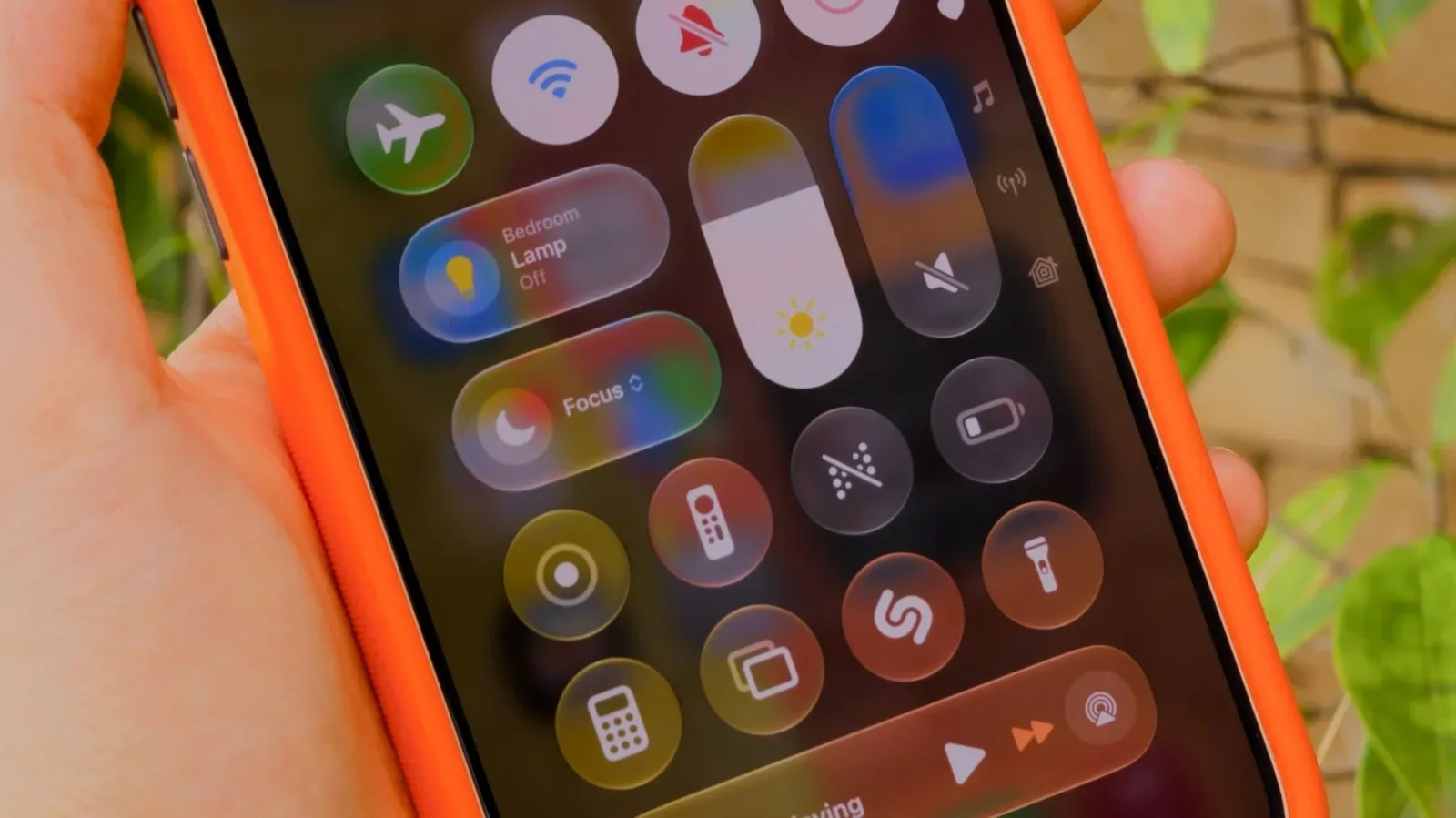
Messages settings and interface details can change between iOS releases. For broader context on the current platform’s design and accessibility changes, see our coverage of iOS 27’s Liquid Glass controls and accessibility options.
Do not overlook RCS, MMS and media-message settings
Messages to Android contacts may be routed through RCS or SMS/MMS, shown with green bubbles. RCS relies on an internet connection, so it can experience the same kind of data-related failure as iMessage. When an internet connection is the problem but cellular service is still working, an SMS fallback may help with a plain-text message.
Photos and videos introduce another variable. For media sent as regular carrier messages, check that MMS Messaging is enabled under Settings > Apps > Messages. Without MMS, traditional text messaging is not equipped to send picture or video messages to Android users unless the exchange is using RCS. If words get through but images consistently do not, MMS is one of the first settings worth checking.
It is also useful to distinguish “sent” from “delivered.” A message that fails instantly often suggests the sender’s connection, account configuration, or network route needs attention. A message that has sent but lacks a delivery confirmation can involve the recipient’s device, connectivity, settings, or the specific messaging protocol in use.
Rule out temporary device and service problems
A restart is still one of the most sensible troubleshooting tools in the pocket-sized computer era. Restart the iPhone, reconnect to Wi-Fi or cellular service, and send a short test message. Rebooting clears many temporary software and network hiccups without altering your messages or personal content.
It is also possible, though unusual, for iMessage to encounter a server-side disruption. Apple provides a System Status page where users can look for reported service problems. If iMessage is listed as experiencing an issue, changing settings over and over may not accomplish much; using SMS where appropriate or waiting until the service recovers is more productive.
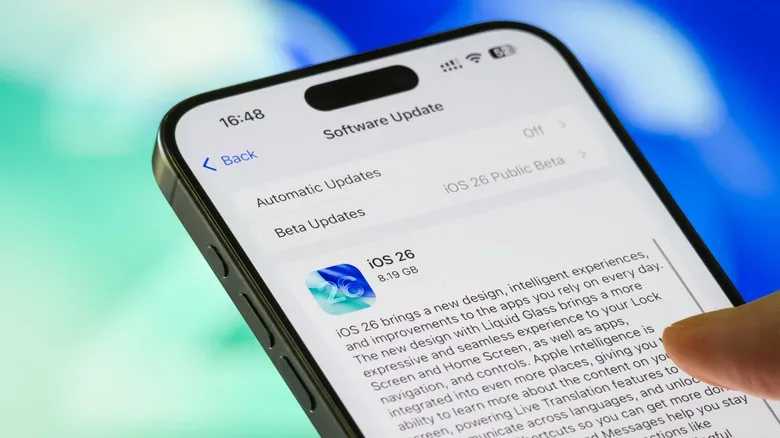
Keep iOS current as well. Navigate to Settings > General > Software Update to see whether an update is available. Older software can become less dependable with network services over time, and updates may include fixes relevant to connectivity or Messages. Install updates when practical, ideally with adequate battery power and a reliable connection.
Test another contact before assuming the phone is at fault
Send a simple message to a second person. This one small test sharply narrows the possibilities. If messages fail to multiple contacts, focus on your iPhone’s connection, Messages configuration, service status, and software. If delivery trouble occurs only in one conversation, the issue may be at the other end.
The recipient could have their phone powered off, be without Wi-Fi or cellular coverage, have a service problem, or have blocked the sender’s number. There is no single delivery badge that can diagnose which of those situations applies, so avoid treating a single failed thread as confirmation of any particular explanation.
A sensible order of operations
- Retry the message from the red exclamation-point menu.
- Check Wi-Fi, cellular signal, and whether the problem is temporary; cycle Airplane Mode if needed.
- For urgent plain text with cellular coverage, use Send as Text Message.
- Enable Retry as Text Message if automatic fallback suits your needs.
- Confirm iMessage is on and review Send & Receive.
- For photo or video issues involving carrier messaging, enable MMS Messaging.
- Restart the iPhone and check for an iOS update.
- Try another contact and check Apple’s System Status page if the issue appears widespread.
Most “Not Delivered” errors are less dramatic than they look. They are usually a brief detour between Wi-Fi, mobile data, cellular service, and the separate messaging systems hiding behind one familiar app. Checking the route, testing the connection, and using SMS fallback when appropriate will often turn that red warning into a minor interruption rather than a communications catastrophe.