Every great photo has an enemy. Sometimes it is a trash can parked squarely in the otherwise perfect landscape. Sometimes it is a wire cutting through the sky like an accidental HUD element. And sometimes it is a complete stranger wandering into the background of a group picture with the confidence of an NPC who has ignored the quest boundary.
Apple’s Photos app is set to give players in the eternal battle against visual clutter more options in iOS 27. The upgraded version of Clean Up uses newer AI models to remove unwanted elements from an image, while two additional tools, Extend and Reframe, aim to repair composition problems after the shutter has already fired.
The big caveat is that these are generative editing tools, not a time machine. They can produce useful fixes for small distractions, but they can also take artistic liberties. In particular, Reframe may deliver anything from a natural-looking adjustment to a bizarre image containing details that never existed. Think of it as photo editing with a random encounter rate: useful power is on the table, but save a copy of the original before you see what happens.
What you need before using iOS 27 Clean Up
The improved Clean Up feature requires an iPhone running iOS 27 and Apple Intelligence enabled. Compatibility is limited to the iPhone 15 Pro or later. An older iPhone will not be able to use these AI-powered editing additions.
That hardware requirement matters because Clean Up now offers multiple levels of processing, including more demanding image analysis for complicated removals. The Photos app is no longer simply asking whether something is in the way; in its higher-quality mode, it is trying to infer what should plausibly appear behind the unwanted subject.
For anyone who has used Clean Up since it arrived alongside the redesigned Photos app in iOS 18, the basic destination is familiar. iOS 27 changes the available controls and gives the user a clearer choice between speed and a more involved result. That is a welcome trade-off to expose. A tiny background blemish should not need the same computational spellbook as removing a crowd from behind a portrait.
How to find Clean Up in the Photos app
Start with the image you want to edit in Photos. The route to the feature is straightforward:
- Open Photos and select a picture.
- Tap Edit at the bottom of the screen.
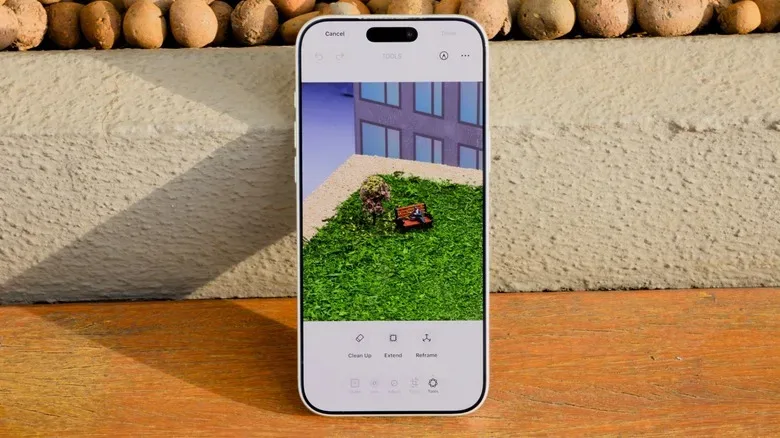
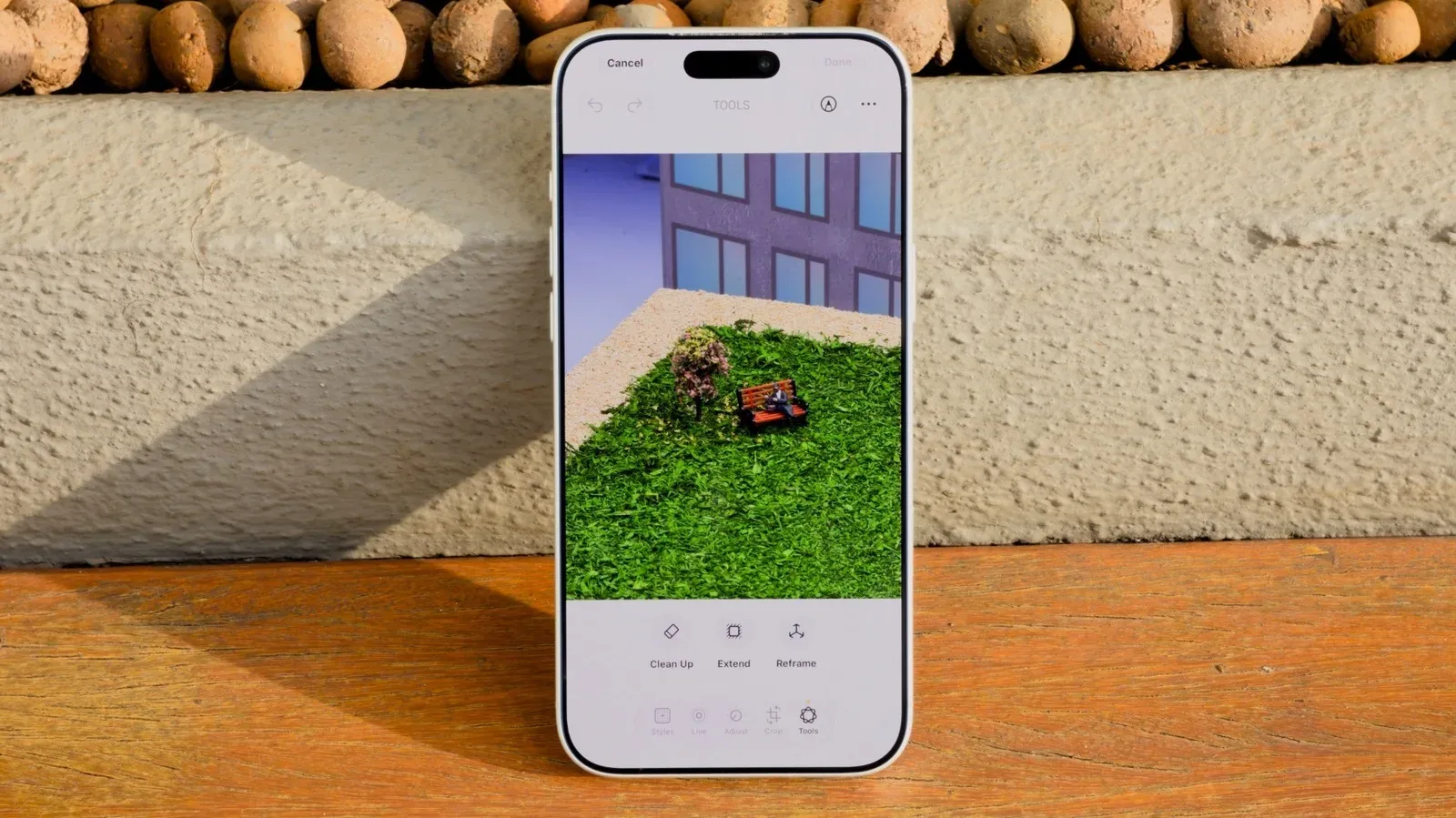
- Choose Tools.
- Select Clean Up.
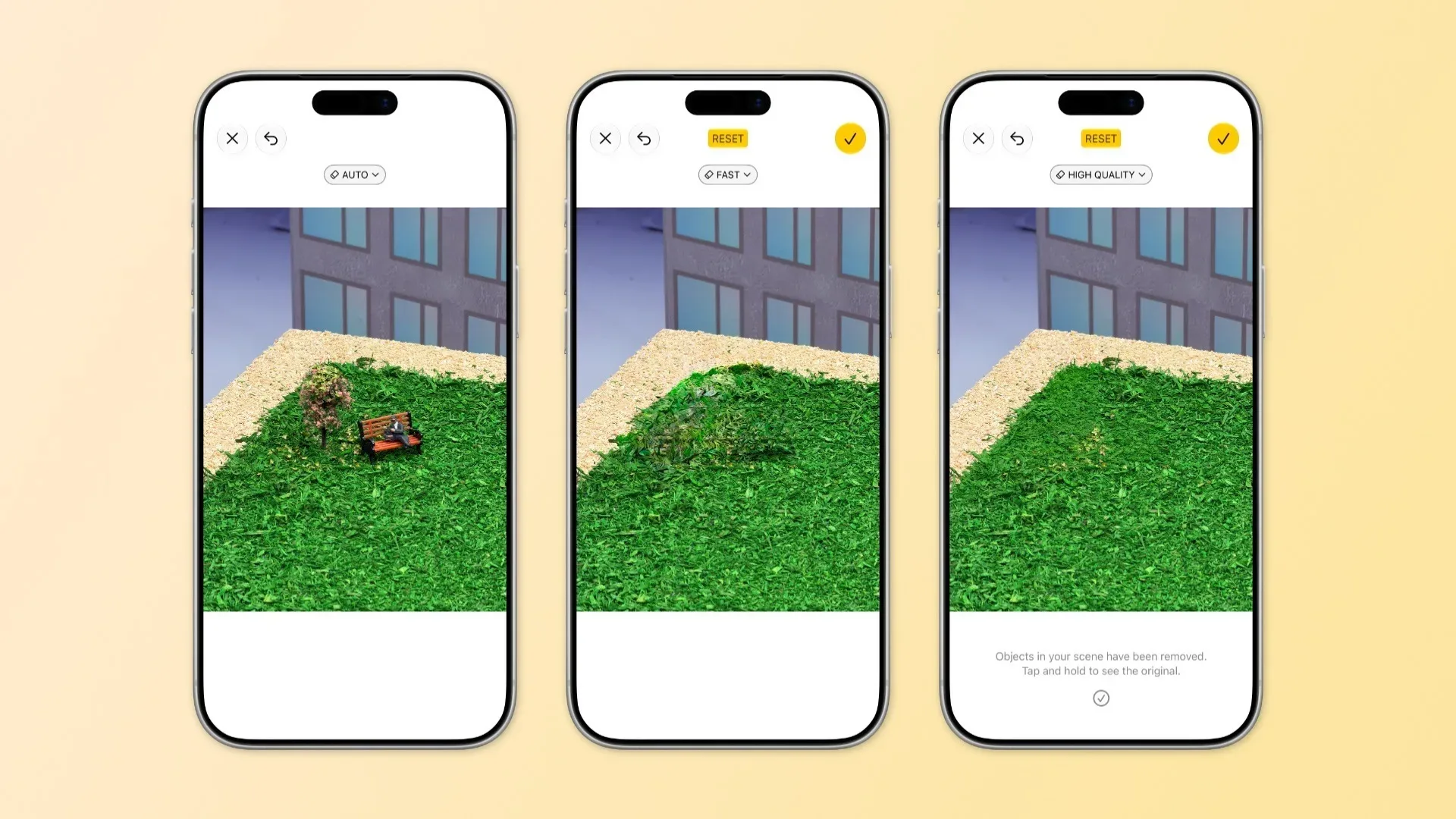
- Use the control at the top of the screen to choose Auto, Fast, or High Quality processing.
The default setting is Auto. In this mode, the iPhone decides which of the other processing approaches makes the most sense for the image’s apparent complexity. That is likely the sensible starting point for most edits, especially when the required fix is obvious and small.
Auto is convenient, but it is not necessarily the mode to trust blindly when the photo matters. If a first pass does not produce a convincing result, the extra modes exist for a reason. Treat the first output as a draft rather than an unquestionable final render.
Fast mode is for low-stakes visual cleanup
Fast uses a smaller AI model and is designed to complete edits more quickly. It is best suited to uncomplicated jobs where the missing background is easy to infer: removing a bin from a distant section of scenery, cleaning up utility wires, or erasing a minor object that interrupts an otherwise simple area.
In game terms, Fast is the quick-select tool, not the ultra setting. It is built for an efficient retouch rather than for reconstructing a difficult scene. It may be the better option when you are sorting through several vacation images and want to deal with a handful of background annoyances without waiting on a heavier process for each one.
The restriction is equally important: a faster model is not ideal for complex edits. Photos with overlapping people, fine textures, busy architecture, reflections, patterned clothing, or layered background elements create more room for the tool to make a bad guess. The resulting fill can look too smooth, repeated, warped, or otherwise suspicious when viewed closely.
For basic cleanup, that limitation is not a deal-breaker. A distant object against a broad stretch of grass or pavement is a very different challenge from a person blocking a face at a crowded event. Selecting the appropriate mode is part of the edit, not an optional advanced setting for people who enjoy menus.
High Quality aims at the hard stuff, with costs
High Quality is the option for images where the unwanted intrusion is more difficult to remove. A packed background behind a selfie is a clear example. Instead of a lone, isolated object, the tool may need to account for people, clothing, shadows, and whatever scenery should be visible beyond them.
This mode relies on more advanced AI processing intended to better understand an image’s context. That extra work can improve the chance that a removal feels coherent rather than pasted over with a vague digital fog. But it has costs: High Quality can take longer and use more battery power than Fast.
That does not mean High Quality is a cheat code that guarantees a pristine result. Generative image editing can still misunderstand an object or invent an implausible replacement. A complex scene may simply contain too little useful visual information for any tool to restore what the camera never captured. If the person you are removing obscures the central landmark, a friend’s face, or an intricate sign, the iPhone has to extrapolate rather than recover hidden pixels.
The practical rule is uncomplicated: use High Quality when the photo has real value and Fast does not cover the job. Then inspect the picture at normal size and zoom in around the altered area. If the repaired patch looks odd, retaining the original is better than preserving an AI-generated artifact that becomes more obvious every time someone sees it.
Circle the object rather than relying on automatic detection
Clean Up can attempt to identify objects it assumes you may want gone. That sounds handy, and sometimes it will be. But automatic recognition is not consistently accurate. The safer approach is to manually circle the exact object or area you want to remove.
Manual selection gives the tool a more direct instruction and gives you more control over the scope of the alteration. It also reduces the odds that Clean Up treats an important part of the photo as disposable scenery. The more specific the selection, the easier it is to evaluate whether the app has changed only what you intended.
That precision is especially useful in collectible photography, where a tiny detail can matter. A reflection, label edge, autograph, card border, serial marking, or surface imperfection should not be casually “cleaned” away if the image is meant to document an item honestly. AI retouching can be fun for personal photos, but it should not be used to misrepresent an object’s condition or authenticity. The same broader caution follows the larger conversation around AI tools, including the questions raised in AI, proof, and accountability.
Extend can give a cramped shot more breathing room
iOS 27’s Extend tool tackles a different problem. Rather than removing an object already within the frame, Extend expands the visible image area around the original shot. It is meant for photos that feel too tightly cropped, such as a selfie taken too close to the face.
The idea is simple: zoom out using a pinch gesture, and the system generates additional scene information beyond the original boundaries. It uses the contents already present in the photo as context for what might reasonably continue outside it.
This can be useful when the composition is almost right but lacks breathing room. A little added background may make a portrait feel less cramped or provide a better crop for sharing. Still, the result is generated content. It is not newly uncovered camera data, and it should be understood as an interpretive expansion of the picture.
Users should also expect a delay while the image is processed. That wait is normal, particularly when the tool has more visual territory to create. There is no stated promise that every expanded scene will look seamless, so it is worth checking edges, backgrounds, repeating patterns, and environmental details before deciding the new version is a keeper.
Reframe is the riskiest iOS 27 photo experiment
Reframe goes further than Extend. It is designed to alter the apparent perspective and angle of the original photo. One proposed use is adjusting a portrait in which the subject was not looking toward the camera, potentially changing that presentation without taking another image.
It is also the feature with the biggest warning label. Results can be inconsistent. Some images may look natural, while others can reveal the unmistakable weirdness of an AI system attempting to solve a visual puzzle with incomplete information. The tool may hallucinate objects or even people that were not in the original scene.
That makes Reframe a tool for experimentation, rescue attempts, and low-stakes alternatives—not reliable historical documentation. It may be worthwhile when you already dislike the original and would otherwise leave it unused. But a generated correction is not automatically an improvement just because it is technically impressive.
For photos that matter most, better capture habits remain more dependable than aggressive post-processing. Check framing before taking the shot, take a few variations when possible, and keep the unedited original. iOS 27’s new Photos tools can help sweep away the occasional photobomber or expand an overly tight image, but they cannot guarantee a truthful reconstruction of a moment that the camera missed.